Spendflo's Supplier Portal is designed to centralize and simplify how you manage relationships, track purchase orders, view requests, and collaborate on security reviews with your suppliers. By integrating these capabilities into a single view, IT, legal, infosec, and finance teams can easily evaluate vendor risk and ensure compliance with organizational security policies. To learn more about why security reviews are essential,
What is the Supplier Portal?
The Supplier Portal provides a centralized hub to manage and collaborate with your suppliers. It brings together all relevant procurement, financial, and compliance information in one place, allowing you to easily track the lifecycle of each supplier relationship.
Within the portal, you can access several key tabs:
- Overview: View general supplier details and metadata.
- Requests: Track all ongoing and historical procurement requests associated with the supplier.
- Purchase Order: Review all purchase orders created for this supplier to maintain financial oversight.
- Assessments: Manage security and risk evaluations, launch new questionnaires, and track vendor responses.
How to launch assessments from the portal
To initiate a security or risk review for a supplier, follow these steps:
Navigate to the Suppliers page from the left navigation menu to view all registered suppliers.
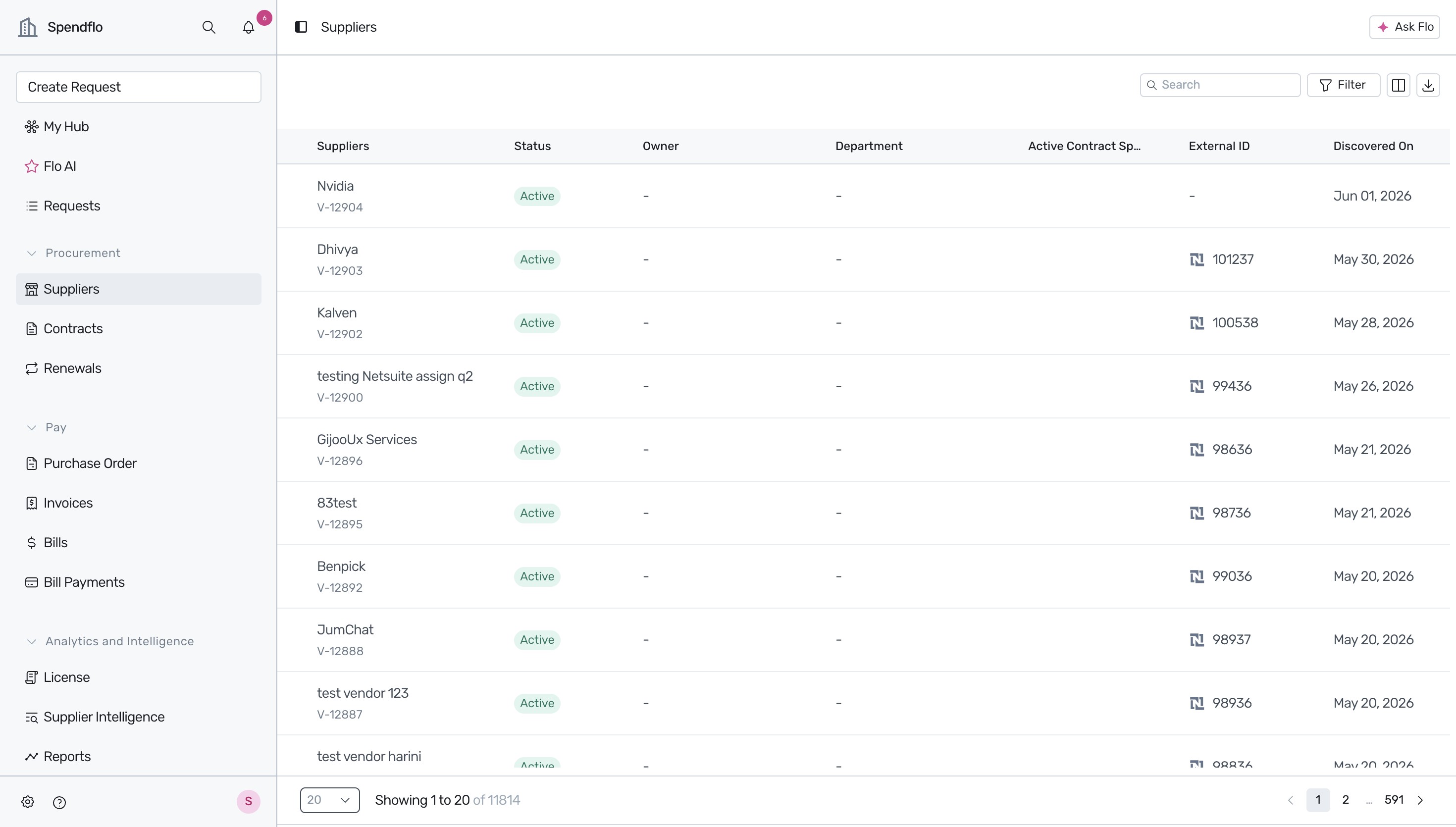
Select a supplier from the list (e.g., JumChat) to access their detailed profile and overview page.
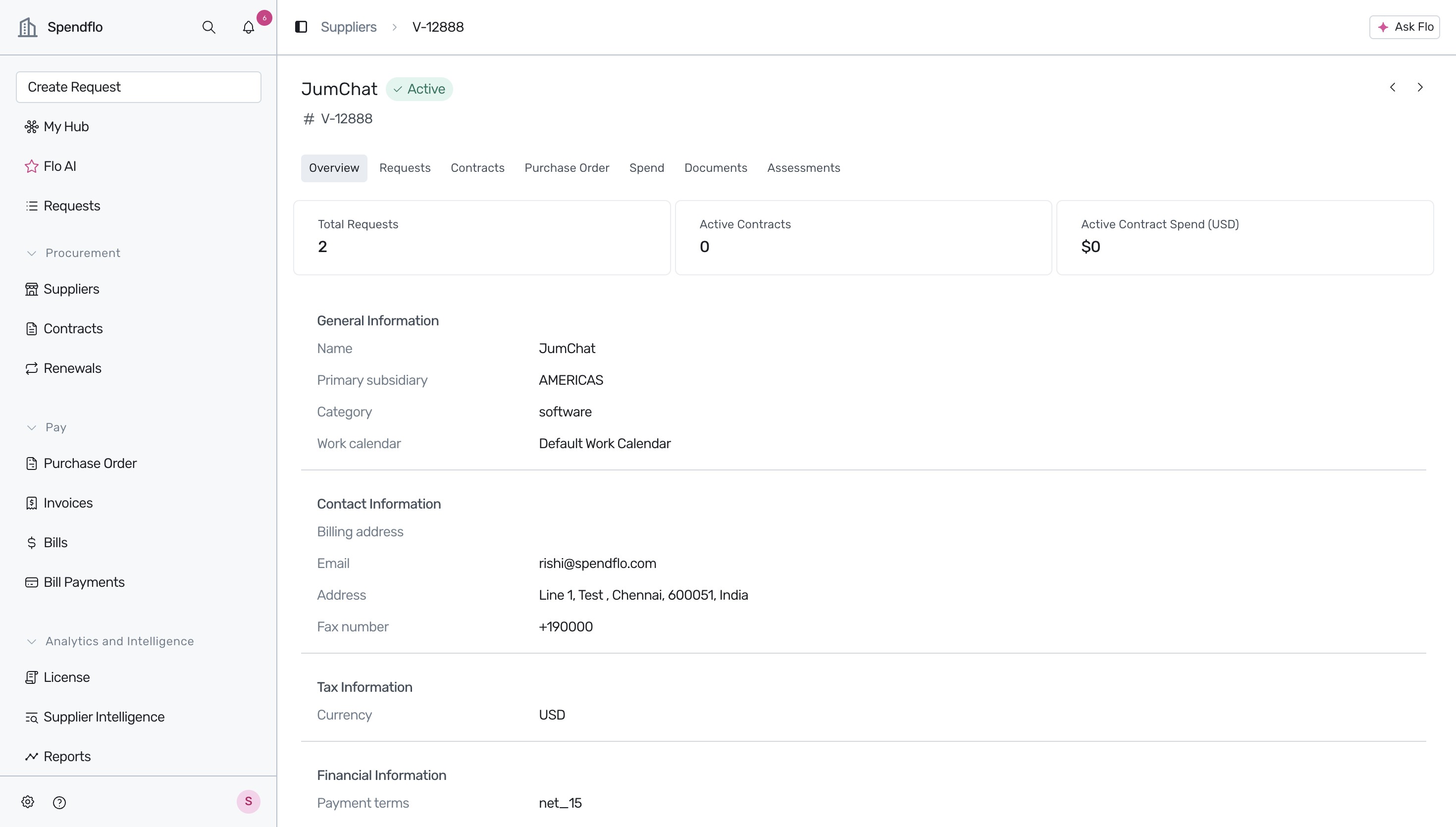
Click on the Requests tab to view all historical and active requests associated with the selected supplier.
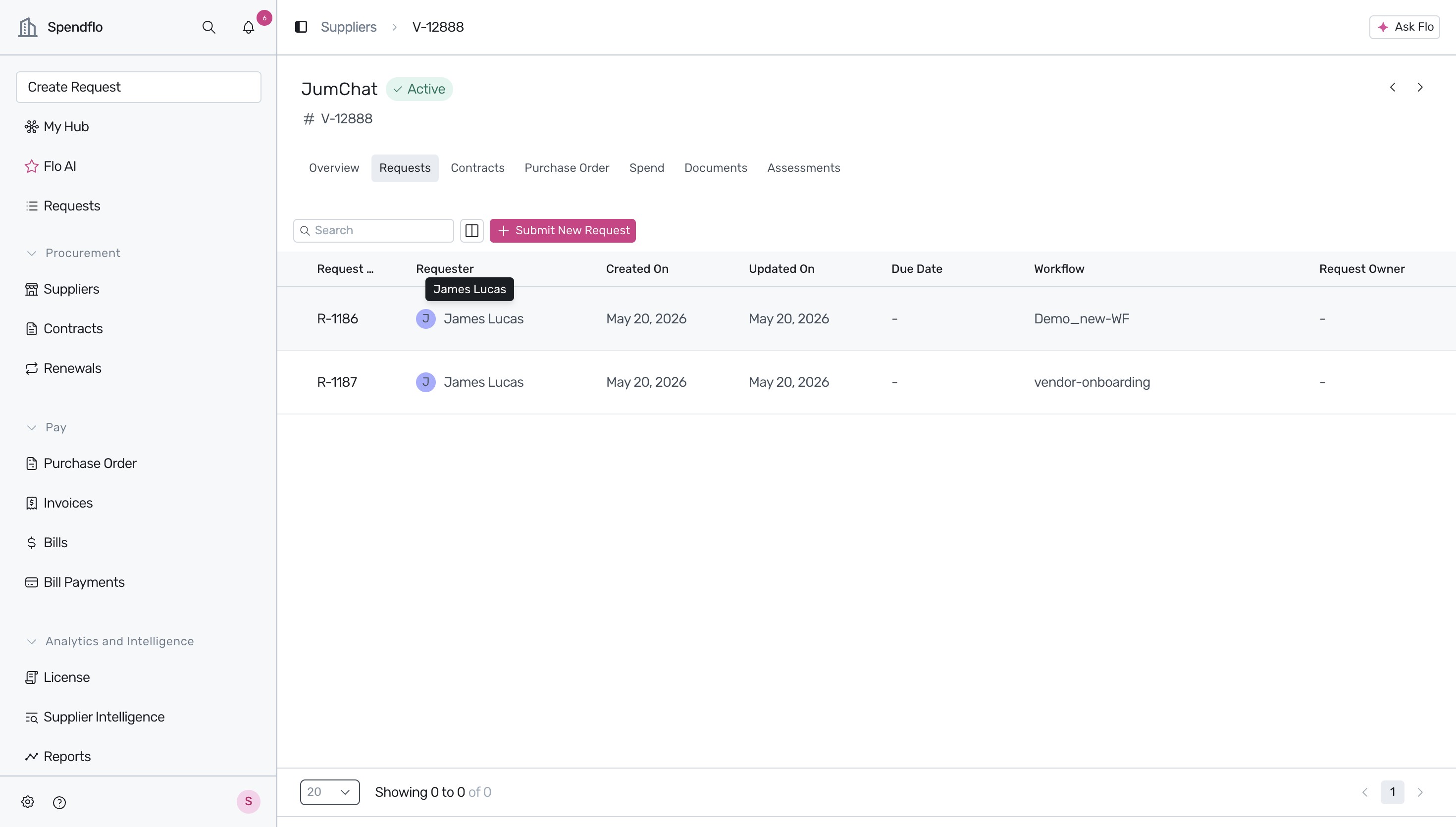
Switch to the Purchase Order tab to review the purchase orders created for this supplier.
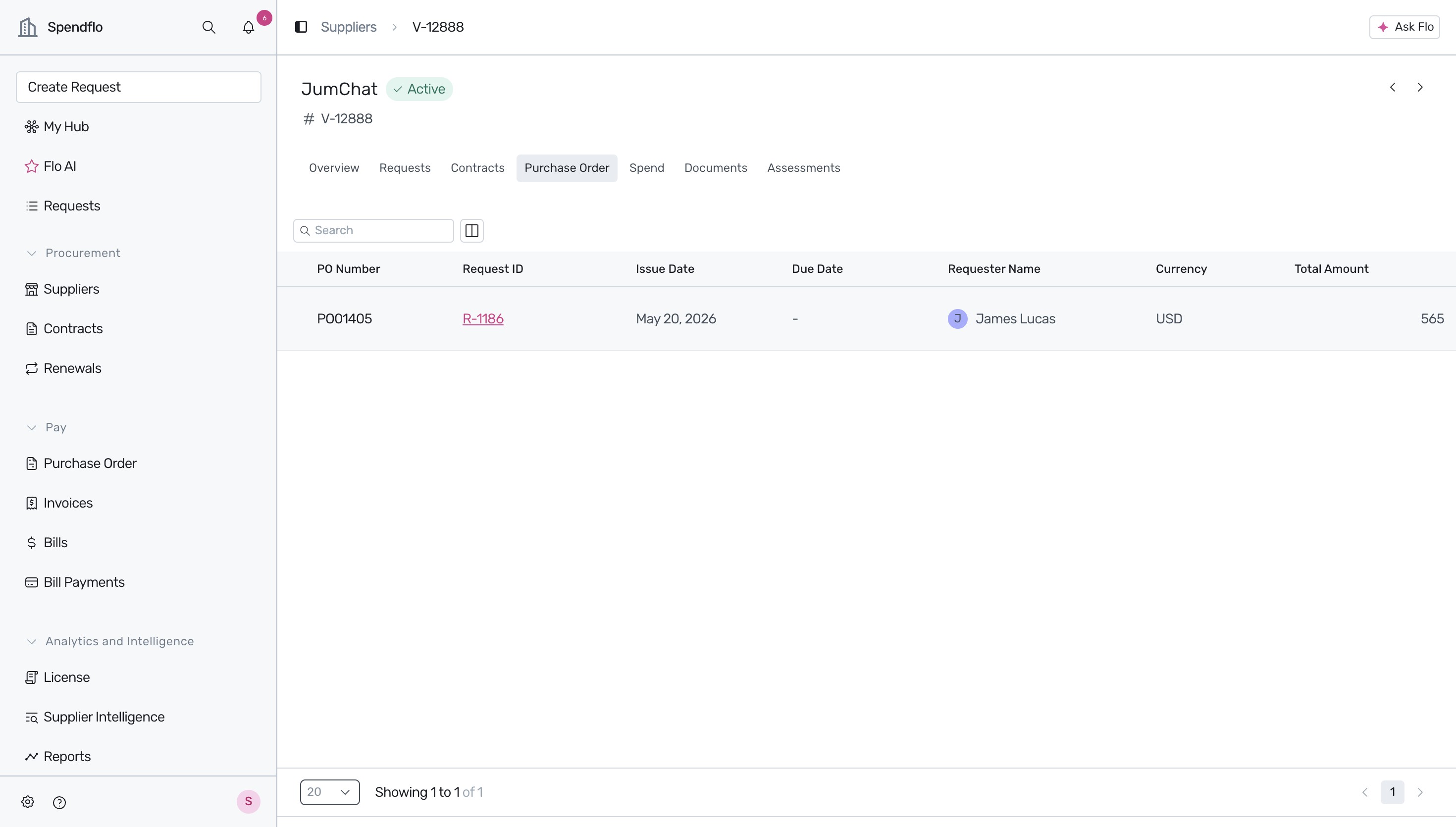
Navigate to the Assessments tab to see the list of security and risk questionnaires launched for this supplier.
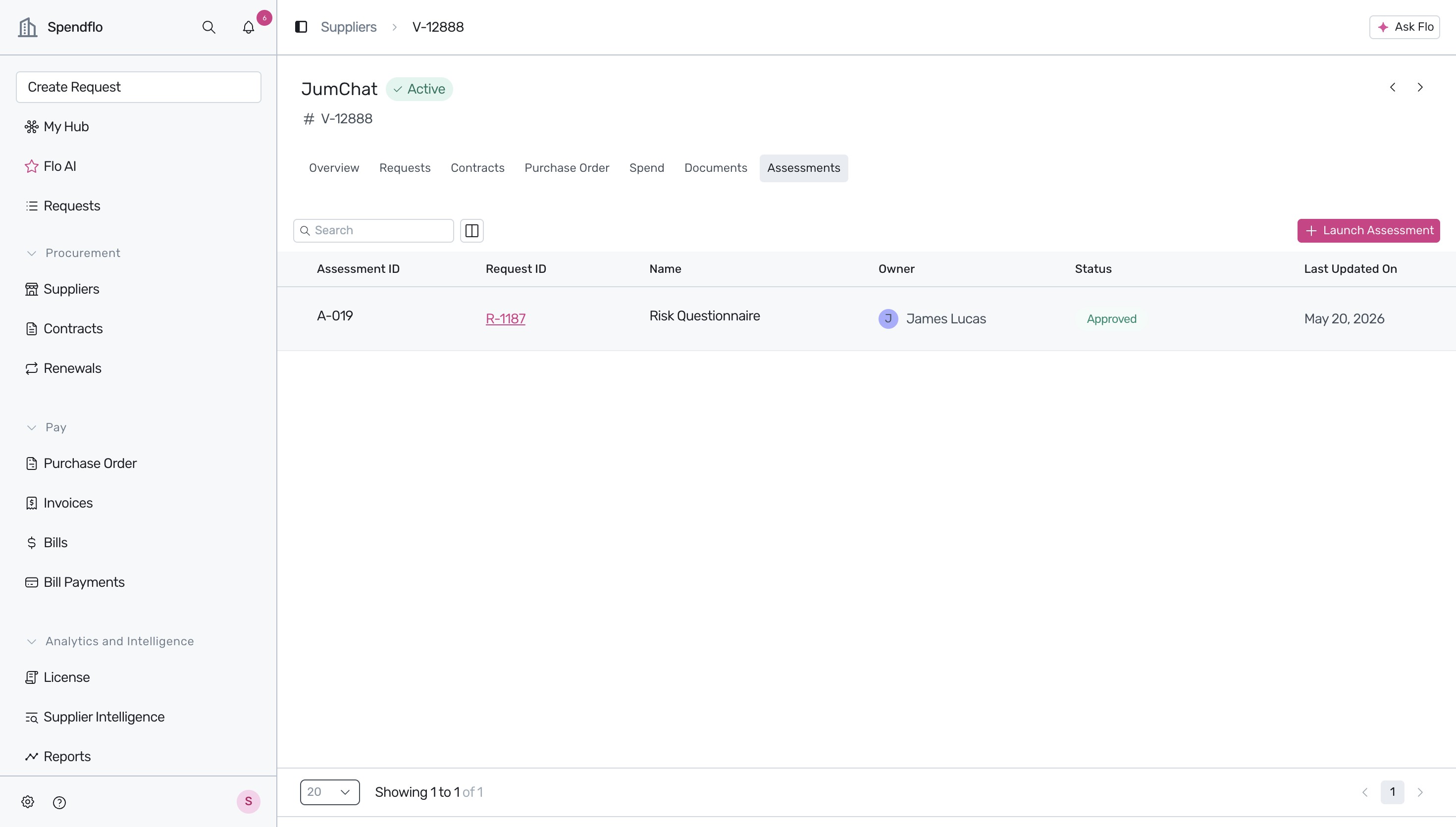
Click on the + Launch Assessment button to open the assessment configuration modal, and select the desired questionnaire template, such as the Vendor Security Questionnaire.
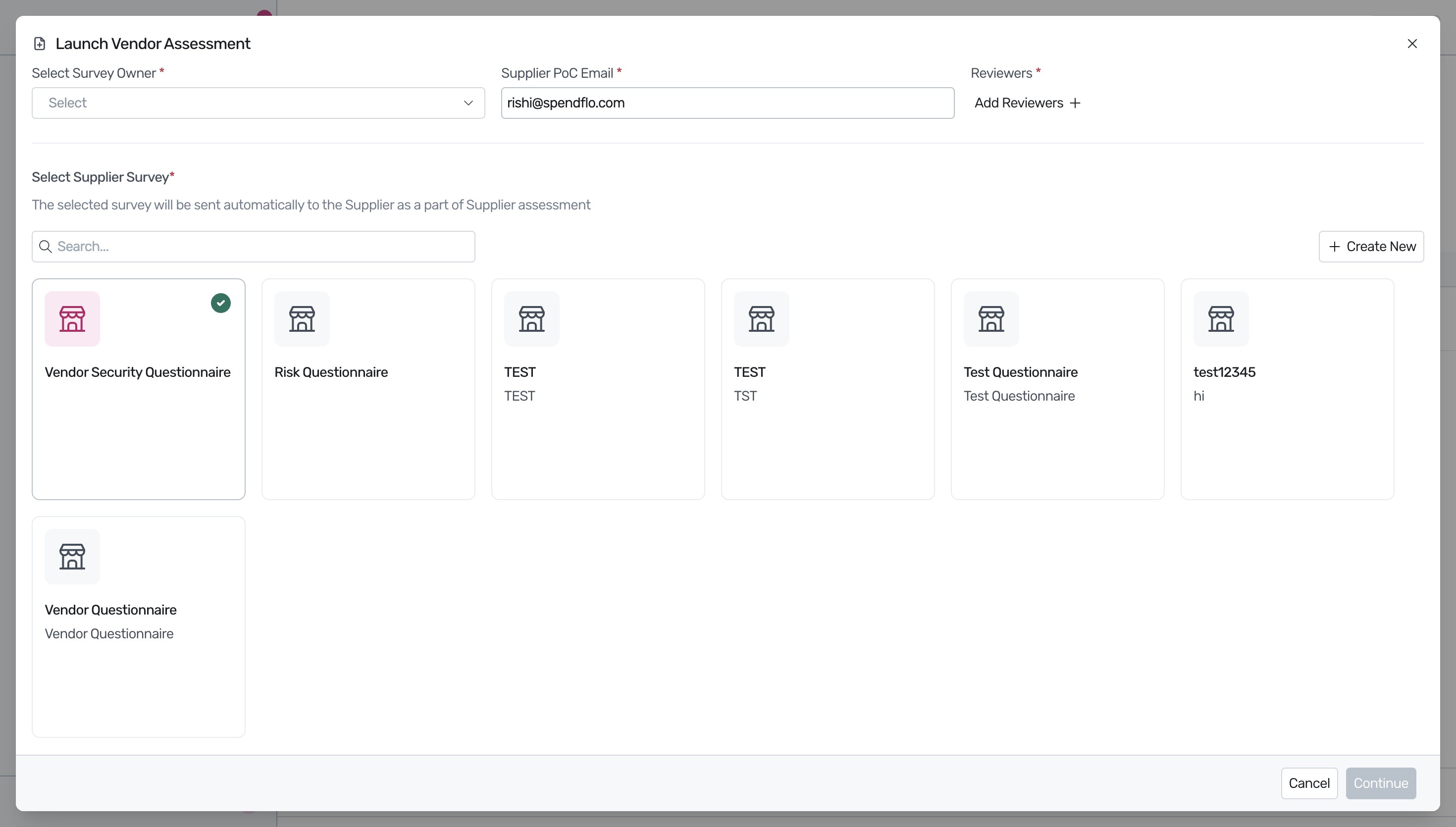
Configure the assessment by selecting a Survey Owner (e.g., Sam Smith), verifying the Supplier PoC Email, and adding any required Reviewers (e.g., Demo Spendflo).
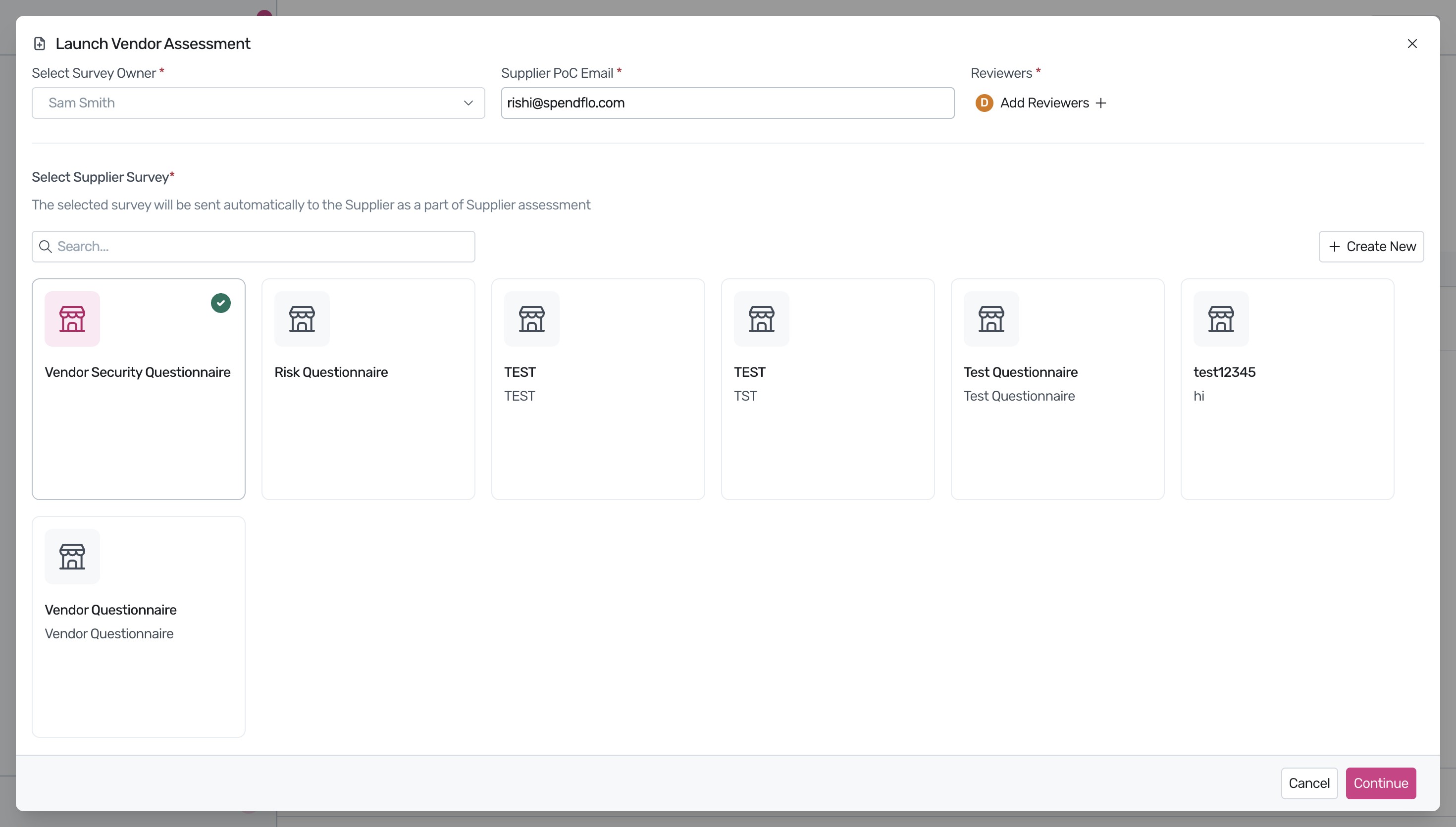
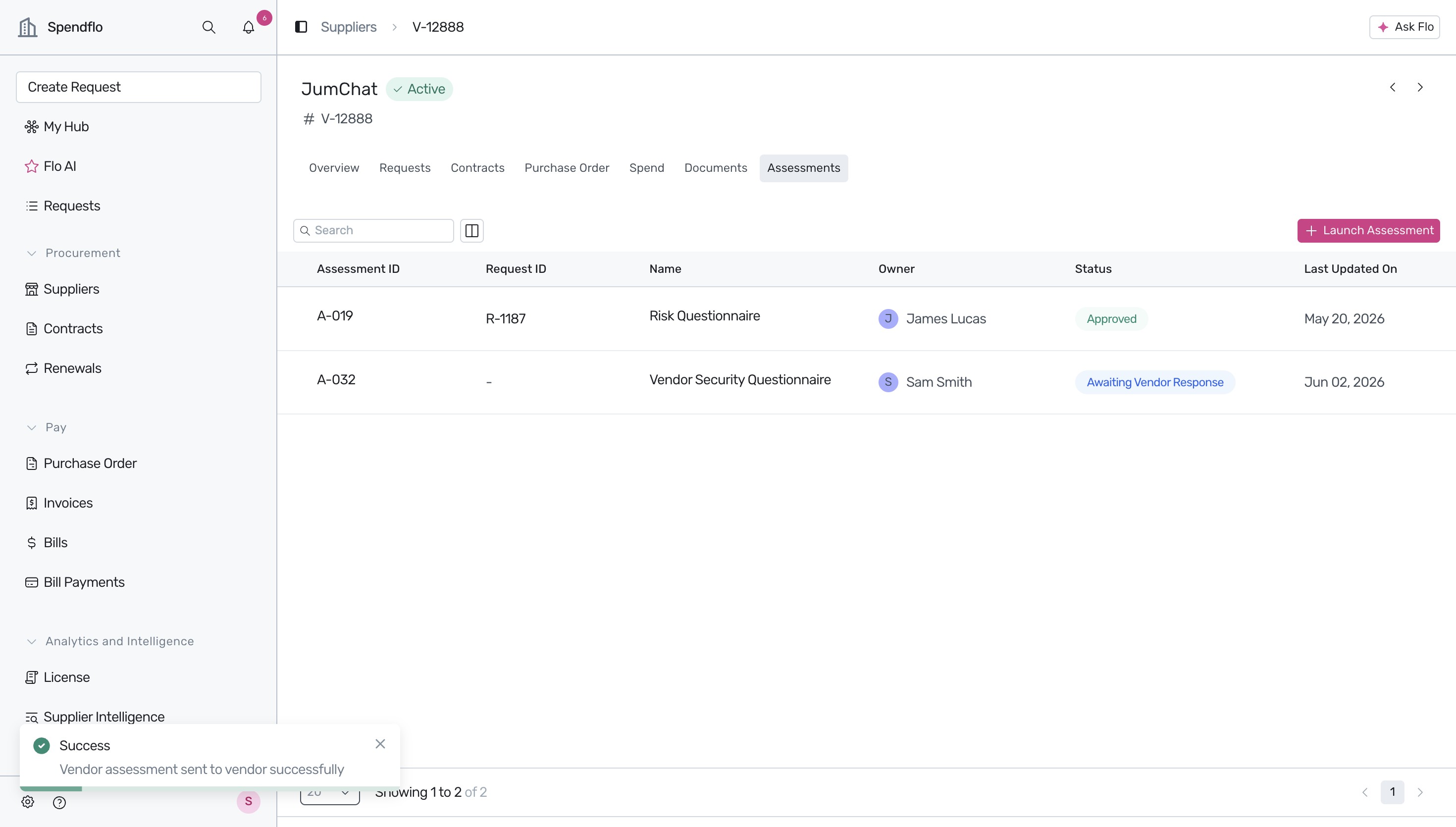
Click the Continue button to send the assessment. A success notification will appear, and the newly launched assessment will be listed on the Assessments table with the status set to Awaiting Vendor Response.
Next Steps
Now that you have successfully launched an assessment, you can manage the review process as the vendor responds. For a detailed walkthrough of managing the review, inviting additional collaborators, or concluding the review.
Was this article helpful?
That’s Great!
Thank you for your feedback
Sorry! We couldn't be helpful
Thank you for your feedback
Feedback sent
We appreciate your effort and will try to fix the article