The Super Admin role in Spendflo provides high-level administrative capabilities to manage platform-wide settings, configure organizations, and control feature flags. This role is distinct from standard administrator roles, offering exclusive access to system-level configurations that shape the experience for all users across your organization.
Accessing Super-admin Settings
To access these platform-level configurations, you must navigate to the settings area of the platform.
Click the Settings gear icon located in the sidebar menu.
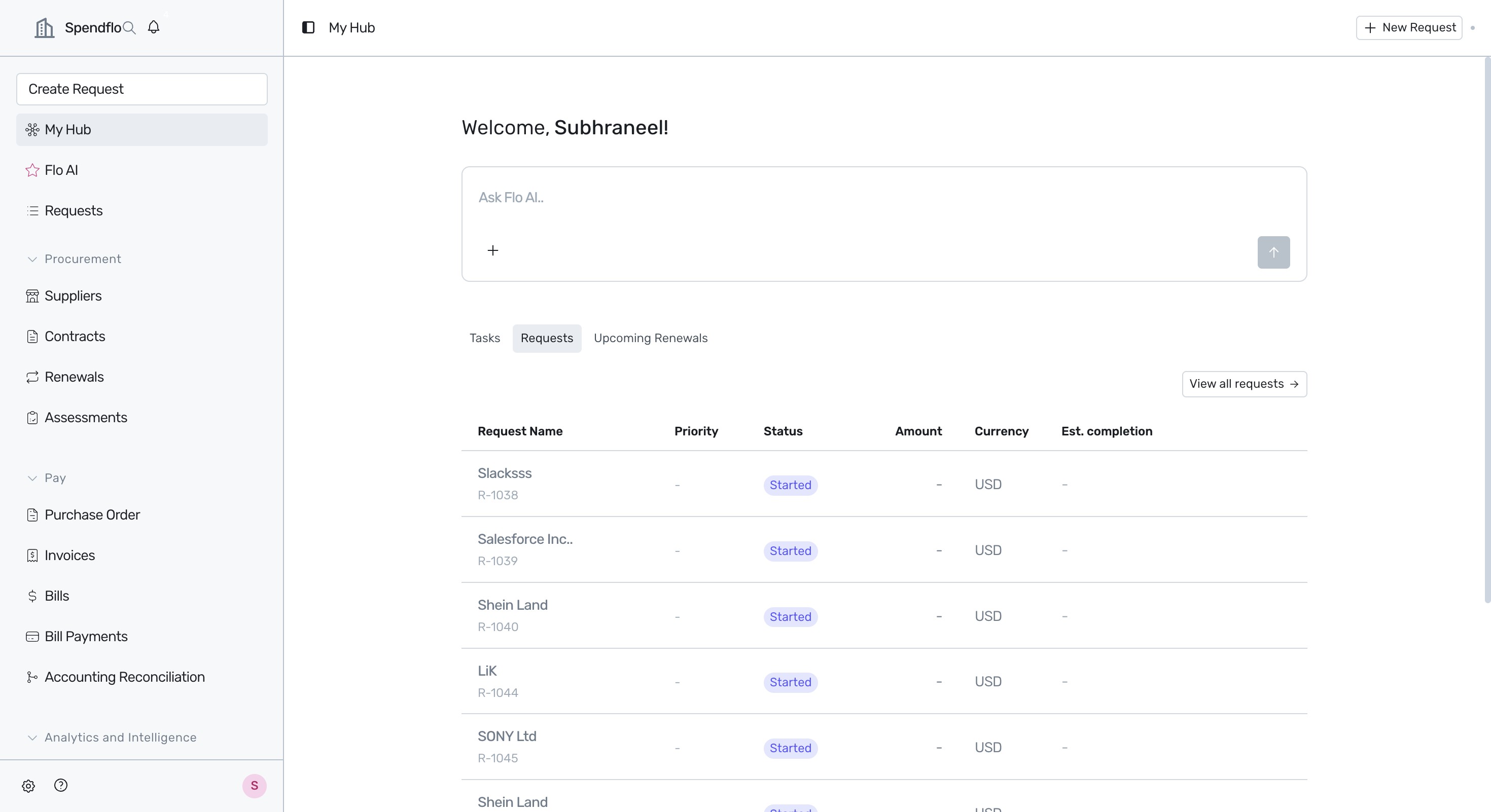
- In the Settings panel, select Super-admin Settings from the sidebar menu to manage organization details and feature flags.
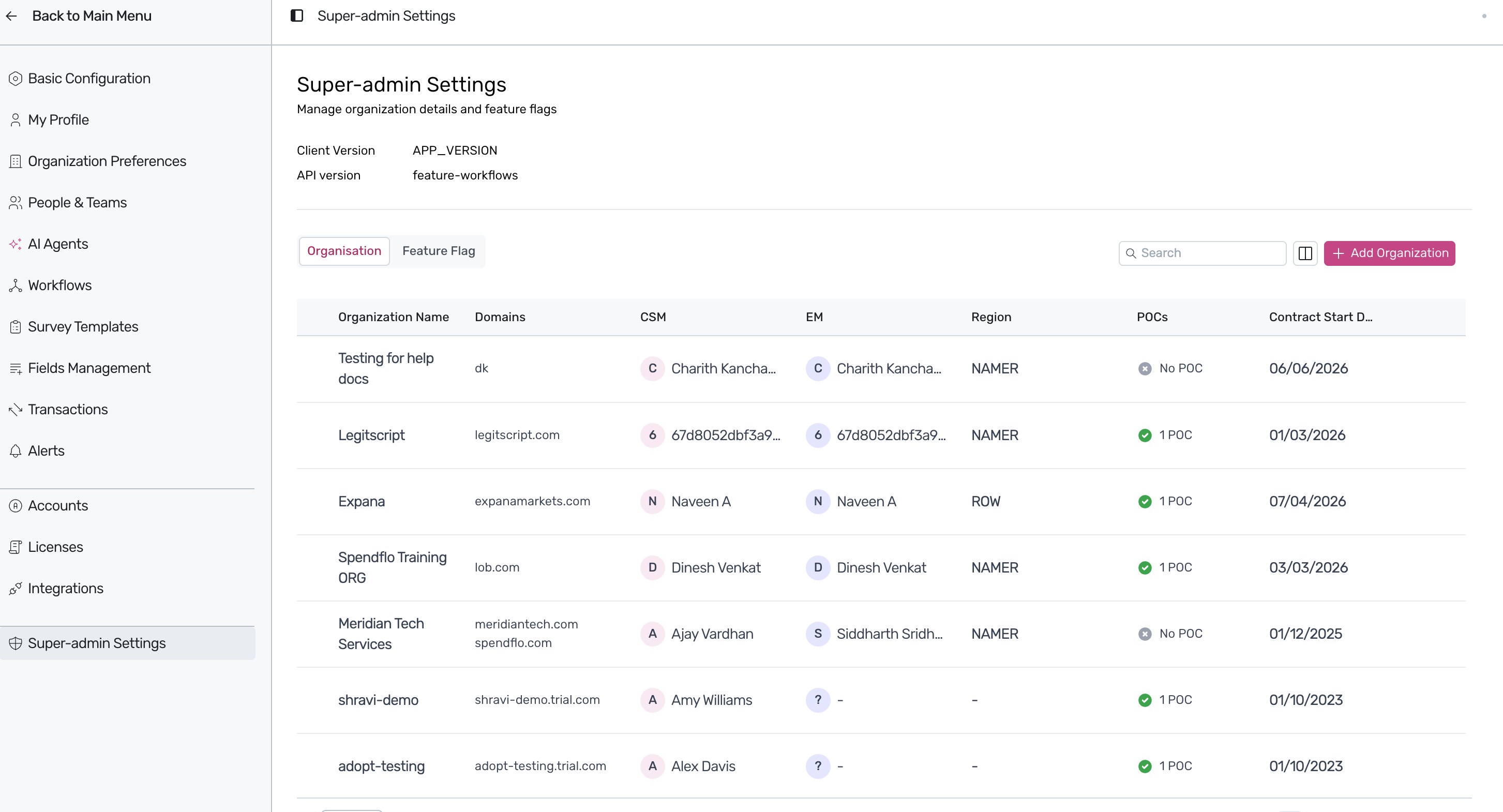
Managing Organizations
Super Admins can create and manage distinct organizations within the platform. This setup is crucial for defining boundaries, domains, and regional settings for different business entities.
To add an organization, follow these steps:
- Under the Organisation tab, click the + Add Organization button.
- In the Add Organization modal, fill in the required details:
- Organization Name: Enter the name of the organization.
- Domains: Enter the associated domains.
- Timezone: Click the dropdown, search, and select the appropriate timezone.
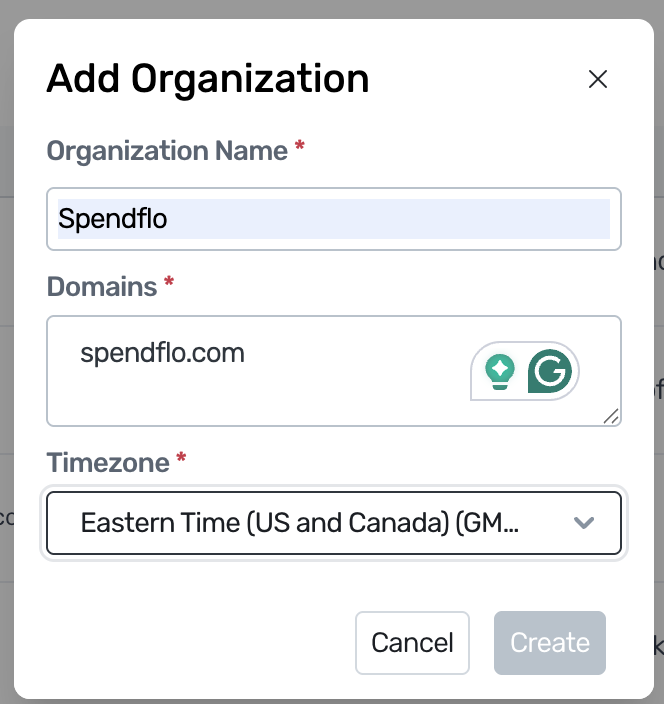
2. Click the Create button to save the organization, or click the Close (X) button to cancel.
Managing Feature Flags
Feature flags allow Super Admins to enable or disable specific platform features for different organizations, facilitating controlled rollouts and custom configurations.
To manage feature flags, toggle to the Feature Flag tab located next to the Organisation tab.
Next Steps
After configuring the Super Admin settings, you can explore how these settings interact with other roles and user management workflows. For more details, see the following resources:
- See the Roles and Permissions guide to understand how other roles compare to the Super Admin.
- See How to Edit User Roles (Admin Guide) to learn how to assign and update user roles within your organization.
- See Inviting Spendflo users to add team members to your organization.
Was this article helpful?
That’s Great!
Thank you for your feedback
Sorry! We couldn't be helpful
Thank you for your feedback
Feedback sent
We appreciate your effort and will try to fix the article