Overview
Welcome to Spendflo. This guide walks you from the moment you receive your invite email through getting fully set up and oriented in the platform — your profile, your home page, the left navigation, search, notifications, and where to ask for help.
Spendflo is your company's procurement intelligence platform. Depending on the role your admin has assigned to you, you'll use it to raise requests, review vendors and agreements, approve spend, manage invoices and payments, run reports, or — for admins — configure the entire system. This doc focuses on the universal experience that every user lands on regardless of role.
Who is this for?
Every new Spendflo user — whether you're an admin standing up your company's workspace, a finance lead invited to review bills, a procurement operator working requests end-to-end, or an end user who'll occasionally raise a request for new software.
If this is your first time logging into Spendflo, start here. If you've used Spendflo before but are exploring a part of the platform you haven't touched, the navigation tour in this doc still applies — most surfaces sit exactly where you'd expect them to.
Key Concepts & Terminology
Invite Email The email your admin sends to bring you onto Spendflo. Contains a one-time link that's valid for the configured expiry window (typically 7–14 days, set per organization).
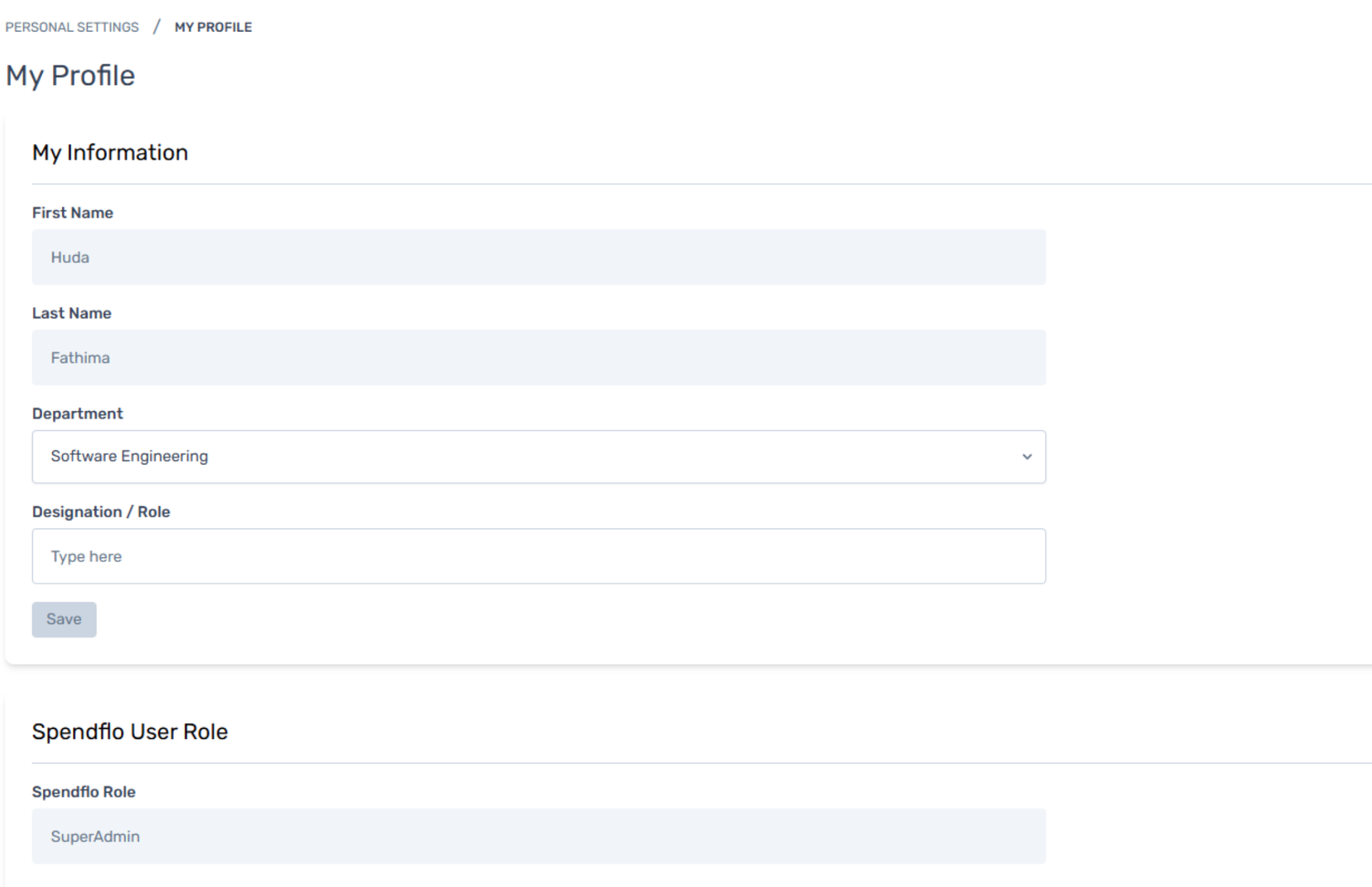
Profile Your account record. Anchored to a unique internal Spendflo ID — so your data, comments, approvals, and history persist even if you change email or name. Profile fields: First Name, Last Name, Email(s), Title, Role, Department, Subsidiary, Manager, Employment Type.
Role What you can see and do in Spendflo. Assigned by your admin from a list of pre-defined roles (Administrator, CFO, Finance Manager, Procurement Manager, Department Owner, Legal, IT, etc.) or a custom role your company has built. Every user has exactly one role at any time. See the Roles in Spendflo doc.
Permission Groups Optional add-ons on top of your role for granular feature access. Additive — granting access never removes it. See the Roles in Spendflo doc.
Data Access Scope The slice of records you can see — Own / Department / Subsidiary / All. Determined by your role; can be customized per user.
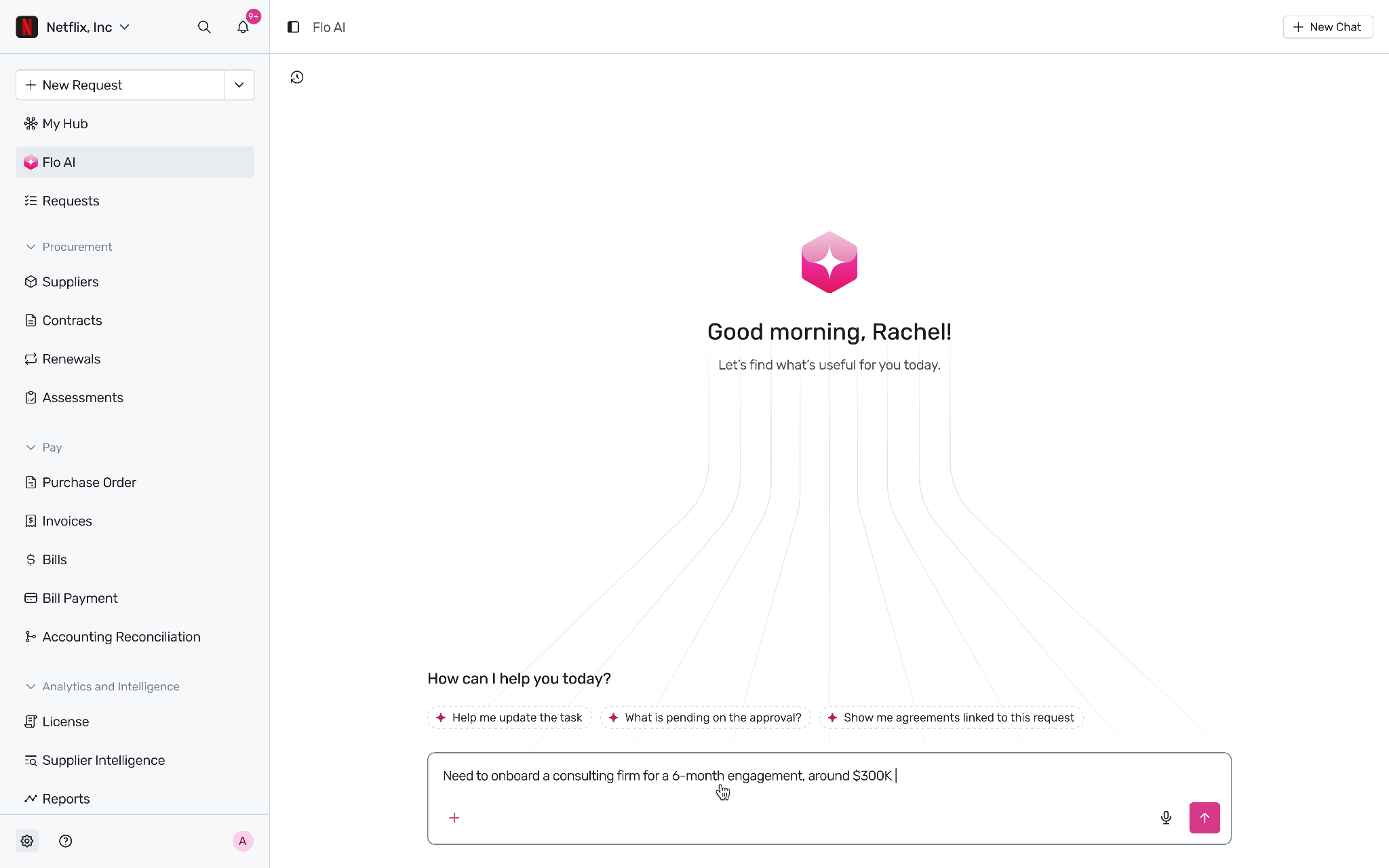
Home Page The conversational landing page you arrive on after every login. Powered by Flo AI. Has a chat bar plus three working tabs: My Tasks, My Requests, Upcoming Renewals.
Flo AI Spendflo's built-in AI assistant. Available everywhere — from the Home Page, from the chat bar at the top of every page, and via custom agents in your workspace. Use it to find things, take actions, surface and triage open work, and run analyses without navigating manually.
Left Navigation The persistent sidebar on every page. Groups the platform's modules by function (Procurement, Pay, Insights) so you can jump between Vendors, Agreements, Renewals, Invoices, Bills, Reports, etc., in one click.
Settings Personal preferences (notifications, language, password) and — for admins — workspace configuration (Users, Roles, Integrations, Fields, Workflows, AI Configuration).
Feature Areas
1. Accepting Your Invite
What is it?
The first step is accepting the invite that opens your Spendflo account. Until you accept, your user record sits in Invited state — no login, no access.
Step-by-step
Open the invite email from your admin. Subject typically reads "You've been invited to Spendflo by [Admin Name]".
Click Accept Invite.
The link opens Spendflo in your browser. If your organization uses SSO (Google Workspace, Microsoft 365, Okta), you'll be redirected to sign in there and bounced back automatically.
If your organization uses email + password, set a password on the prompt. Spendflo enforces a minimum length and complexity per the configured org policy.
Confirm your profile details — First Name, Last Name, and Title. Your admin pre-fills role, department, and subsidiary; those fields are not editable by you.
Click Continue. You land on the Home Page.
What to do if your invite has expired
If the link says "This invite has expired," it means the expiry window your admin configured has elapsed. Ask your admin to resend — they'll click Resend Invite on your user record and you'll receive a fresh email. The old link becomes invalid immediately.
2. Your Profile
What is it?
Your Spendflo profile is your identity in the platform. It travels with you across requests, agreements, comments, approvals, and audit logs.
How to open it
Click your avatar in the top-right corner of any Spendflo page → My Profile.
What's editable by you
What's controlled by your admin
Click Save when you're done. Changes apply immediately.
Multiple email addresses
If your organization is going through an acquisition, a rebrand, or you simply have multiple work emails, your admin can add additional emails to your profile. You can log in with any active email. One email is always designated as Primary — that's the one Spendflo uses for notifications.
? Admin Only — Email management lives under Settings → Users → [User] → Email Addresses. Inactive emails are never deleted, so audit history is preserved.
3. The Home Page (Powered by Flo AI)
What is it?
The Home Page is your conversational landing pad. The top half is a chat with Flo AI; the bottom half is three tabs that surface the work you need to act on.
The chat (Flo AI conversational interface)
A single input bar with three useful shortcuts:
/ reference — type / to reference any record by name (a vendor, an agreement, a request, a PO). Flo AI brings the right context into the conversation.
Deep Research mode — toggle on for longer, multi-source analyses (e.g., "compare our last three Adobe renewals against market benchmarks").
Voice transcription — click the mic icon to dictate instead of typing.
Common things to ask Flo AI right from the Home Page:
"What requests am I assigned to this week?"
"Show me agreements expiring in the next 60 days."
"Find the Slack MSA."
"Summarize the open Datadog renewal."
See the How to surface and triage open requests with Flo AI doc for the full chat playbook.
Tab 1 — My Tasks
A live list of tasks waiting on you. Each row reads:
[Task Name] is pending for [Vendor Name] Due by [Due Date] — Overdue if past
Click the task name or the View Details link to jump to the underlying request. Empty state if you have nothing on your plate.
Tab 2 — My Requests
Status of every request you've raised that's still open. Each row shows:
Vendor
Procurement progress (visual bar across the request's phases)
Current task
Days in current task
Workflow (which template the request is running on)
Due with (the team or person it's currently waiting on)
Click any row to open the full Request Detail page.
Tab 3 — Upcoming Renewals
Agreements where you are the Agreement Owner that are coming up for renewal. Long-term contracts only, sorted by due date. Each row shows:
Vendor name
Overdue indicator
Days until renewal (from the contract end date)
Total contract cost
Contract owner
Auto-renewal flag
Click the vendor name to open the underlying Agreement.
Comments Feed (top nav bar)
Independent of the three tabs. Lives as an icon in the top navigation. Shows comments where you were @mentioned, comments on requests you own or follow, and comments on agreements you own — all from the last 30 days.
Two sections:
Requests — "New comment received on request for Adobe — Security Review" / "[User] commented on request for Slack — Final Approval"
Agreements — "New comment received on contract for Salesforce"
Click any comment to open the underlying record at the right thread.
4. Left Navigation
What is it?
Your persistent sidebar — the way you reach every module of Spendflo without going through Flo AI.
What you'll see
What you actually see in the sidebar depends on your role and permissions. Modules you can't access don't show up. For example, a Procurement Executive may not see Bills / Bill Payment / Bill Payments. A Legal user may only see Vendors, Agreements, Renewals, and Reports. See the Roles in Spendflo doc.
Collapsing the sidebar
Click the collapse icon at the bottom-left to switch to an icon-only view. Hover any icon to see the label as a tooltip. Click expand to bring labels back. Your preference is remembered per browser.
Top of the nav — workspace switcher
Just under your company logo, the workspace dropdown lets you switch between workspaces if you're a member of more than one (e.g., a parent + subsidiary). Most users will only ever see one.
5. Search & Notifications
Global Search (⌘K / Ctrl+K)
Press ⌘K (Mac) or Ctrl+K (Windows) anywhere in Spendflo to open the global search bar.
? [Screenshot: Global search bar overlaid on a page with results grouped by Vendors / Agreements / Requests / People]
What it searches:
Vendors (by name)
Agreements (by name or ID)
Requests (by ID or name)
Purchase Orders (by PO number)
Invoices (by invoice number)
Bills (by Bill ID)
People (by name or email)
Results group by record type. Click any result to jump straight to it. Recent searches are remembered so common lookups stay one keystroke away.
Notifications
Two delivery surfaces:
In-app — bell icon in the top-right opens a panel with unread notifications.
Email — sent to your primary email.
What triggers a notification:
A task is assigned to you
A task you own is nearing or past SLA
An approval decision is made on a request you raised or own
Someone @mentions you in a comment
A request you own moves phase
A renewal you own is approaching its deadline
An admin action affects your account (role change, password reset)
Tuning notifications
Open your Profile → Notification Preferences. For each notification type, choose:
In-app only — silent for email
Email only — no in-app badge
Both (default)
Daily digest — bundle everything into one email per day
Off — mute entirely (use sparingly)
Save when done. Changes apply immediately to all future notifications.
6. Asking for Help
In-product
Click Help & Support at the bottom of the left navigation. You'll find:
Help Center — searchable library of this and every other help doc.
Contact Support — opens a chat or email channel with Spendflo's support team. Response SLA depends on your plan.
What's New — release notes and changelogs.
System Status — current operational status of the Spendflo platform and connected integrations.
Ask Flo AI
Flo AI also answers product questions. Try "How do I add a vendor?" or "What's the difference between an invoice and a bill?" — Flo AI surfaces relevant help docs and walks you through the steps.
Your admin
For account-specific issues (a missing module, the wrong role, a permission you need), your admin is the fastest path. Spendflo doesn't grant or change your access — your admin does.
7. Profile & Workspace Preferences
Personal preferences (everyone)
Available under Settings → My Preferences:
Time zone
Language (English in V1)
Date format
Default landing page on login (Home Page / Requests / Custom)
Email signature for outbound comms from Spendflo on your behalf
Workspace settings (admins only)
? Admin Only — Available under Settings → Organization Settings. Includes Users, Roles, Permission Groups, Departments, Subsidiaries, Integrations, Fields, Workflows, AI Configuration, Notification Defaults, Security & SSO.
End users have no need to visit these pages, and won't see them in their left nav.
8. Signing Out
Click your avatar in the top-right → Sign Out. You'll return to the login screen.
For shared computers, also consider using Sign Out of All Sessions — available under Settings → Security — which forcibly invalidates your active sessions on every device.
Auto sign-out
Spendflo signs you out automatically after a period of inactivity. The window is configured by your admin (default 24 hours; can be shortened for higher-security workspaces).
FAQs
Q: I never got my invite email.
Check spam / junk folders first. If still missing, ask your admin to confirm the email address on your user record is correct (typos are common) and to click Resend Invite. The new email invalidates the old link.
Q: I'm in two Spendflo workspaces (one for our parent company, one for a subsidiary). How do I switch?
Use the workspace dropdown just below the company logo at the top of the left nav. Switching workspaces keeps you signed in; it just changes the data scope.
Q: My role looks wrong — I can't see Bills, but my admin said I should.
Bills sit under the Pay section. If you can't see it, you don't have the View Bills permission. Ask your admin to update your role or grant the relevant permission group.
Q: Can I change my own email?
No — email changes are admin-controlled because they affect login and audit history. Ask your admin to add a new email on your profile or replace the primary.
Q: I changed my password and now I can't log in.
Use Forgot Password from the login screen. You'll receive a reset link. If your org uses SSO, password reset happens in your IdP (Okta, Google, Microsoft) — not in Spendflo.
Q: How do I update my profile picture?
Click your avatar in the top-right → My Profile → click the camera icon over the avatar → upload. JPG or PNG, max 2 MB.
Q: Can I customize the left navigation order?
No — the order is consistent across every user for training and support reasons. You can collapse the sidebar to icons-only.
Q: I'm an admin. How do I bring my team onto Spendflo?
Go to Settings → Users → + Add User. Fill in name, email, and pick a role (mandatory). Department and subsidiary are optional at invite. The invite email goes out as soon as you click Send. See the Roles in Spendflo doc for picking the right role.
Q: What happens if I'm part of a team that's being offboarded?
Your admin will reassign your owned items (requests, agreements, approvals) to a colleague with matching role and access, then mark your account as Deleted. Your historical data remains attributed to you ("[Name] (Deactivated)") in audit logs.
Q: I have a question that's not in this doc.
Try Flo AI first — it can answer most product questions in chat. Failing that, use Help & Support → Contact Support.
Troubleshooting
"The invite link says it's expired."
Ask your admin to resend the invite. Each resend invalidates the previous link.
"SSO redirect is failing."
Confirm with your IT team that your SSO provider (Okta / Google / Microsoft) has Spendflo provisioned for your account. If your org just rolled out SSO, you may need to be added to the Spendflo SSO app group.
"I can log in, but my Home Page is empty."
Confirm you have at least one of: an assigned task, a request you raised that's still open, or an agreement you own coming up for renewal. If you have none of those, the empty state is correct — try raising a request from Intake or ask Flo AI "What can I do here?".
"Flo AI says I don't have access to a record I expect to see."
Your data access scope may be narrower than the record you're querying. Ask your admin to check whether the scope on your role should be widened to Department or Subsidiary, or whether that specific record should be assigned to you.
"The left nav is missing modules I had yesterday."
Your role or permission groups changed. Ask your admin what was updated.
"Notifications aren't reaching me."
Check Profile → Notification Preferences — make sure the notification type isn't muted or set to "Off." If email is the problem, check your spam folder and confirm your primary email under My Profile is correct.
"I see a 'Locked' message when I try to log in."
Your account has been administratively locked. Contact your admin. (This is a manual action, often used during a security review or extended leave.)
"I'm getting auto-signed-out too aggressively."
The inactivity window is set at the workspace level by your admin. Ask them to confirm the configured timeout if you think it's too short.
Was this article helpful?
That’s Great!
Thank you for your feedback
Sorry! We couldn't be helpful
Thank you for your feedback
Feedback sent
We appreciate your effort and will try to fix the article