Overview
Spendflo integrates with Sage Intacct to give your organisation a complete view of its expenses. Once connected, Spendflo pulls transaction data from Sage Intacct to track and analyse spending - helping finance and procurement teams compare actual expenses against planned budgets and maintain accurate oversight of all outgoings.
Prerequisites
Before setting up the integration, make sure the following is in place:
You must be an Administrator in both Spendflo and Sage Intacct.
A Web Services user must be set up in Sage Intacct with the appropriate permissions for the integration to work.
Your Sage Intacct account must have Web Services access enabled.
Part 1:
Log into your Sage Intacct application.
If your Sage Intacct application is a multi-entity organization, ensure the Top Level entity is selected.
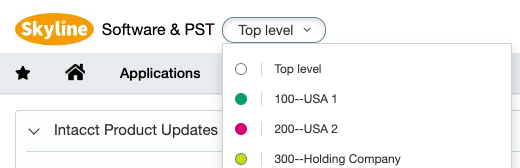
The Location that should be provided can vary depending on the setup of your Sage Intacct instance.
If your Sage Intacct application is NOT a multi-entity organization, populate the value in Spendflo with ALL.
If your Sage Intacct application IS a multi-entity organization, and you want to link the Top-level organization, populate the value in Spendflo with ALL.
If your Sage Intacct application IS a multi-entity organization, and you would like to link a specific entity, follow the steps below.
1. Log into your Sage Intacct application.
2. Ensure you have selected the entity you would like to link selected.
3. Navigate to Company > Setup > Entities
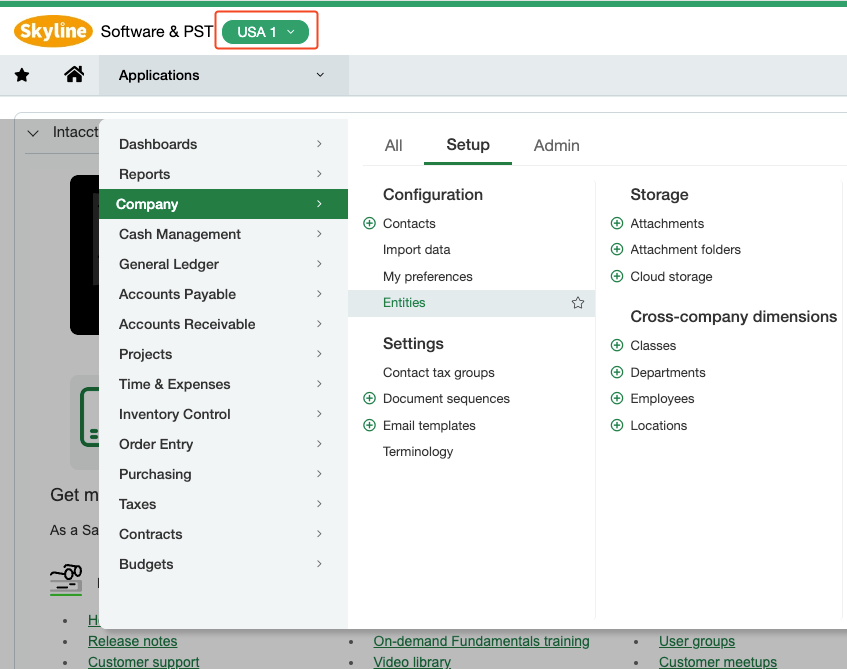
4. Populate the value in Spendflo with the Entity ID displayed in the grid.
Getting Your Web Services User ID from Sage Intacct
Before connecting in Spendflo, retrieve your Web Services User ID from Sage Intacct. This is the credential used to authenticate the integration.
Log into your Sage Intacct account as an Administrator.
Click on Company in the left navigation panel.
Go to the Admin tab at the top of the page.
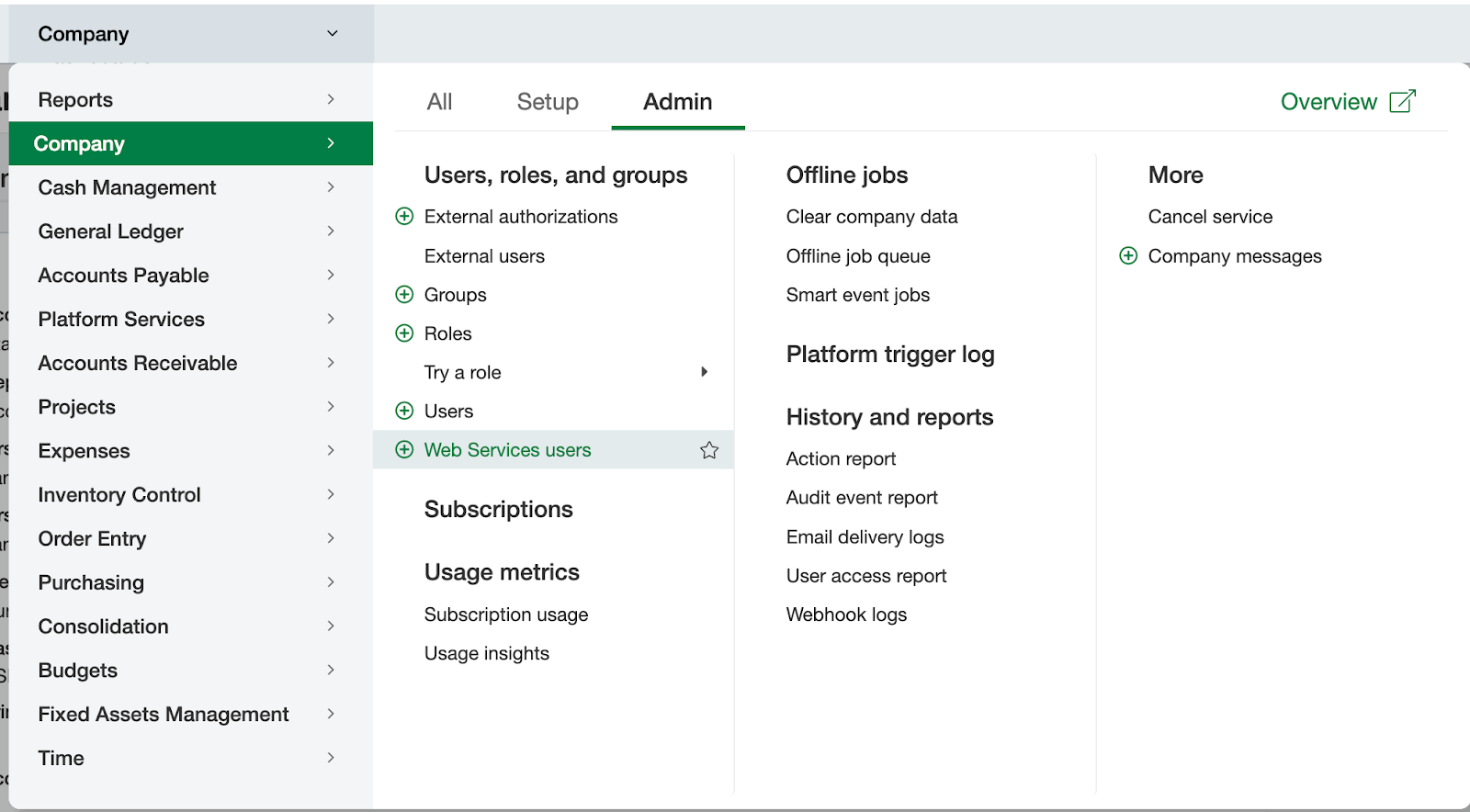
Click on Web Services users.
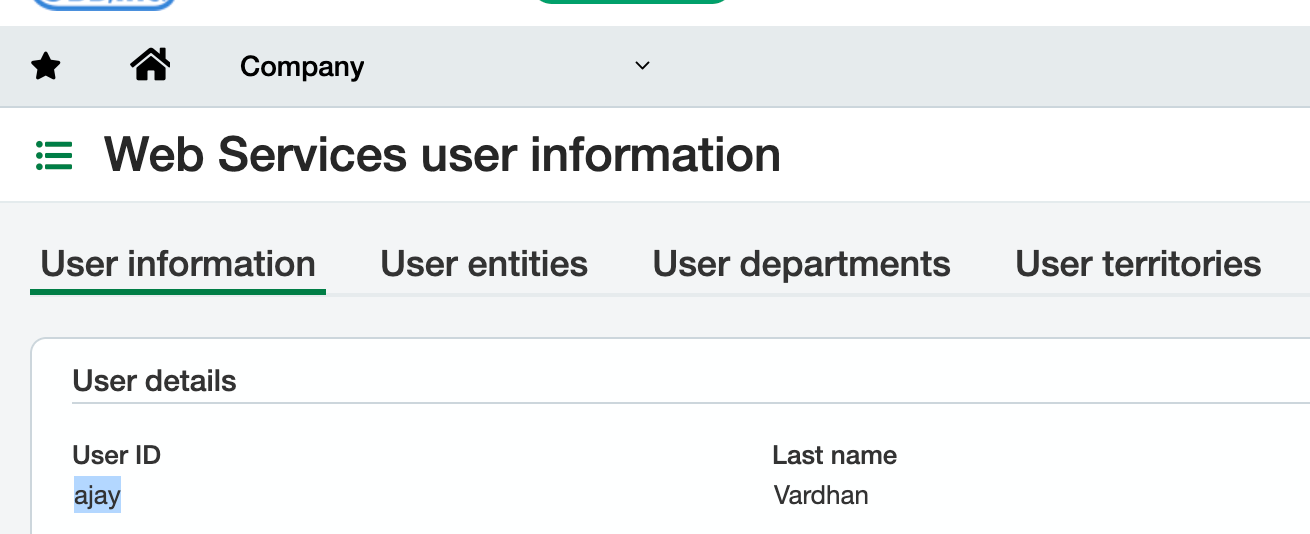
Find the user you want to use for the integration. Click View or Edit to open the user record and copy the User ID — you will need this in the next step.
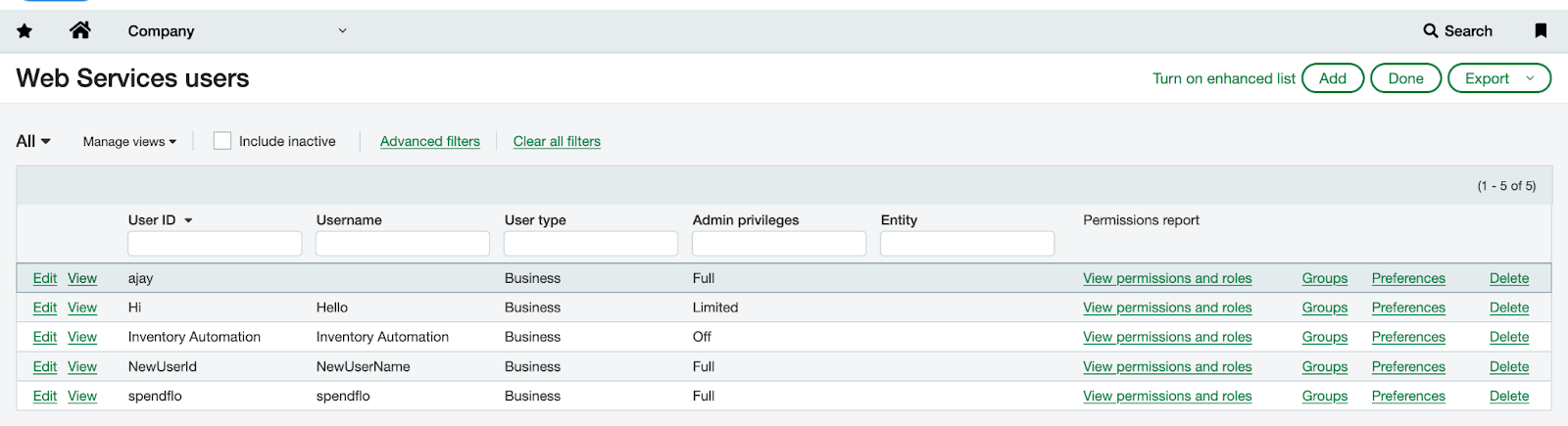
Note: If a dedicated Web Services user does not already exist, you can create one by clicking Add on the Web Services users page. Ensure the user has the appropriate permissions for the modules Spendflo needs to access.
Part 2: Connecting Sage Intacct in Spendflo
Once you have your Web Services User ID and password ready, follow these steps to connect Sage Intacct in Spendflo.
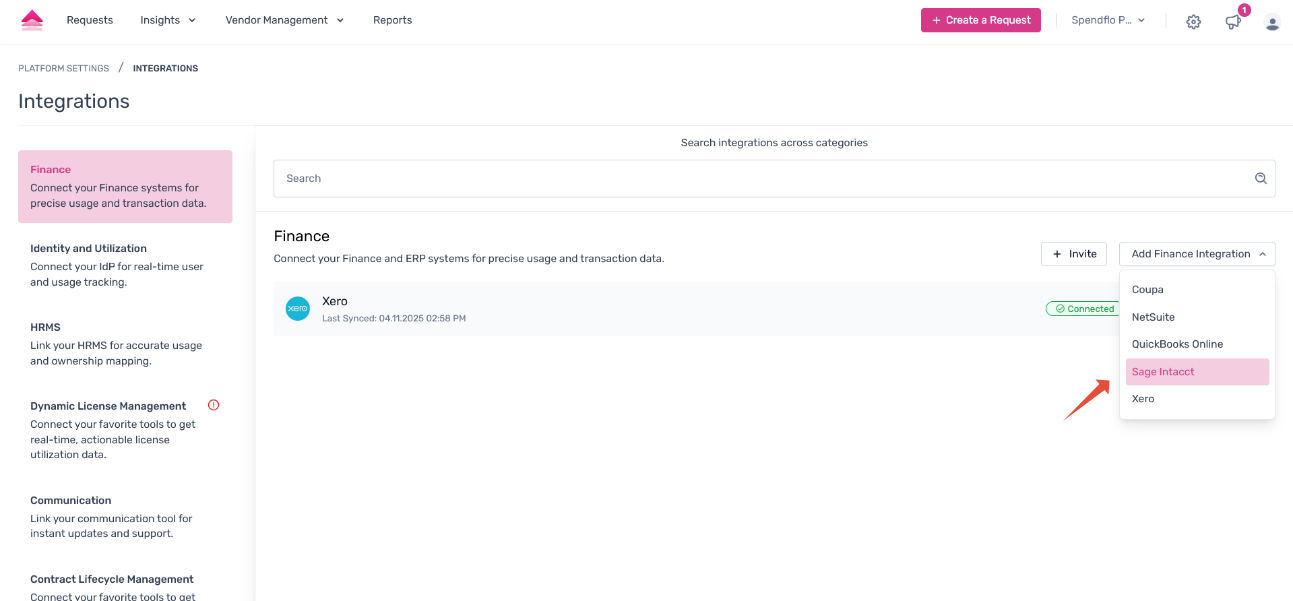
In Spendflo, go to Settings → Integrations → Finance and select Sage Intacct from the dropdown.
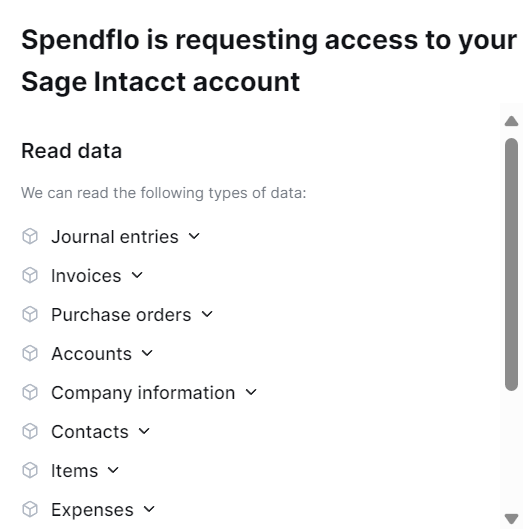
Click Connect. A connector modal will open confirming that an Administrator role is required.
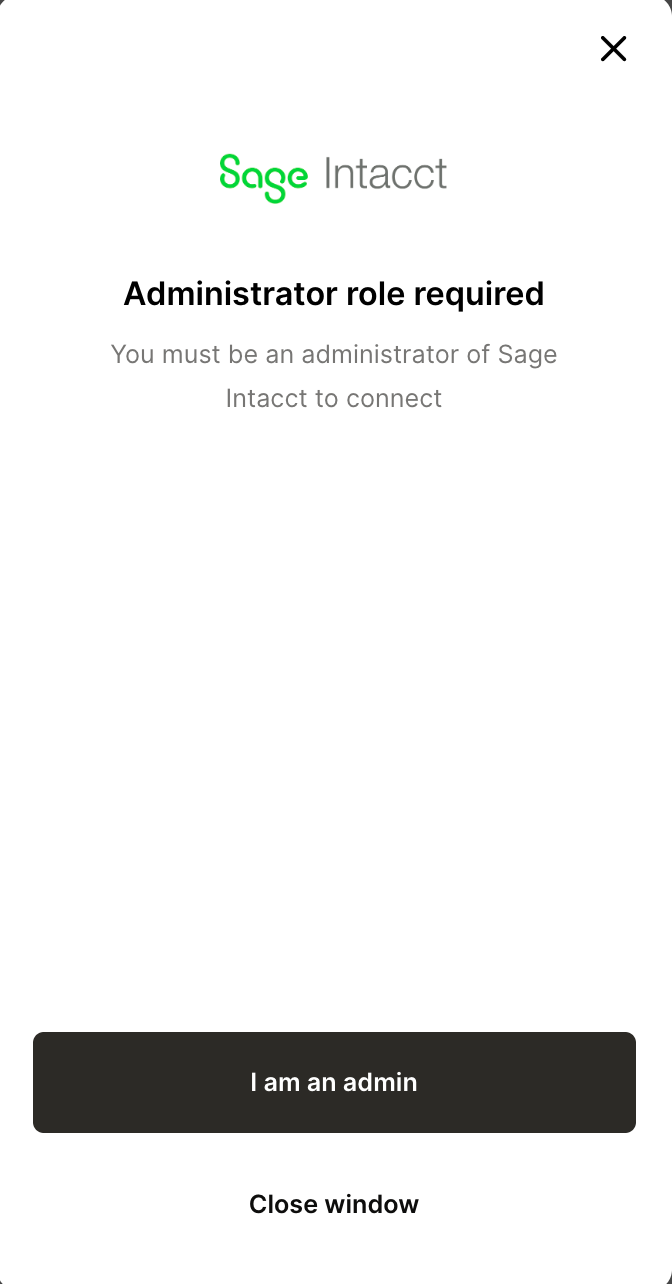
Click I am an admin to proceed.
Enter your Company ID in the first field. To find it in Sage Intacct, go to Company → Setup → Company and look for the ID value on the General Information tab.
The Location ID field is optional. Leave it blank to connect at the Top Level of your Sage Intacct instance. If you need to connect to a specific entity, enter the Entity ID from Company → Setup → Entities.
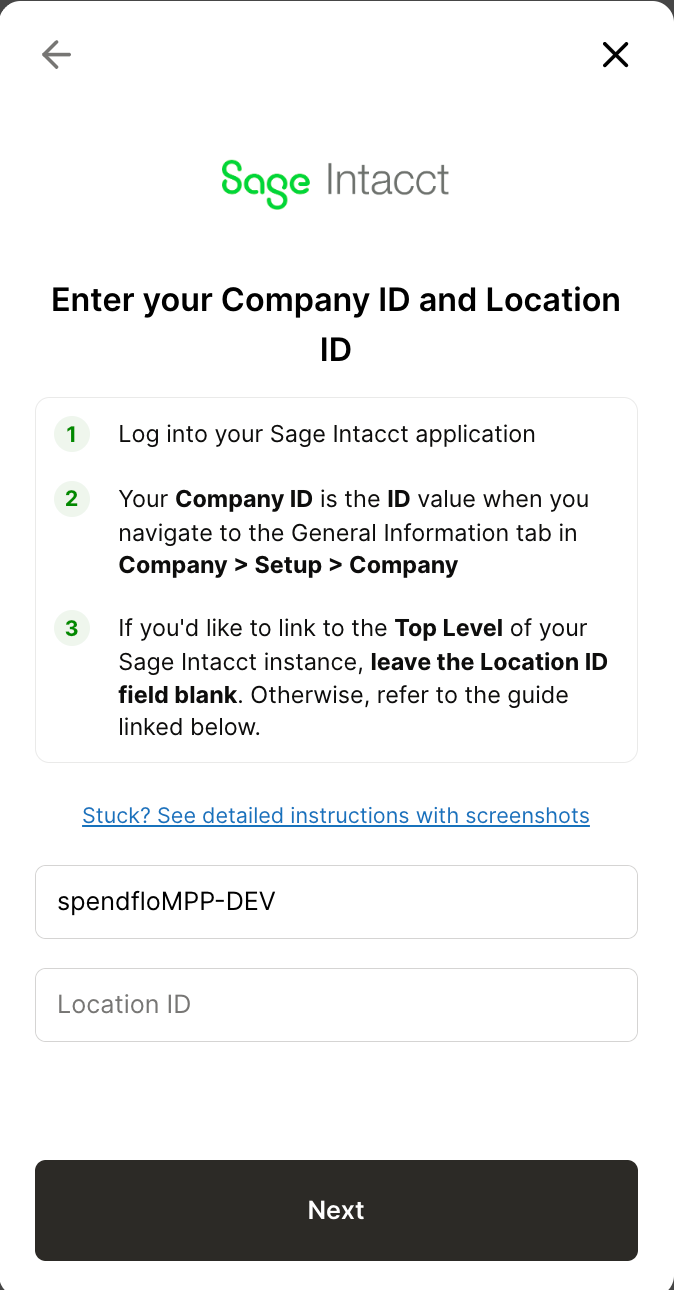
Click Next.
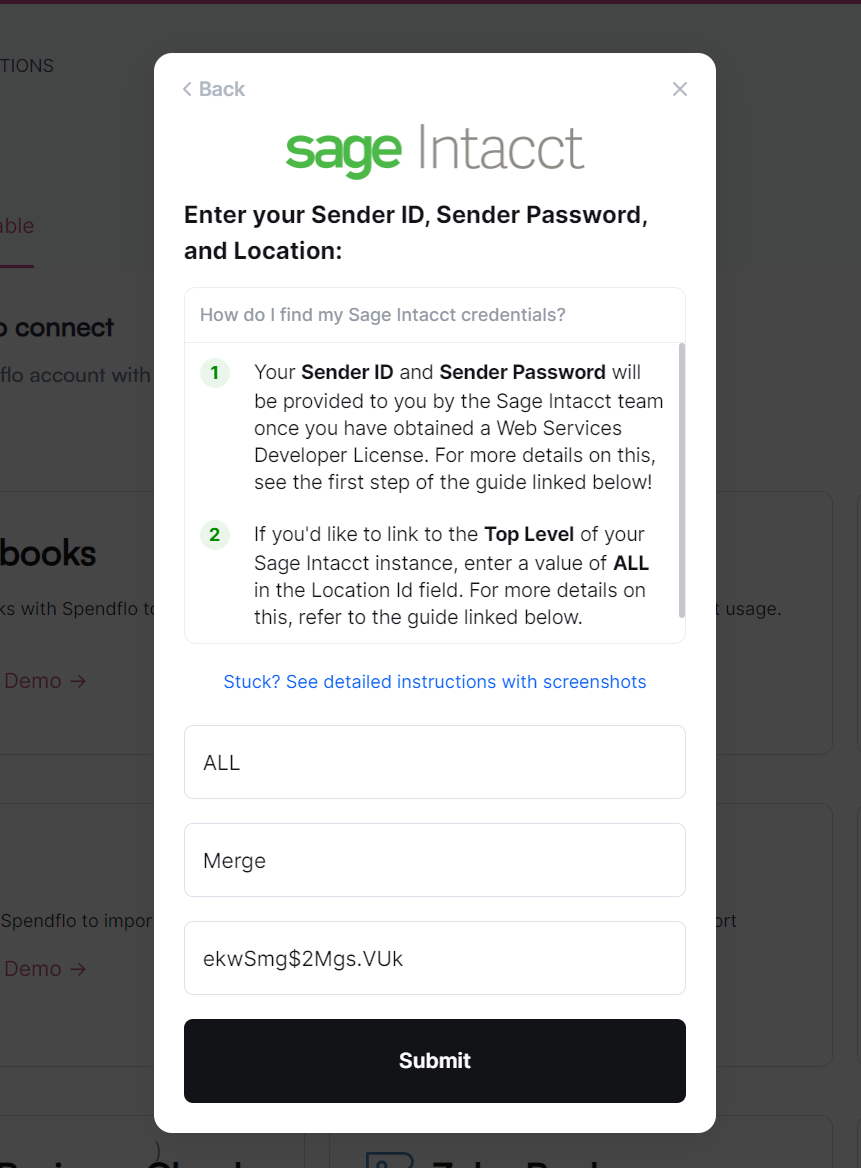
Enter your Web Services Username (the User ID you retrieved from Sage Intacct in Part 1) and the corresponding Password.
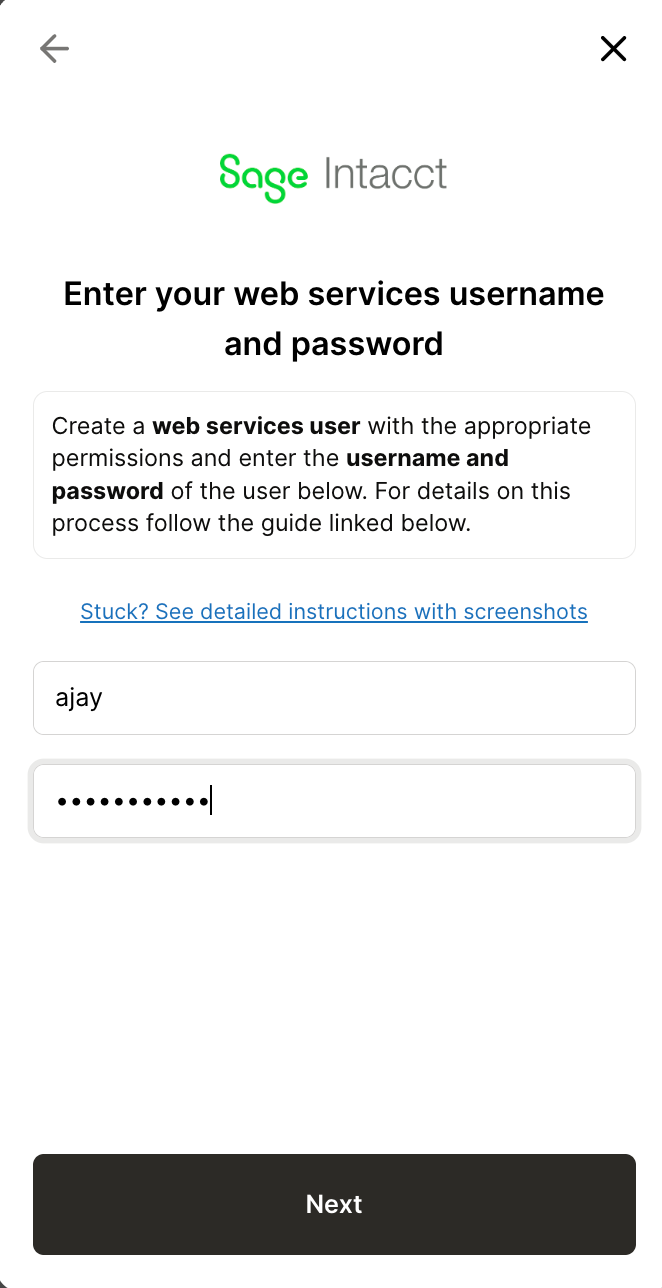
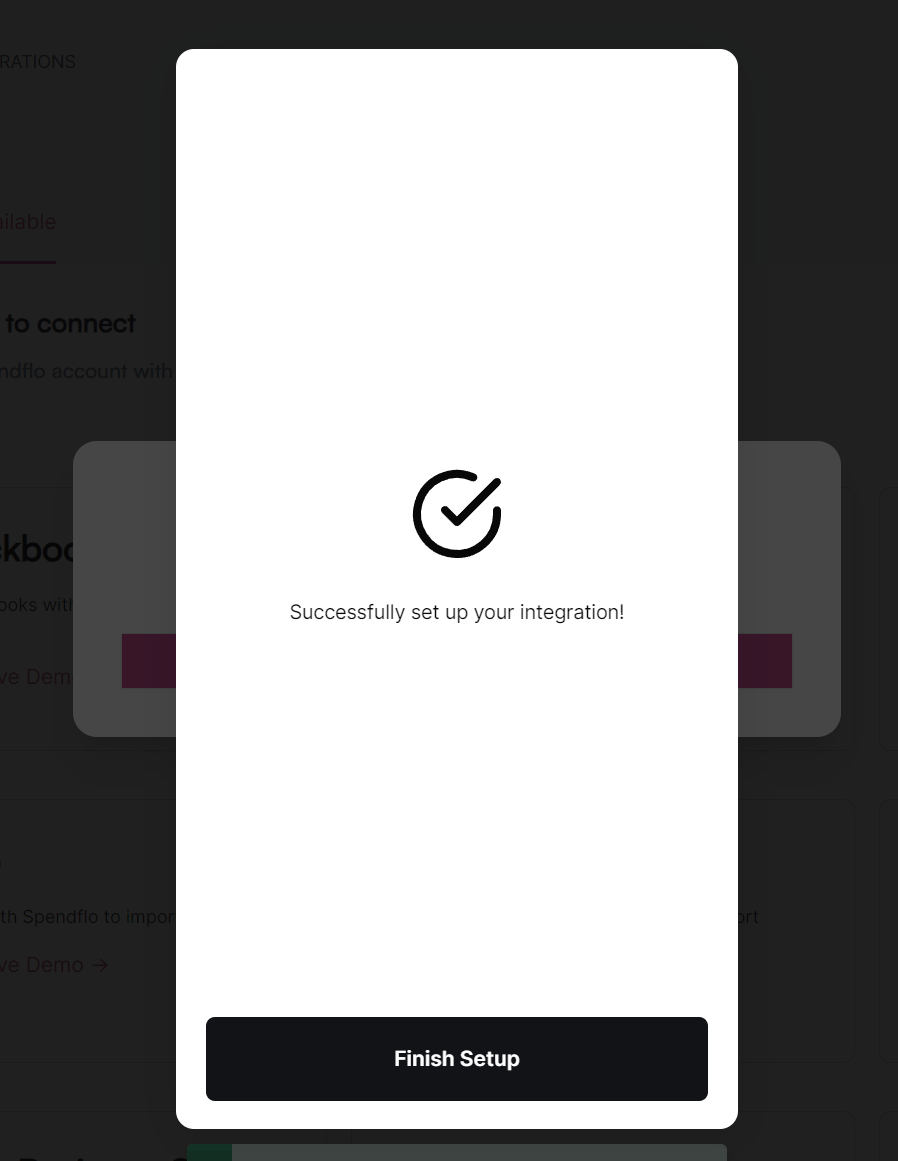
Click Next. Spendflo will validate your credentials and connect to your Sage Intacct account.
Was this article helpful?
That’s Great!
Thank you for your feedback
Sorry! We couldn't be helpful
Thank you for your feedback
Feedback sent
We appreciate your effort and will try to fix the article