Spendflo lets you store all the documents that belong to a vendor — contracts, invoices, purchase orders, tax forms, certificates, and more — directly on the vendor's record. This keeps critical paperwork organised in one place, improves visibility, and gives your team quick access to the files that matter. Documents live under the Documents tab inside each vendor ("Supplier") record.
Before you begin
- Where to find it: Procurement → Suppliers → open a vendor → Documents tab.
- Supported file types: PDF (.pdf), Word (.doc, .docx), and images (.jpeg, .jpg, .png).
- Maximum file size: 5 MB per file.
- Document types you can tag: Amendment, Data Processing Agreement (DPA), ISO 27001 certificate, Invoice, Master Services Agreement (MSA), and Non-Disclosure Agreement (NDA).
- Permissions: you need access to the vendor record to view or upload its documents.
Step-by-step: upload a document
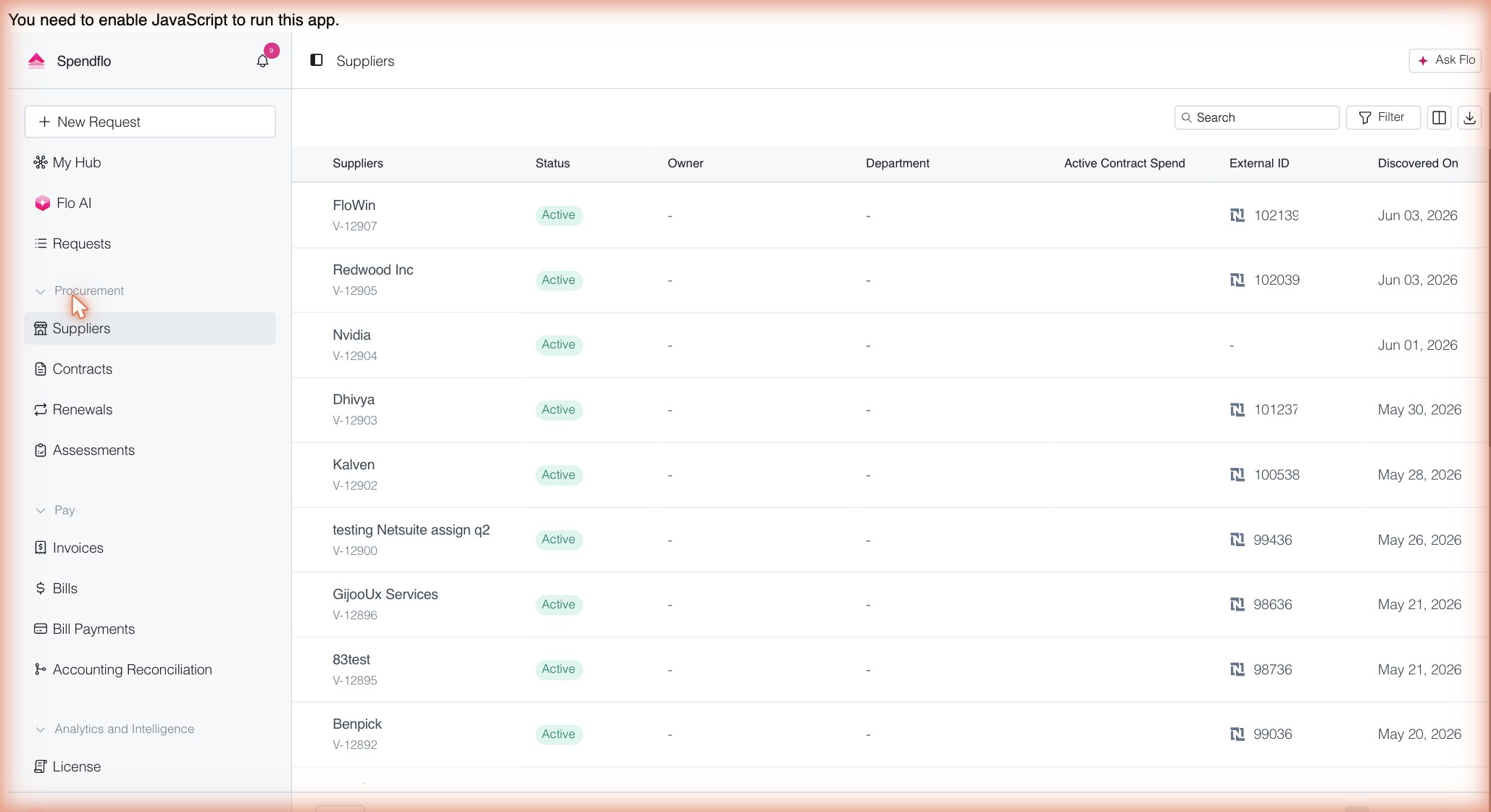
Step 1 — Open Suppliers and pick a vendor
From the left navigation, click Suppliers under Procurement. This opens the list of all your vendors. Click the vendor you want to add a document to.
- Go to Procurement → Suppliers in the left navigation.
- Click the vendor name to open its record.
Step 2 — Open the vendor record
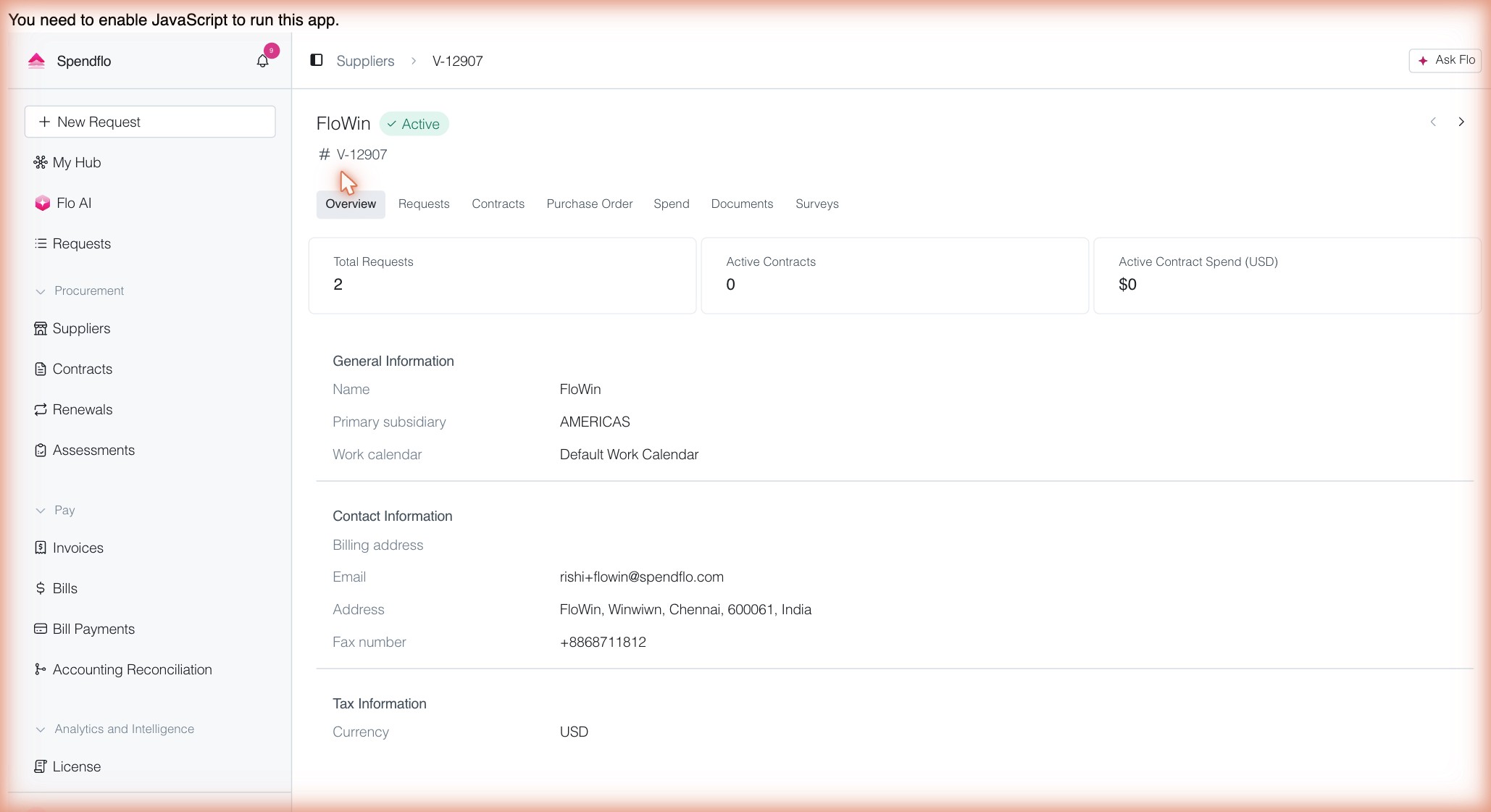
The vendor's page opens on the Overview tab, showing its key details. Along the top you'll see a row of tabs: Overview, Requests, Contracts, Purchase Order, Spend, Documents, and Surveys.
- Confirm you are on the correct vendor record.
- Locate the tab row at the top of the vendor page.
Step 3 — Go to the Documents tab
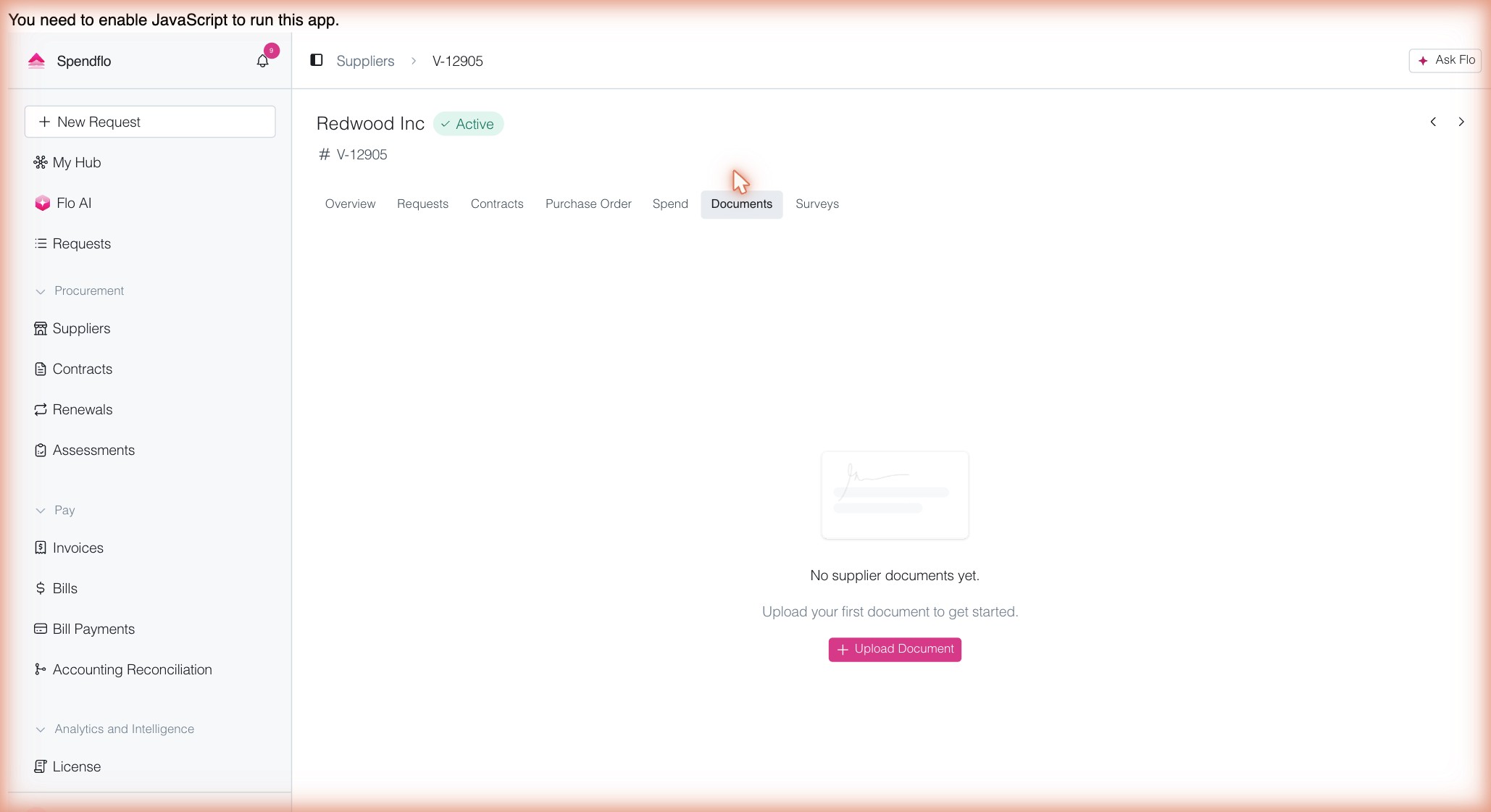
Click the Documents tab. If the vendor has no documents yet, you'll see an empty state that reads "No supplier documents yet" with an Upload Document button. If documents already exist, you'll see them in a list with a + Upload Document button in the top-right instead.
- Click the Documents tab in the vendor record.
Step 4 — Open the upload window
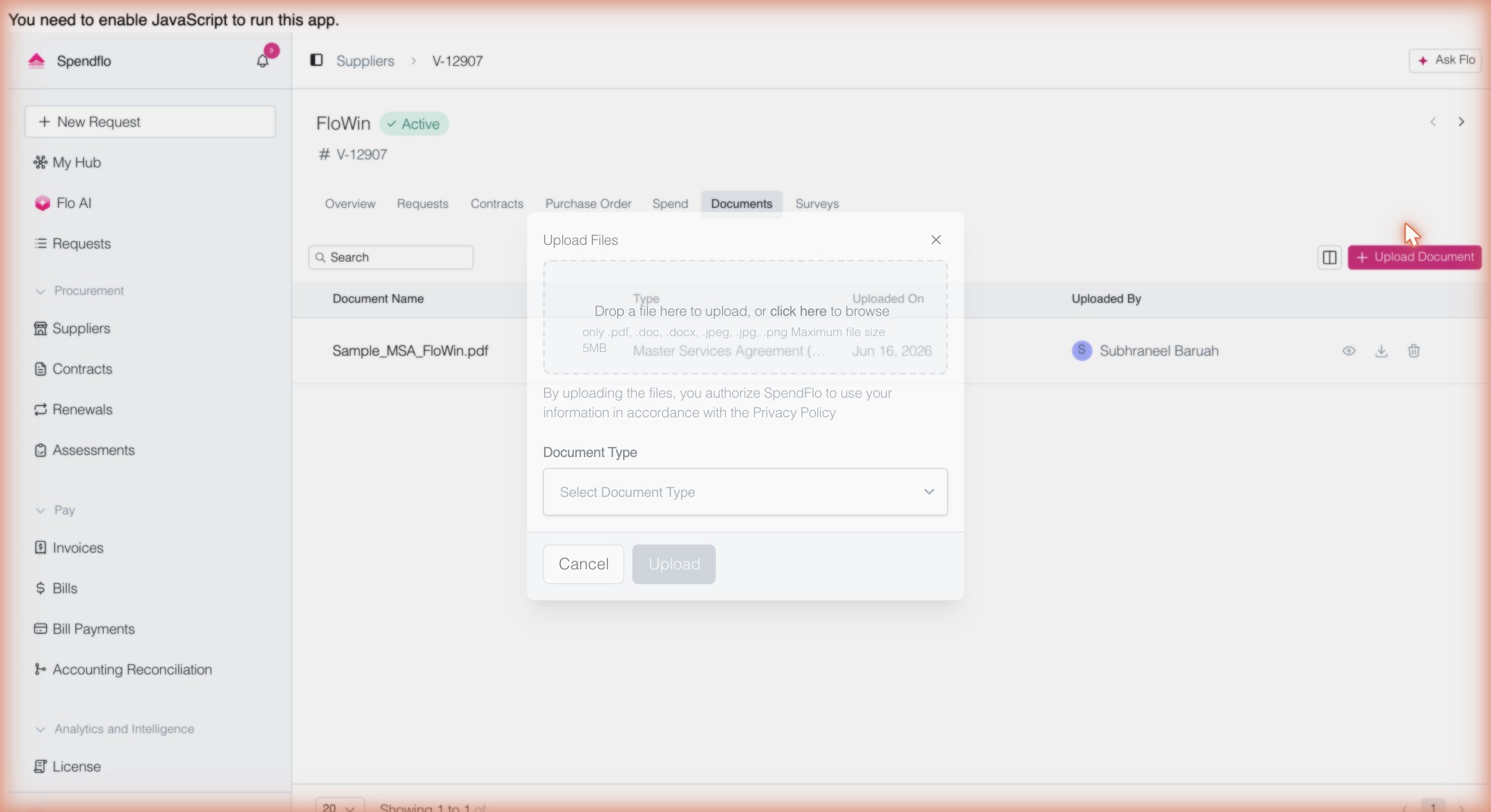
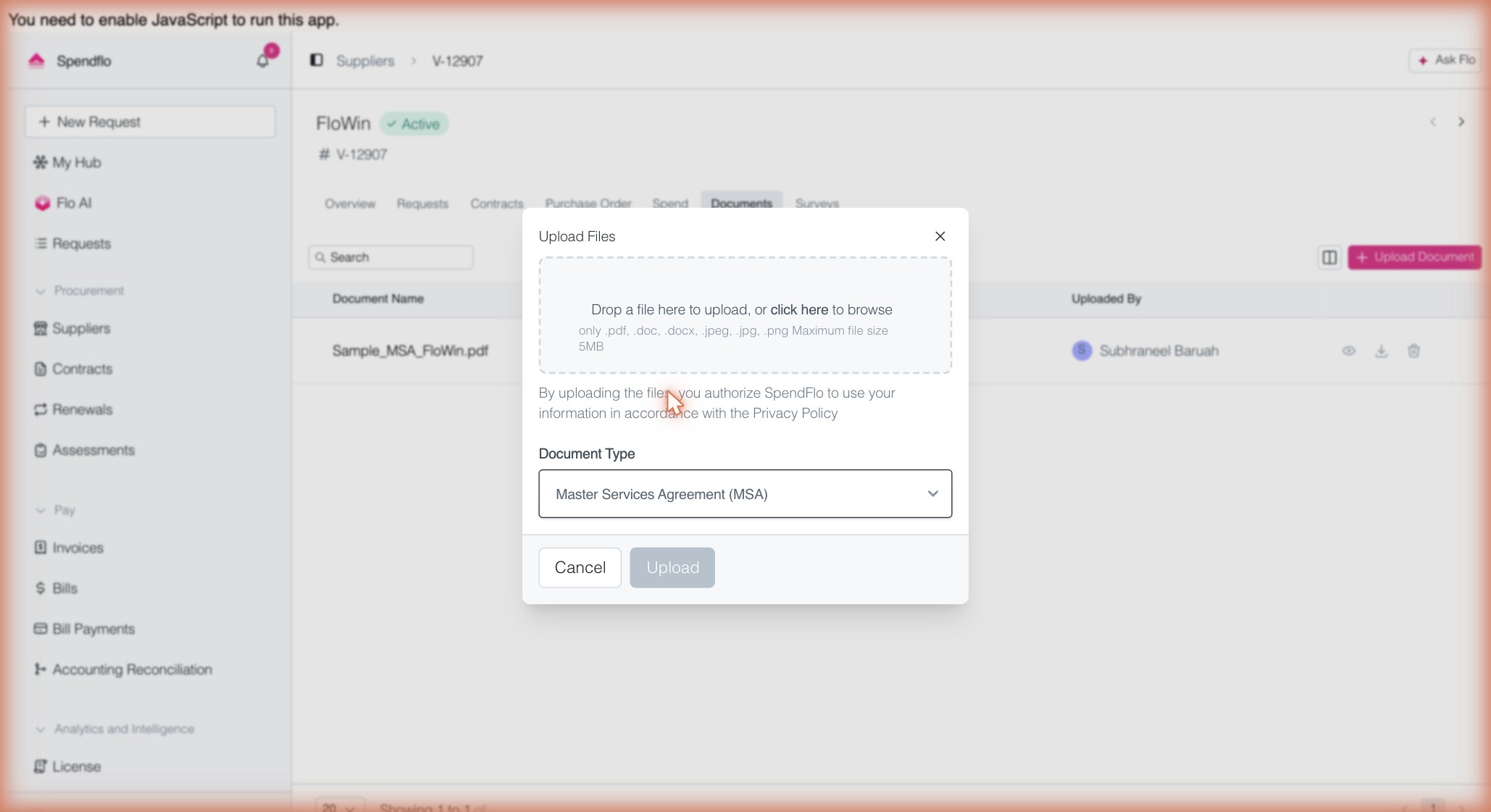
Click Upload Document. The Upload Files window opens with a drop zone and a Document Type field. The drop zone confirms the accepted formats (.pdf, .doc, .docx, .jpeg, .jpg, .png) and the 5 MB size limit.
- Click Upload Document (or + Upload Document if documents already exist).
- The Upload Files window opens with a file drop zone and Document Type selector.
Step 5 — Choose the document type
Click the Select Document Type dropdown and choose the type that matches your file. You can scroll the list or use the search box.
- Click the Select Document Type dropdown.
- Select the type that matches your file (e.g. Master Services Agreement (MSA)).
Step 6 — Add your file and upload
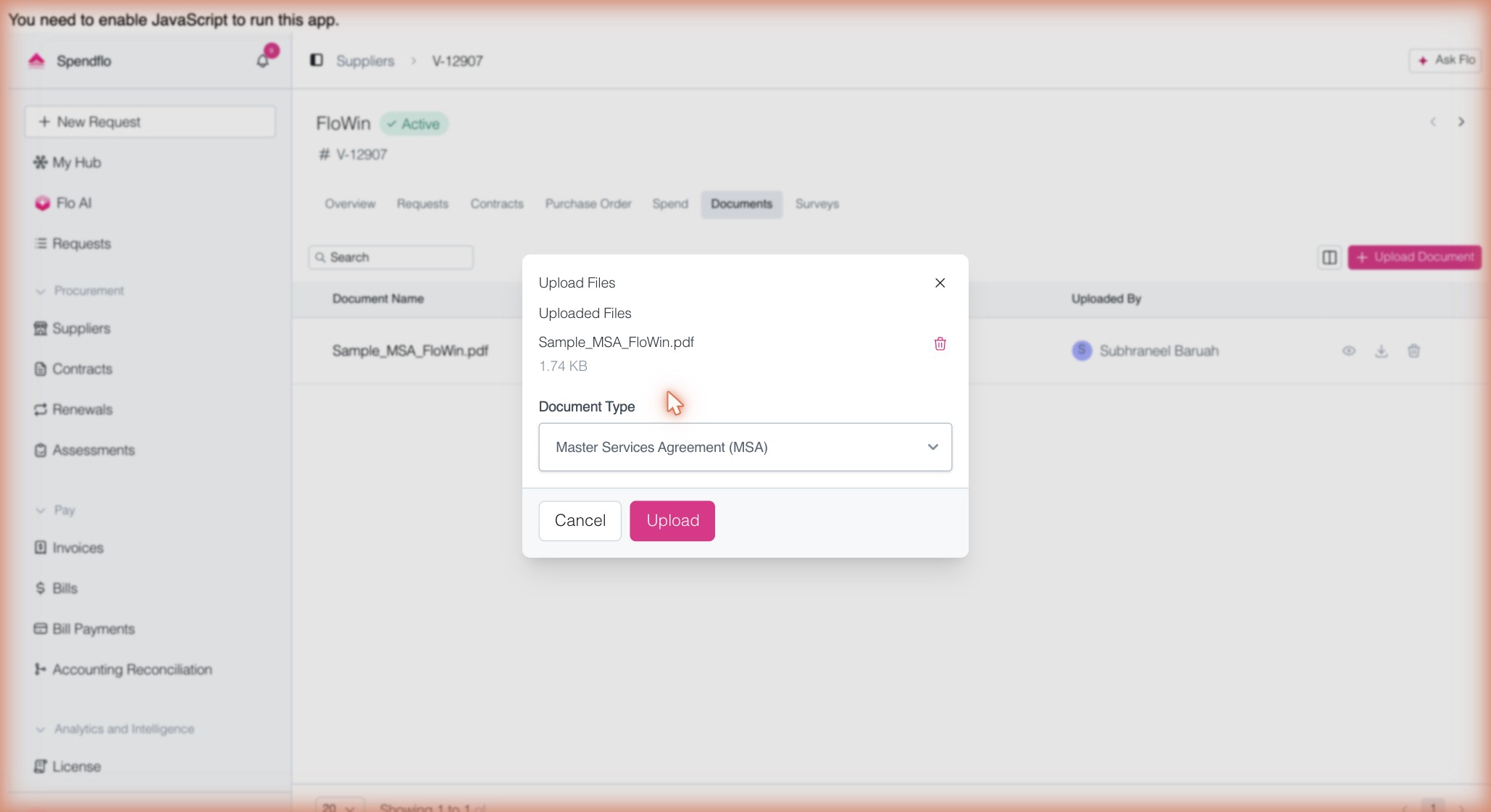
Drag a file onto the drop zone, or click click here to browse and select it. The file appears under "Uploaded Files" with its size, and the Upload button becomes active. Click Upload to finish.
- Drag a file onto the drop zone, or click click here to browse to select a file.
- The file name and size appear under "Uploaded Files".
- Click Upload — the button activates once a file is staged.
Step 7 — Confirm the upload
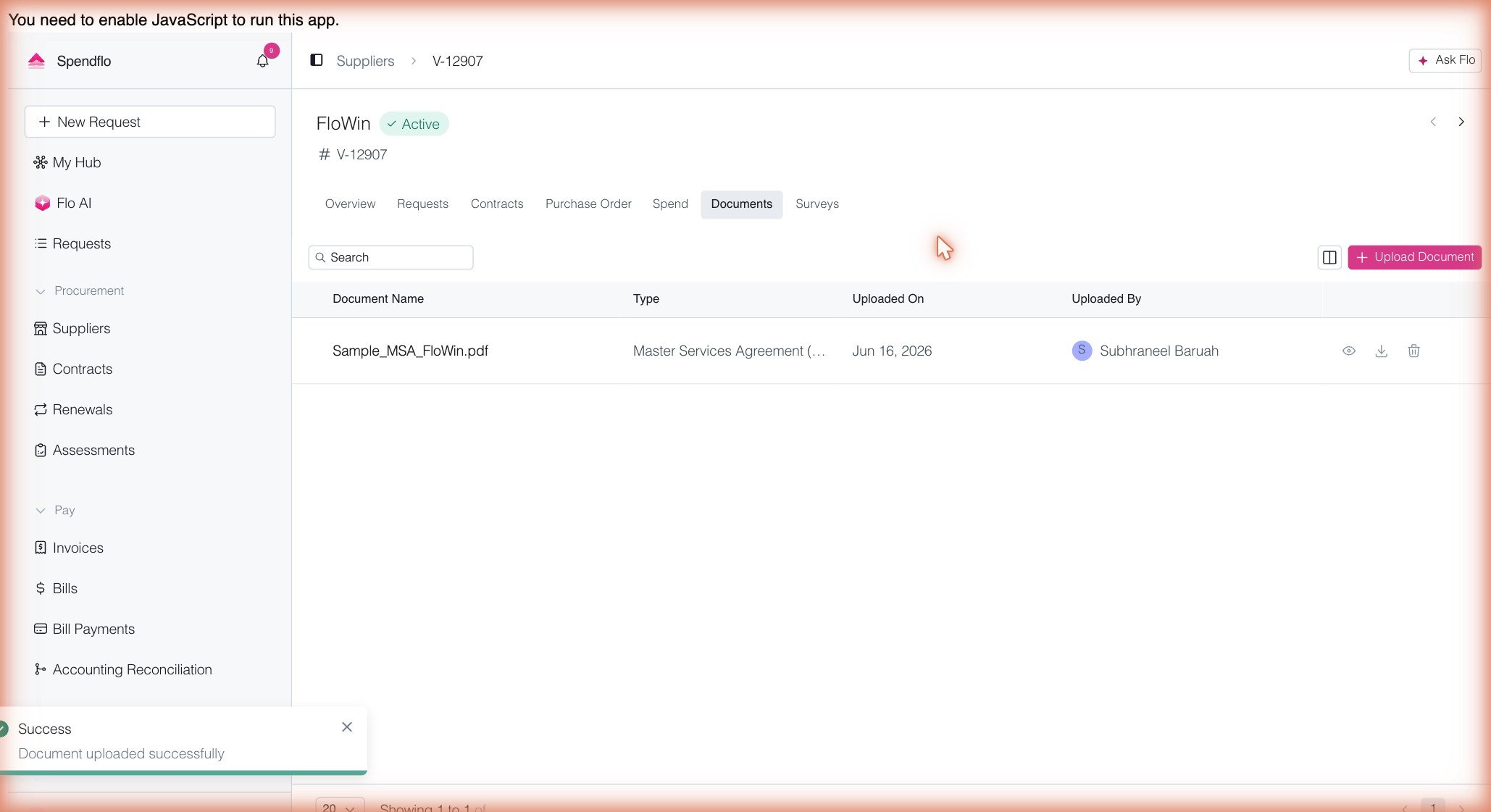
A "Document uploaded successfully" confirmation appears, and the file now shows in the Documents list with its Type, Uploaded On date, and Uploaded By details.
- Wait for the "Document uploaded successfully" confirmation toast.
- The file appears in the Documents list with type, date, and uploader details.
Managing existing documents
Each row in the Documents list has actions on the right-hand side:
- Preview (eye icon) — opens the document to view it without downloading.
- Download (down-arrow icon) — saves a copy of the file to your computer.
- Delete (trash icon) — removes the document. You'll be asked to confirm, and deletion cannot be undone.
Use the Search box above the list to quickly find a document by name, and the + Upload Document button in the top-right to add more files at any time.
To replace a document: there is no in-place edit. Delete the existing document and upload the new version in its place.
Good to know
- Files must be 5 MB or smaller, in one of the supported formats (.pdf, .doc, .docx, .jpeg, .jpg, .png).
- Tagging each file with the correct Document Type keeps the list easy to scan and filter.
- Documents are tied to the specific vendor record, so anyone with access to that vendor can find them.
- There is no editing of an uploaded file — delete and re-upload to make changes.
Was this article helpful?
That’s Great!
Thank you for your feedback
Sorry! We couldn't be helpful
Thank you for your feedback
Feedback sent
We appreciate your effort and will try to fix the article