Overview
- Spendflo's Flo AI allows you to onboard a new vendor effortlessly using natural language. By describing your need in a conversational interface, Flo AI automatically identifies the correct onboarding workflow, creates the vendor record, triggers compliance assessments, and tracks every task through to completion — without you navigating forms or chasing approvers manually.
Here are the steps to onboard a vendor using Flo AI:
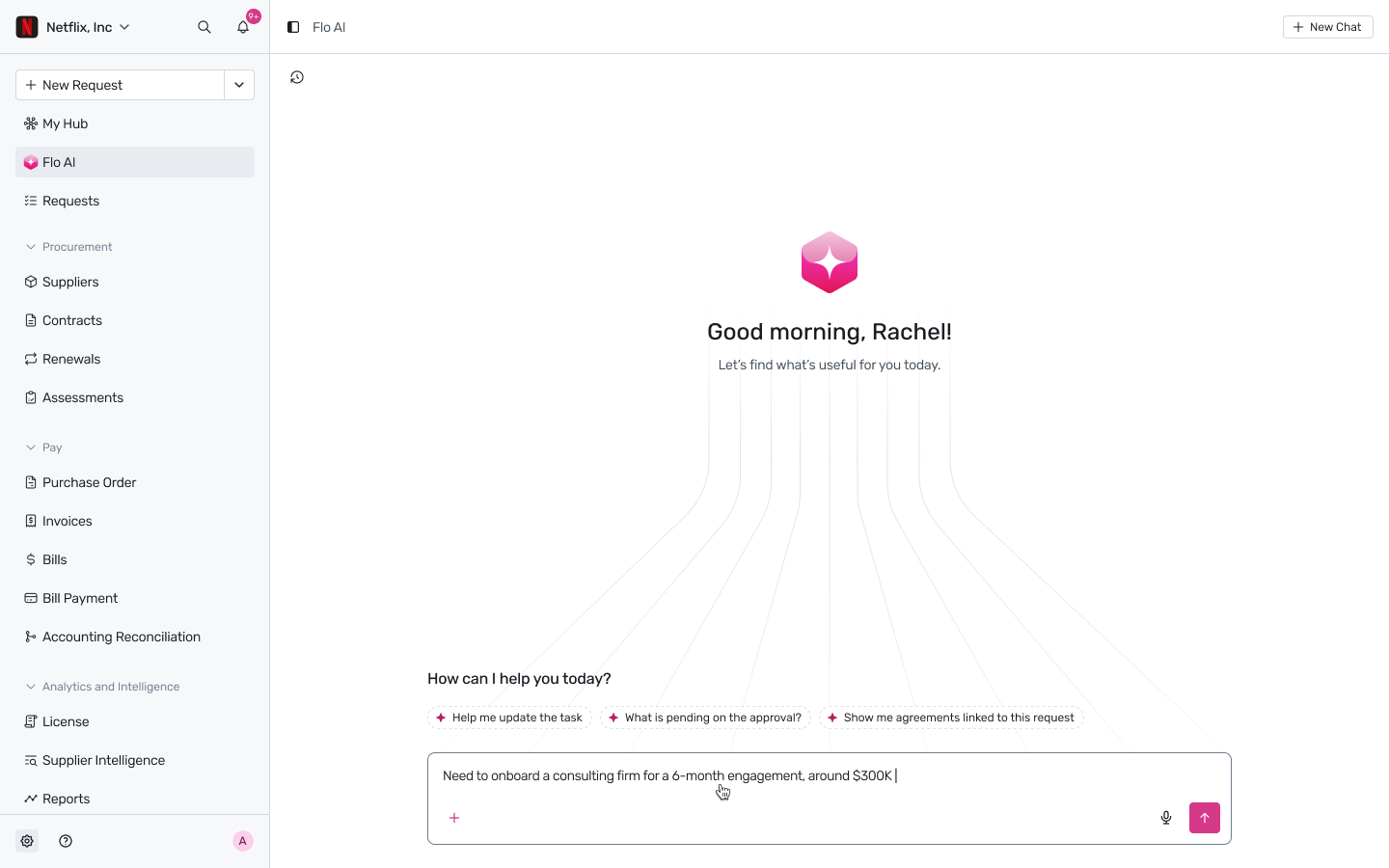
- Navigate to the left-hand menu and click on Flo AI under the 'My Hub' section.
- In the Flo AI chat interface, describe your vendor onboarding need in natural language. For example, type "Need to onboard a consulting firm for a 6-month engagement, around $300K" into the text box at the bottom and hit enter or click the send icon.
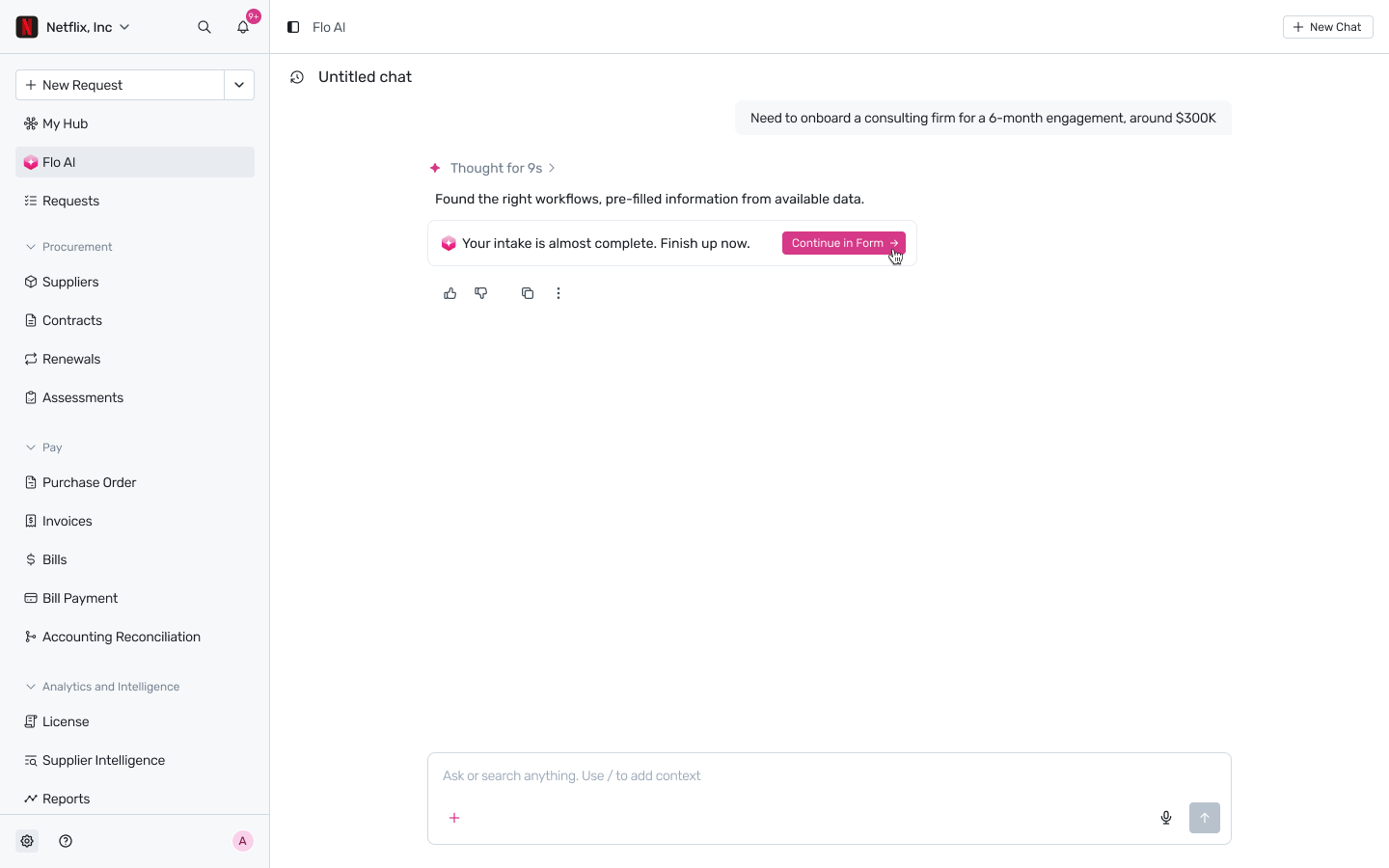
- Once Flo AI has identified the correct workflow and pre-filled the available data, it will prompt you to finish the intake process. Click the Continue in Form → button to proceed.
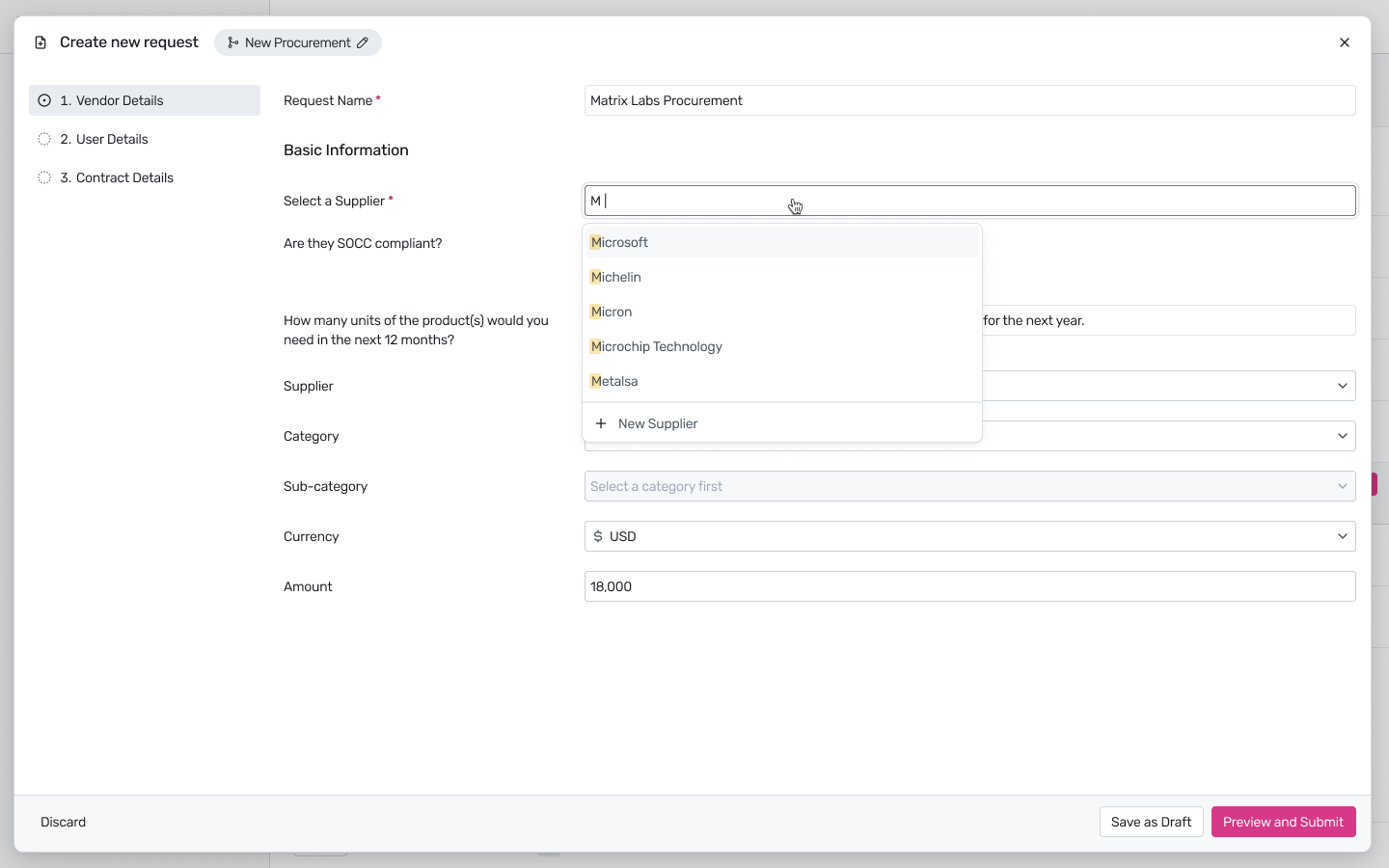
- You will be taken to the Vendor Details form, where some fields will already be populated. To assign a vendor, click on the Select a Supplier dropdown and begin typing the vendor's name.
- If the vendor does not exist in your database, type their full name and select the + New Supplier option that appears in the dropdown menu.
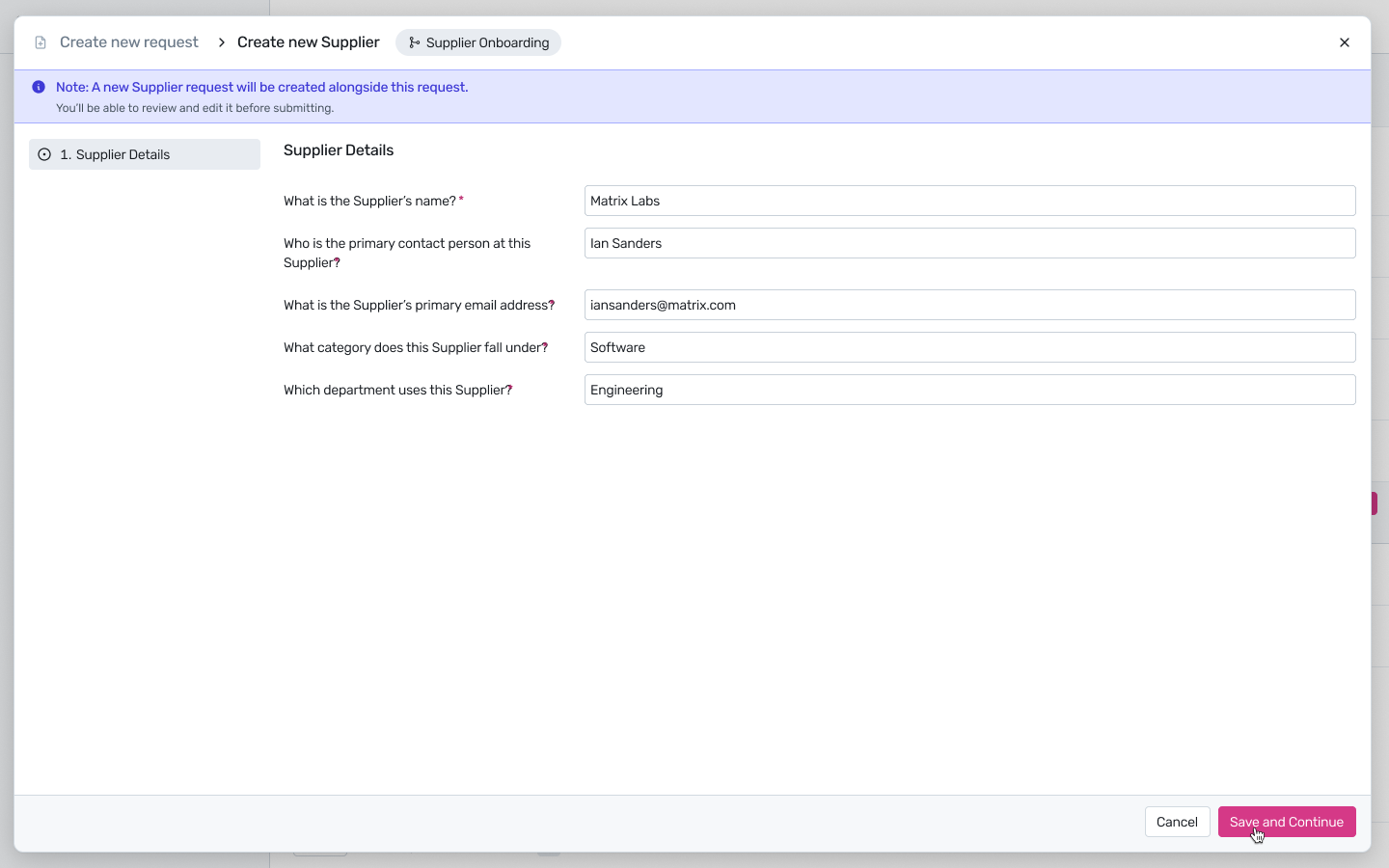
- A new Supplier Details section will appear. Fill in the vendor's primary contact name, email address, category, and department. Click Save and Continue.
- After submission, you will see confirmation notifications for both the main procurement request and the parallel vendor onboarding request. You will be redirected to the request's overview page, where you can track progress through each workflow stage.
- As part of the onboarding workflow, Flo AI automatically sends the vendor a portal invitation and triggers any compliance assessments configured in your workflow. The vendor receives a questionnaire directly in their portal. You can check the status of the assessment at any time by asking Flo:
"Has [vendor name] responded to the assessment?" "Are there any flagged responses in the [vendor name] questionnaire?"
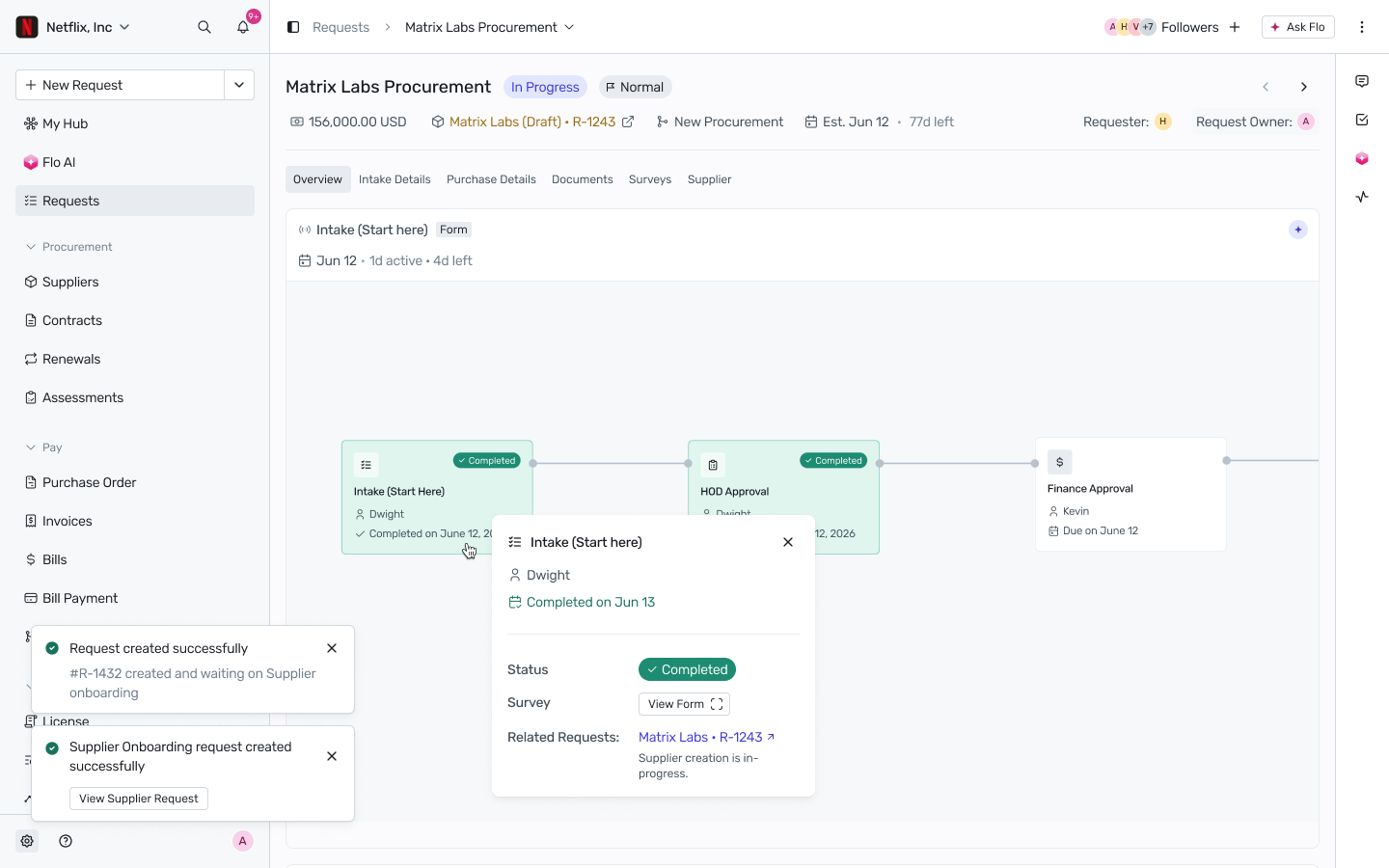
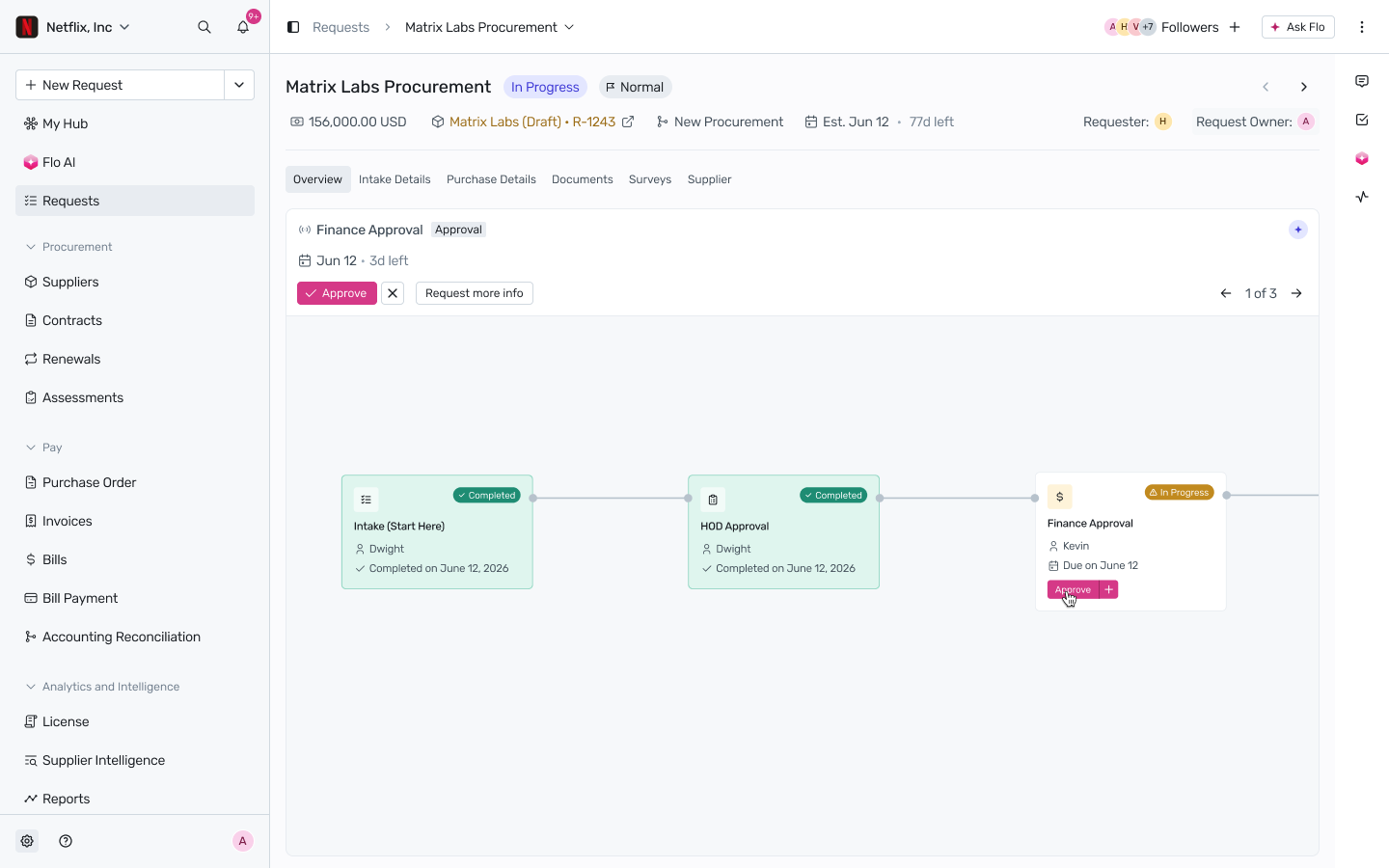
- Flo notifies you when the vendor submits their responses. Now, you have to click on the "Approval tab"
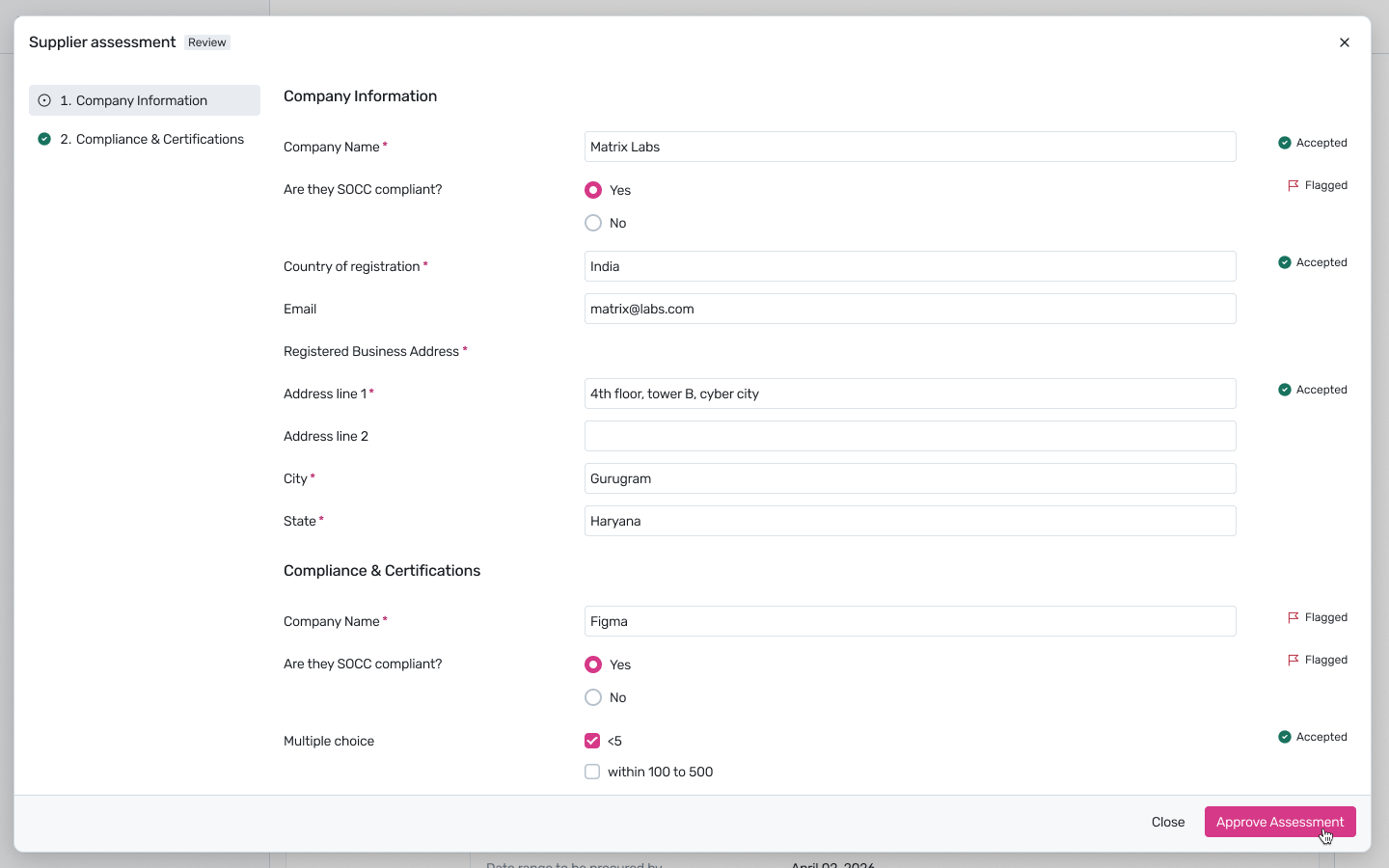
- A modal will appear with all the responses from the vendor, Once reviewed and approved, the assessment task closes automatically and the workflow advances.
- Once all tasks — including vendor assessments and internal approvals — are complete, the vendor status updates to Active in your Suppliers list. The vendor is now ready to transact.
Next Steps
- Now that your vendor is onboarded, you can view their full profile, documents, and assessment history under Suppliers. For more information on tracking your request through approvals, see our guide on Request Details.
Was this article helpful?
That’s Great!
Thank you for your feedback
Sorry! We couldn't be helpful
Thank you for your feedback
Feedback sent
We appreciate your effort and will try to fix the article