Every task in a Spendflo workflow can have an SLA — a number of business days within which that task must be completed. Spendflo automatically rolls those task-level SLAs into a single request-level due date, giving every request a living deadline that updates in real time. When that deadline passes, the system sends breach notifications to the requester, task assignees, workflow owner, and followers so nothing falls through the cracks.
Before you begin
- Where to find it: Settings → Workflows → open a workflow → click any task node → Enable due date
- Who can set SLA days: Task assignees and admins. Requesters cannot set or edit SLA days.
- Due date calculation: Business days only. Weekends are excluded by default (configured per workflow).
- Request-level due date: Always derived — it equals the submission date plus the sum of all task SLA days. It cannot be set manually.
- Parallel tasks: Only the task with the longest SLA in a parallel group contributes to the total. Shorter parallel tasks are ignored.
Step-by-step: configure SLA days on a task
Step 1 — Open the workflow in the Workflow Builder
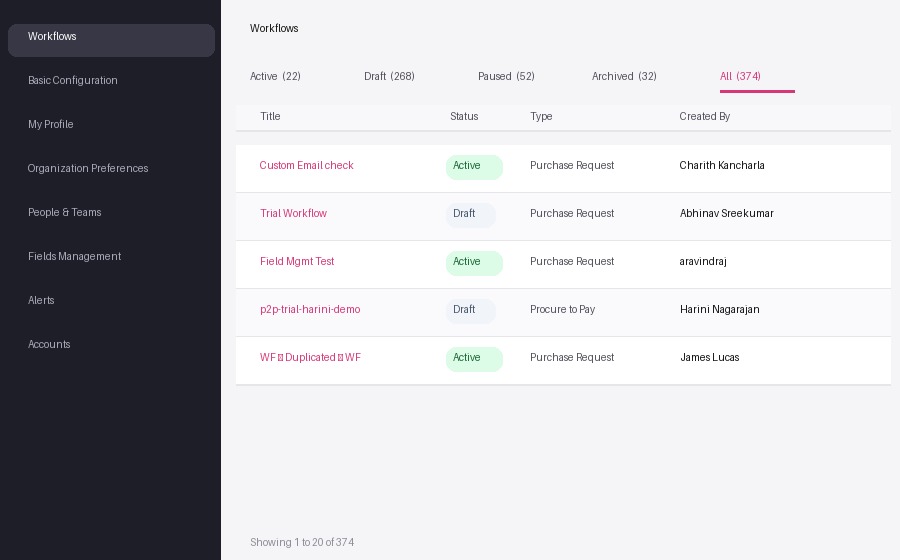
Navigate to the workflow where you want to set SLA targets.
- Go to Settings in the left navigation.
- Click Workflows.
- Find the workflow in the list and click its name to open it.
- If the workflow is Active, click Edit at the top right. Spendflo creates a new draft version — existing in-flight requests are not affected.
Step 2 — Enable the due date on a task
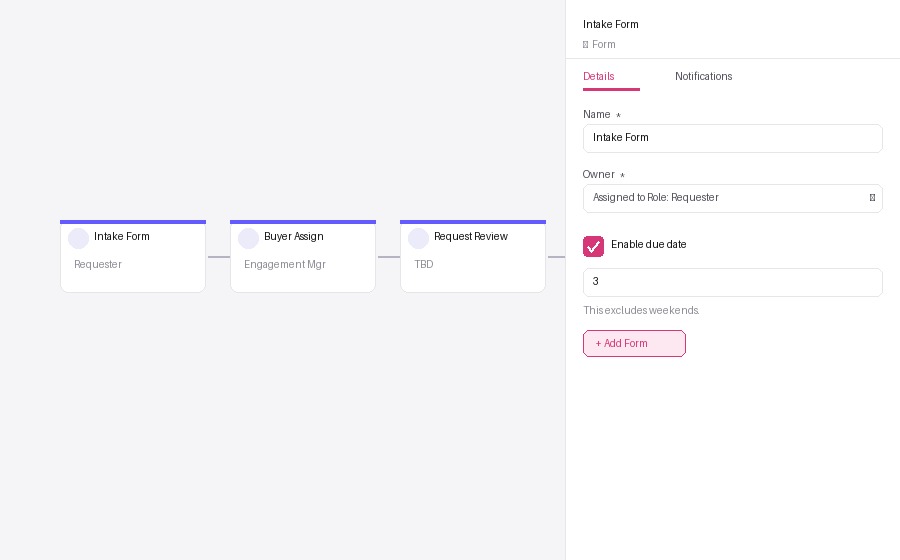
Each task node has its own SLA setting in the details panel.
- Click a task node on the canvas to open its details panel on the right.
- Check the Enable due date checkbox.
- A number field appears. Enter the number of business days this task should take.
- Repeat for each task that should have an SLA. Tasks without an SLA are ignored in the request-level calculation.
Step 3 — Save and publish the workflow
SLA days take effect when the updated workflow is published.
- Click Save to save your draft changes.
- Click Publish to make the workflow live. New requests submitted after this point will use the updated SLA days.
Understanding SLA status on a request
Once a request is submitted, Spendflo calculates the request-level due date and tracks SLA status automatically. You can see the status on any open request.
Step 1 — View SLA status on a request
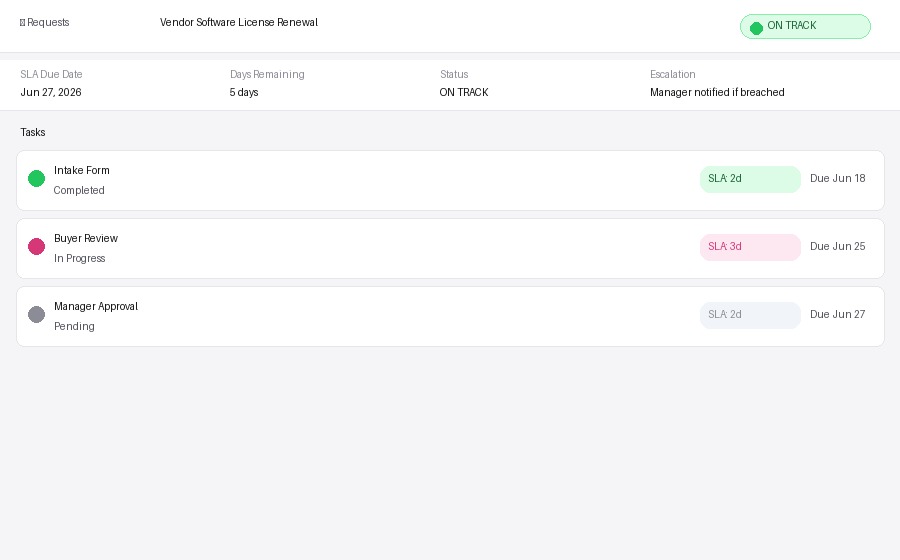
The due date and status are visible on the request overview.
- Go to Requests in the left navigation.
- Click a request to open it.
- The active task card shows the due date and — if overdue — an Xd overdue indicator in red.
Step 2 — Understand what each status means
Spendflo tracks SLA through the following statuses:
- On Track — the request-level due date has not passed.
- Breached — the due date has passed while the request is still open.
- Tasks Complete — all SLA-tracked tasks are done but the request is not yet approved or closed.
- Met — the request reached a terminal state (Approved / Rejected / Cancelled) on or before the due date.
- Missed — the request reached a terminal state after the due date had already passed.
What triggers an escalation notification
Spendflo sends a breach notification the moment the request-level due date passes and the request is still active. There is no separate escalation routing in the current version — the notification itself is the escalation signal.
Who receives the notification
- The requester who submitted the request.
- All active task assignees at the time of breach.
- The workflow owner — the user who created the workflow template.
- Anyone who paused the request most recently, if applicable.
- All followers of the request.
Notification channels
- Notifications are sent via email and Slack (if connected).
- Each notification includes the request name and link, the due date that was missed, the current request status, and who the request is currently pending with.
Good to know
- Task holds don't pause the request clock. If a task is placed on hold (e.g. Waiting on vendor), the request-level SLA clock keeps running. Only a full request-level pause freezes the clock.
- Due dates recalculate automatically. Any change to a task's SLA days, a task being completed, or a task going on hold will immediately update the request-level due date — no manual refresh needed.
- Paused requests can't breach. Breach notifications are suppressed while a request is paused. If the due date passes during a pause, the breach fires at the moment of resume.
- Once breached, always Missed. If a breach occurs and then an admin extends the due date (resetting status to On Track), the request will still resolve as Missed when it closes — because the breach already happened.
- Zero-day SLA is valid. Setting SLA = 0 days means the task is due on the same business day it starts. This is different from leaving SLA unset (null), which means the task is excluded from the request-level calculation entirely.
- Template changes don't affect in-flight requests. If you edit and republish a workflow while requests are in progress, those open requests continue using the original SLA configuration they were submitted with.
Was this article helpful?
That’s Great!
Thank you for your feedback
Sorry! We couldn't be helpful
Thank you for your feedback
Feedback sent
We appreciate your effort and will try to fix the article