Spendflo Flo AI is your smart teammate for procurement, helping you access all your spend and request information instantly. Instead of searching through multiple dashboards or reports, you can simply ask questions in plain language to find and display the right data. This guide explains how to use Flo AI directly from your home page to surface and triage your open requests.
For a broader overview of the assistant's capabilities, see Getting started with Copilot.
How to Surface Open Requests
You can quickly retrieve a list of all active, submitted requests from the main dashboard. Follow these steps to query Flo AI:
Navigate to the Spendflo dashboard, also known as My Hub, and locate the central input box labeled Ask Flo AI.... Enter a natural language query to retrieve your open requests, such as "Show me the open requests".
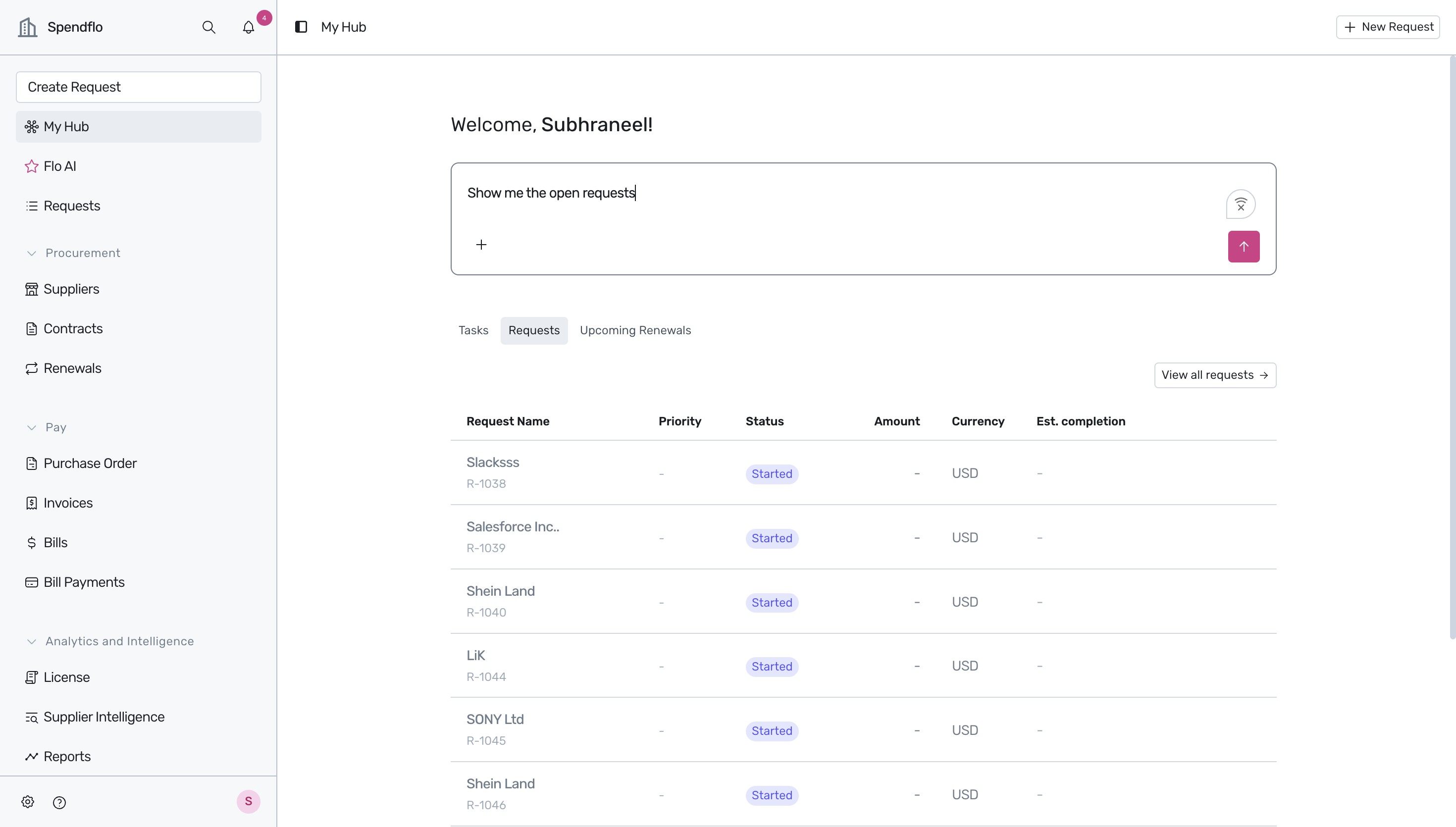
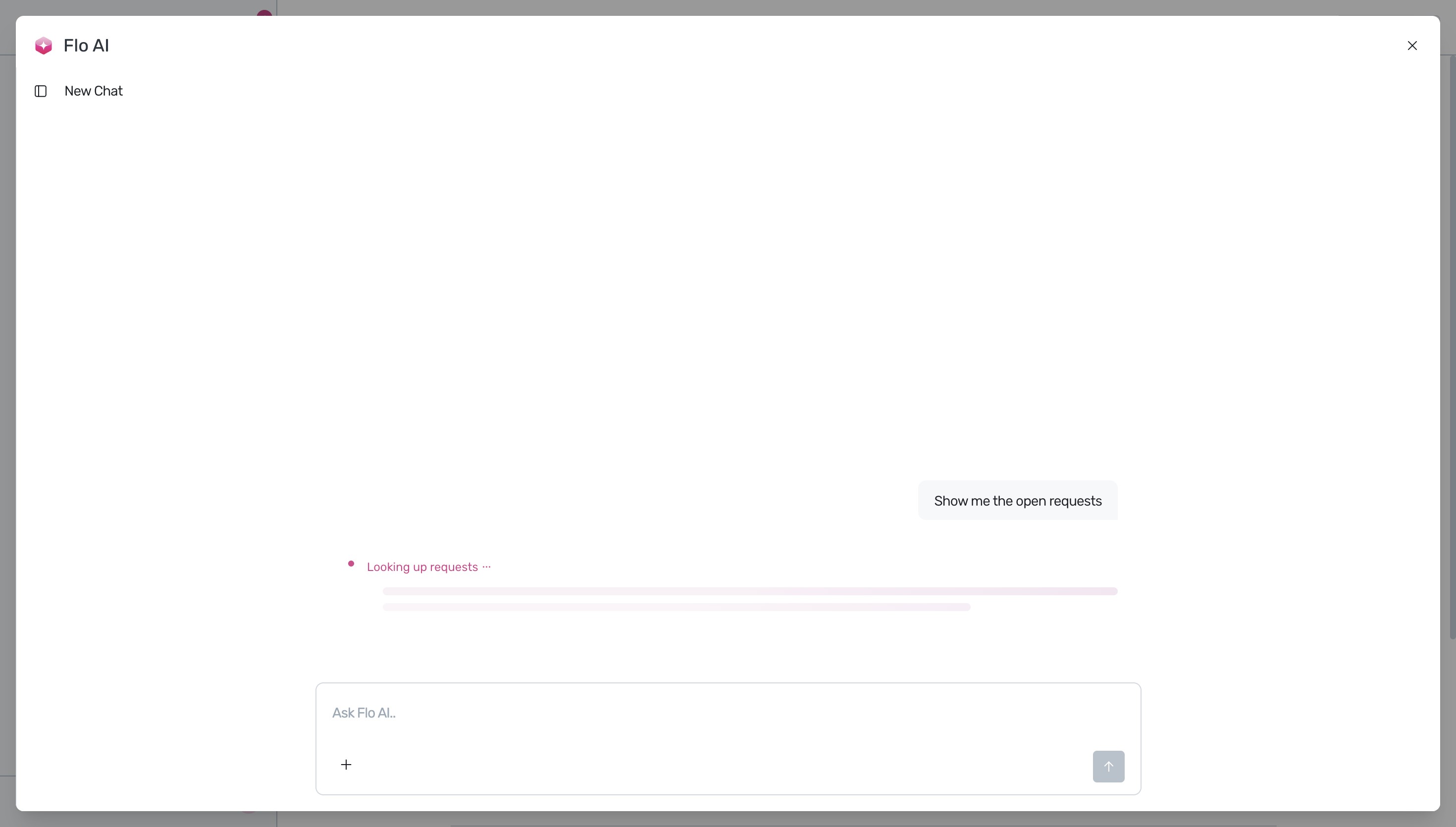
Submit your query by pressing Enter or clicking the send icon. The Flo AI modal will open, displaying a loading state while it searches and analyzes your procurement database.
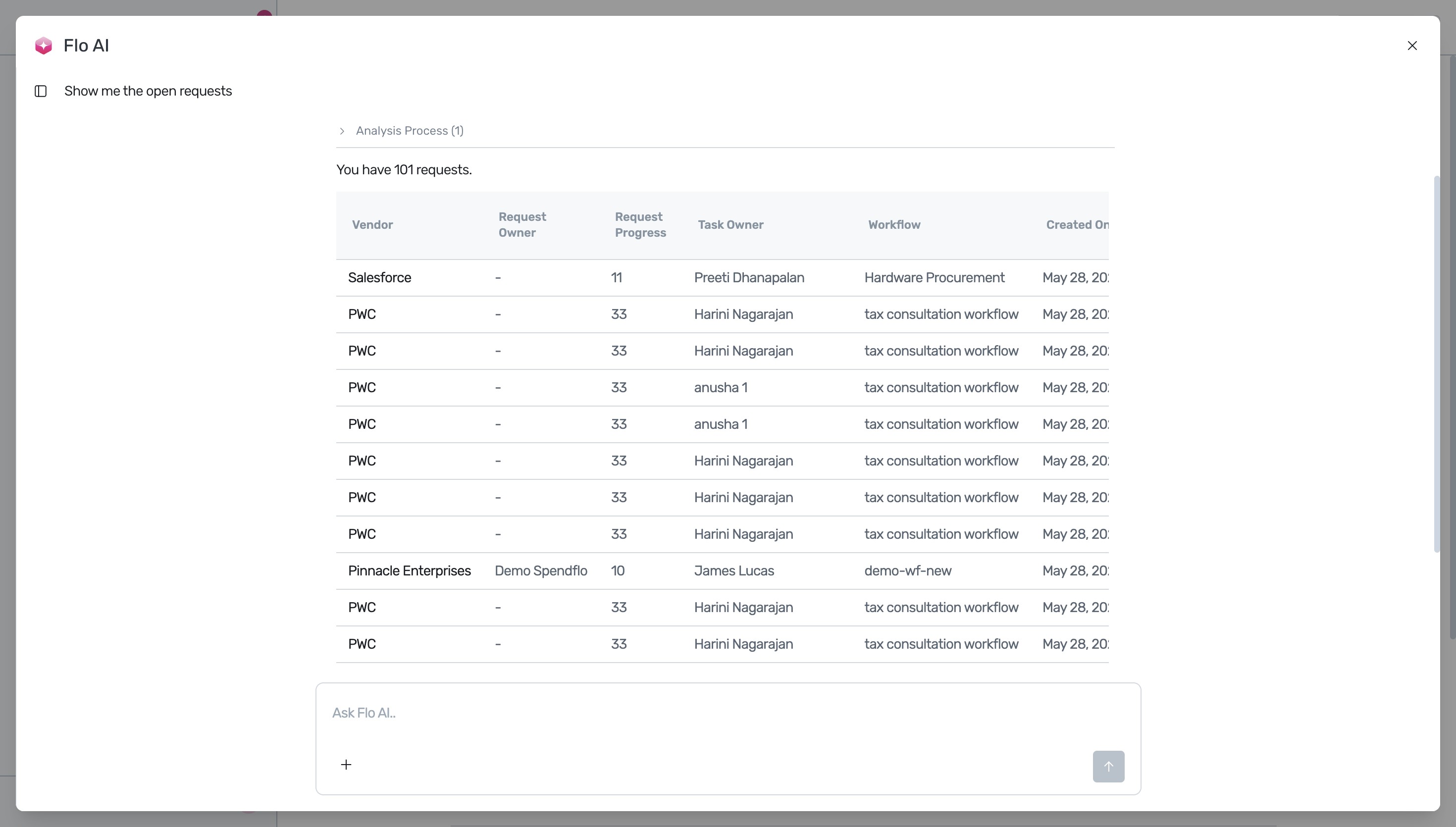
Review the results once Flo AI completes its analysis. The assistant presents a detailed table containing all matching open requests, displaying key details such as the Vendor, Request Owner, Request Progress, Task Owner, Workflow, and Creation Date.
Understanding the Request Table
The table generated by Flo AI provides a clear overview of your active procurement pipeline, allowing you to easily triage pending items. The table contains the following columns:
- Vendor: The supplier or service provider associated with the request.
- Request Owner: The individual who initiated and owns the procurement request.
- Request Progress: The overall status or completion percentage of the request.
- Task Owner: The individual who is responsible for completing the current task within the workflow.
- Workflow: The specific workflow associated with the procurement request.
- Creation Date: The date the request was initially submitted.
For more details on how these fields are defined or how to manage your requests manually, see Where do I view all requests? and How to manage request views.
Next Steps
Once you have surfaced your open requests, you can take further action to keep your workflows moving:
- If you identify overdue tasks that require immediate attention, see How to view pending or overdue tasks to learn how to inspect and reassign work.
- To create persistent filtered views of your requests, see How to create and save custom views on the request listing page.
- You can also monitor your active requests directly from your chat workspace.
Was this article helpful?
That’s Great!
Thank you for your feedback
Sorry! We couldn't be helpful
Thank you for your feedback
Feedback sent
We appreciate your effort and will try to fix the article