Overview
Spendflo's Flo AI simplifies the process of raising renewal requests by allowing you to quickly query and view all upcoming renewals directly through an intuitive chat interface.
Steps to track upcoming renewals
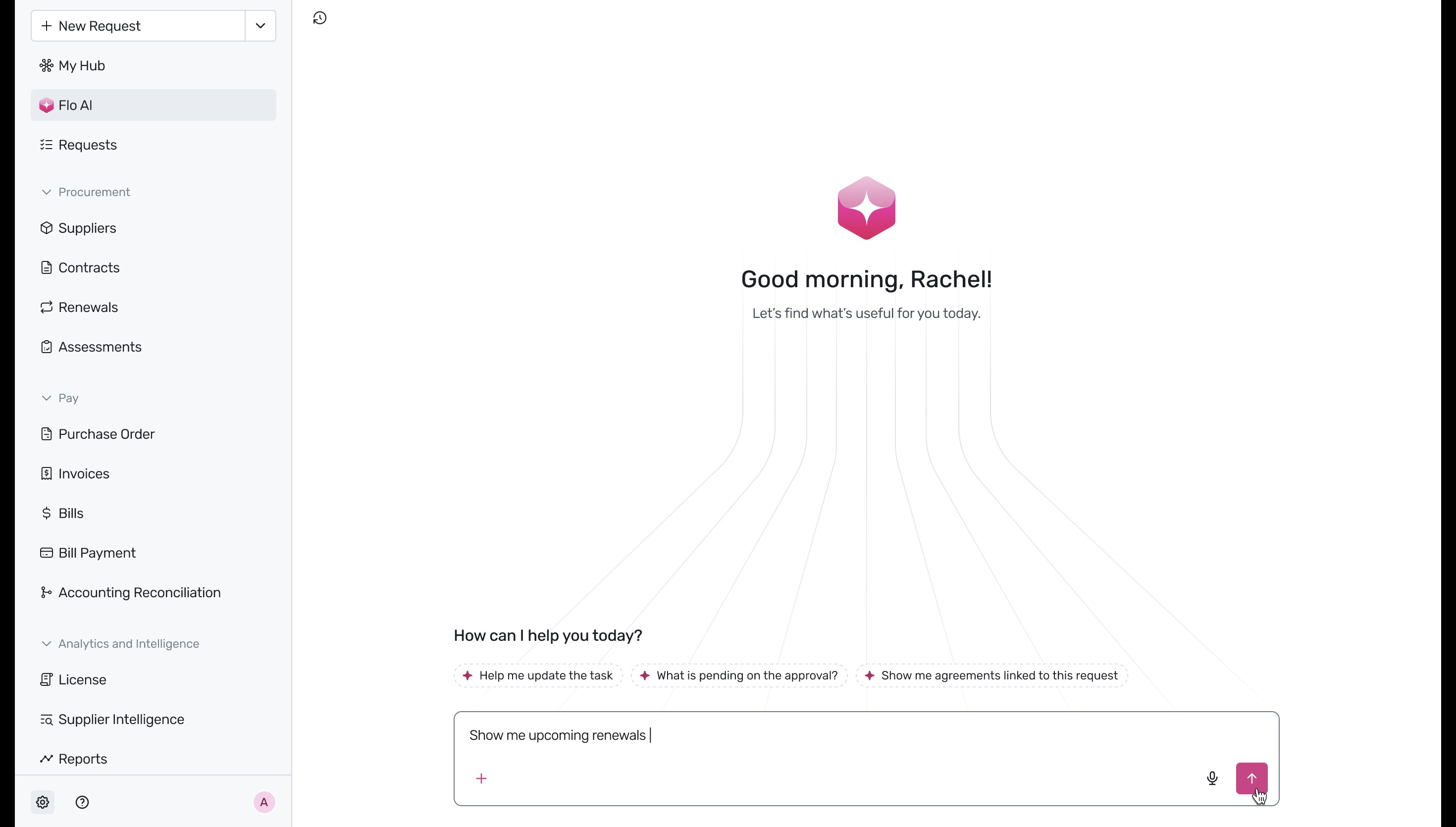
- Navigate to the Flo AI interface within your Spendflo workspace. In the chat input box at the bottom, type your query, such as 'Show me upcoming renewals', and click the send arrow.
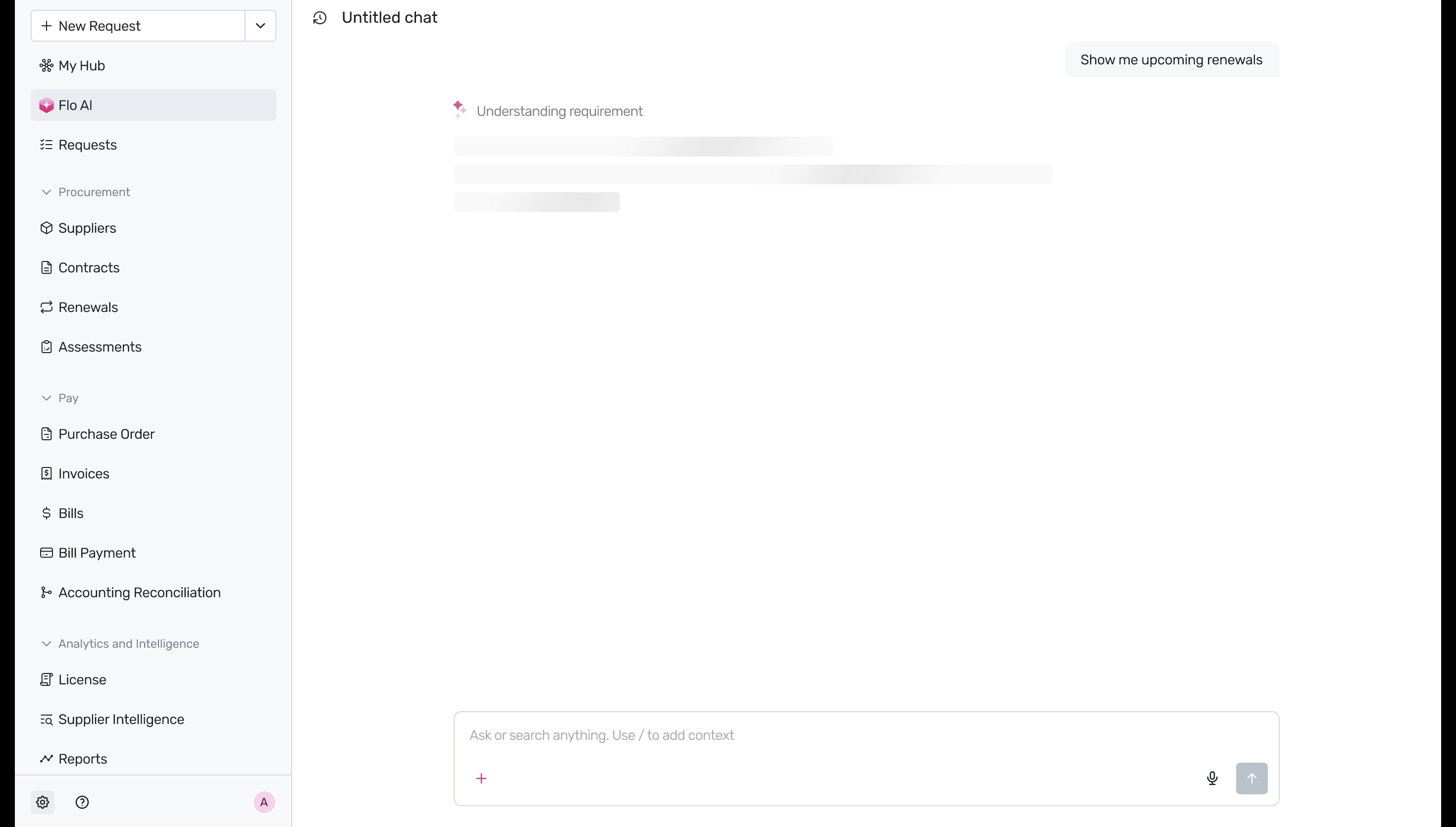
- The AI assistant will begin processing your request to gather the relevant data.
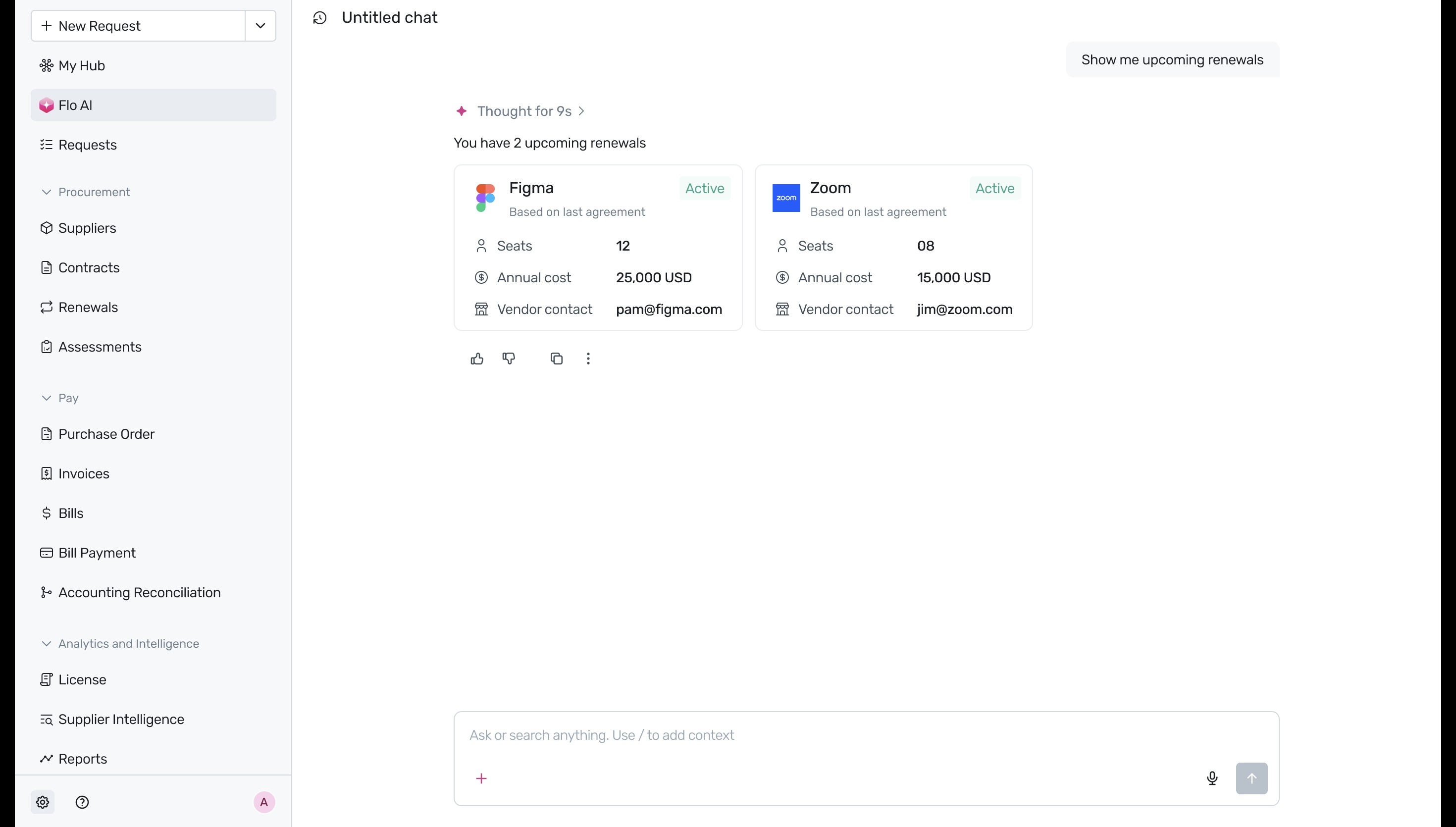
- Once processed, Flo AI will display the results in an easy-to-read format. You will see summary cards for each upcoming renewal (e.g., Figma and Zoom), which include quick details like the current status, number of seats, annual cost, and the vendor contact email.
- To view more comprehensive information about a specific renewal, simply click on its summary card. This opens a detailed view where you can read through the associated contract document, such as the Master Services Agreement, on the left. On the right, an 'Overview' panel provides extracted key data points including the vendor, start and end dates, contract type, and total amount.
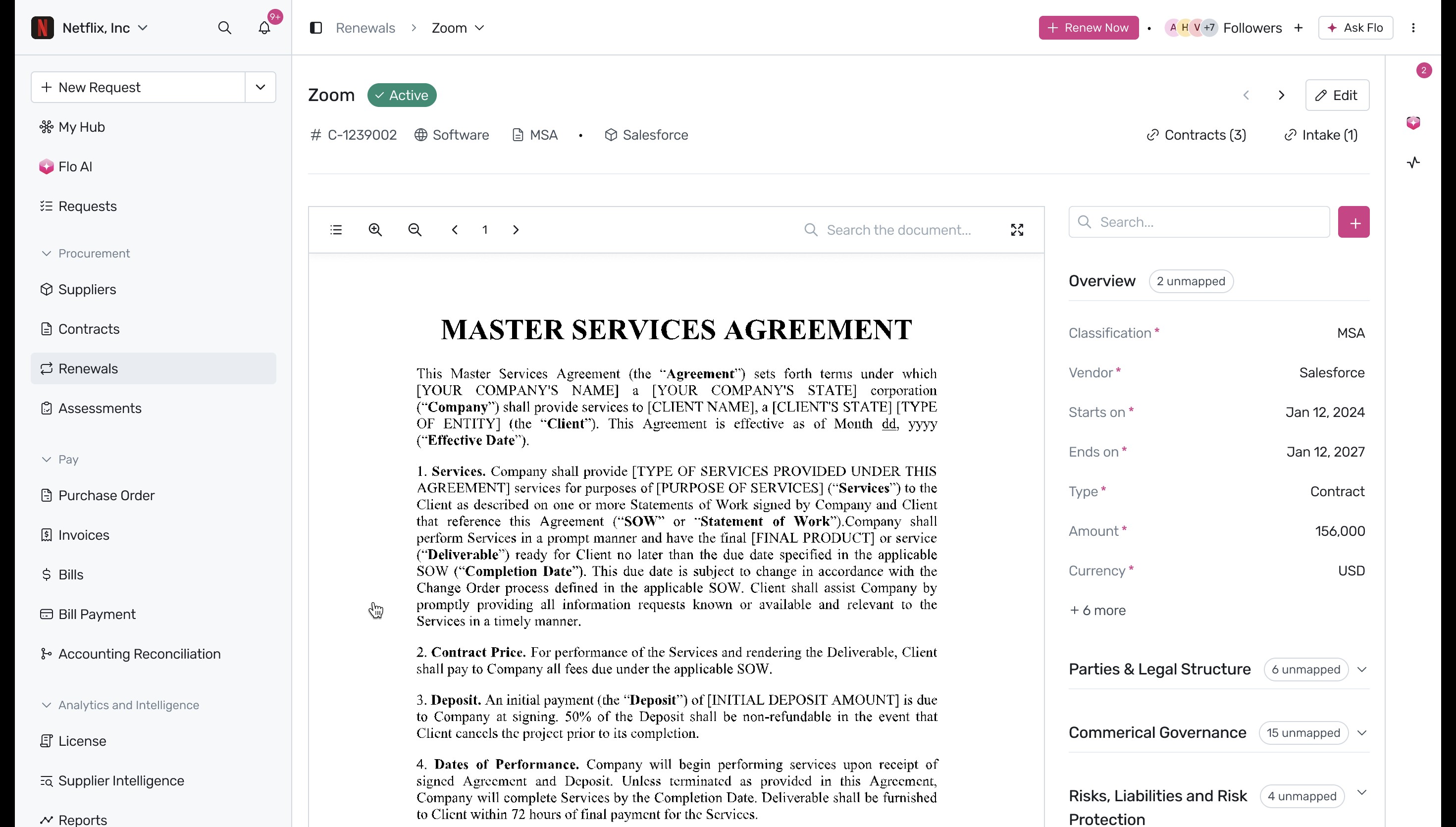
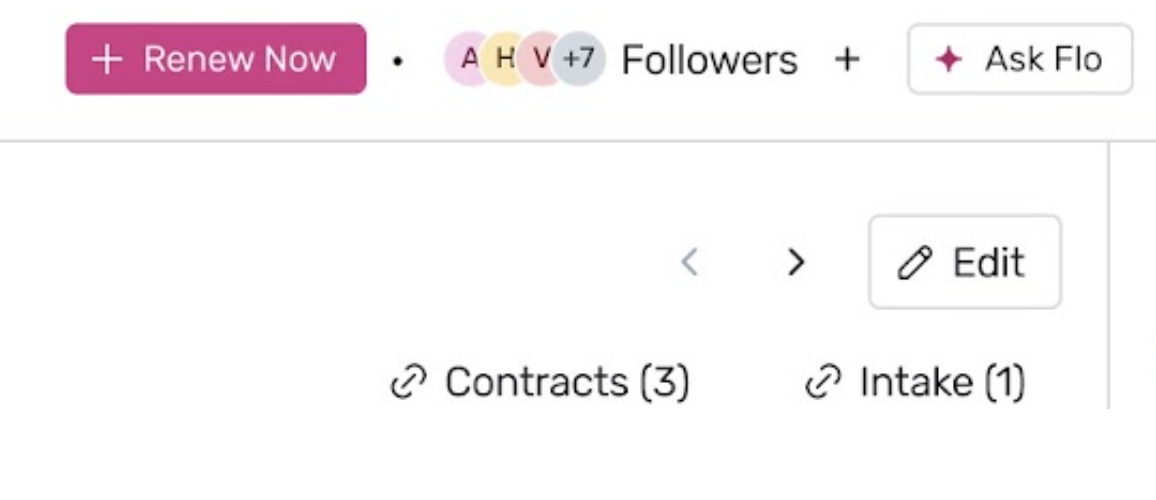
- Now click on "Renew Now" and you would be ready to go
- Navigate to the Flo AI interface within your Spendflo workspace. In the chat input box at the bottom, type your query, such as 'Show me upcoming renewals', and click the send arrow.
Next Steps
Now that you know how to track your upcoming renewals using Flo AI, you can proactively manage your SaaS stack. For more information on managing your contracts, explore our guide on the Agreements Listing Table.
Was this article helpful?
That’s Great!
Thank you for your feedback
Sorry! We couldn't be helpful
Thank you for your feedback
Feedback sent
We appreciate your effort and will try to fix the article