Overview
The Renewals page provides a comprehensive view of your contract lifecycles. You can now manually update the status of a renewal to "Renewed Offline" or "Will Not Renew" directly from the listing table. This feature ensures your Spendflo dashboard remains the single source of truth, even for actions taken outside the platform.
How to update a renewal status
Follow these steps to mark a renewal as renewed offline or to indicate that you will not renew:
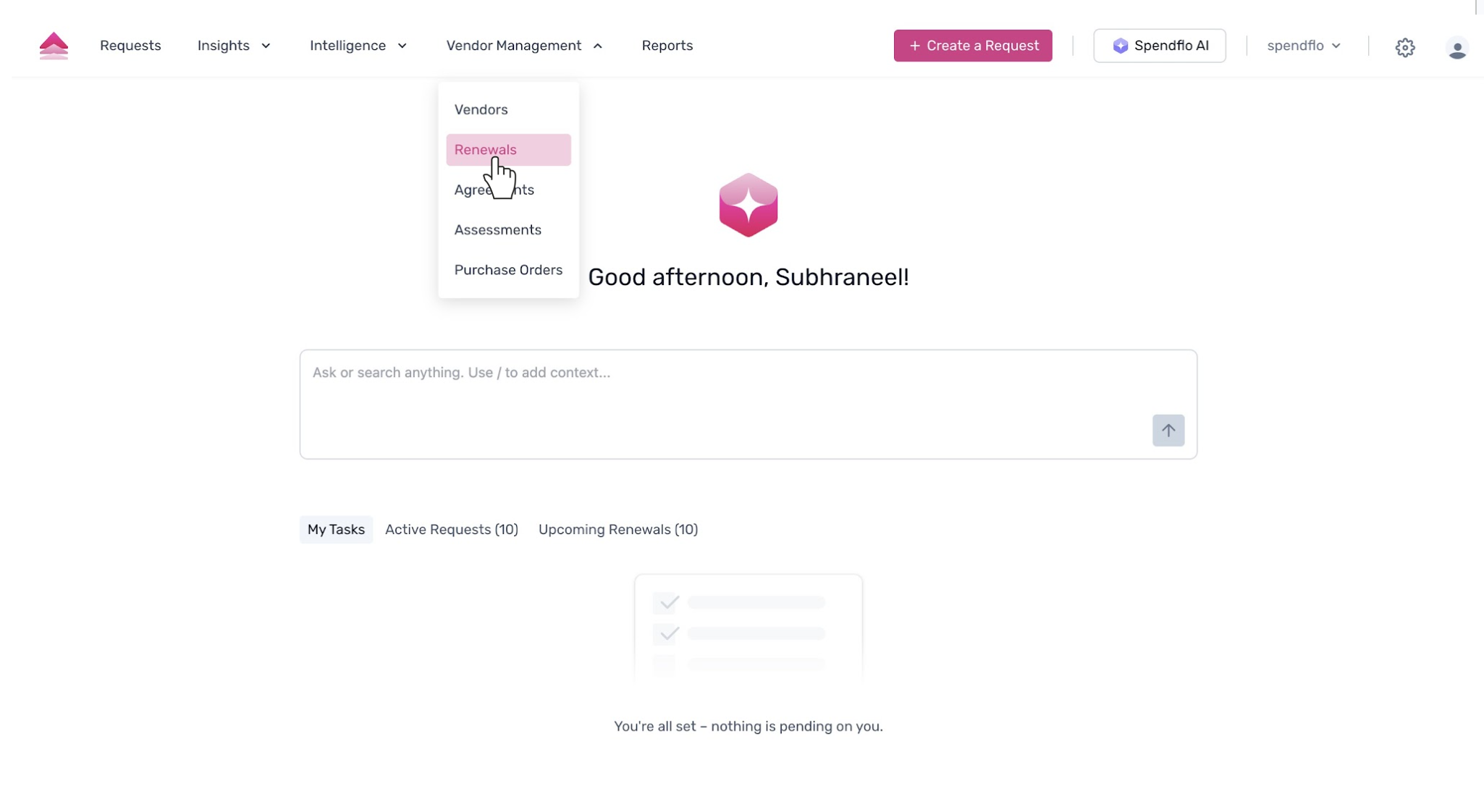
Navigate to the main dashboard. From the top navigation bar, click on Vendor Management to reveal the dropdown menu. From the Vendor Management dropdown, select Renewals to proceed.
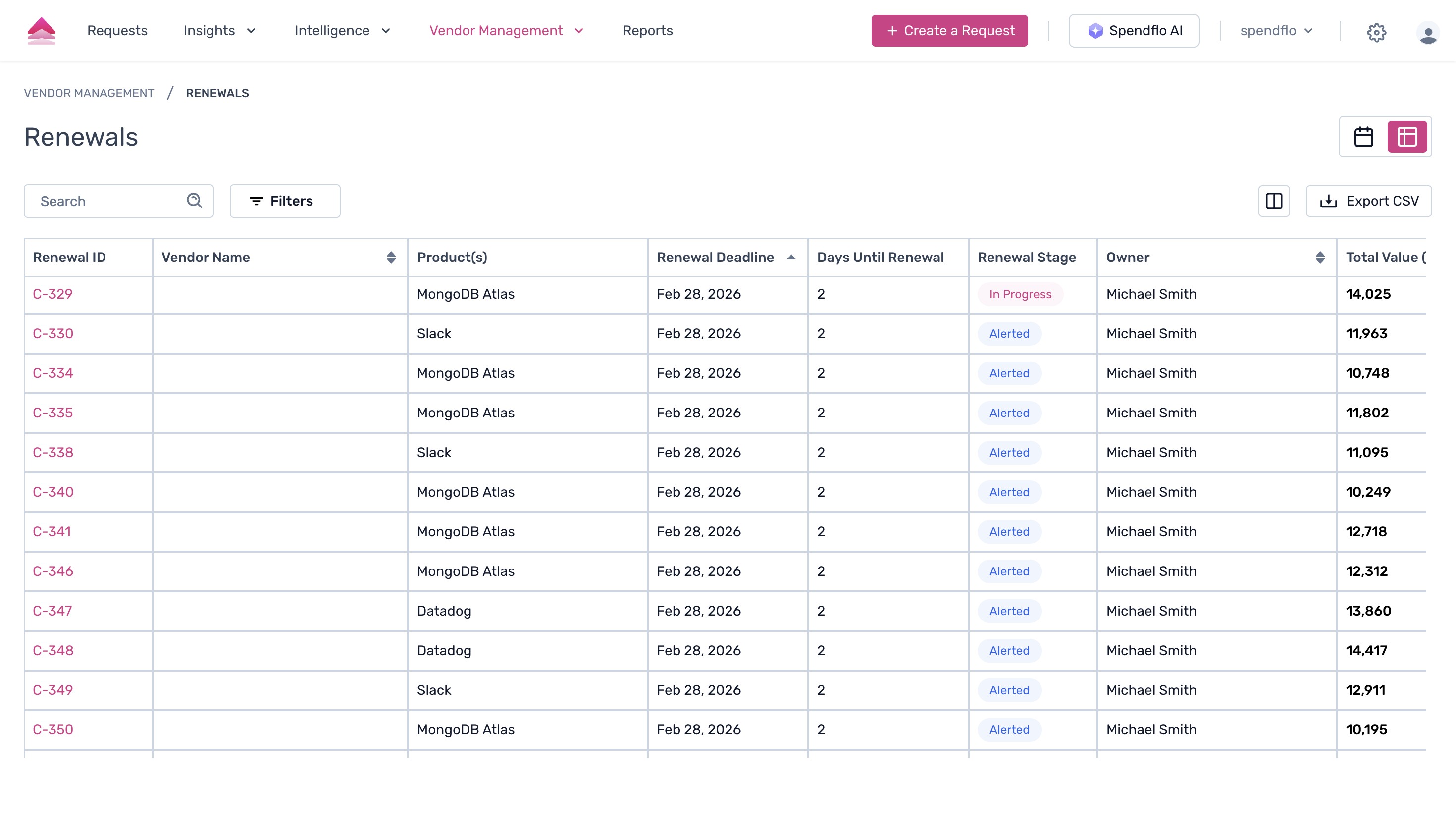
You will be directed to the Renewals page, which displays a comprehensive list of all ongoing and upcoming renewals in a table format.
To update a specific renewal, scroll to the Actions column on the far right of the table. Click the three-dot icon corresponding to the renewal you wish to update. This will open a menu of available actions.
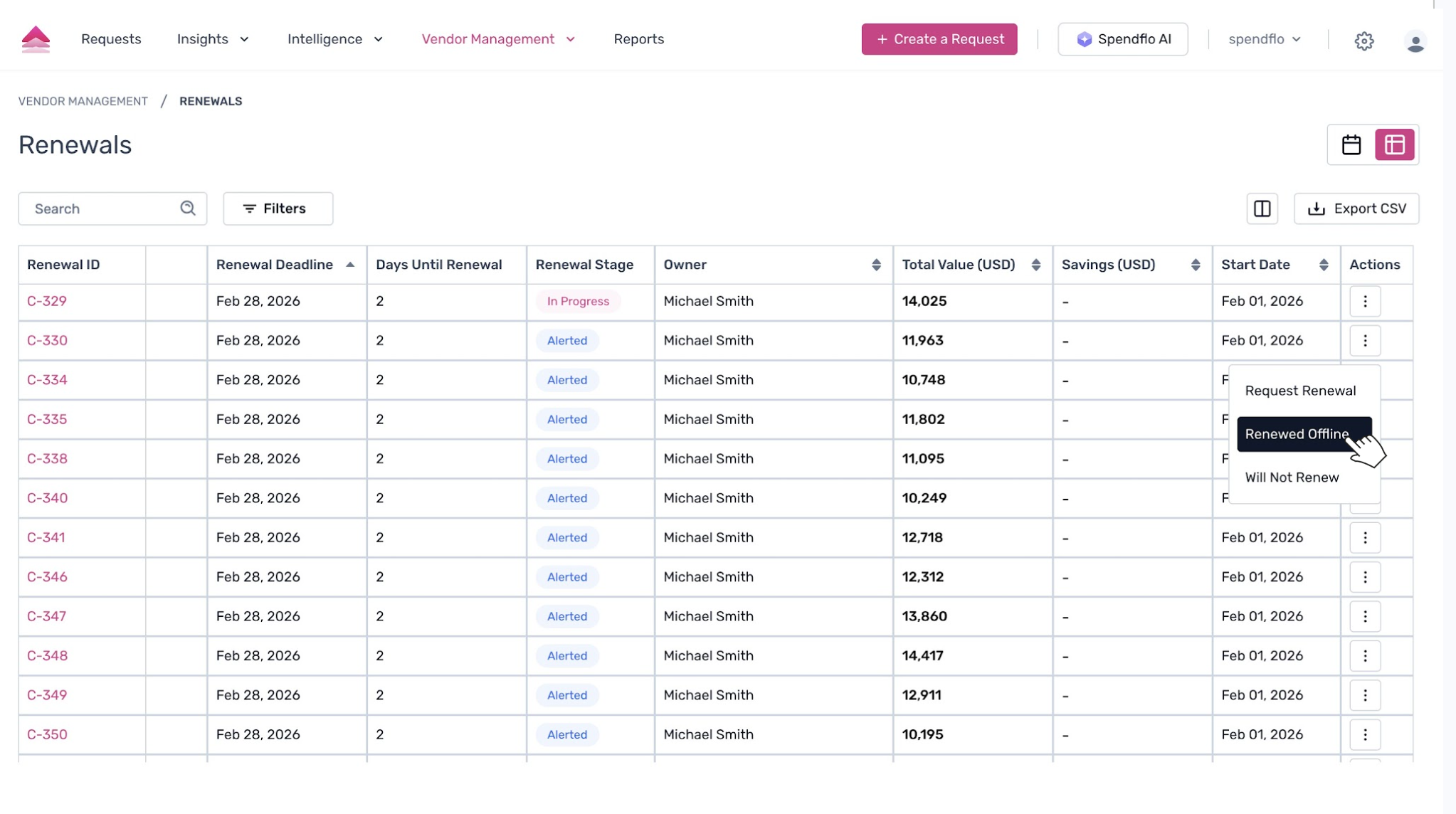
Note: Select Renewed Offline if the renewal was completed outside the platform. Alternatively, select Will Not Renew if you have decided to terminate the contract.
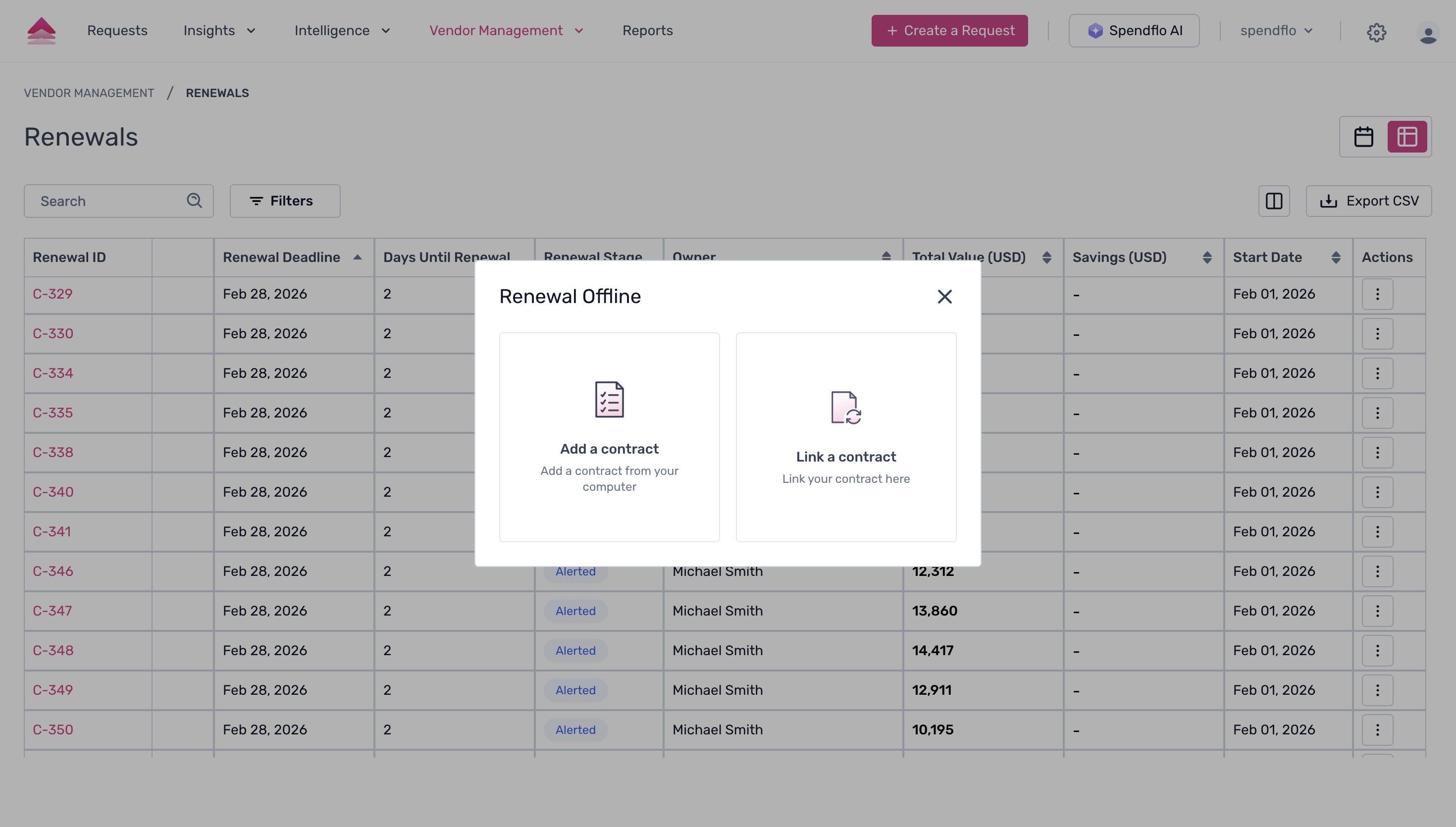
If you selected Renewed Offline, a modal will appear prompting you to either add a new contract or link to an existing one. Click on Add a contract to upload a new document.
This will open the Add an Agreement form. Here, you can specify the agreement category and type. Click within the Upload Agreement Document area to open your file explorer and select the relevant contract file. Once the file is successfully uploaded, it will appear in the form.
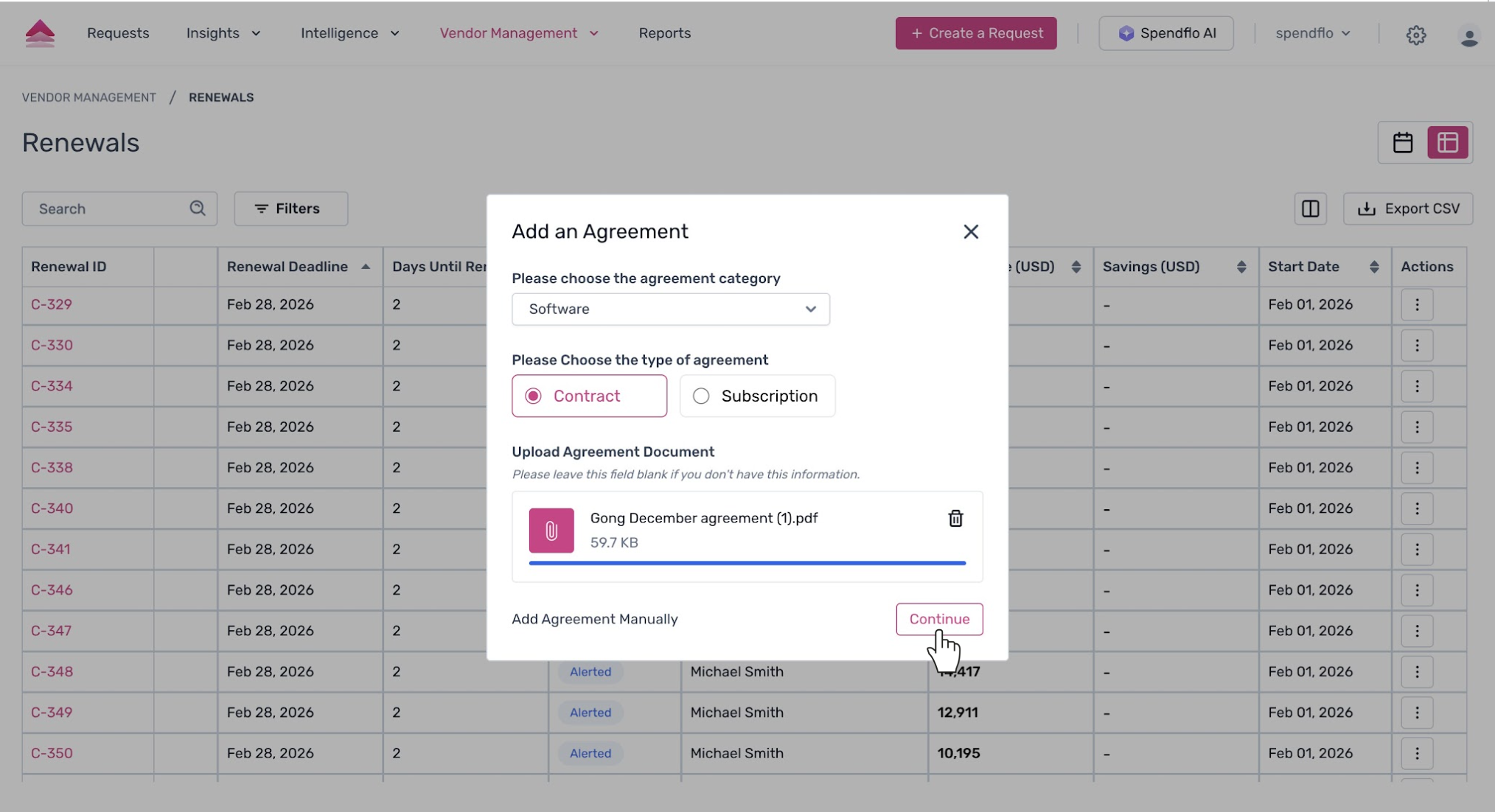
After the contract document is uploaded and all necessary details are filled in, click the Continue button to save the changes and mark the renewal as complete.
Next Steps
Keeping your renewal statuses up to date ensures accurate reporting and alerts. For more information on managing your renewal pipeline, please refer to our guide on understanding renewal stages.
Was this article helpful?
That’s Great!
Thank you for your feedback
Sorry! We couldn't be helpful
Thank you for your feedback
Feedback sent
We appreciate your effort and will try to fix the article