Overview
This integration connects Spendflo with Jira Service Management, allowing approval steps in your procurement process to automatically create corresponding tickets in JSM. This routes approvals through your ITSM system while maintaining full visibility and compliance.
Prerequisites
An Administration role is required to set up the Jira Service Management integration.
The integration is only available on Standard and Premium plans.
The integration user must have an Agent License for Jira Service Management. To enable this:
Go to Settings → User management → Users → open the user → App access → change Jira Service Management from Customer → Agent → Save
In Project Settings → Project Permissions, the integration user or their role must have the following permissions: Browse Projects, Create Issues, Delete Issues, Modify Reporter (required if the Reporter field is used for ticket creation).
If Issue Security is enabled on your project, include the integration user or their role in all security levels.
Features
Create a service ticket in Jira Service Management directly from Spendflo.
Steps to Set Up the JSM Integration
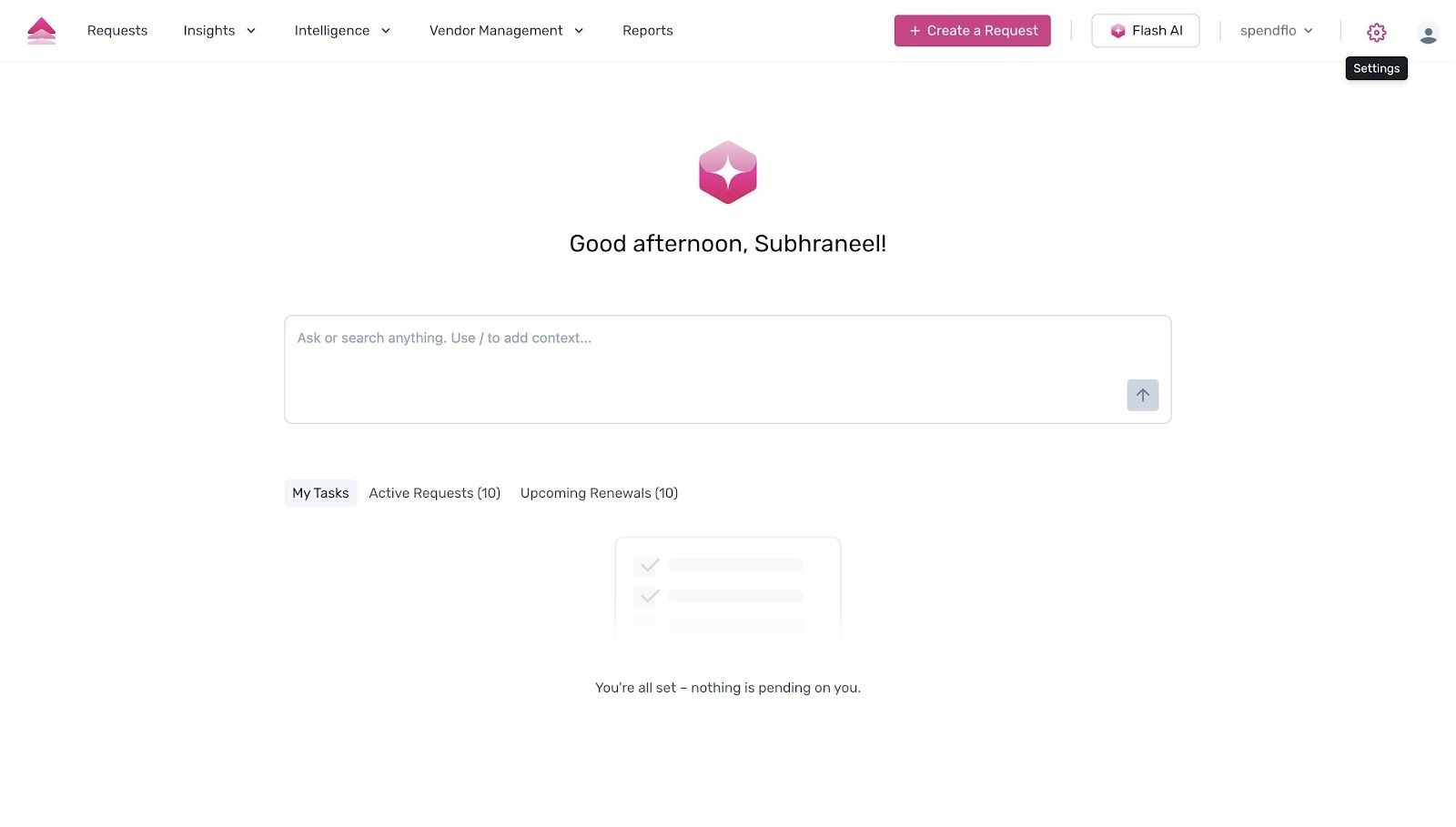
From the Spendflo main dashboard, click the Settings gear icon in the top right corner of the navigation bar.
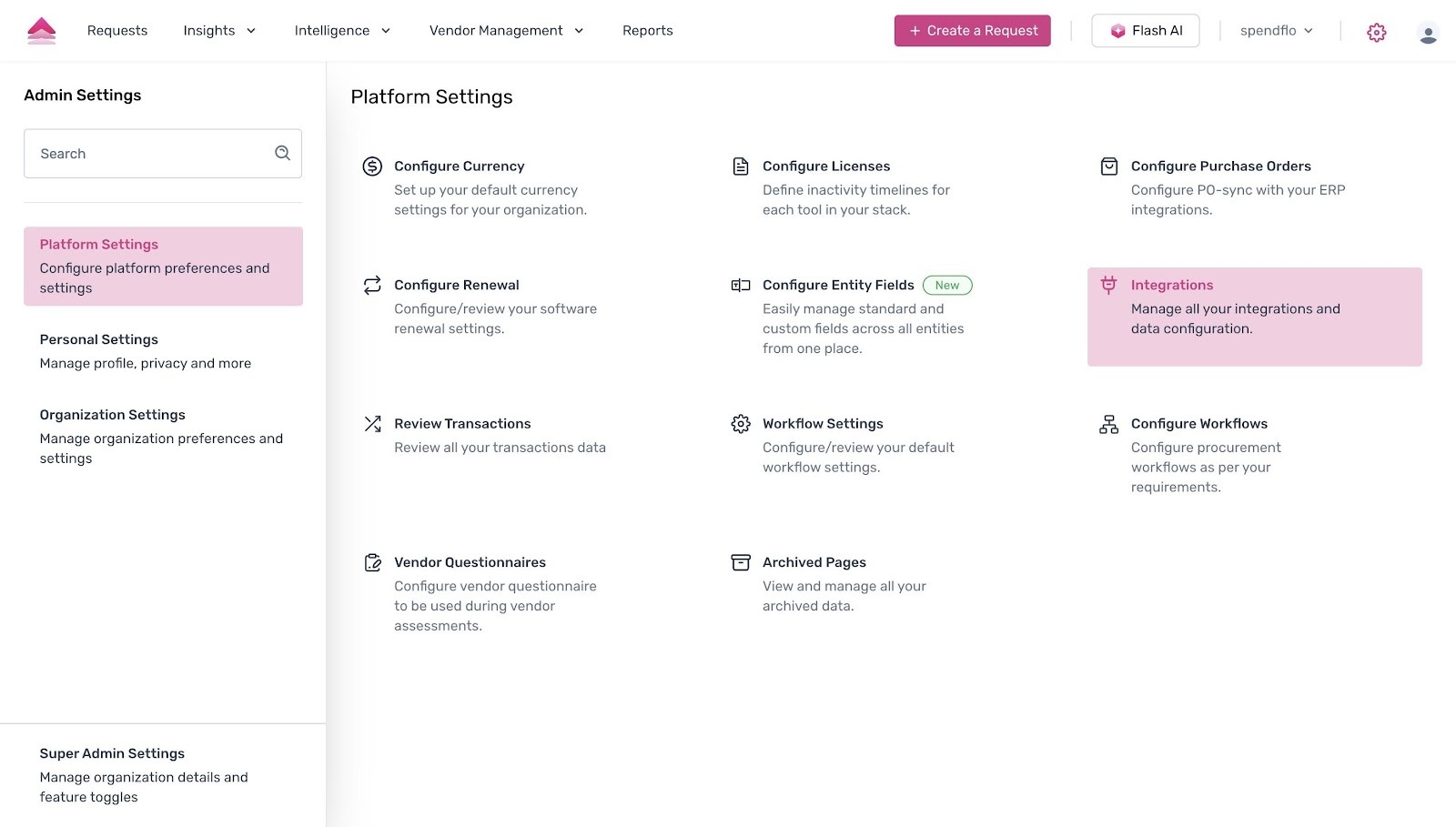
You will be directed to the Admin Settings page. Under Platform Settings, click the Integrations card.
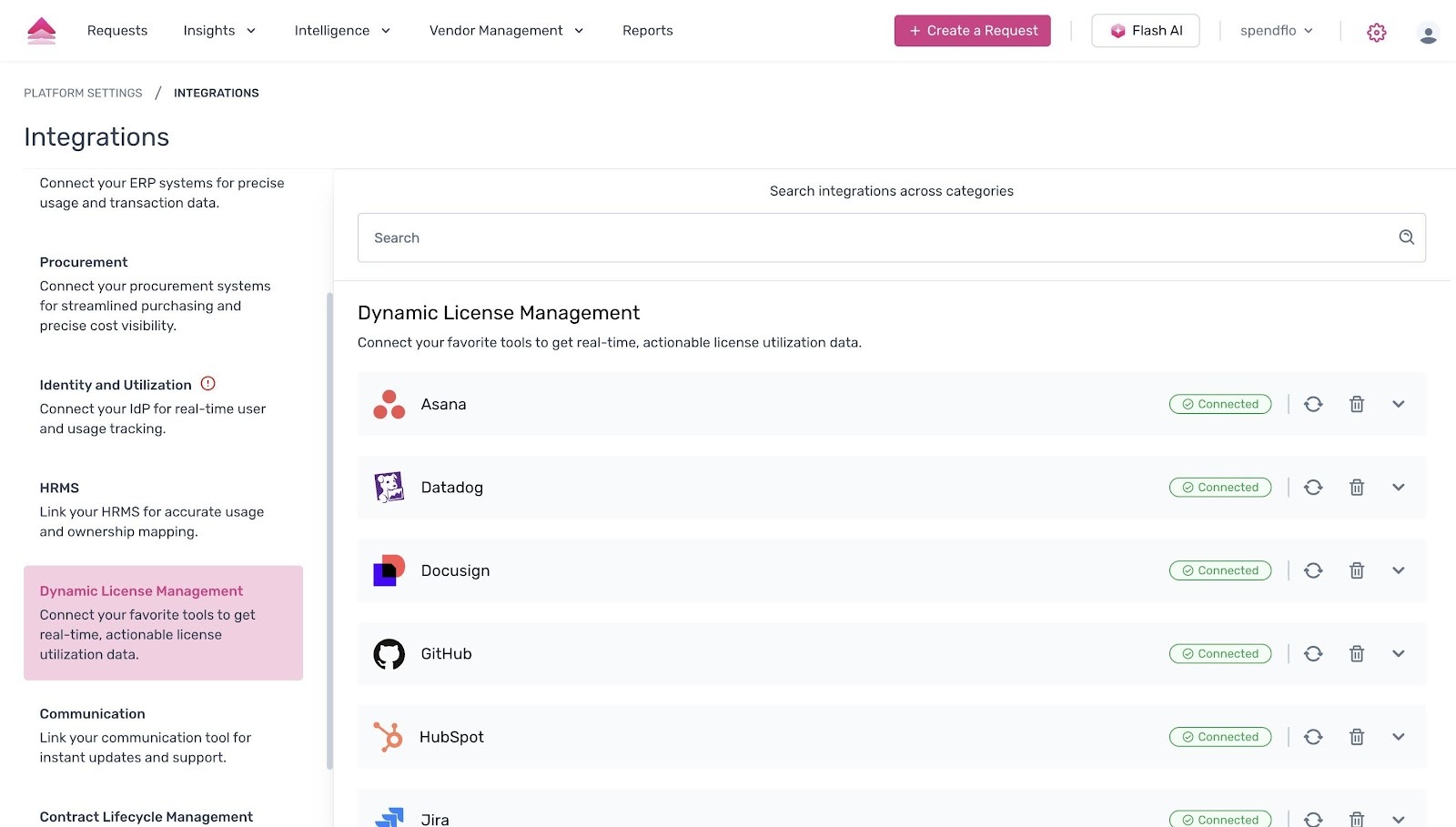
On the Integrations page, navigate to the left sidebar and select Dynamic License Management. This section lets you connect tools to get real-time, actionable license utilisation data.
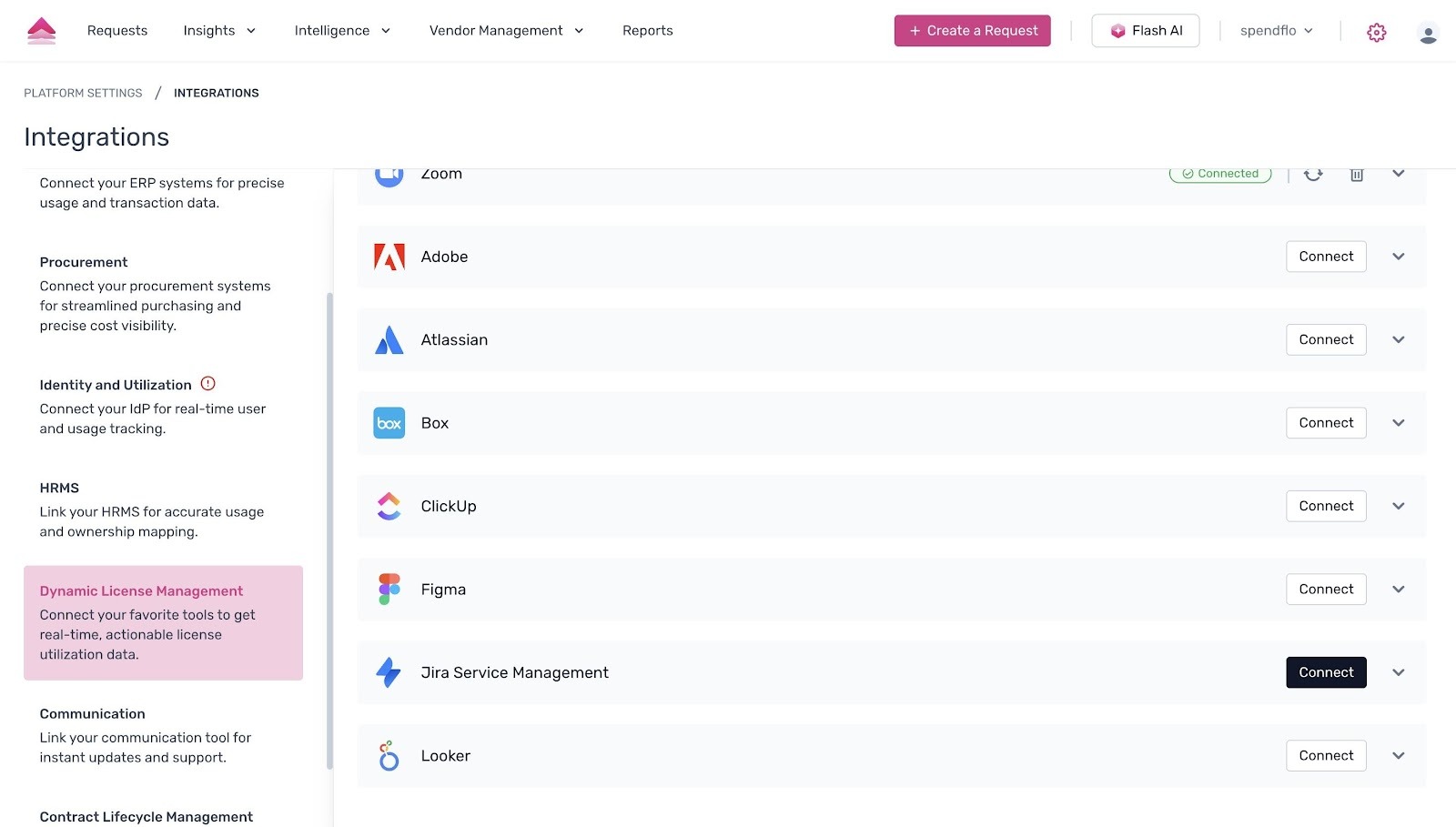
Scroll through the list of available applications to find Jira Service Management.
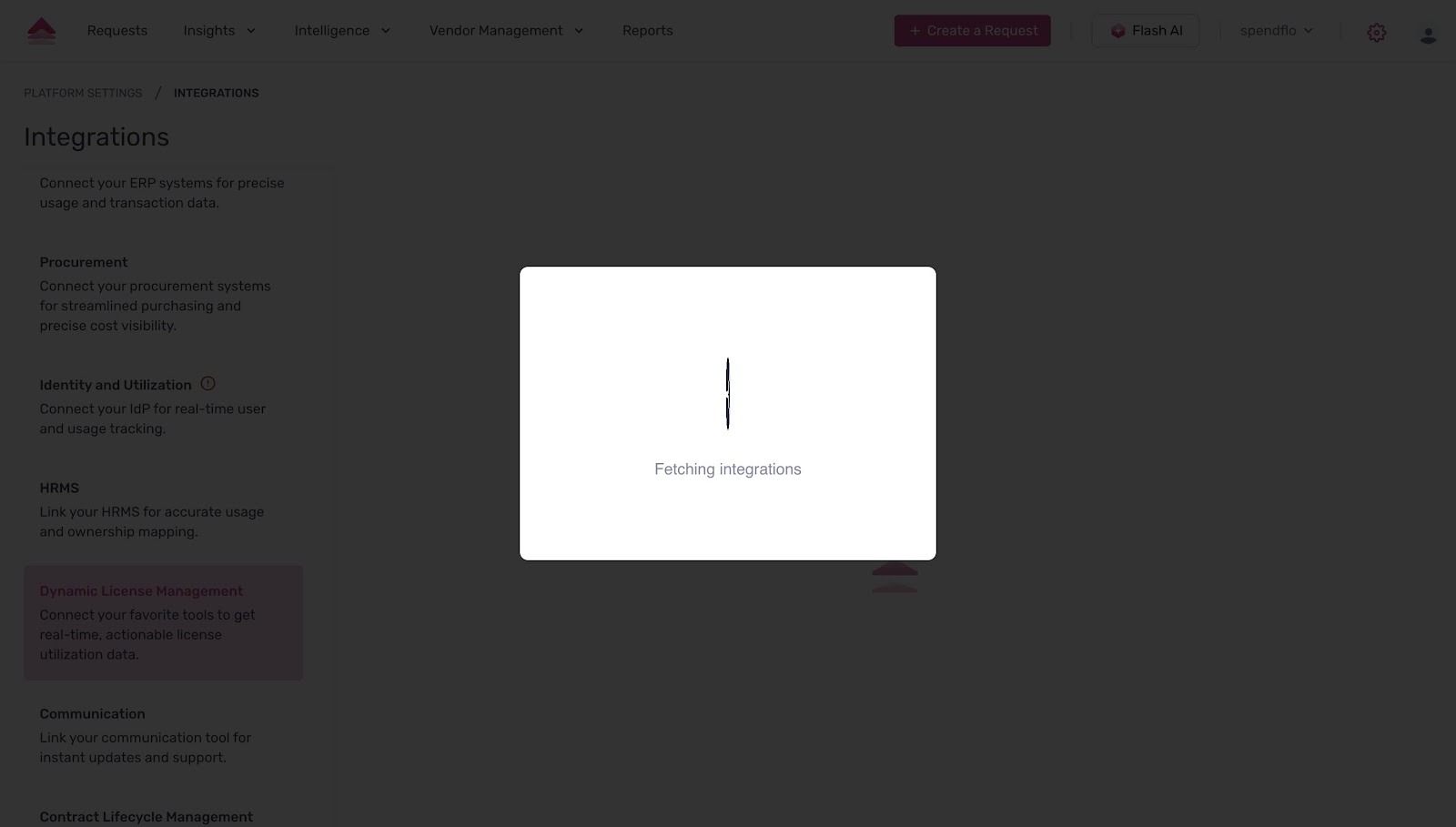
Click the Connect button next to Jira Service Management. A brief loading modal will appear while the system fetches the integration details.
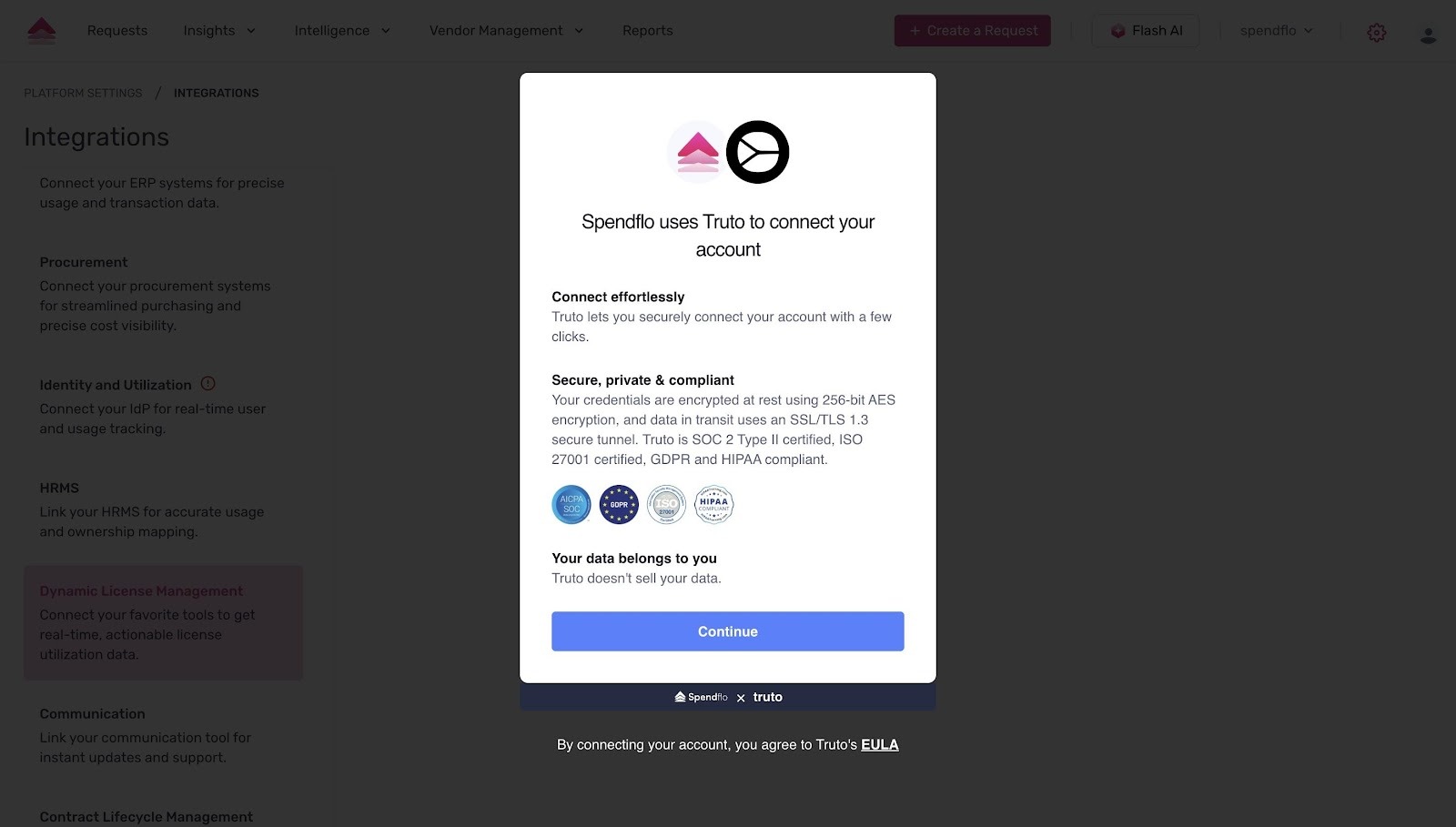
A secure connection screen powered by Truto will appear, explaining how your account will be connected. Review the security and compliance details — credentials are encrypted using 256-bit AES and data in transit uses SSL/TLS 1.3. Click Continue to proceed.
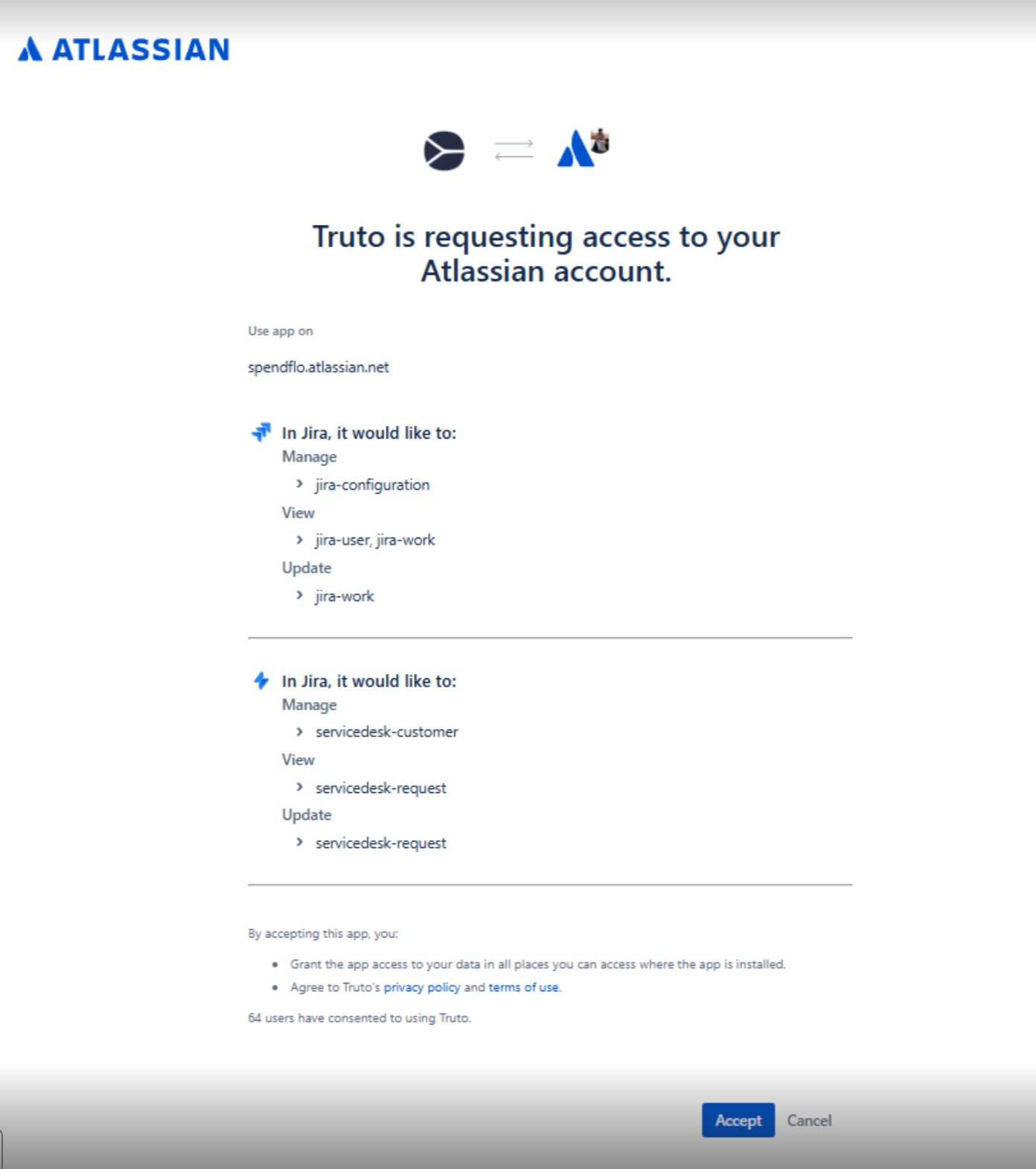
A pop-up will appear listing the permissions Truto is requesting to access your Atlassian account including Jira configuration management, user and work item access, and service desk permissions. Click Accept to grant access.
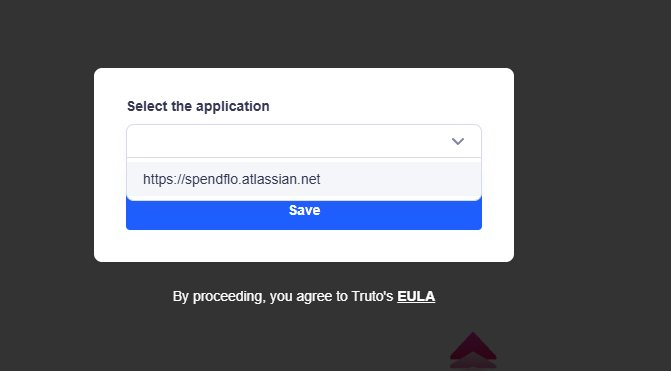
You will then see a Select the application dropdown. Choose the Atlassian instance you want to connect (for example, https://yourcompany.atlassian.net) and click Save.
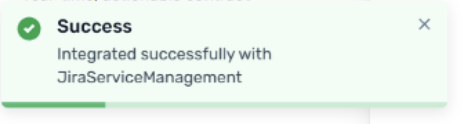
Your Jira Service Management account is now successfully connected to Spendflo. You can now start using the integration to create service tickets from your procurement workflows.
Important Notes
Fields marked as "hidden" in JSM will not appear in Spendflo during the mapping configuration.
The fields available on the mapping screen depend on the project's Request Type, not the Work Type.
Once the integration is set up, you can start automating your procurement workflows and managing approvals directly within JSM. For more information, refer to the workflow automation guides in the Help Centre.
Was this article helpful?
That’s Great!
Thank you for your feedback
Sorry! We couldn't be helpful
Thank you for your feedback
Feedback sent
We appreciate your effort and will try to fix the article