Overview
Vendor Onboarding in Spendflo lets you collect vendor details through a structured workflow and automatically create the vendor record in NetSuite. Once the vendor is approved in NetSuite, the Vendor ID and status are written back to Spendflo so you can proceed with purchase orders and other procurement activities.
Overview
When you submit a vendor onboarding request, Spendflo will:
Collect the vendor details through the onboarding form.
Send the information to NetSuite and create a vendor record.
Wait for NetSuite to approve or reject the vendor (this can take up to 7 days).
Write the Vendor ID, Vendor Status, and Vendor URL back to Spendflo once the process is complete.
Steps to Onboard a Vendor
From the Spendflo home screen or the Requests page, click + New Request.

Select Vendor Onboarding from the list of available request types.
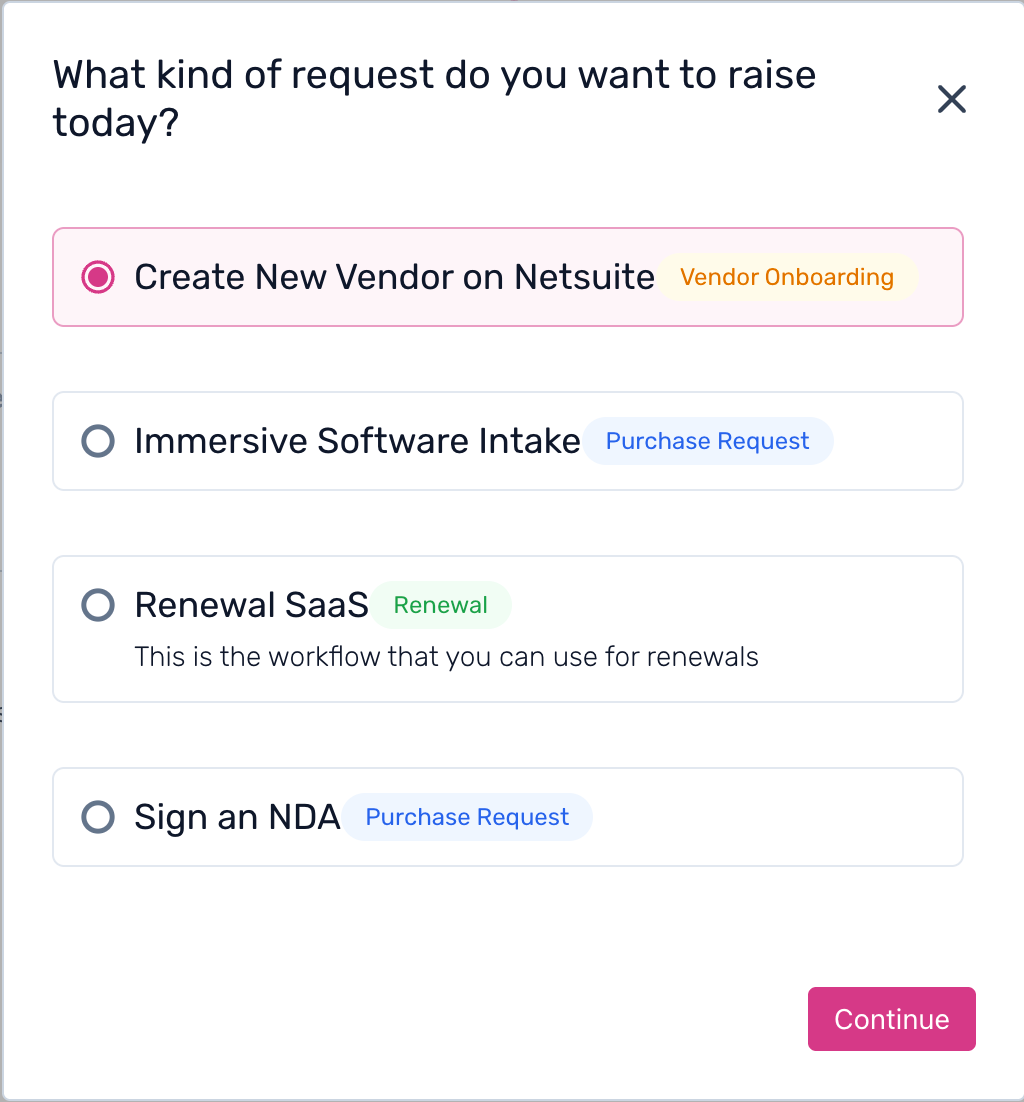
Fill in the vendor details on the onboarding form. The form will ask for information about the vendor, including:
Company Name – the legal name of the vendor (required)
Primary Subsidiary – the NetSuite subsidiary this vendor belongs to (required)
Currency – the vendor's billing currency (required)
Type, Web Address, Category, Email, Phone – optional, depending on your organisation's configuration
Address – street address, city, state, zip, country (optional)
Legal Name – if different from the company name (optional)
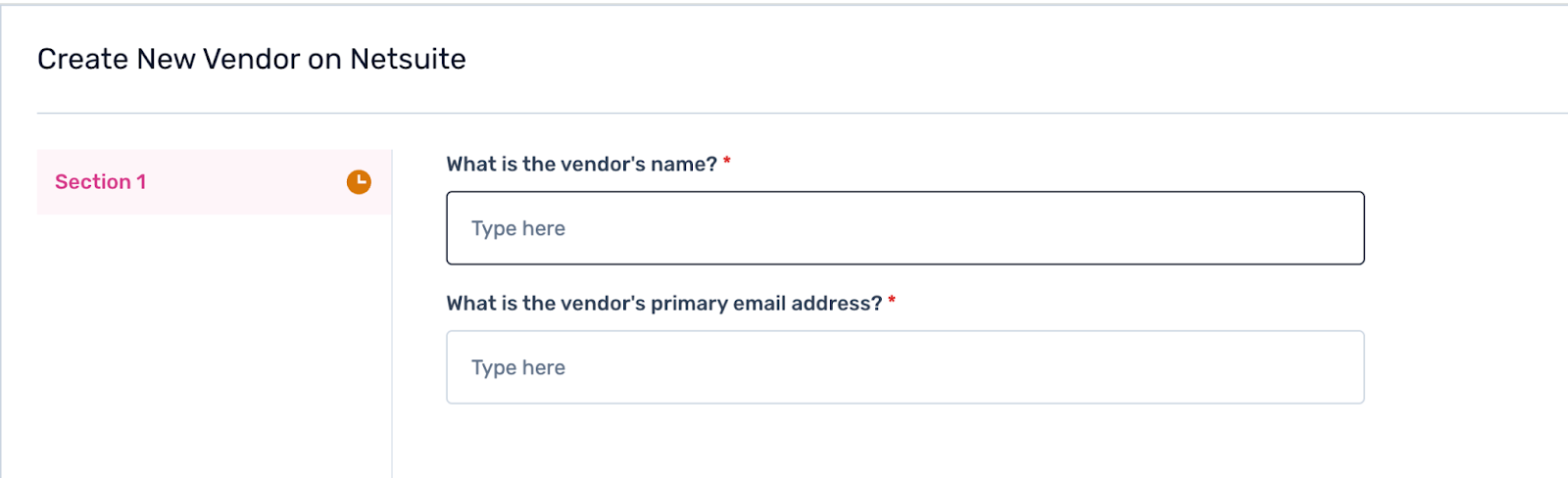
Note: The fields available in the form depend on how your admin has configured the vendor onboarding settings. Mandatory fields must be filled in before you can submit.
Once all required fields are filled in, click Submit to send the request through the workflow.
The request will move through the workflow approval steps as configured by your admin. You can track the progress from the My Requests or Active Requests tab on the home screen.
Once all workflow approvals are completed, Spendflo will automatically send the vendor details to NetSuite and create the vendor record. You will see the Vendor ID, Vendor Status, and a Vendor URL (a direct link to the record in NetSuite) updated in your request.
Vendor Status
After the vendor record is created in NetSuite, the status will update in Spendflo to one of the following:
Active – the vendor has been approved in NetSuite and is ready to use for purchase orders and procurement activities.
Rejected – the vendor was not approved in NetSuite. The workflow will fail. Contact your NetSuite admin for more details.
Inactive – the vendor exists in NetSuite but has been marked inactive. The workflow will fail. Contact your NetSuite admin to resolve this.
Note: NetSuite may take time to approve a vendor after the record is created. Spendflo checks for updates every 30 minutes. If no status update is received within 7 days, the request will automatically fail. Contact your admin if this happens.
Was this article helpful?
That’s Great!
Thank you for your feedback
Sorry! We couldn't be helpful
Thank you for your feedback
Feedback sent
We appreciate your effort and will try to fix the article