Overview
Spendflo’s Vendor Onboarding feature allows you to seamlessly invite vendors to a secure Vendor Portal, configure reusable questionnaires, and track their responses. This ensures compliance and security checks are completed efficiently. You can also pause internal workflows using a Wait Step until a vendor is fully onboarded and active, maintaining consistency and control over your procurement process.
How Vendors Access the Portal
When a vendor onboarding workflow is initiated, Spendflo uses the provided Vendor POC email to send a welcome and task assignment email containing a link to the Vendor Portal.
- Vendors must sign up using a valid company email domain. Generic domains (like Gmail or Yahoo) are not permitted.
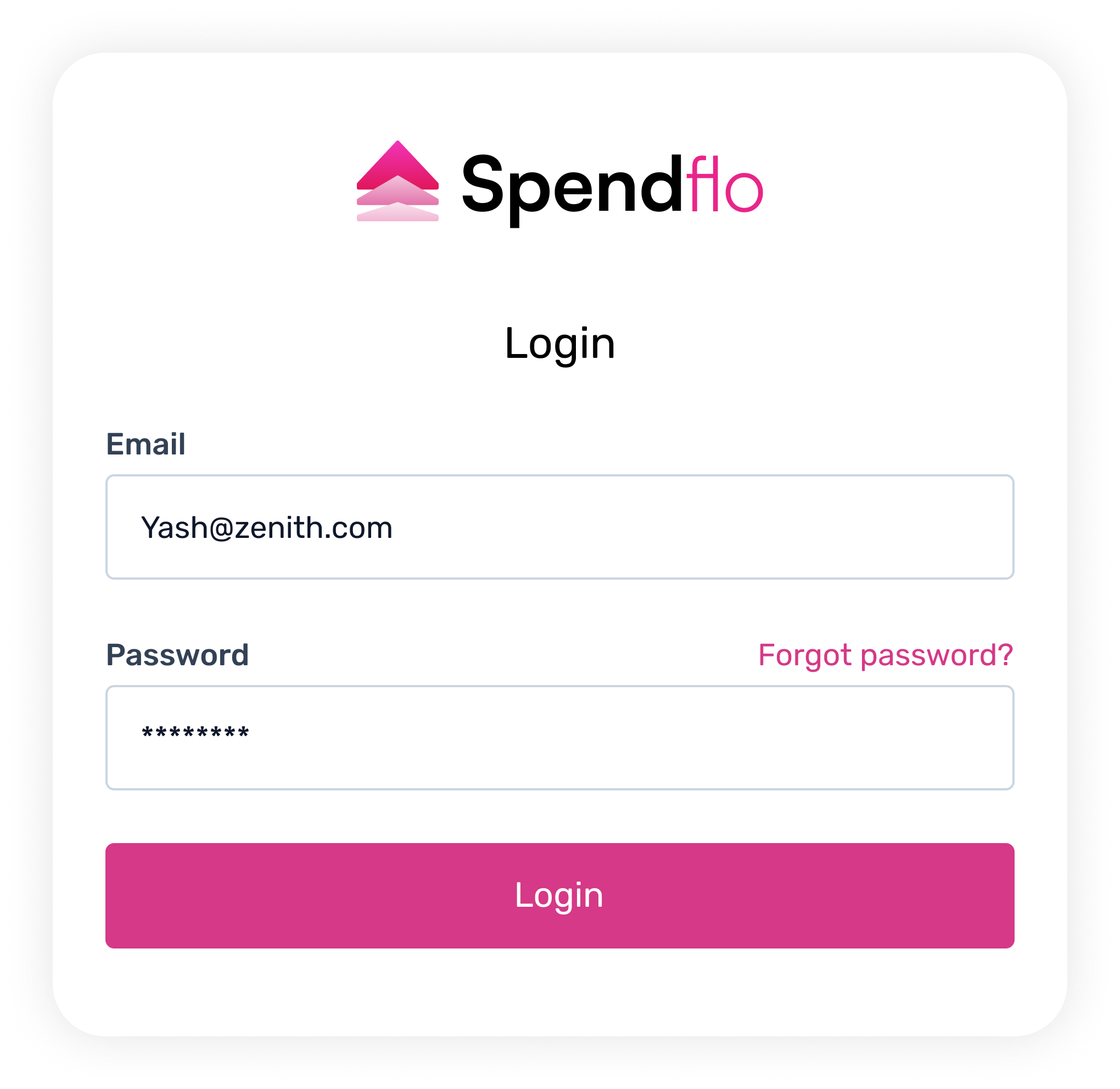
- The email is validated against the intake form.
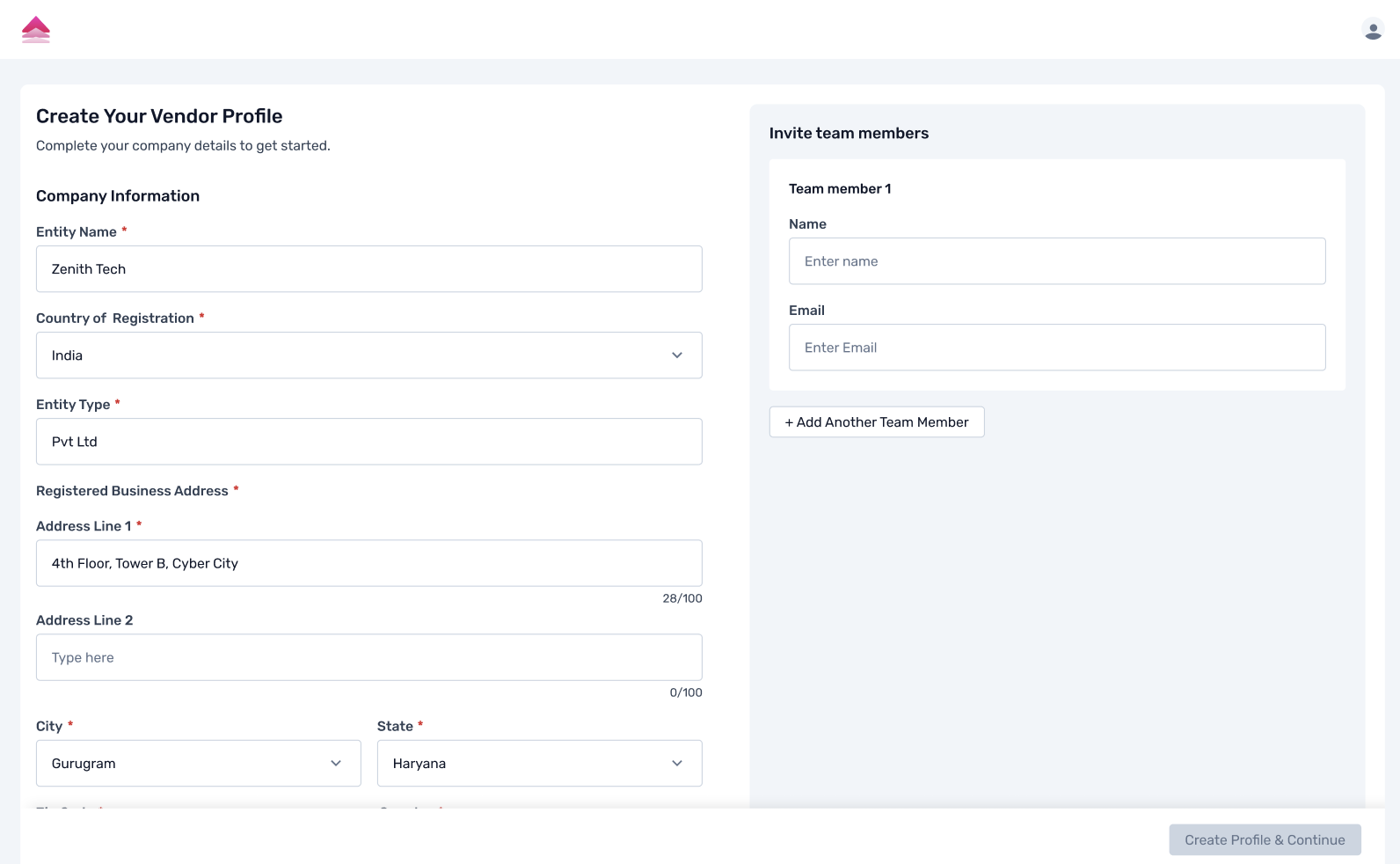
- Upon their first login, vendors are required to complete a mandatory Vendor Profile (including Legal Entity Name, Country of Registration, and Currency) before accessing their tasks. This data maps directly to your existing vendor fields in Spendflo.
Configuring Vendor Questionnaires
Admins can configure reusable vendor questionnaires for security, compliance, or commercial checks.
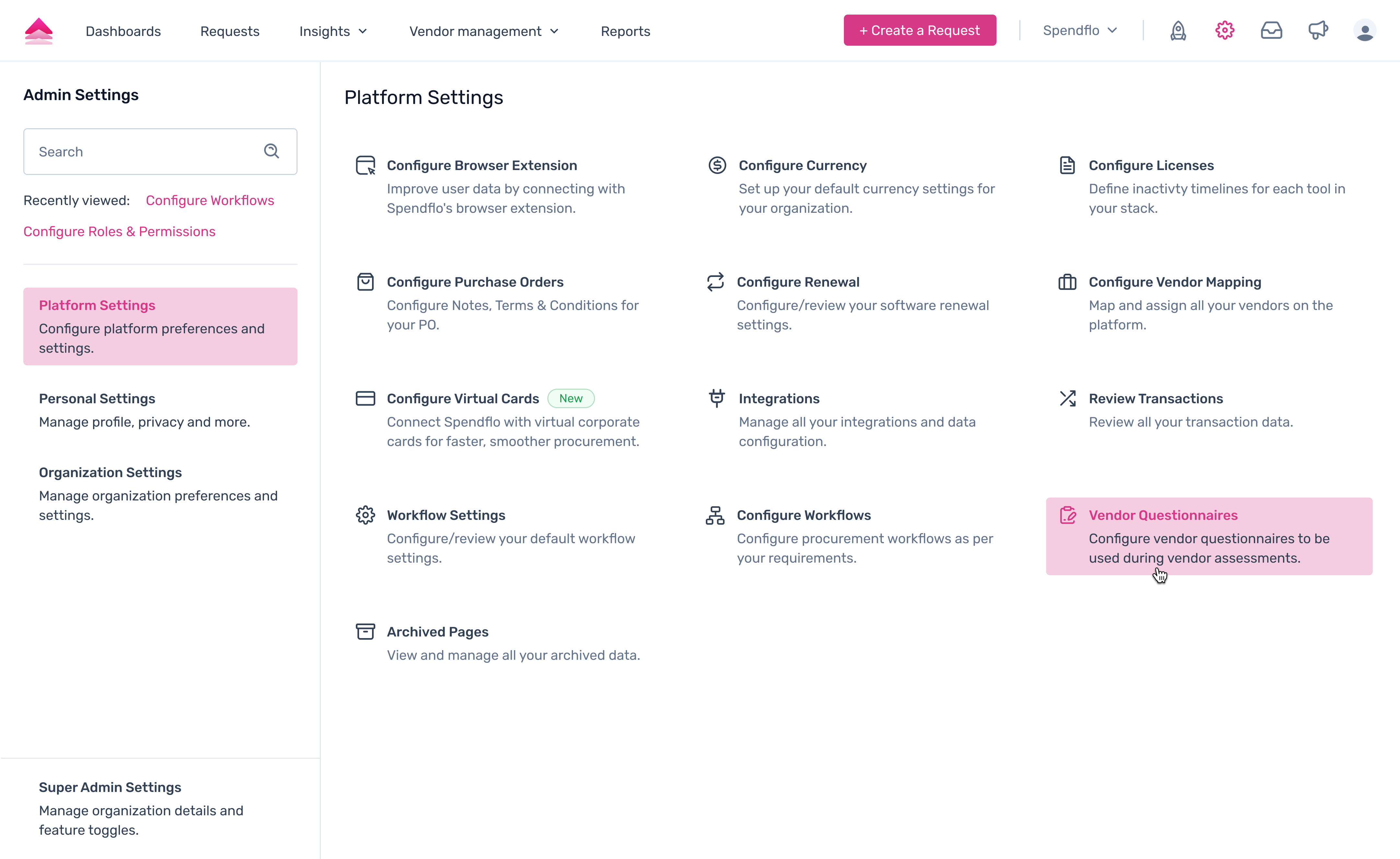
1. Navigate to Settings → Platform Settings → Vendor Questionnaires.
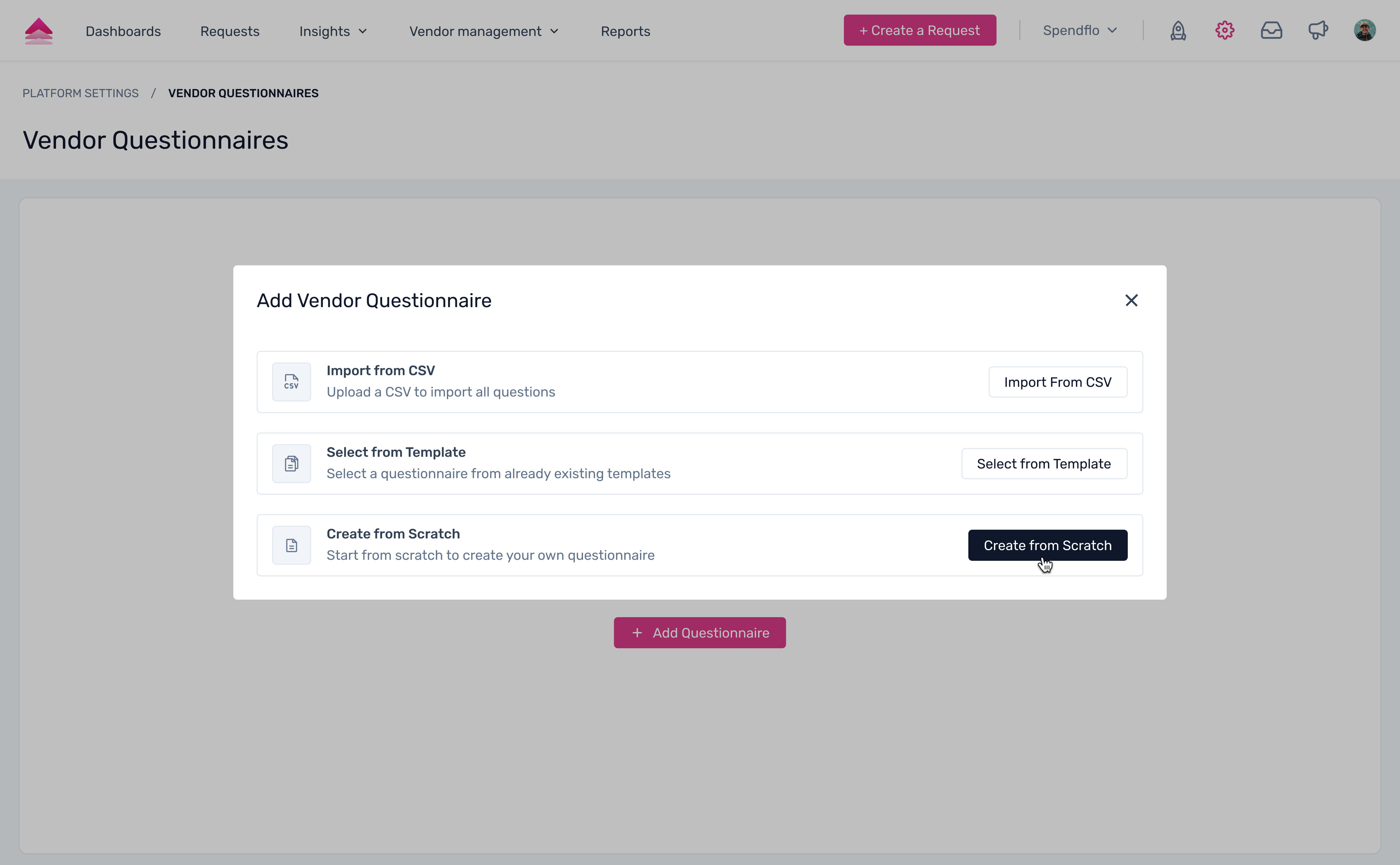
 2. Choose to create a questionnaire by selecting Import from CSV, Select from Template, or Create from Scratch
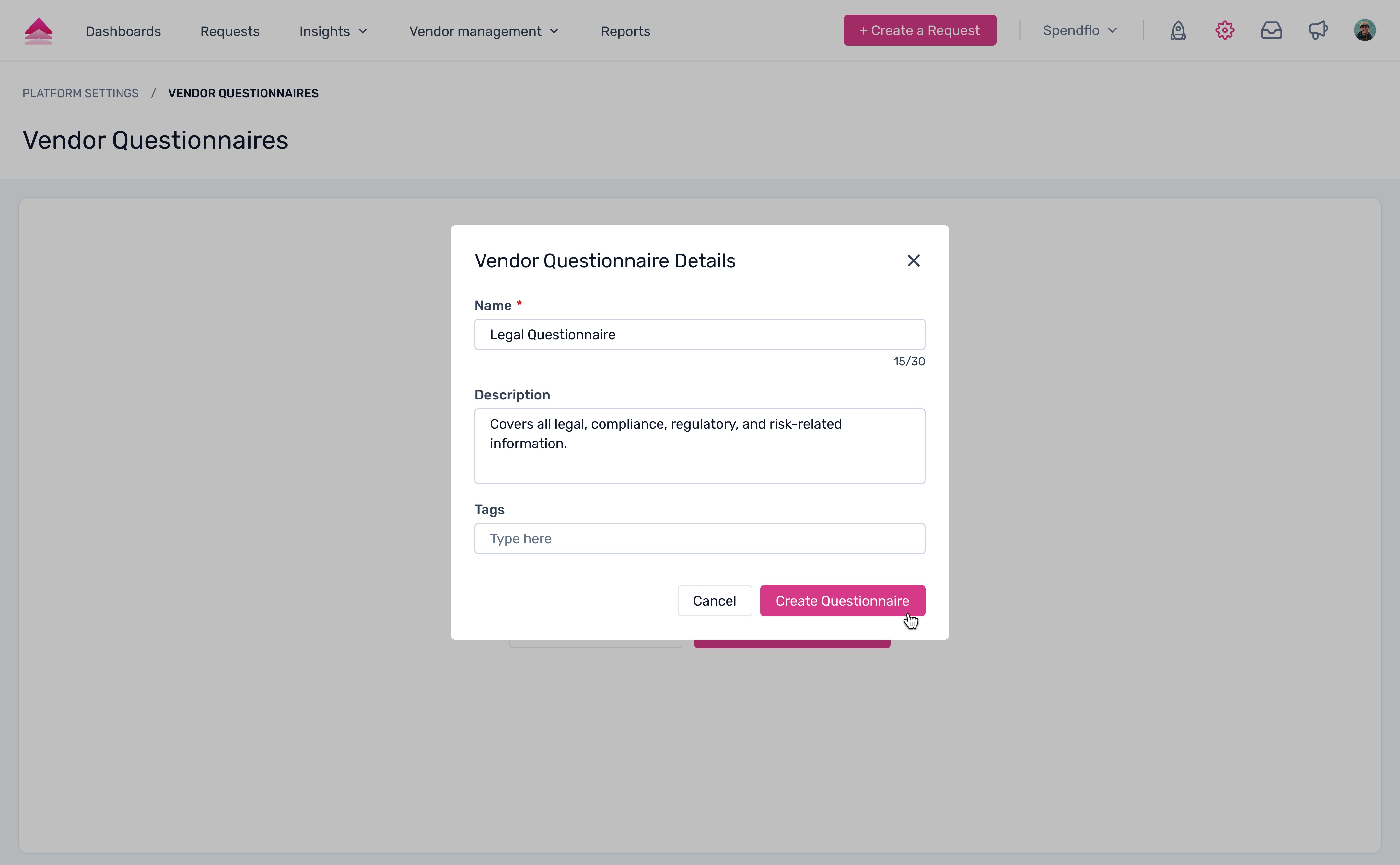
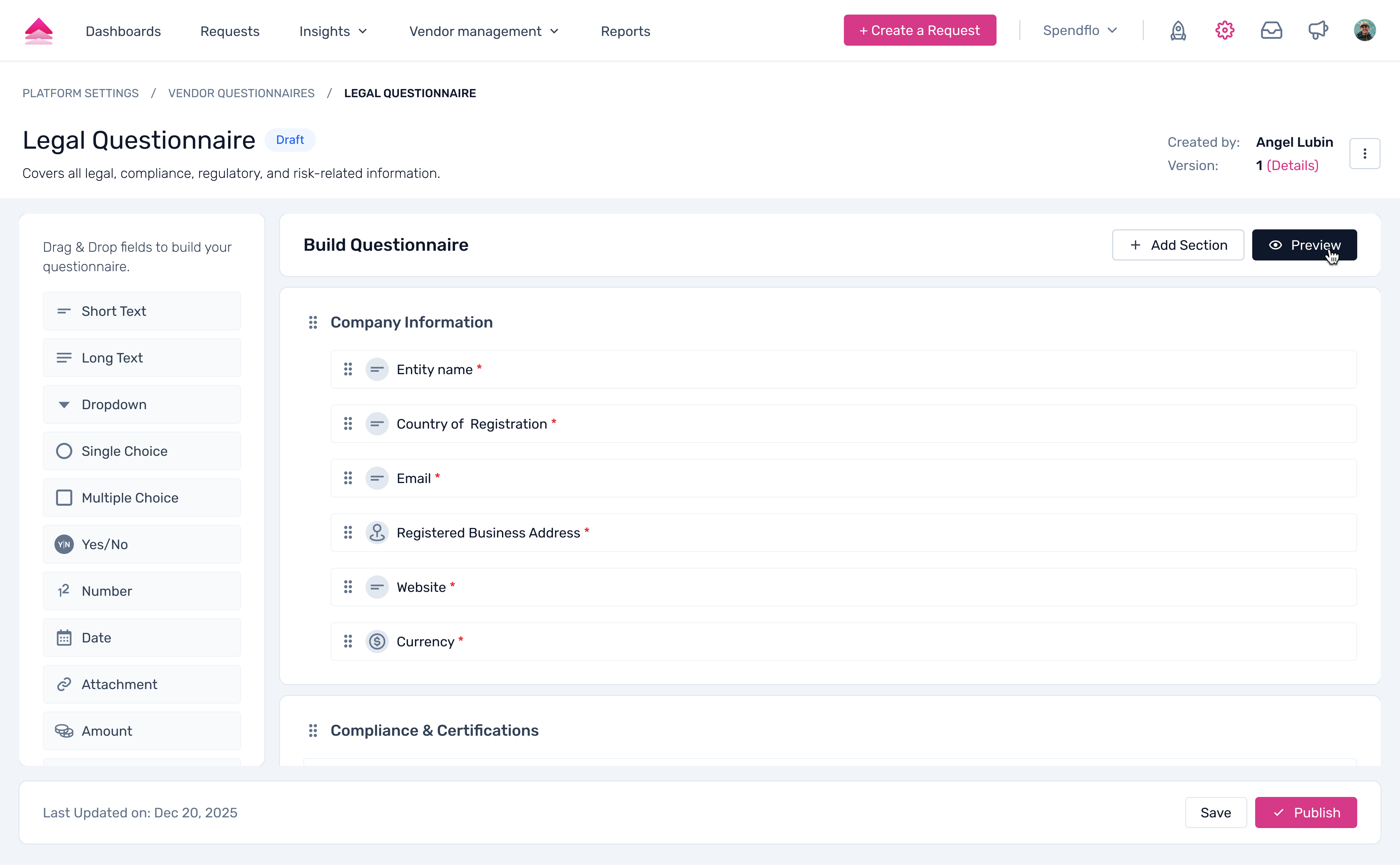
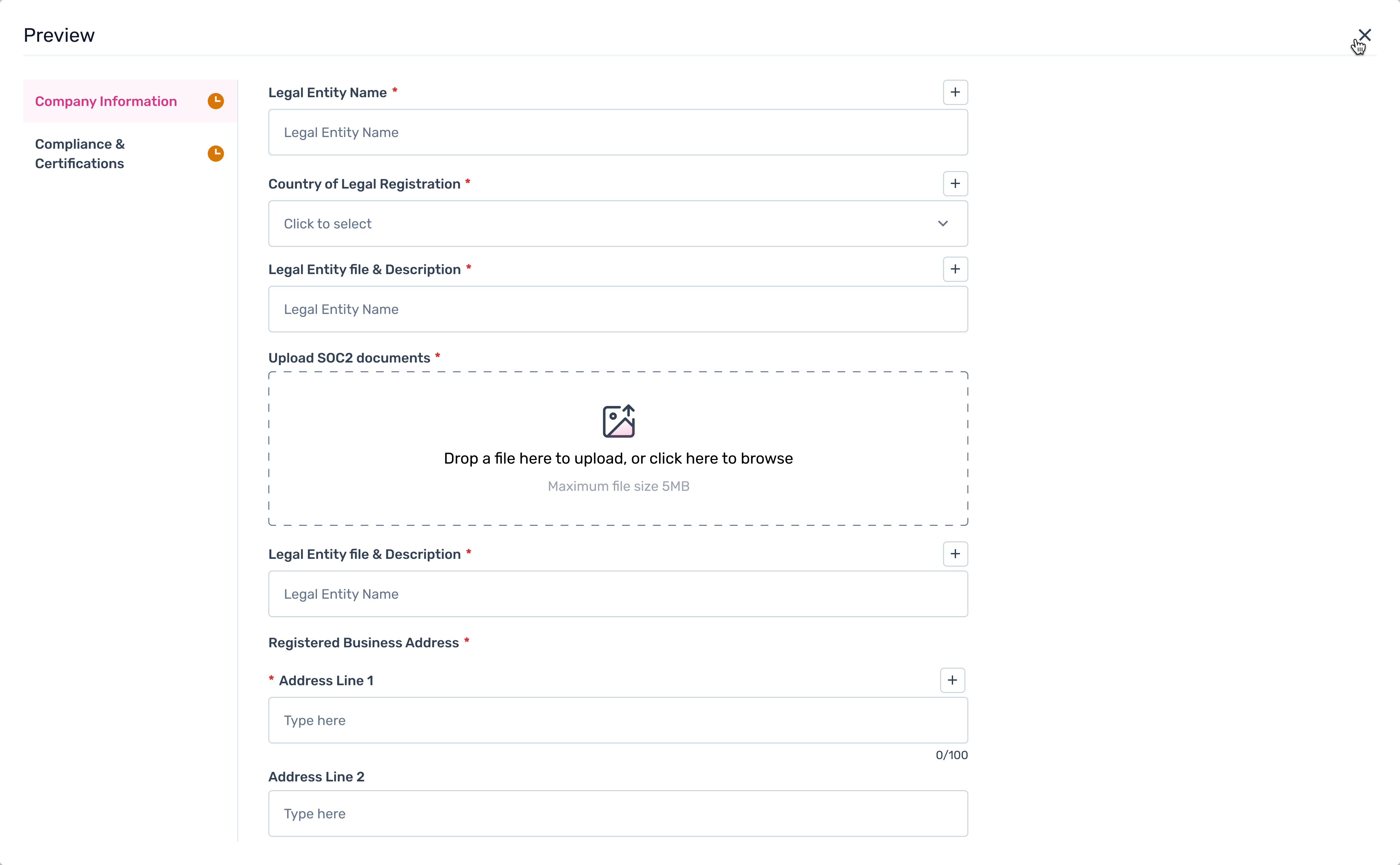
3. Use the Questionnaire Builder to organize standard question types (such as Short Text, Dropdown, Date, or Attachment) into sections and apply mandatory validation or conditional logic.
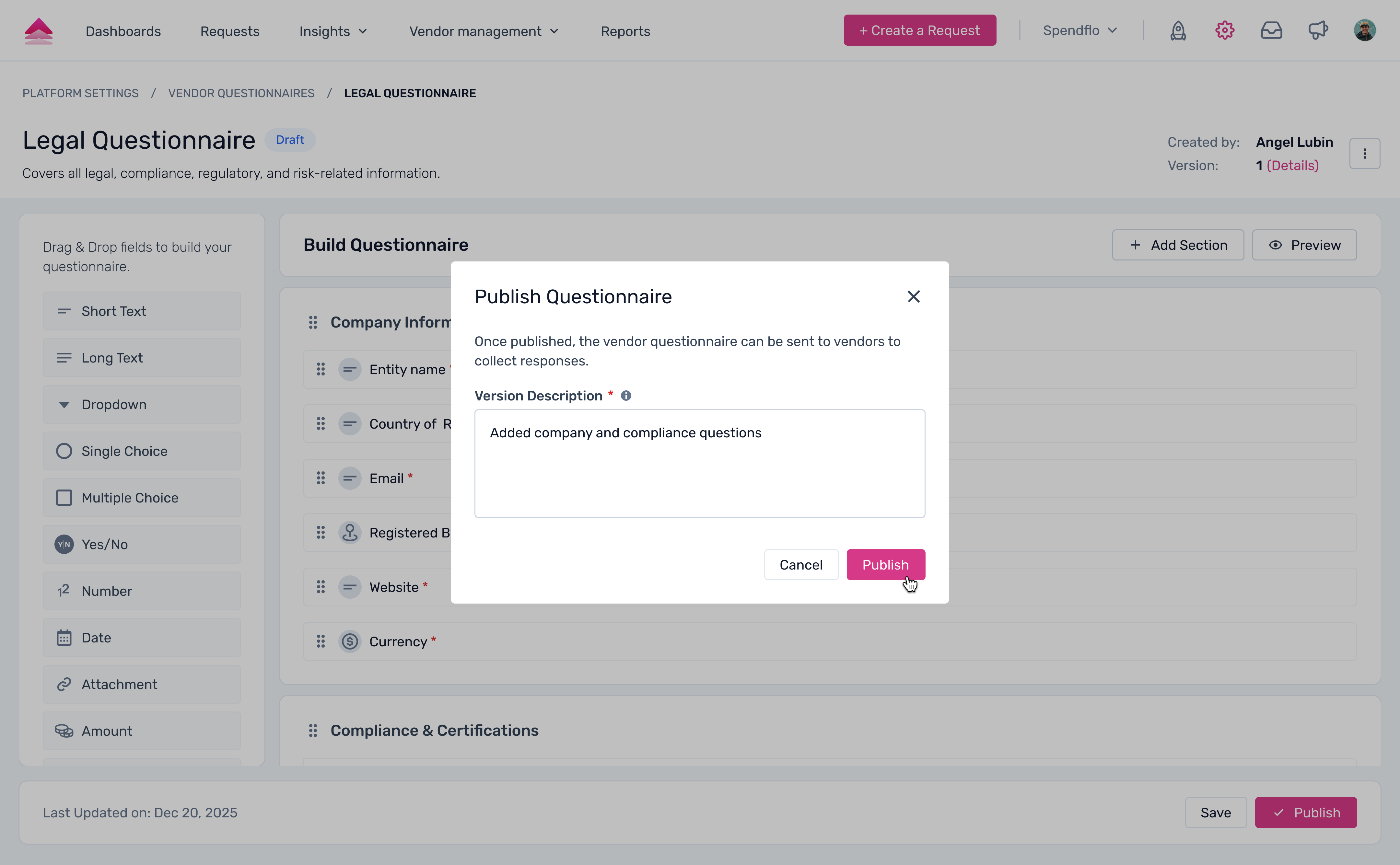
4. Click Publish to make the questionnaire active. Active questionnaires can be duplicated but cannot be archived while in use.
Tracking and Reviewing Assessments
Authorized users track and review vendor questionnaire responses from the Assessments tab under "Vendor Management' in each Vendor record.
1. Workflow‑Triggered Assessments
Workflow runs an assessment task
A workflow with a Vendor Assessment task sends a questionnaire to the vendor
An assessment record is automatically created
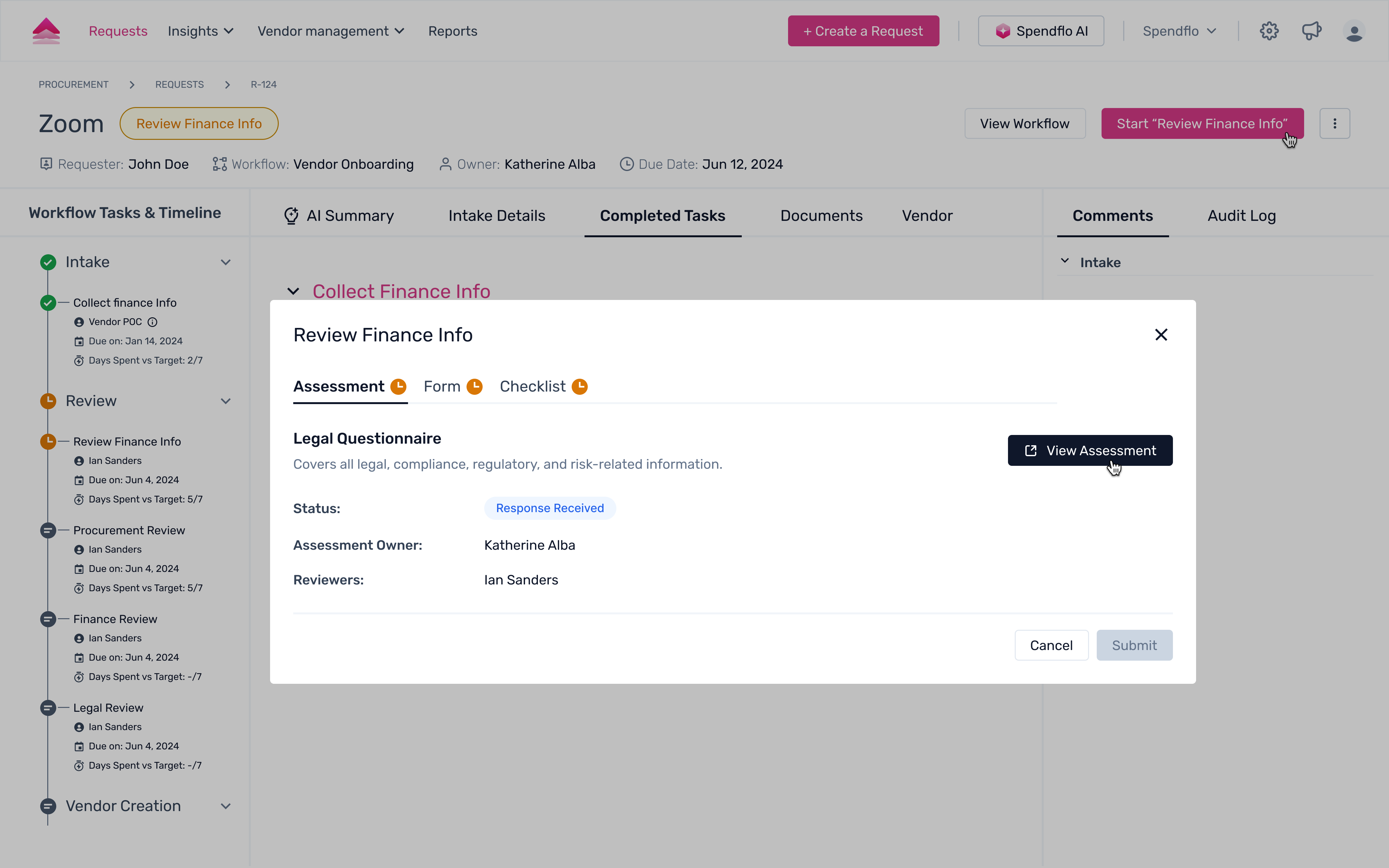
Assessment Owner is set
For these auto‑created assessments, the Requestor of the workflow becomes the Assessment Owner.
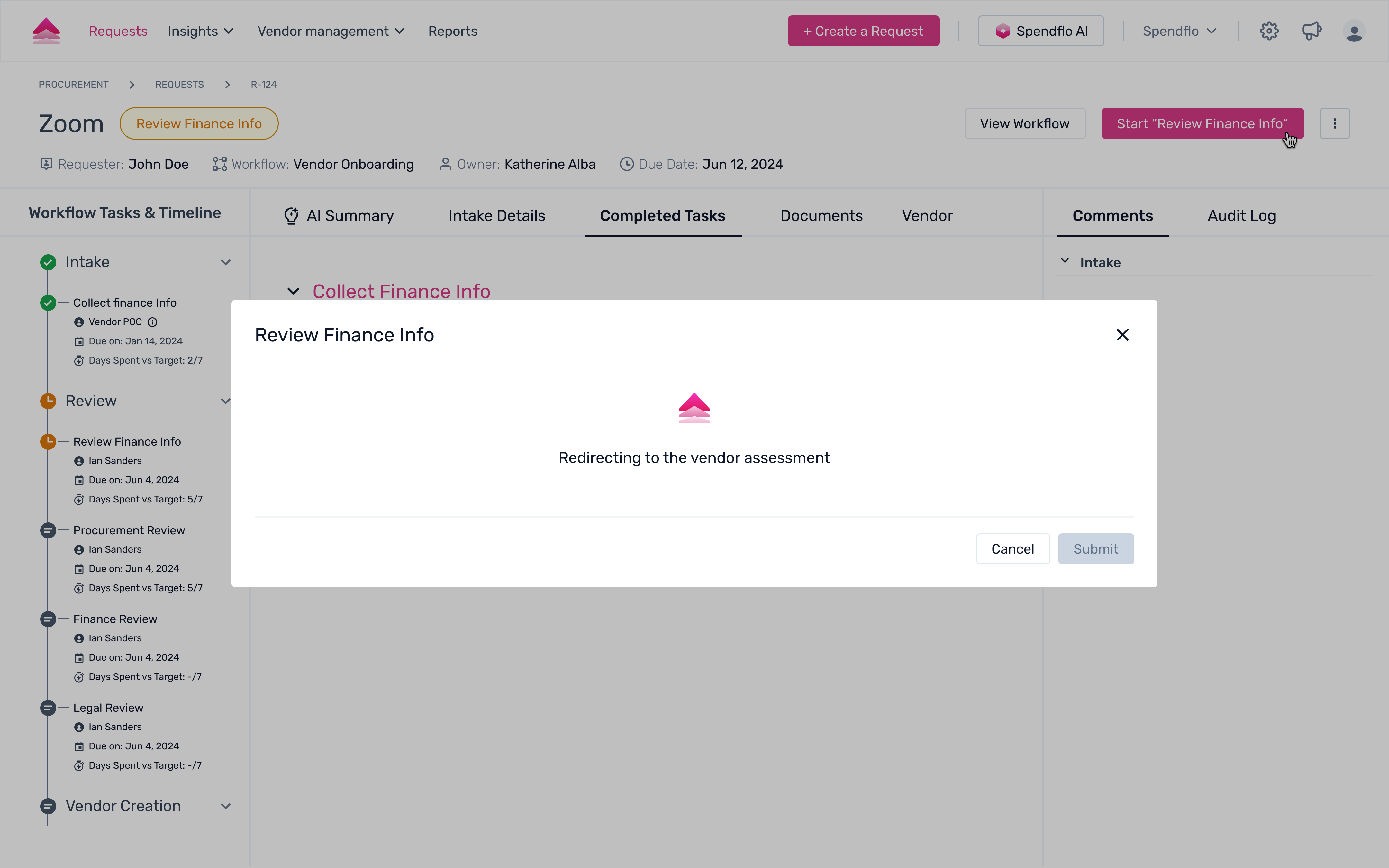
Track and review.
When vendor responses come in, the Assessment Owner/Reviewers review, accept/flag answers, and approve/exceptionally approve/reject from the review screen.
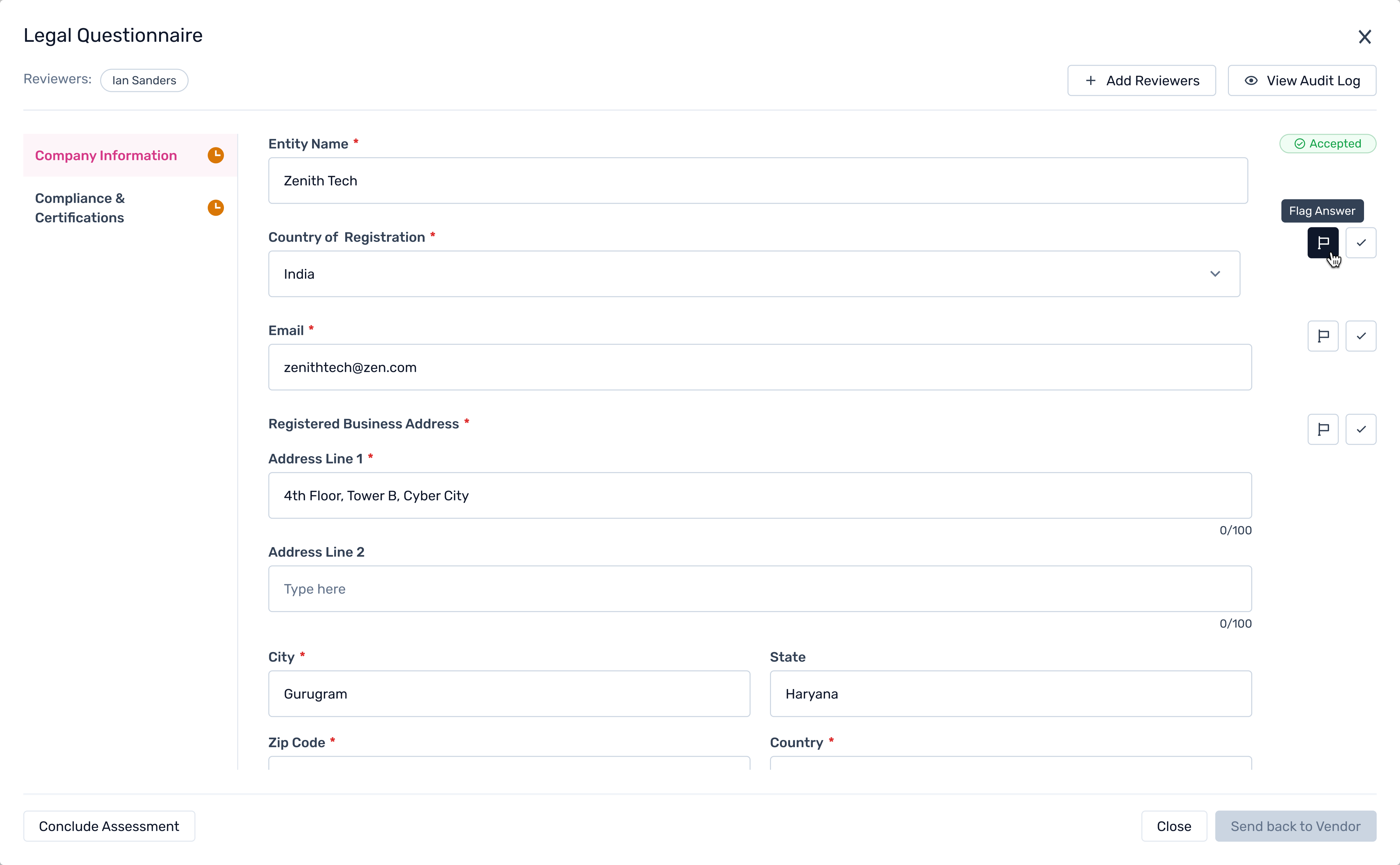
2. Standalone Assessments
Open the vendor’s Assessments tab
Go to the Vendor record → click Assessments.
Launch the assessment
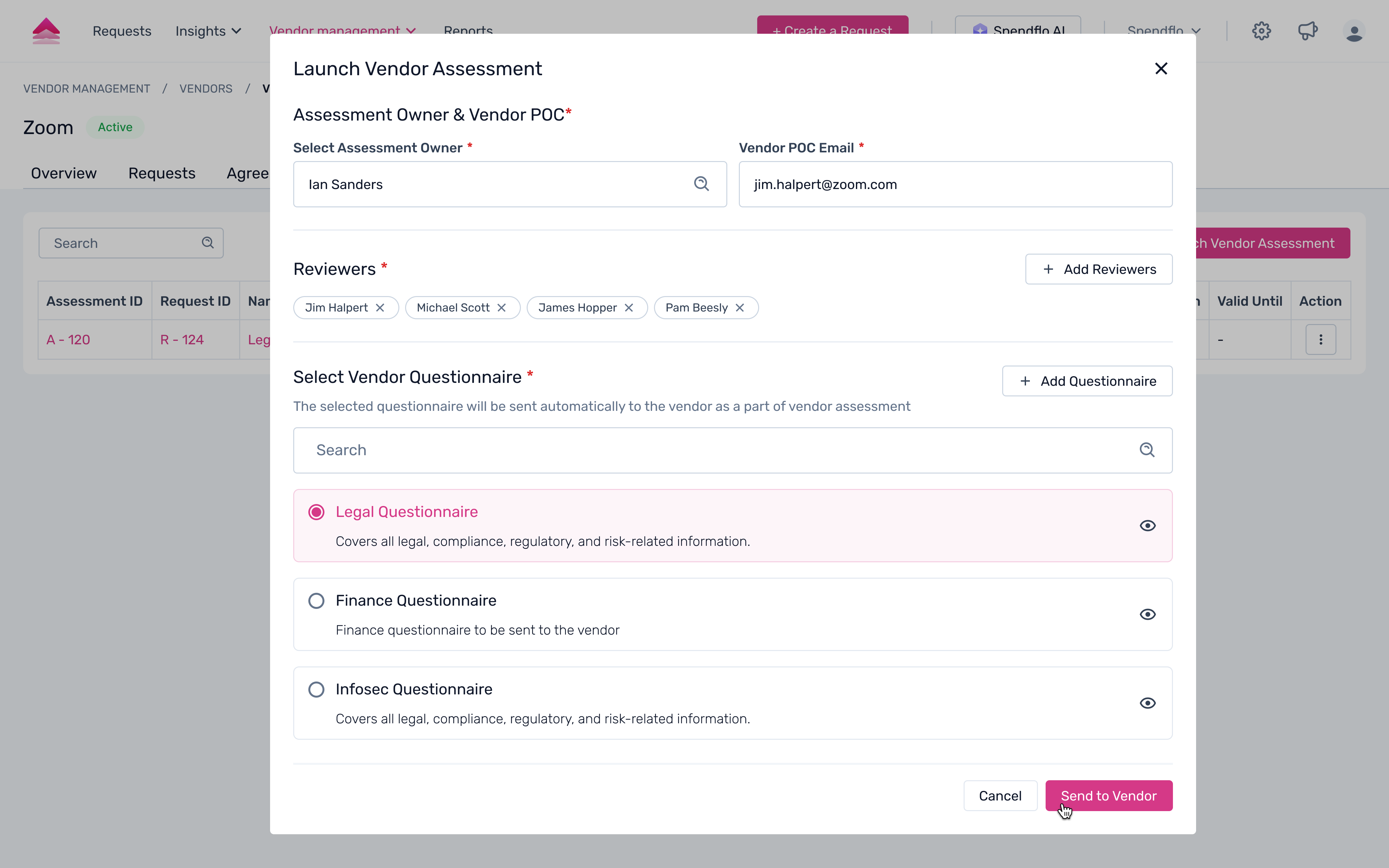
Click Launch Vendor Assessment.
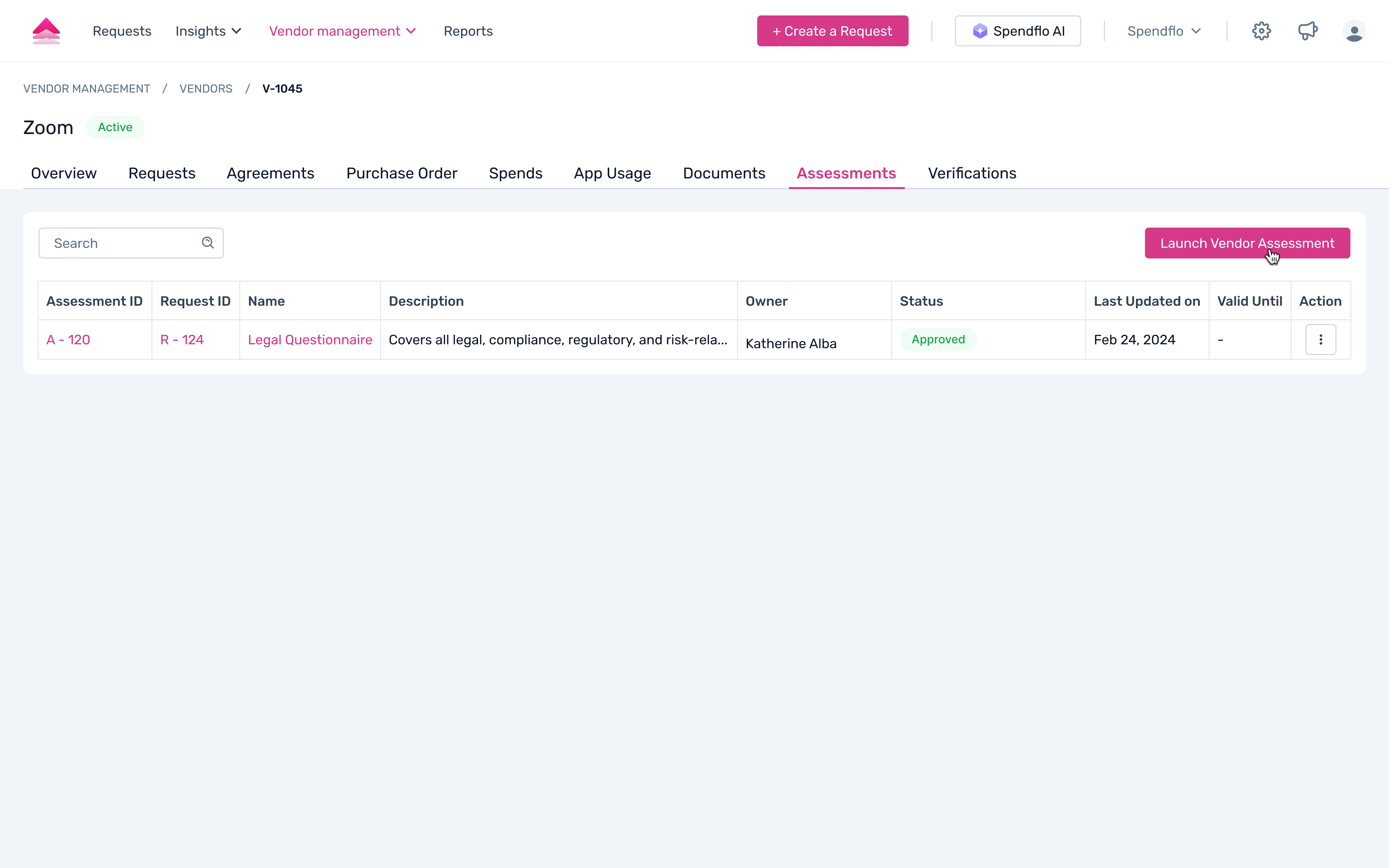
Configure and send
In the modal:
Select Assessment Owner.
Enter Vendor POC Email.
Add Reviewers.
Choose a Vendor Questionnaire.
Save/submit to send the questionnaire to the vendor and create the assessment record.
Track and review responses
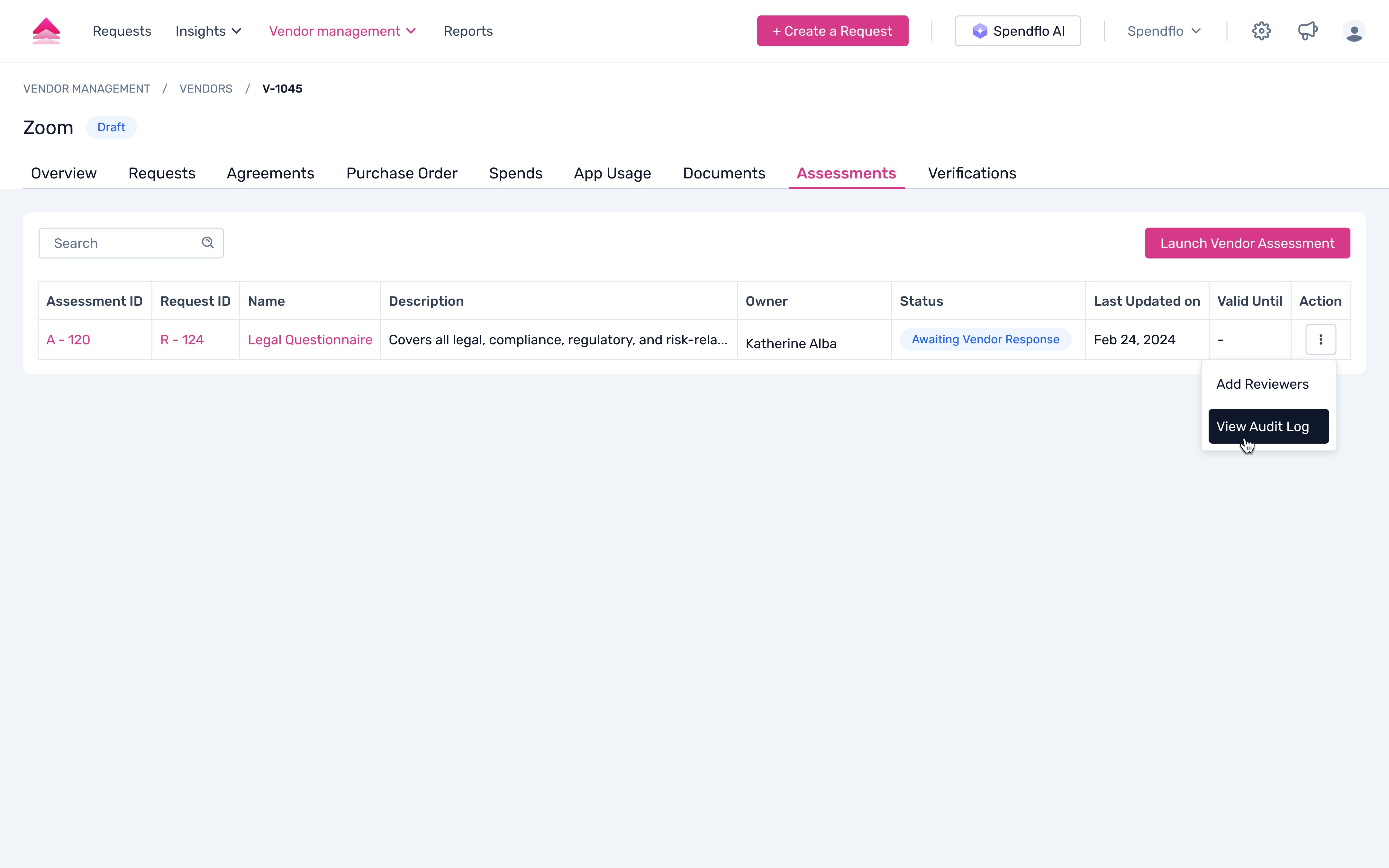
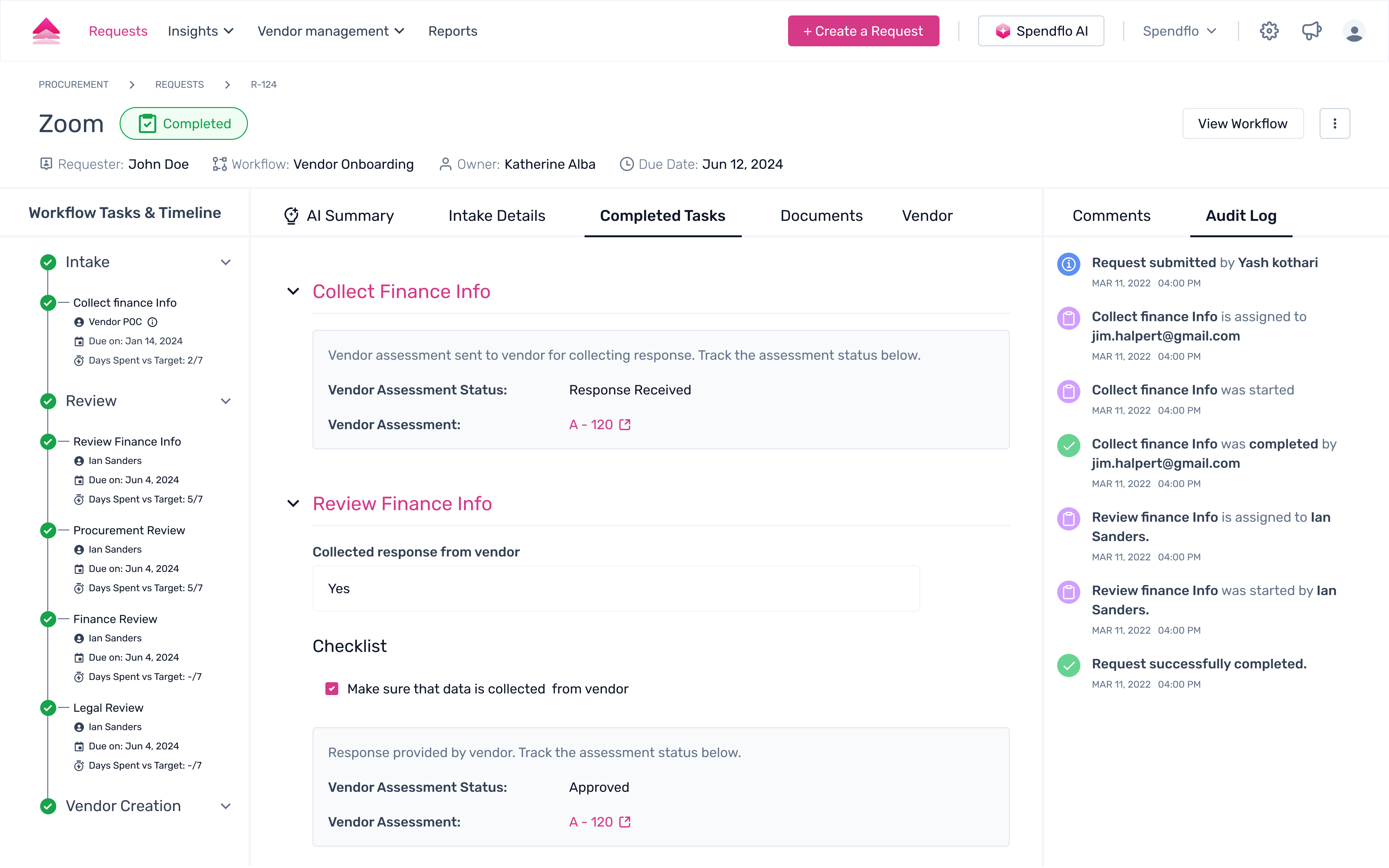
Monitor Status and use the Actions (Add Reviewers, View Audit Log) as the owner/reviewers evaluate the vendor’s answers.
Using the Wait Step in Workflows
1. Once you enable “Add New Vendor” on a Vendor & Product question:
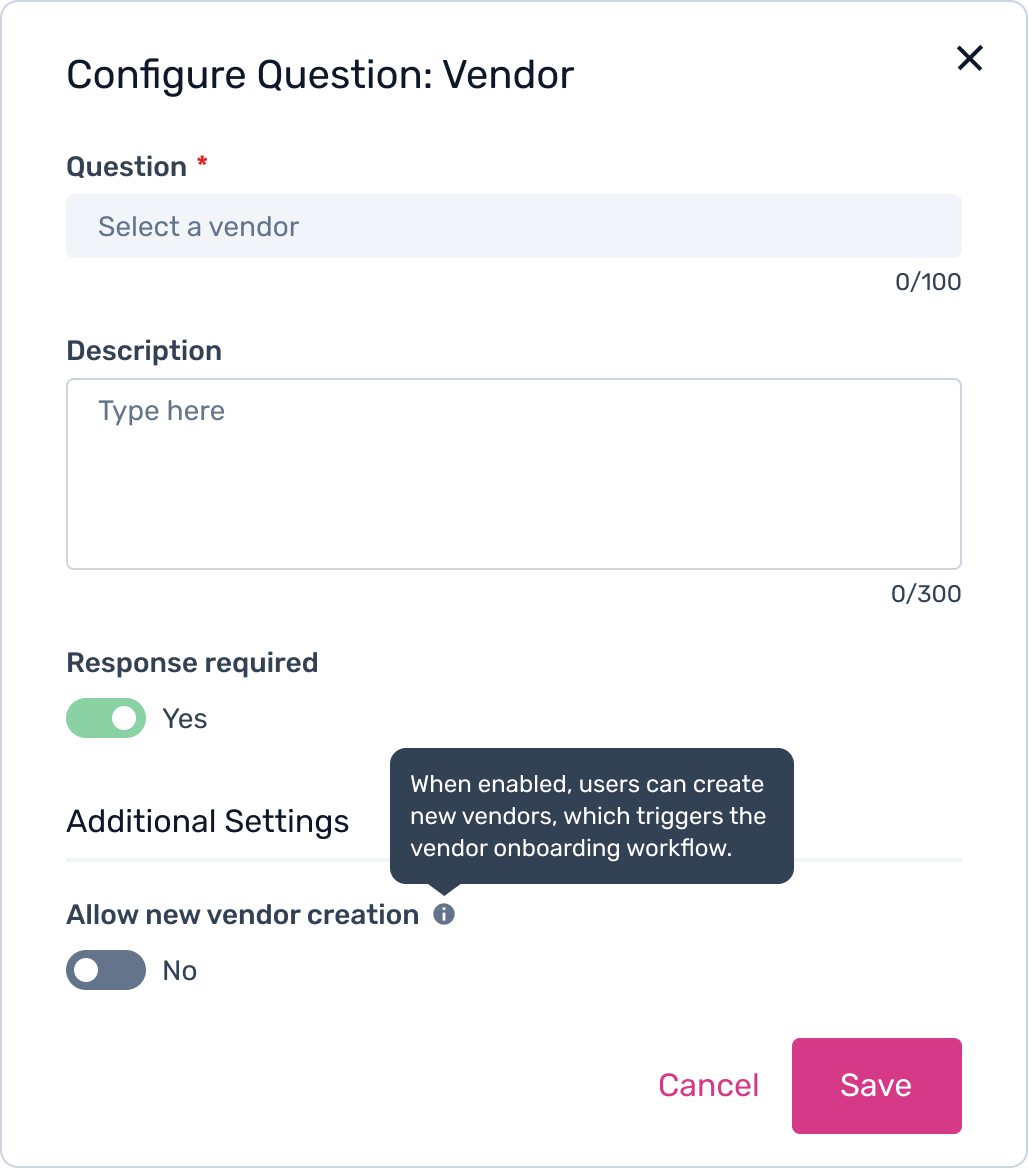 2. Save the task that contains this question.
3. The system automatically inserts a Wait Step immediately after that task.
Example: If the vendor question is in the Intake task:
You save Intake.
A Wait Step is auto‑created right after Intake.
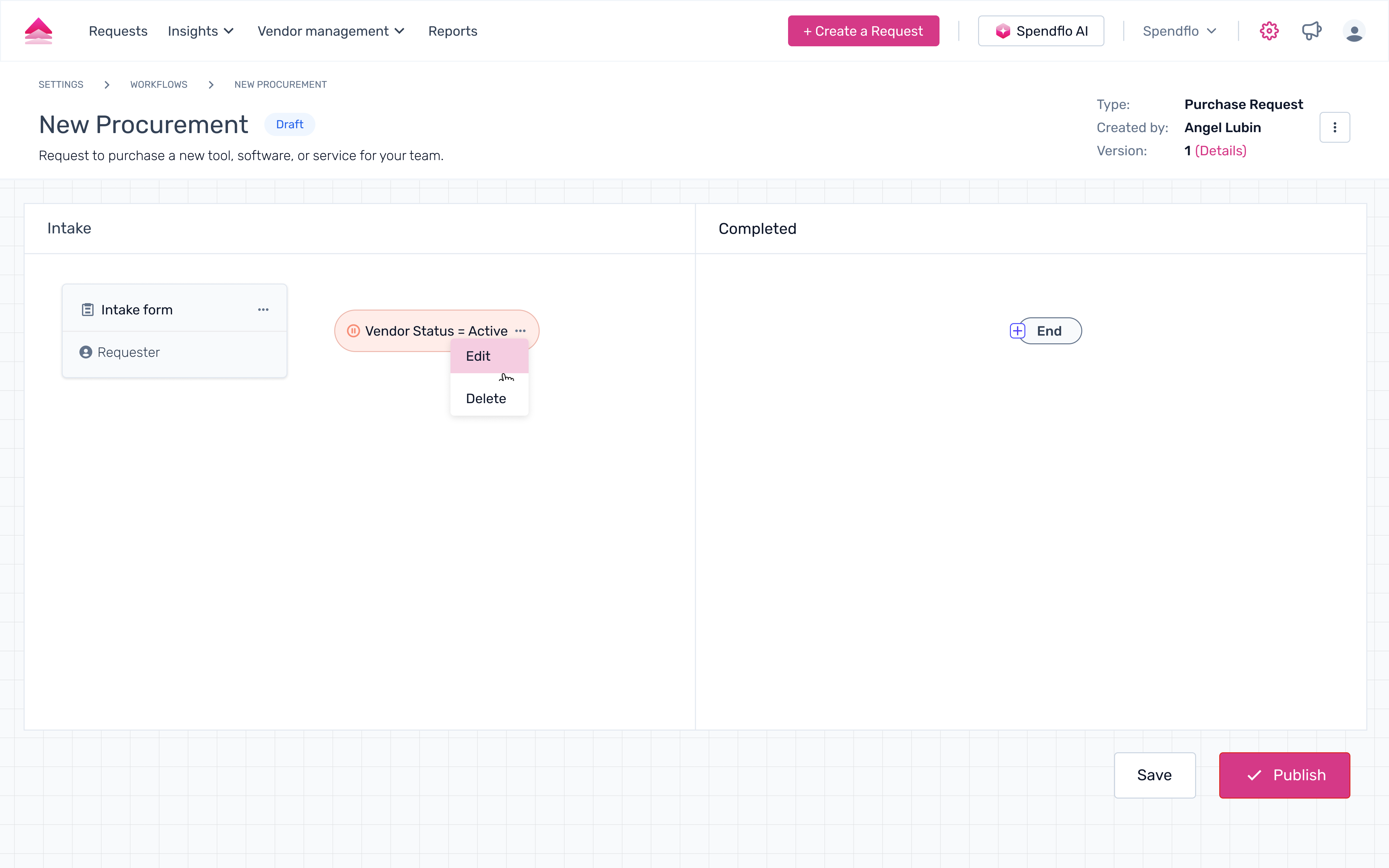
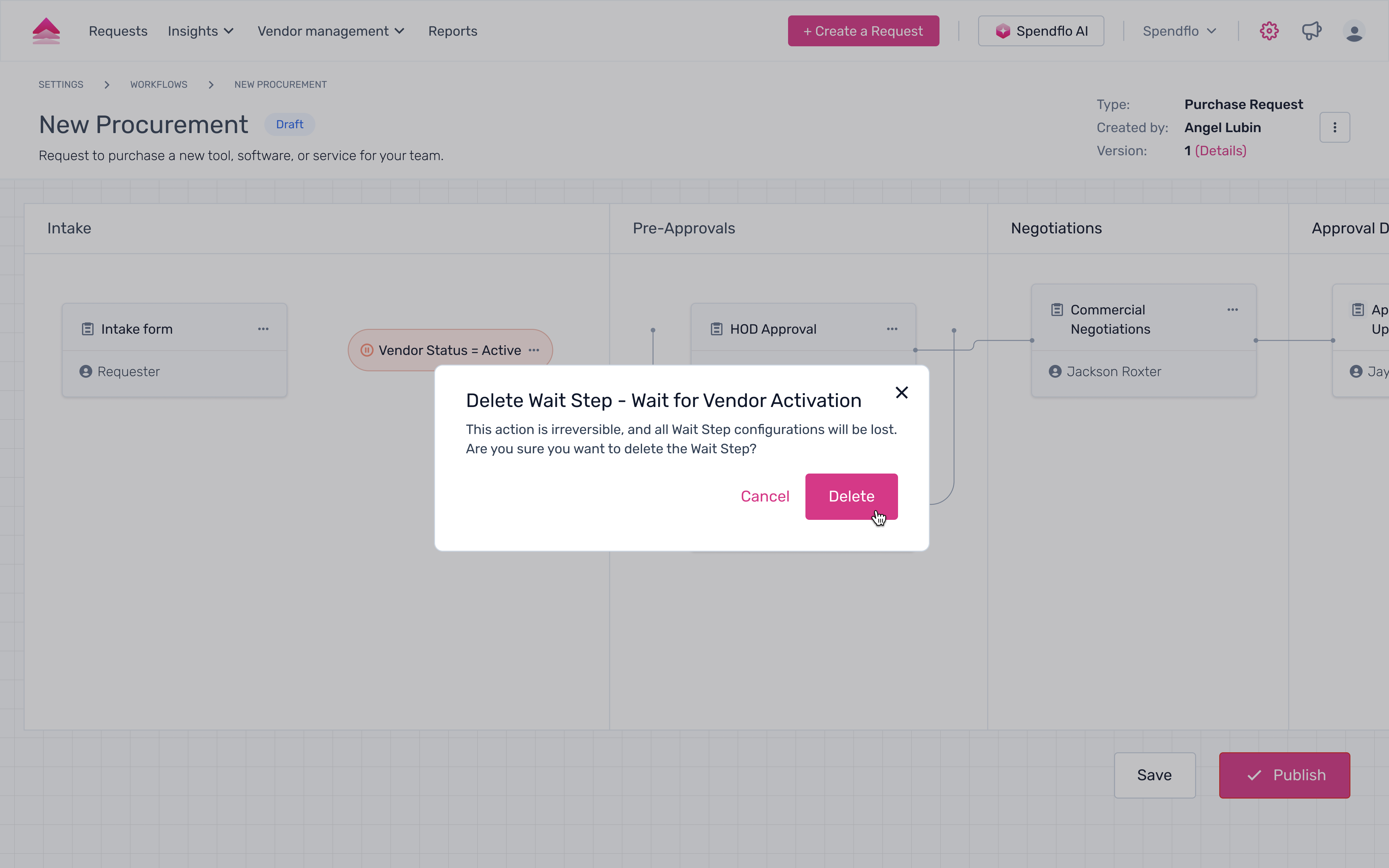
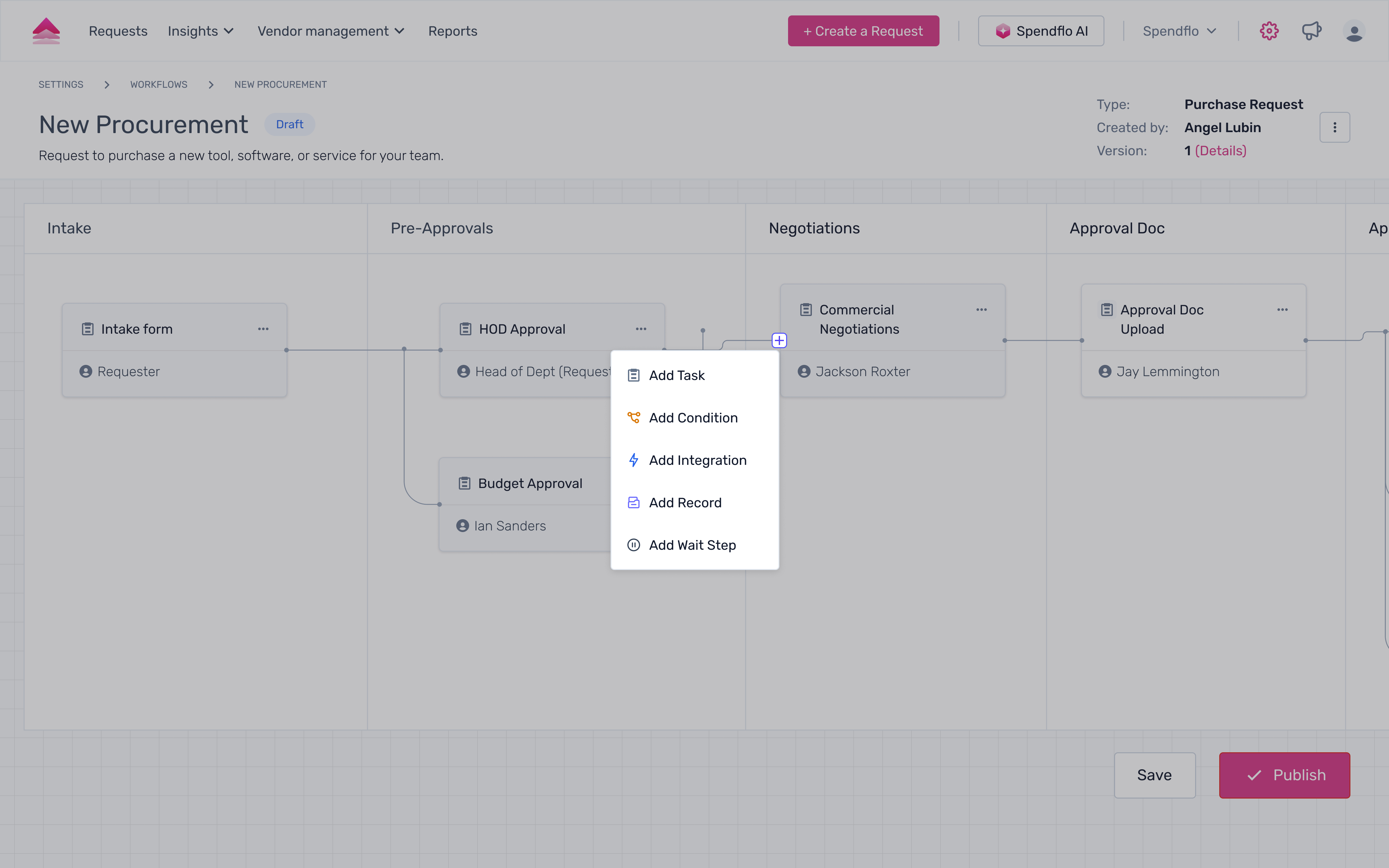
- A default Wait Step is now added to the workflow. You can reposition it or move it to another phase if needed
Next Steps
Now that you understand how to configure and manage vendor onboarding, explore our guide on creating and managing workflows to further enhance your procurement automation. For more details on managing your vendors, see our vendor management documentation.
Was this article helpful?
That’s Great!
Thank you for your feedback
Sorry! We couldn't be helpful
Thank you for your feedback
Feedback sent
We appreciate your effort and will try to fix the article