Overview
Conducting a vendor security review is crucial for maintaining stringent security measures and building trust with your customers. Spendflo's Vendor Trust feature allows you to seamlessly initiate, manage, and track vendor assessments in one centralized location. This ensures alignment with your organization's security policies and streamlines collaboration across departments.
Launch a Vendor Assessment
Follow these steps to process and launch a new vendor assessment review:
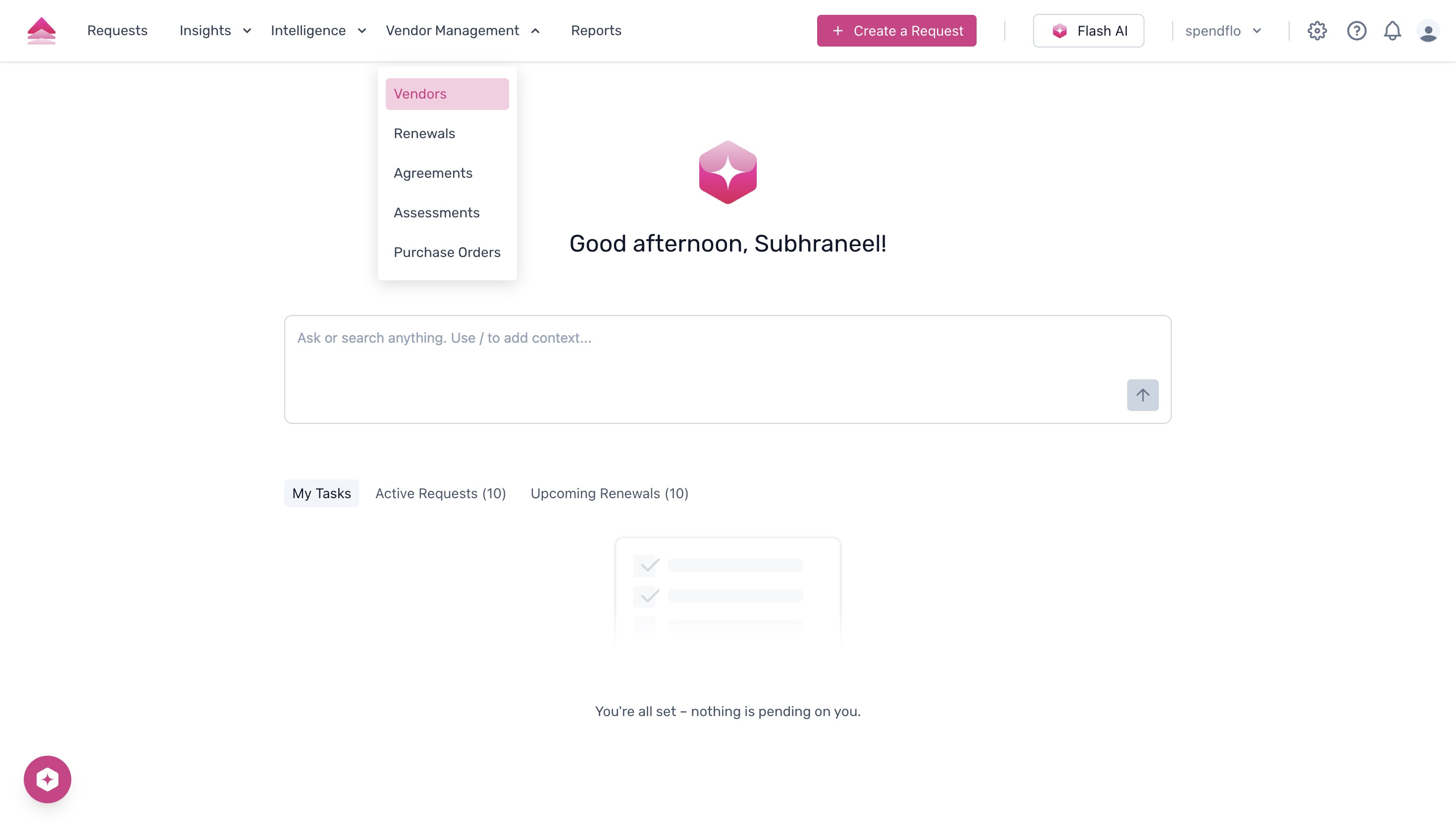
Navigate to the Vendor Management menu in the top navigation bar and select Vendors from the dropdown list.
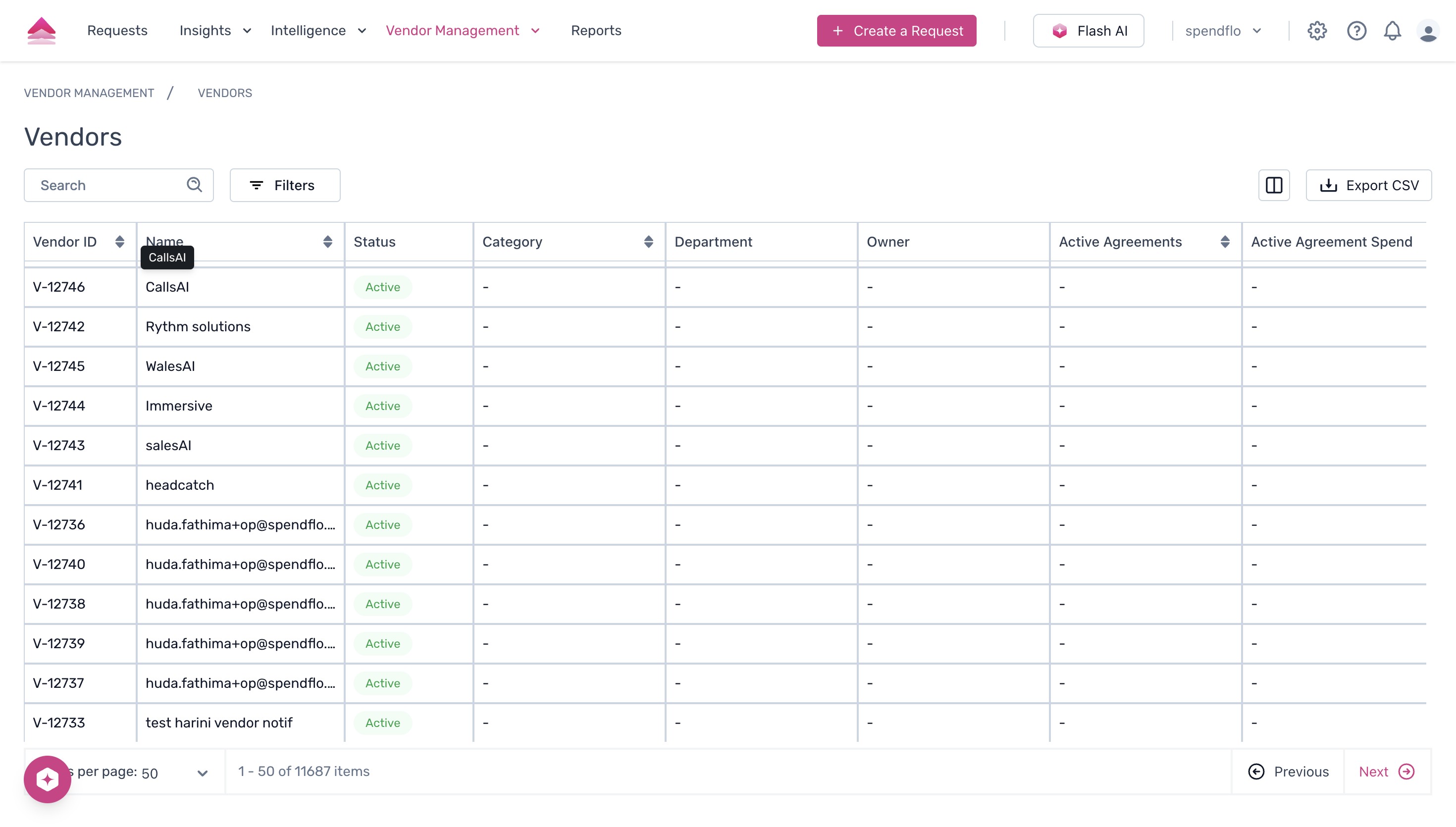
Locate and click on the specific vendor you want to assess, for example, CallsAI.
On the vendor's details page, click the Assessments tab. If no assessments have been launched yet, you will see an empty state with an option to launch one.
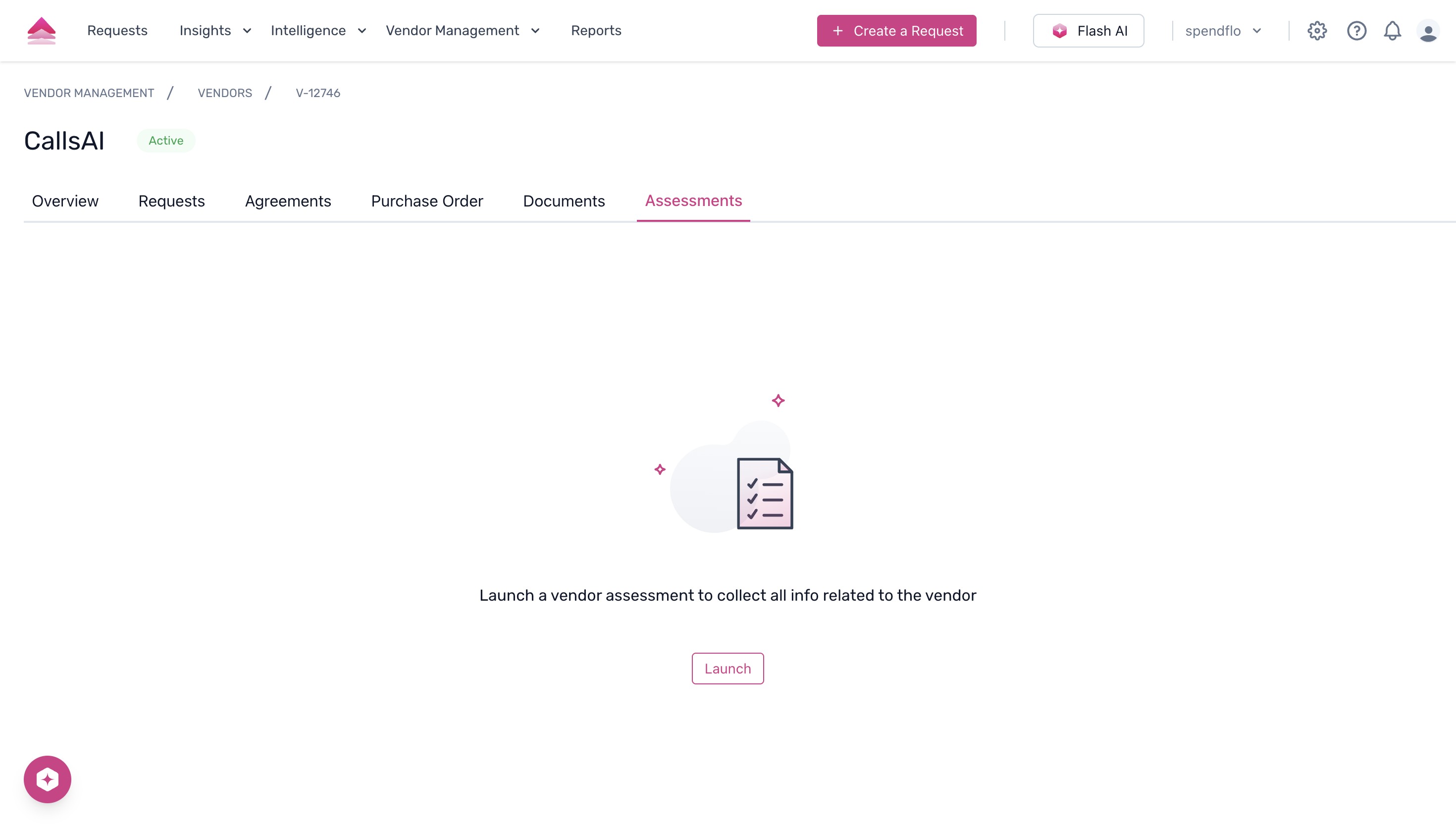
Click the Launch button to start a new vendor assessment. In the Launch Vendor Assessment modal, click the Select Assessment Owner field and choose the appropriate owner from the dropdown list.
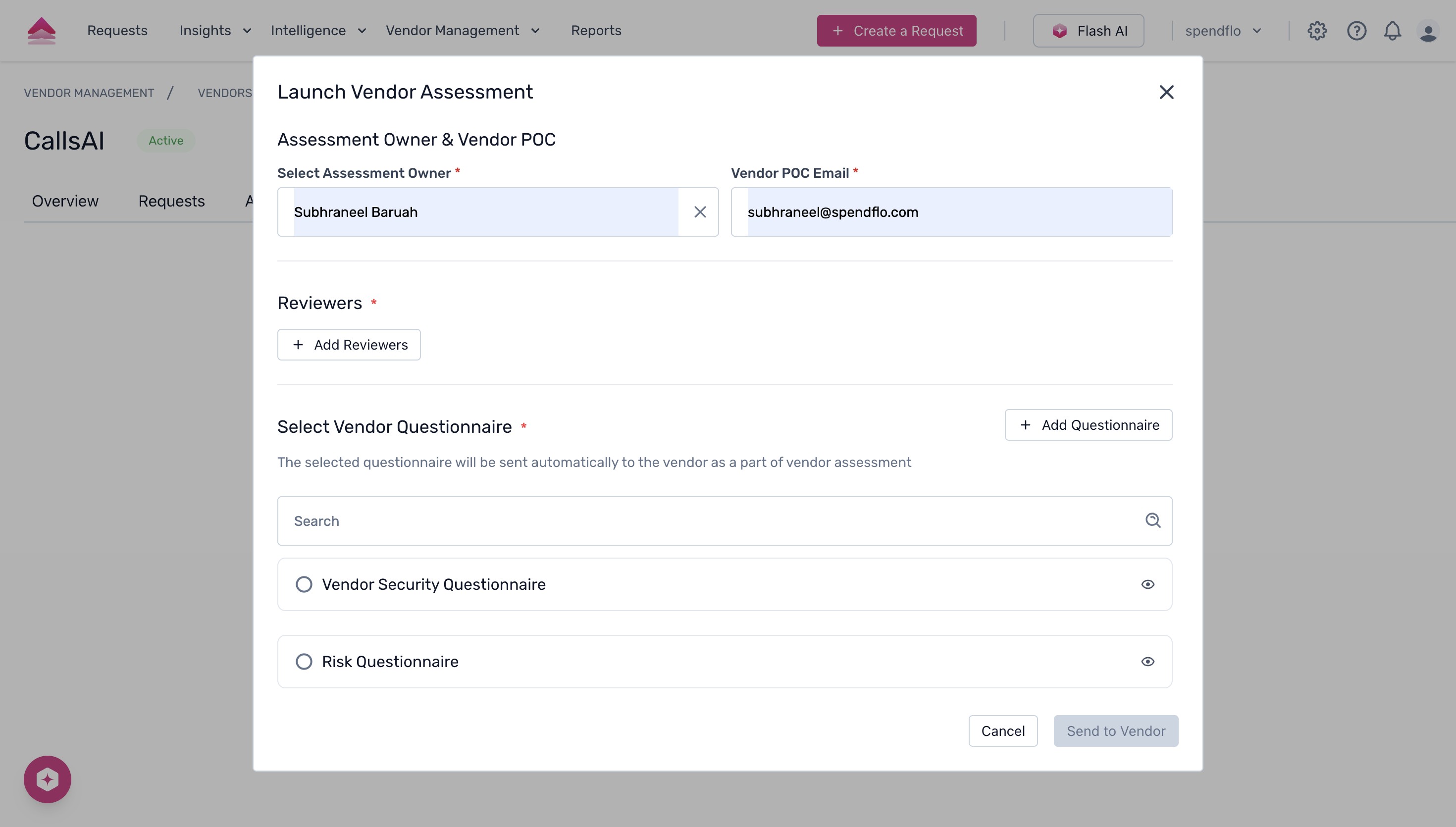
Click the + Add Reviewers button to specify who needs to review this assessment. This opens the Add Reviewers side panel.
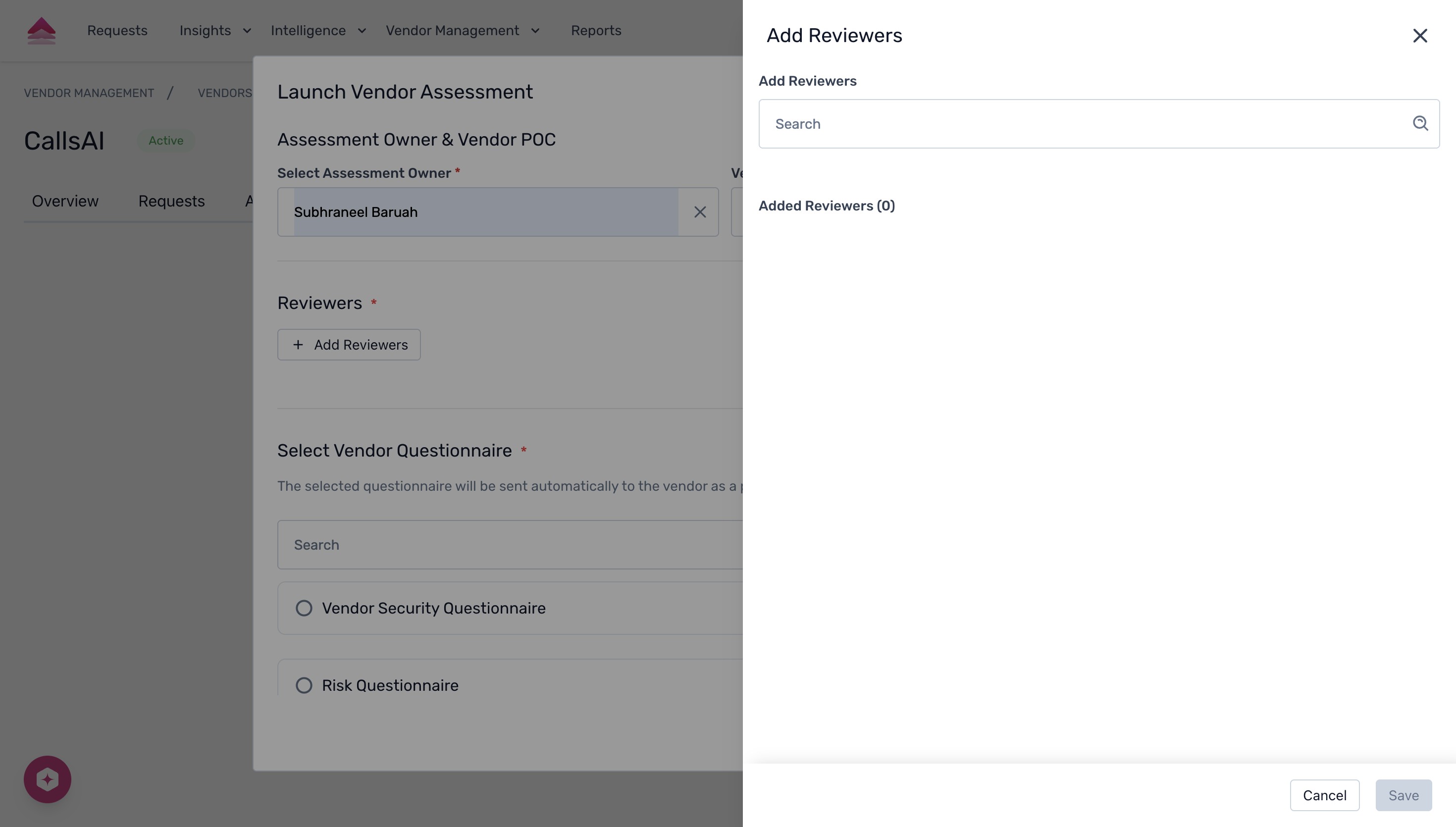
In the Add Reviewers panel, use the search bar to find and select the required reviewers. The selected individuals appear in the list below the search bar.
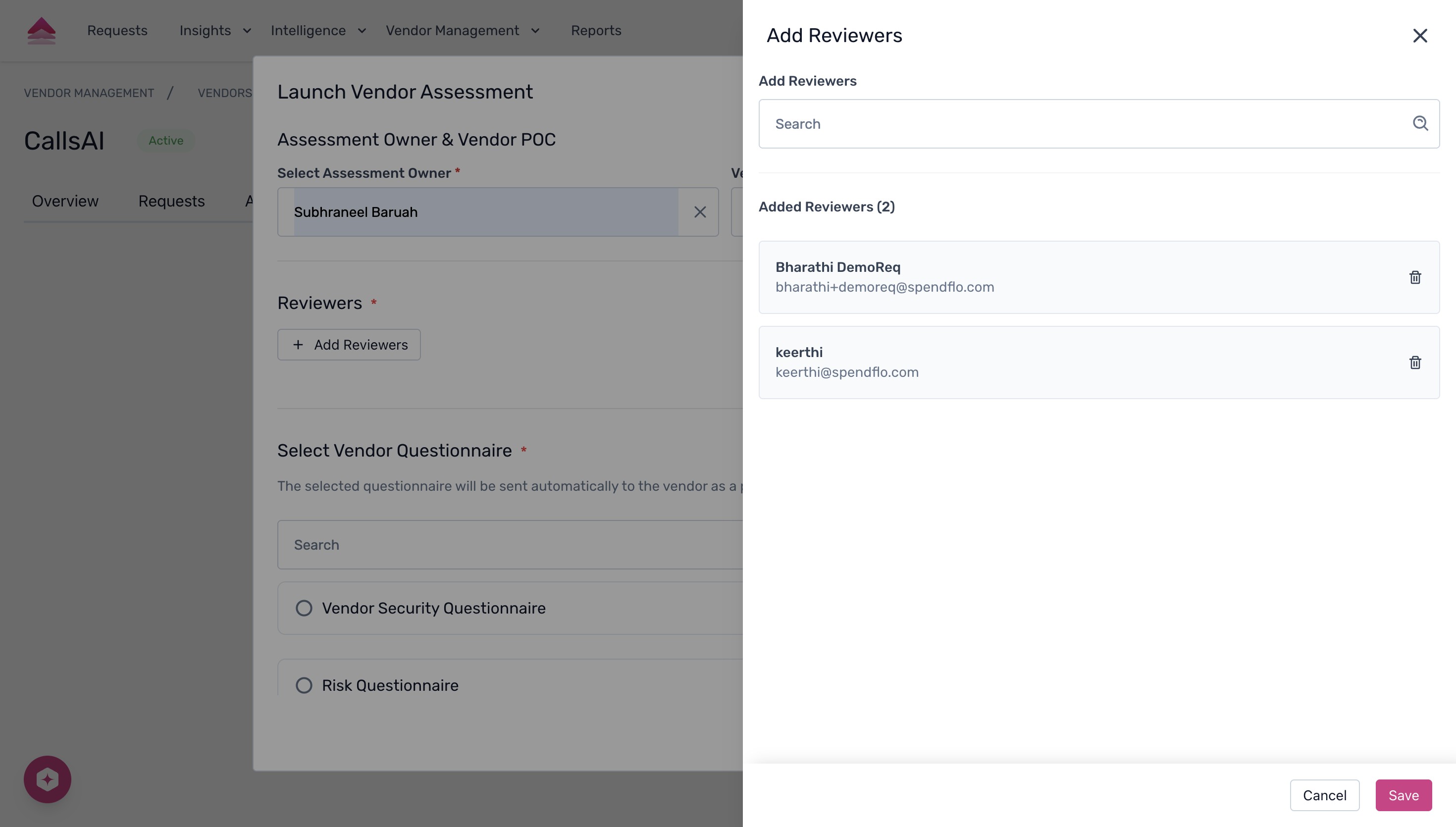
Click Save to confirm your reviewers. Back in the main modal, scroll down to the Select Vendor Questionnaire section and choose the relevant questionnaire, such as the Risk Questionnaire.
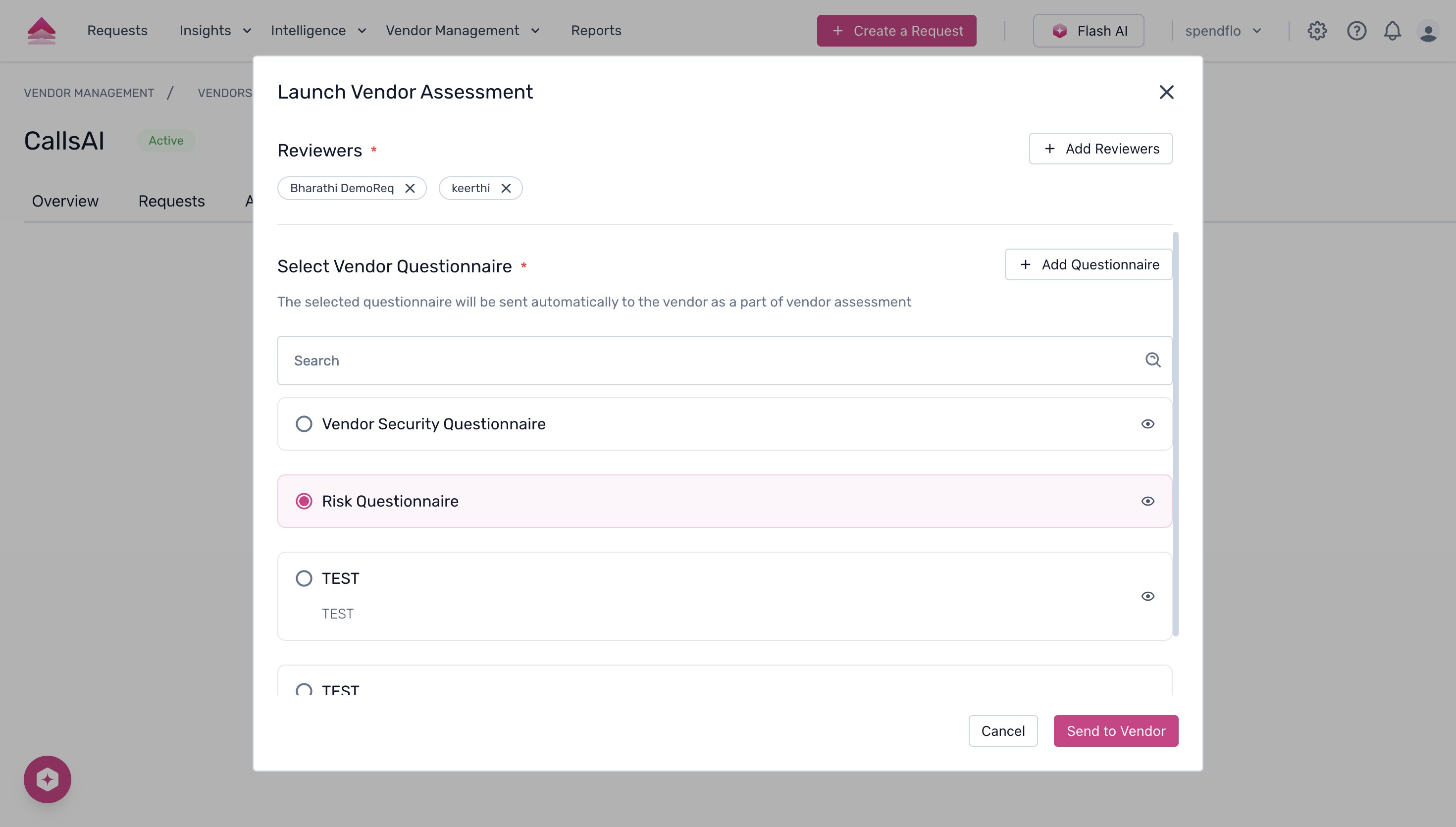
Review your selections to ensure all the information is correct.
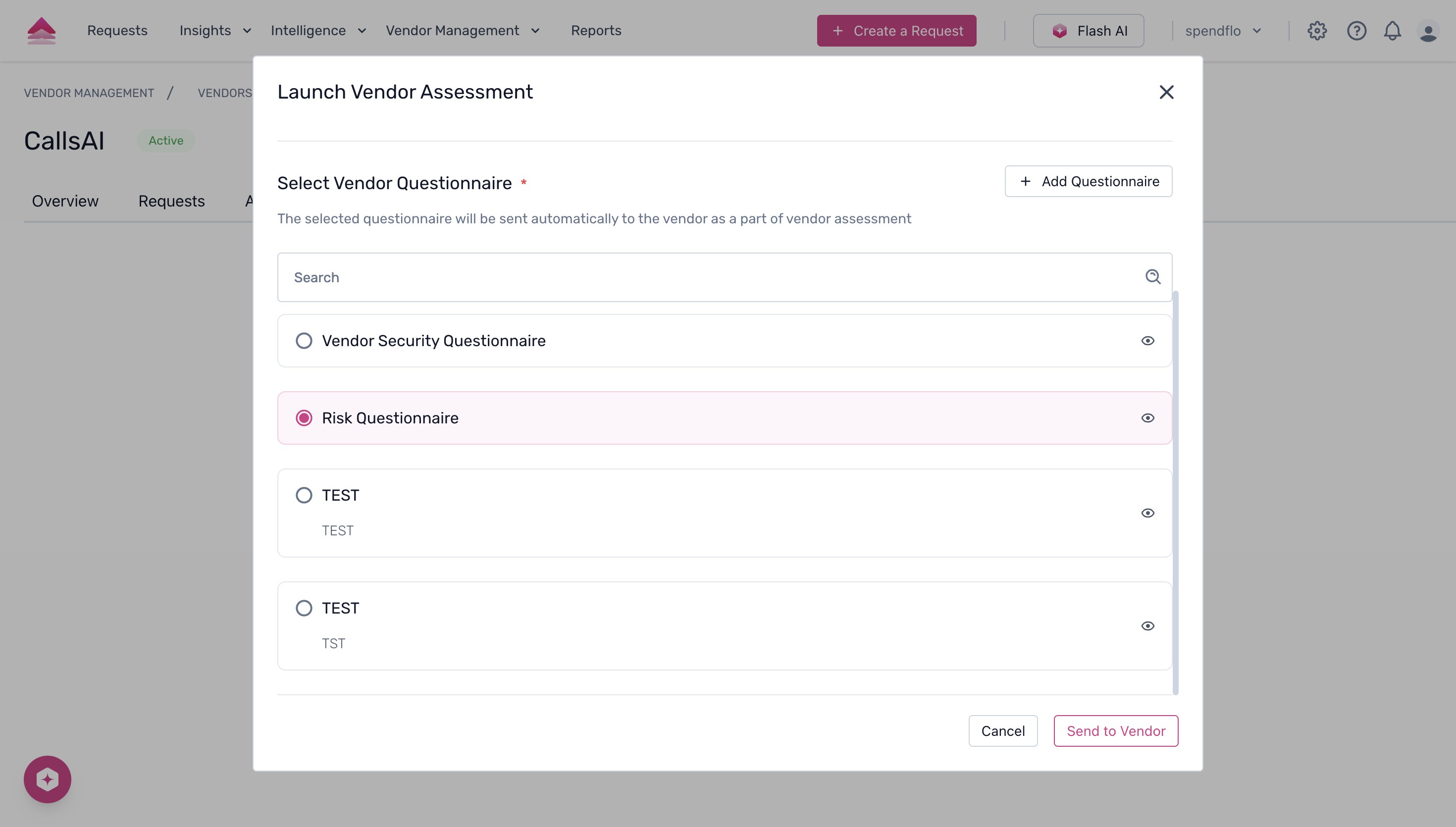
Click the Send to Vendor button at the bottom of the modal. You will see a success message confirming that the assessment has been sent.
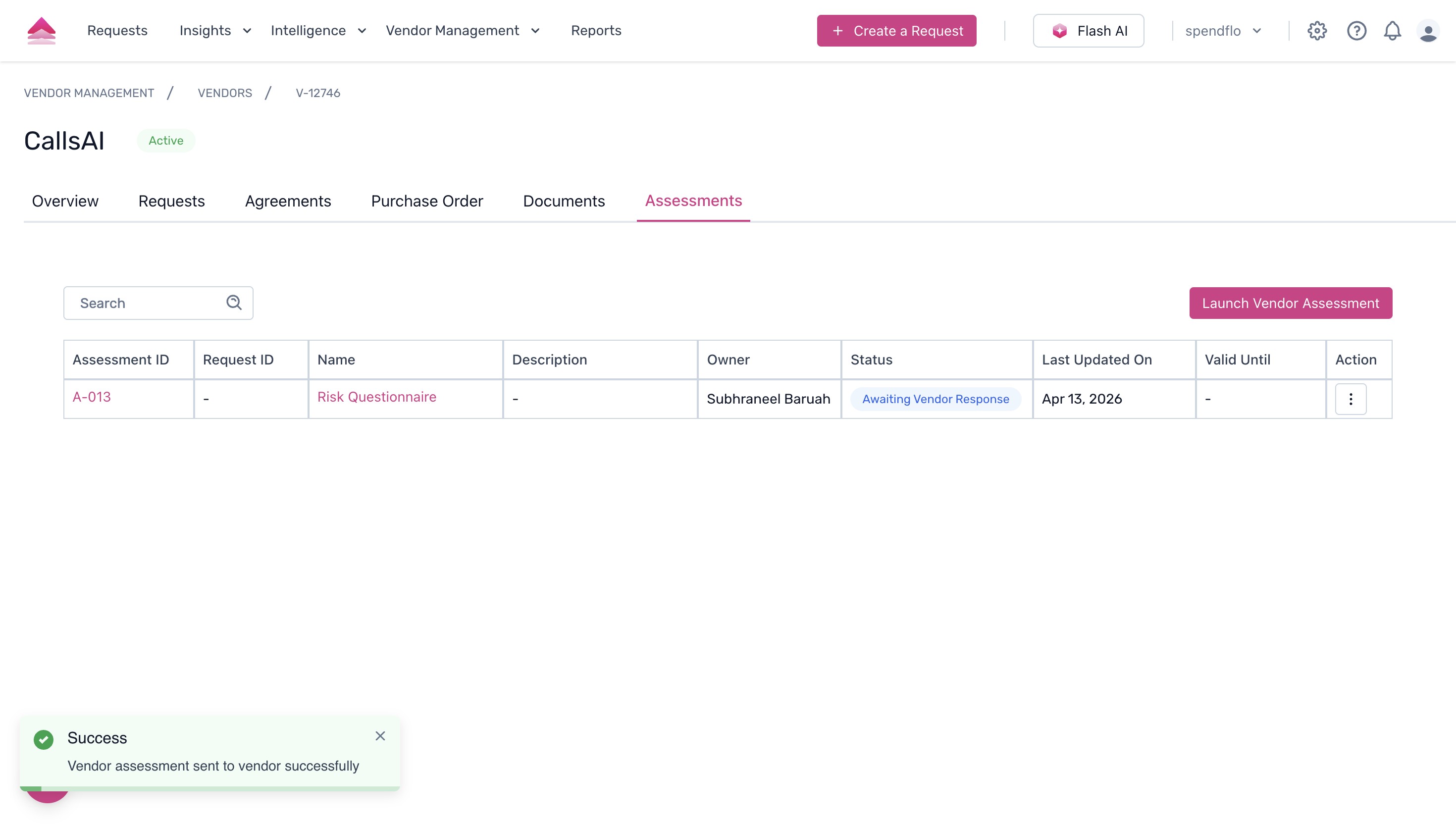
The newly launched assessment displays in the table with its current status, such as Awaiting Vendor Response.
Track Assessment Activity
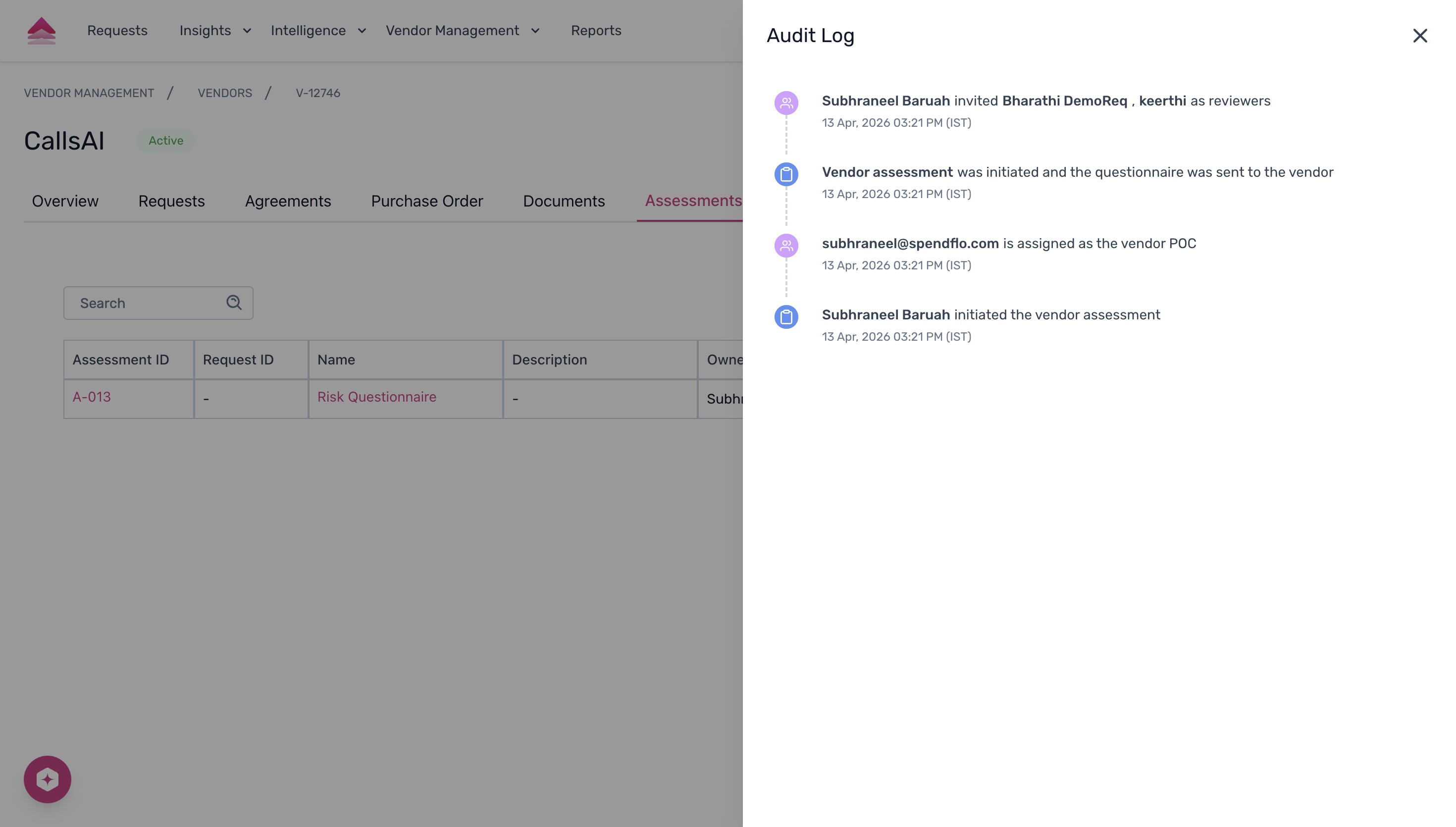
All actions performed on a particular security review are preserved in the Audit Log. To view this history:
Click the three-dot action menu on the right side of the assessment row.
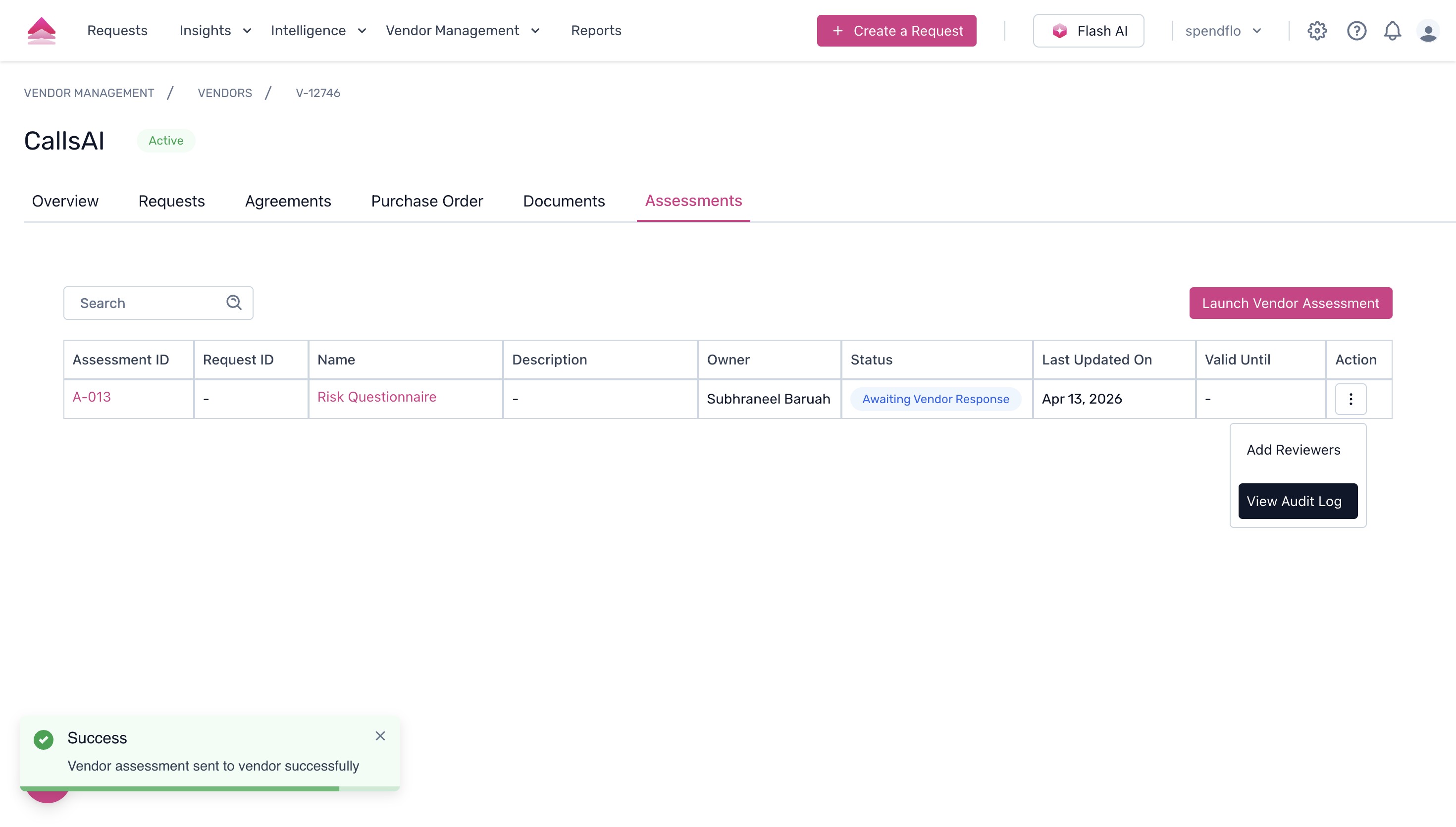
Select View Audit Log from the dropdown menu. This opens a panel showing a chronological timeline of all actions taken on this assessment, including when it was initiated and who was invited as a reviewer.
Next Steps
Now that you have successfully launched a vendor assessment, you can monitor the vendor's progress directly from the Assessments tab. For more information on managing vendor relationships and tracking renewals, explore our other Vendor Management guides.
Was this article helpful?
That’s Great!
Thank you for your feedback
Sorry! We couldn't be helpful
Thank you for your feedback
Feedback sent
We appreciate your effort and will try to fix the article