Overview
Spendflo gives you two ways to stay on top of your pending and overdue tasks - directly from the Home Screen, or from within a specific request in the Workflow Listing.
Option 1: From the Home Screen
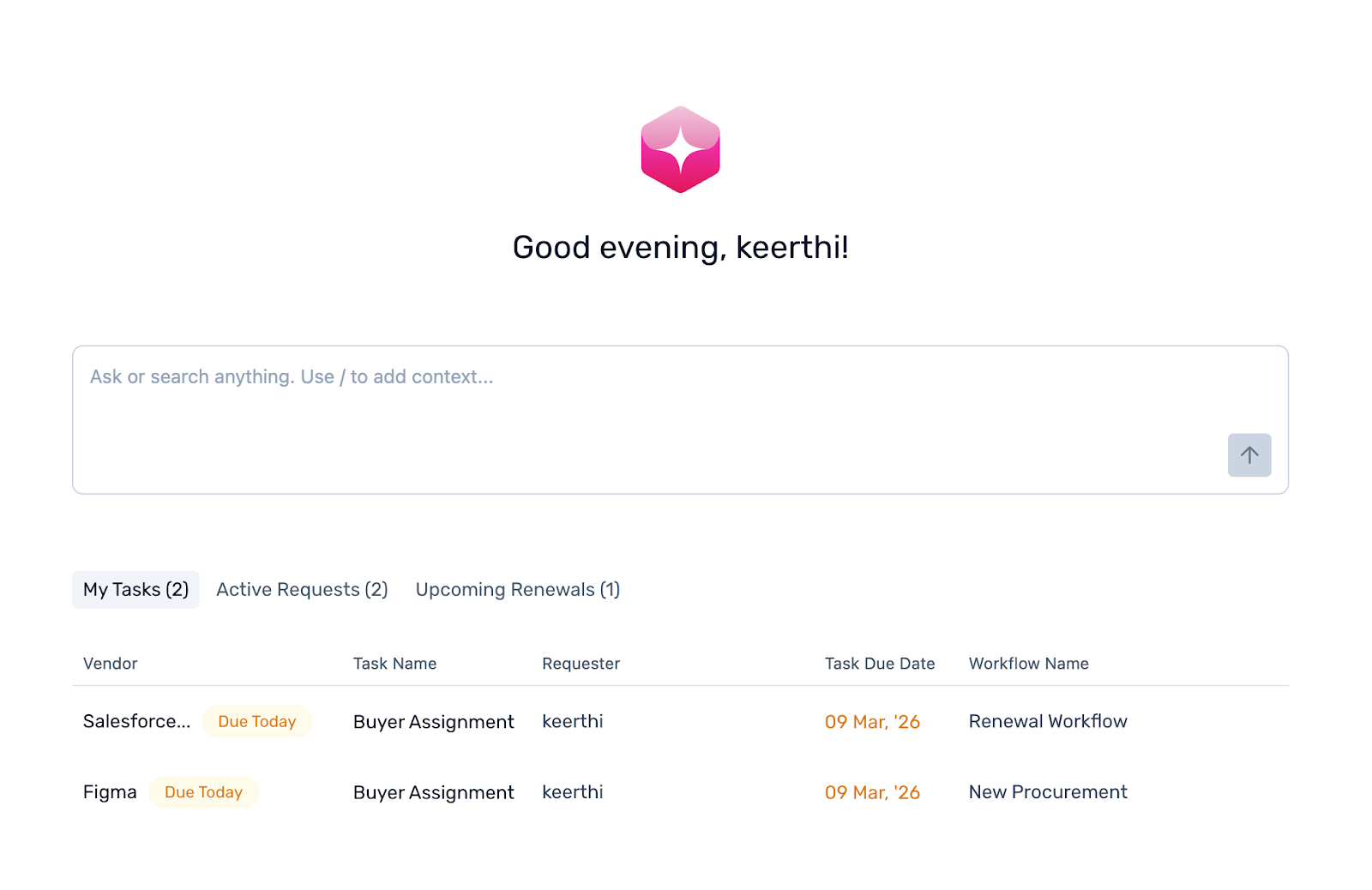
The Interaction Interface, located below the copilot on the Home Screen, gives you a structured snapshot of your most important information. It is organised into three tabs: My Tasks, Active Requests, and Upcoming Renewals. From here you can click on the “My Tasks” tab and then access your tasks.
My Tasks
The My Tasks tab lists all tasks currently assigned to you. The number of pending tasks is shown in brackets next to the tab name, so you always know what's waiting at a glance.
Each task shows:
Vendor – the vendor associated with the task
Task Name – what the task requires you to do
Requester – the person who raised the request
Task Due Date – when the task needs to be completed
Workflow Name – the workflow the task belongs to
Tasks due today are highlighted with a "Due Today" badge in orange, and overdue tasks are clearly flagged. Click on any task to go directly to the request details page and take action.
Option 2: From Within a Request
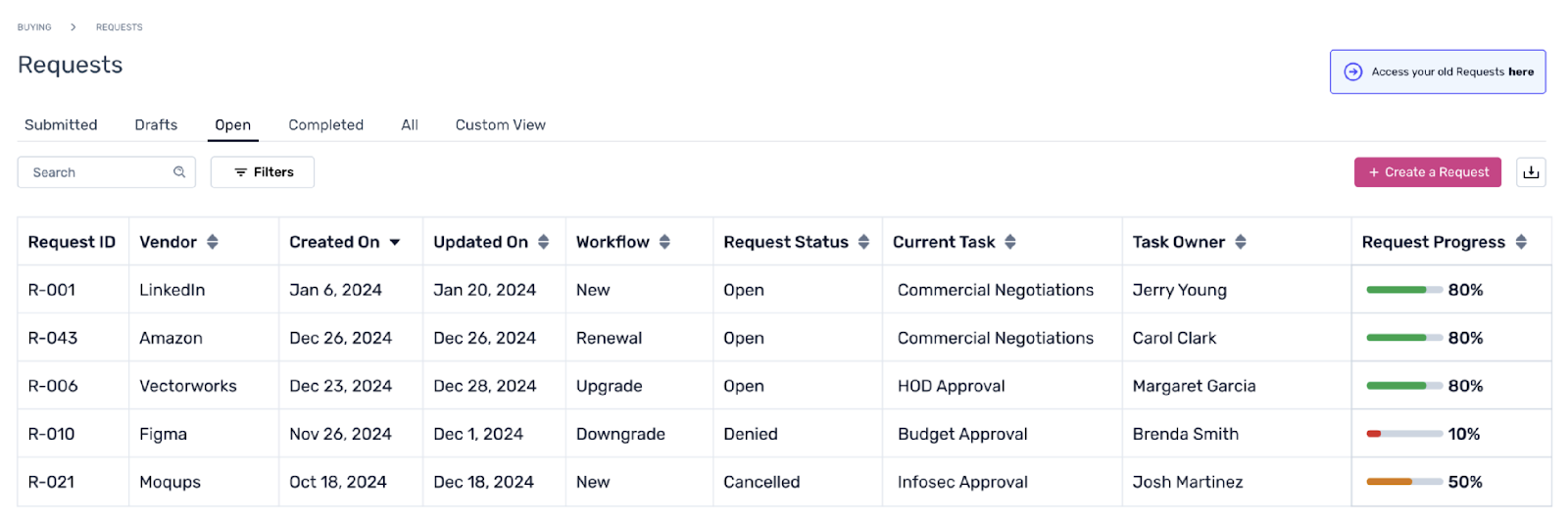
You can also check for pending or overdue tasks while viewing a specific request in the Workflow Listing.
Go to the Workflow Listing page and click on any open request to view its details.
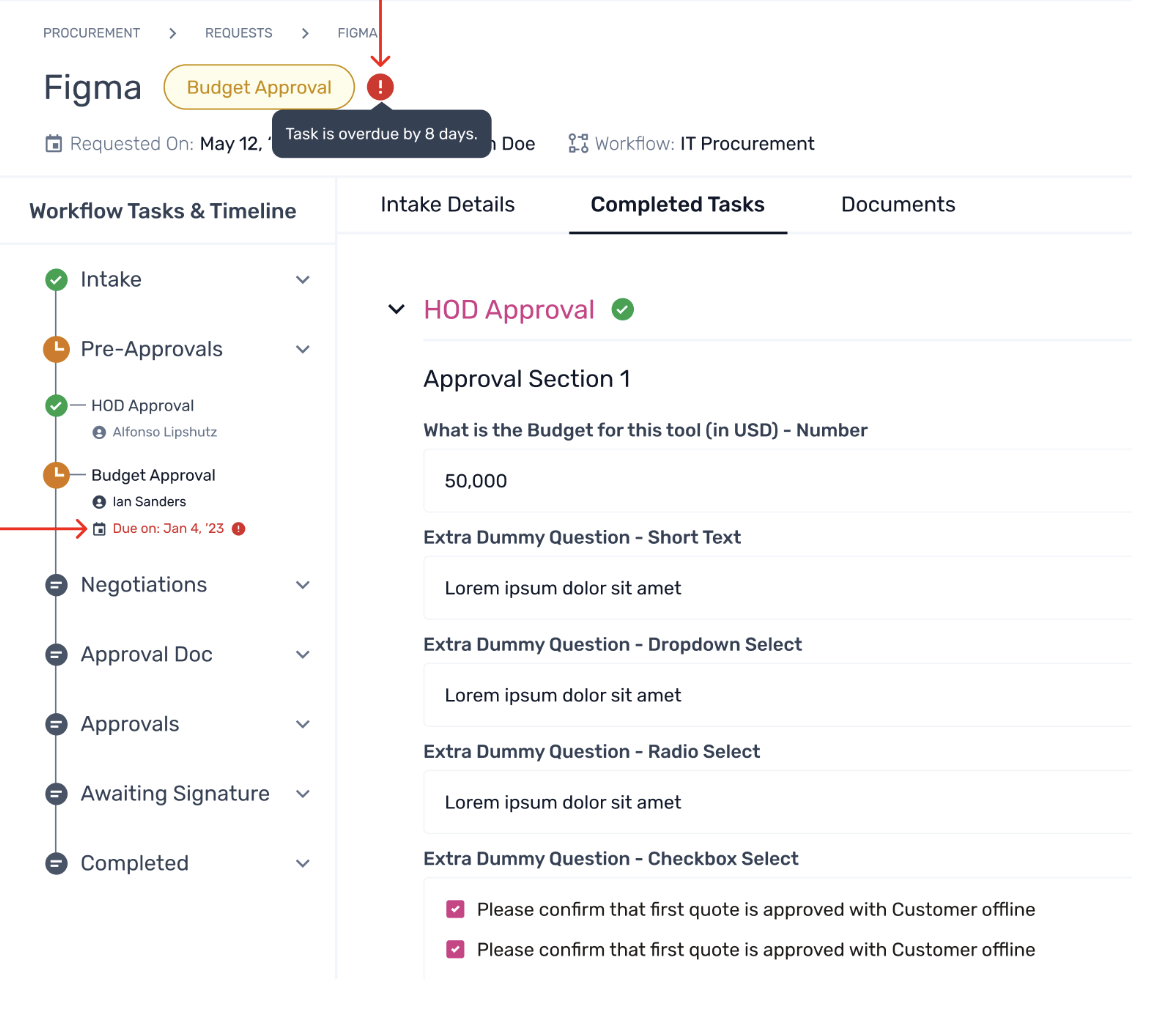
On the request details page, look at the left side near the product name and request status - overdue task indicators appear here.
Click the tooltip to see the number of days the task is overdue.
Select the Due on field beneath the overdue task to view the full task details and take action.
Was this article helpful?
That’s Great!
Thank you for your feedback
Sorry! We couldn't be helpful
Thank you for your feedback
Feedback sent
We appreciate your effort and will try to fix the article