Conducting vendor security reviews is a critical part of maintaining your organization's security posture and safeguarding sensitive customer data. With Spendflo Vendor Trust, you can streamline this process by creating standardized vendor surveys and questionnaires. Standardizing these questionnaires as templates helps accelerate your security review cycles and ensures consistent compliance across all vendor categories. To learn more about the importance of these reviews, see our guide on About vendor assessments.
How to Create a Vendor Survey Template
Follow these steps to build and publish a custom vendor questionnaire template in Spendflo:
- Start from your Spendflo home dashboard ('My Hub').
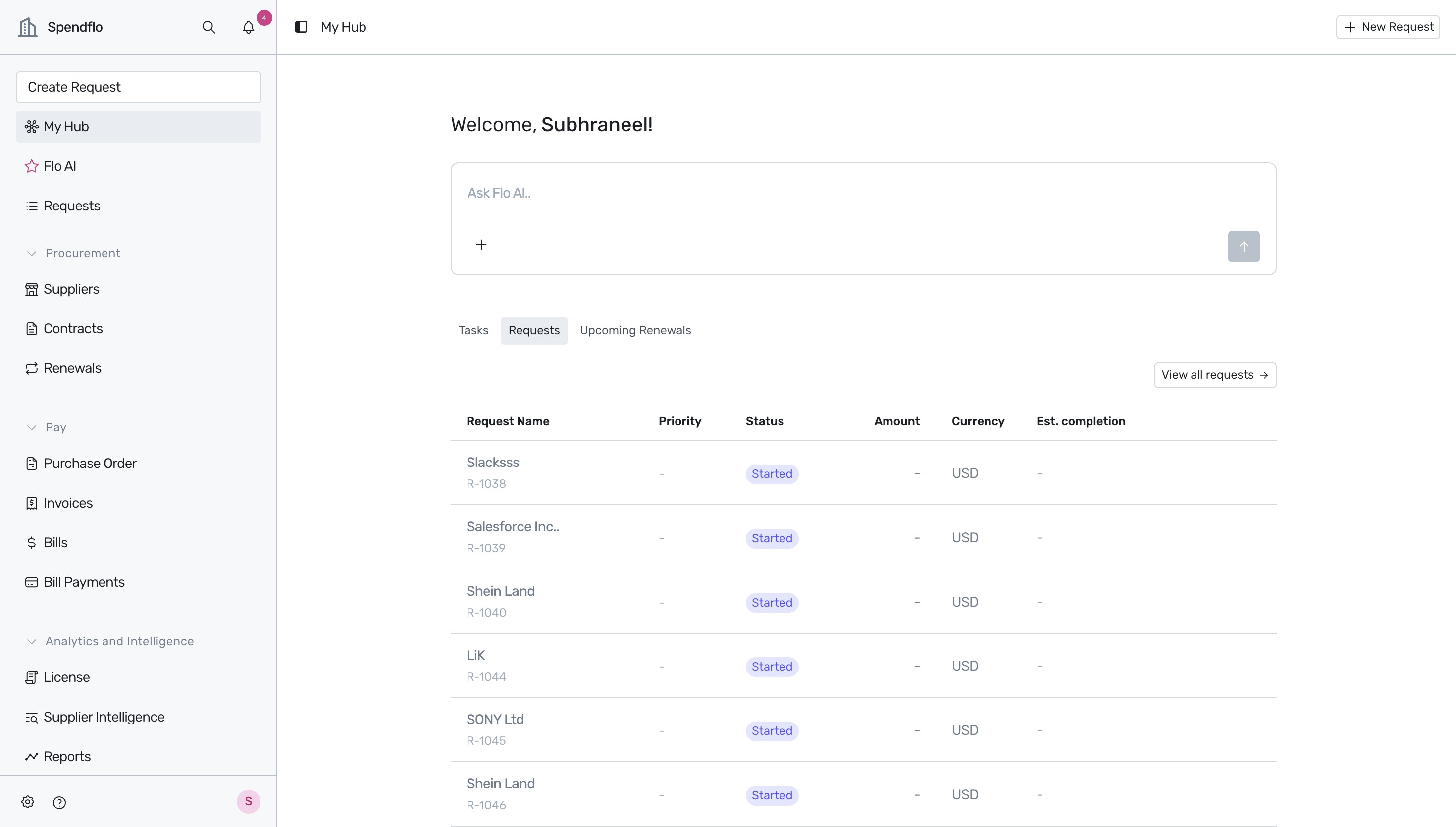
- Navigate to the platform settings by clicking the Gear (Settings) icon located at the bottom-left corner of the navigation sidebar.
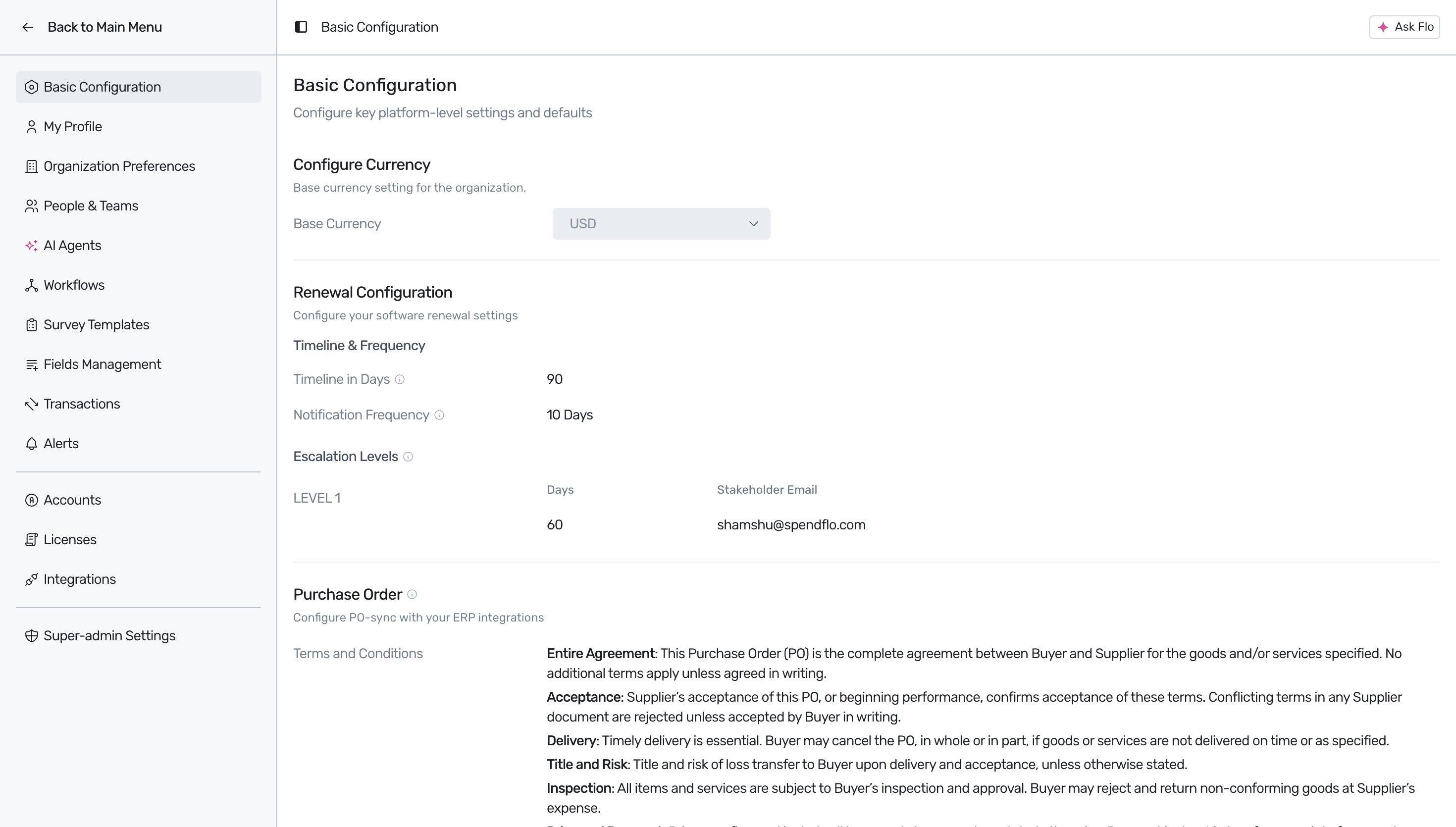
- From the Settings sidebar menu, locate and click on Survey Templates to open the survey management dashboard.
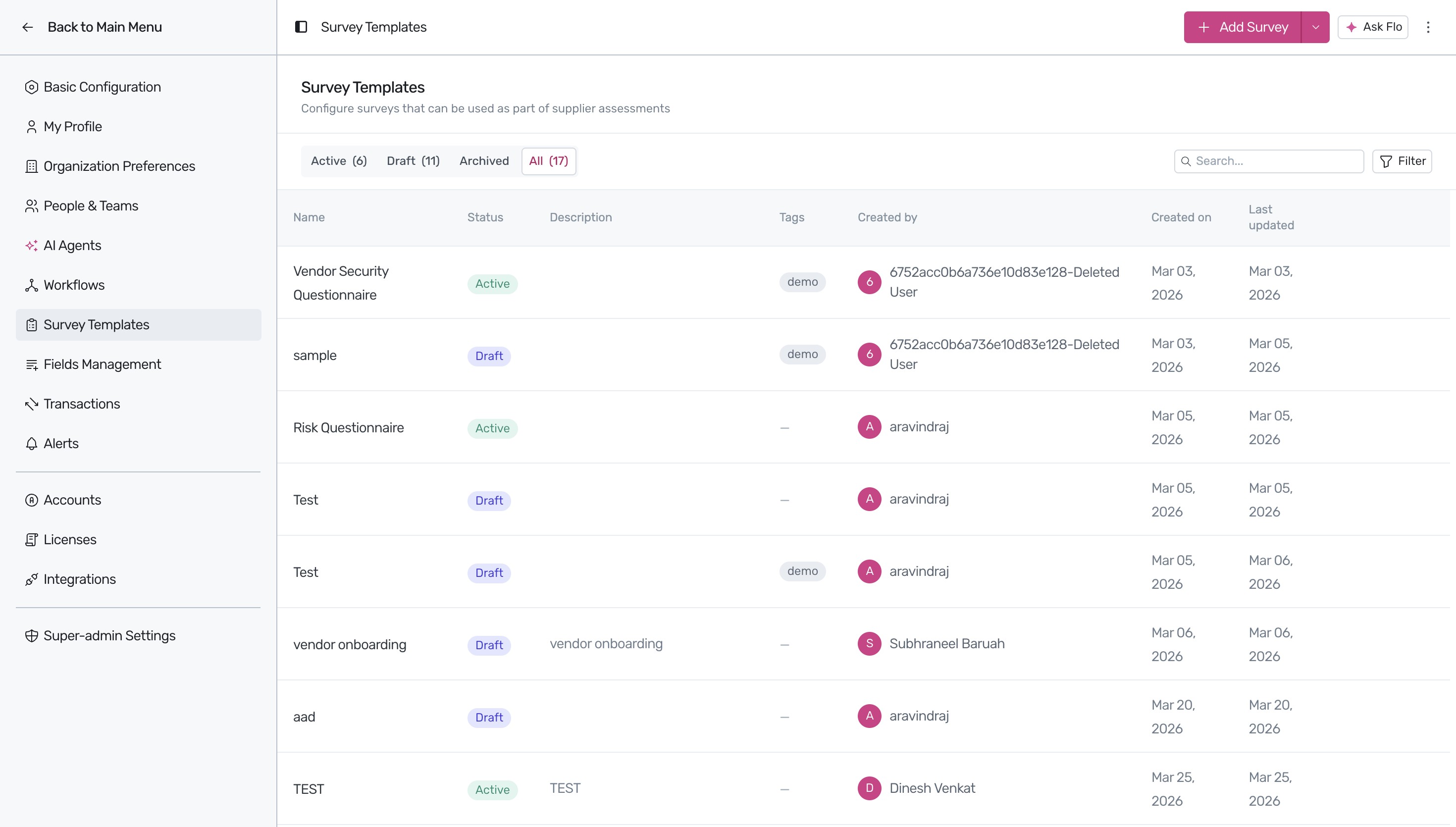
- Click the + Add Survey button in the top-right corner of the Survey Templates page to open the creation dialog.
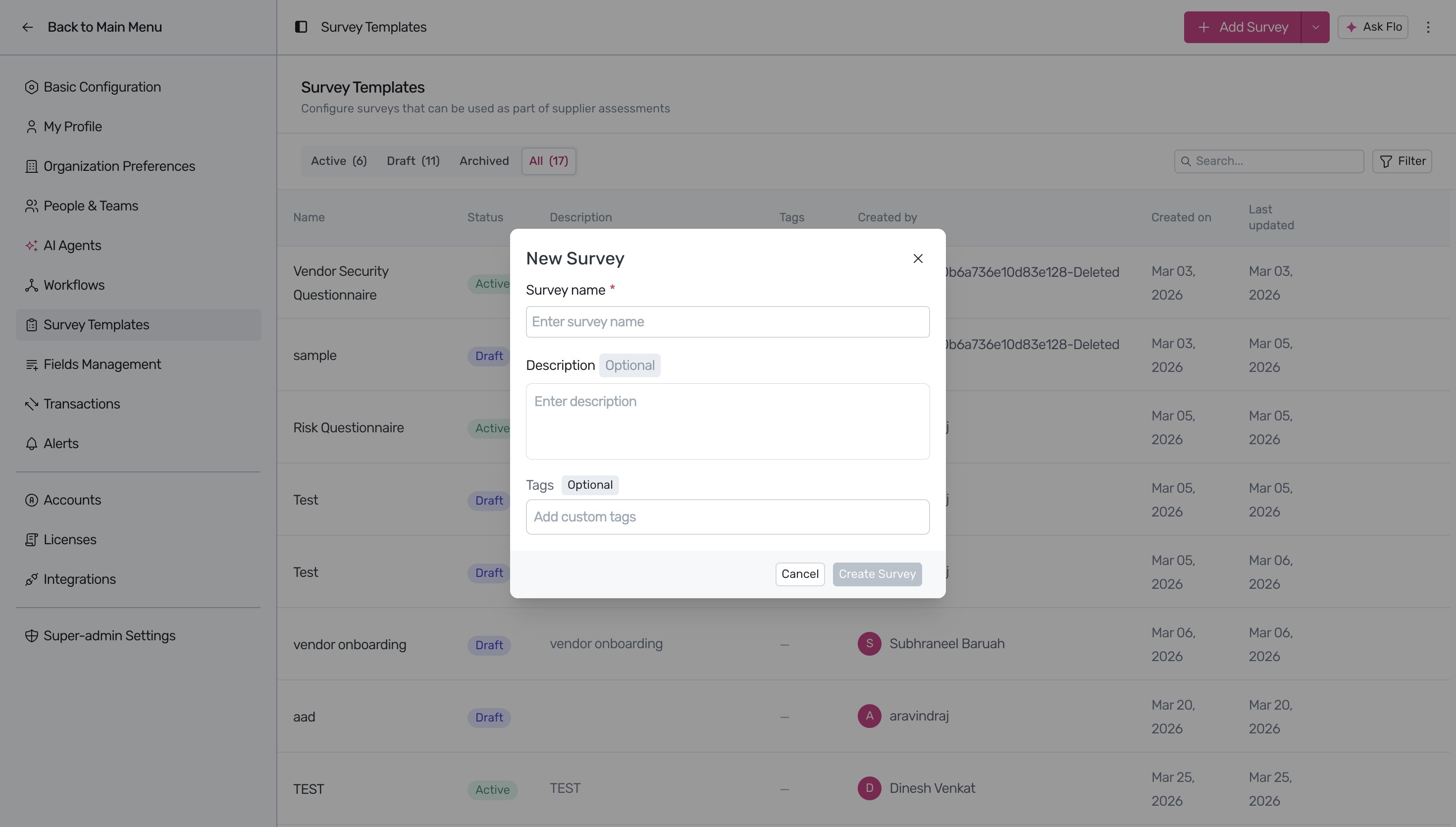
- In the New Survey modal, fill in the survey details. Enter a descriptive Survey name, an optional Description to provide context, and optional Tags (such as 'vendor') to help categorize and filter the template later.
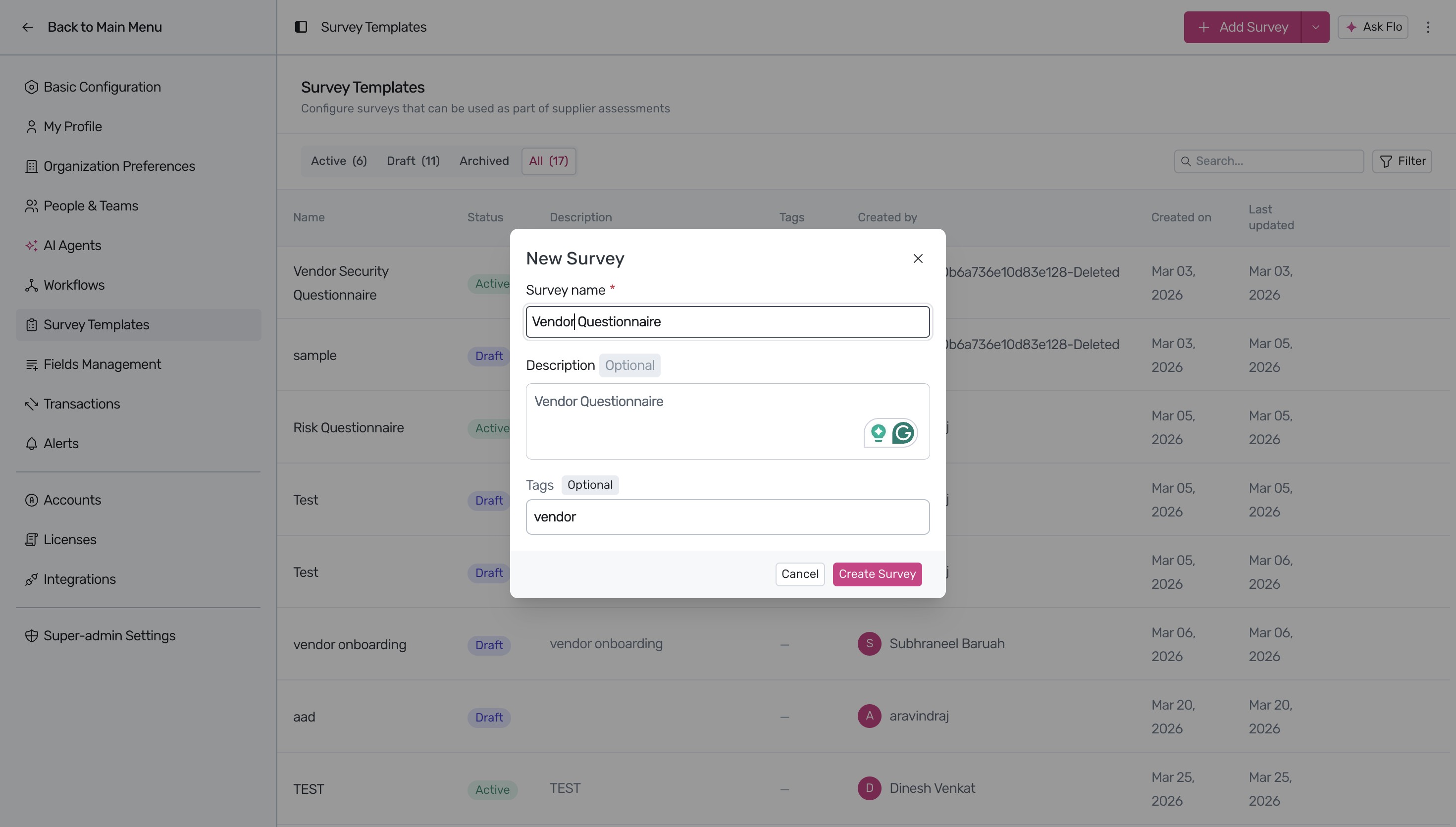
- Click the Create Survey button at the bottom of the modal. This action redirects you to the interactive form builder interface.
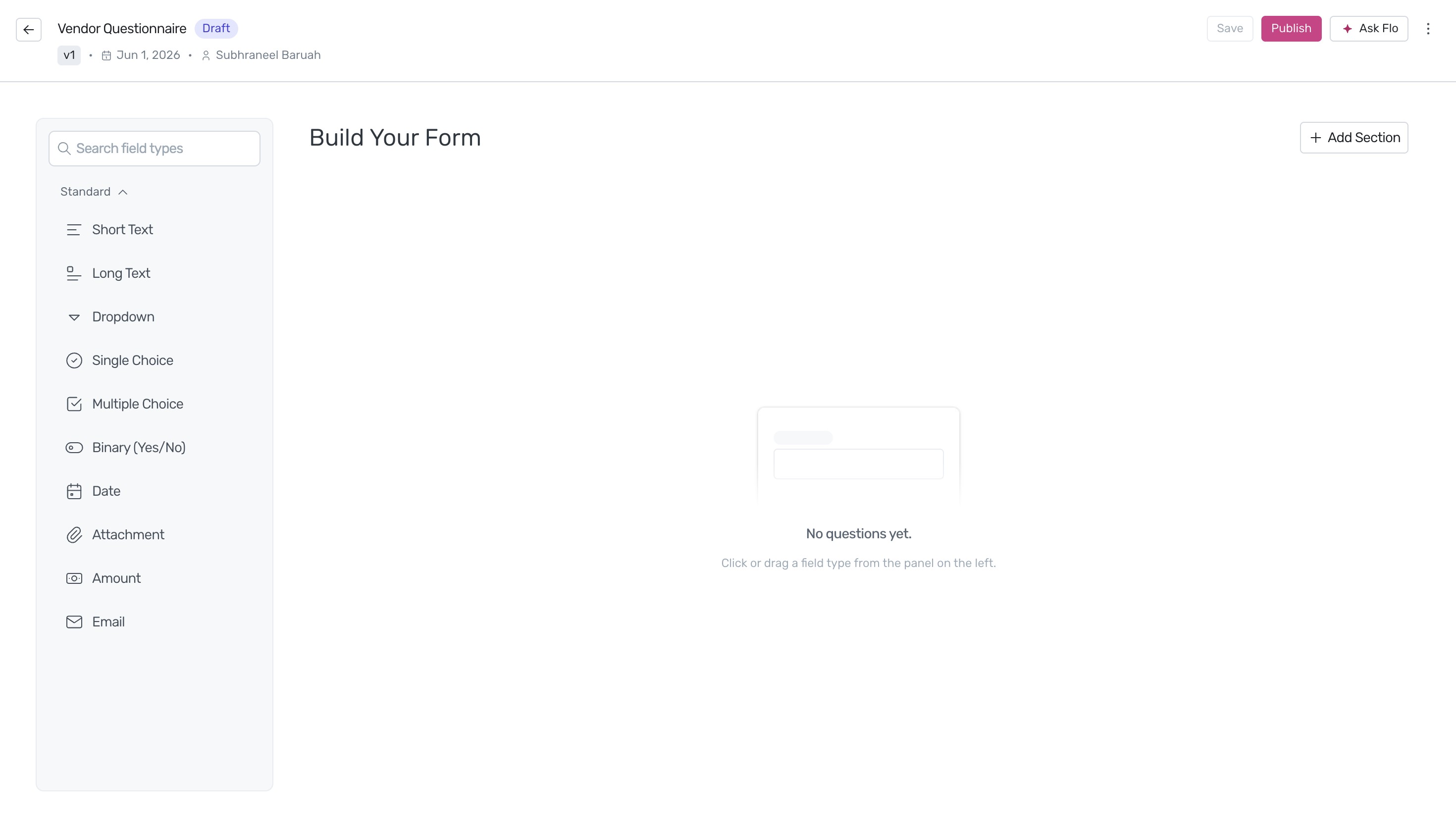
- Customize your questionnaire by selecting and dragging the required field types from the Standard panel. You can add fields such as Short Text, Long Text, Dropdown, Single Choice, Multiple Choice, Binary (Yes/No), Date, Attachment, Amount, or Email to gather precise information. For more details on field configurations, see our guide on Standard Question Types.
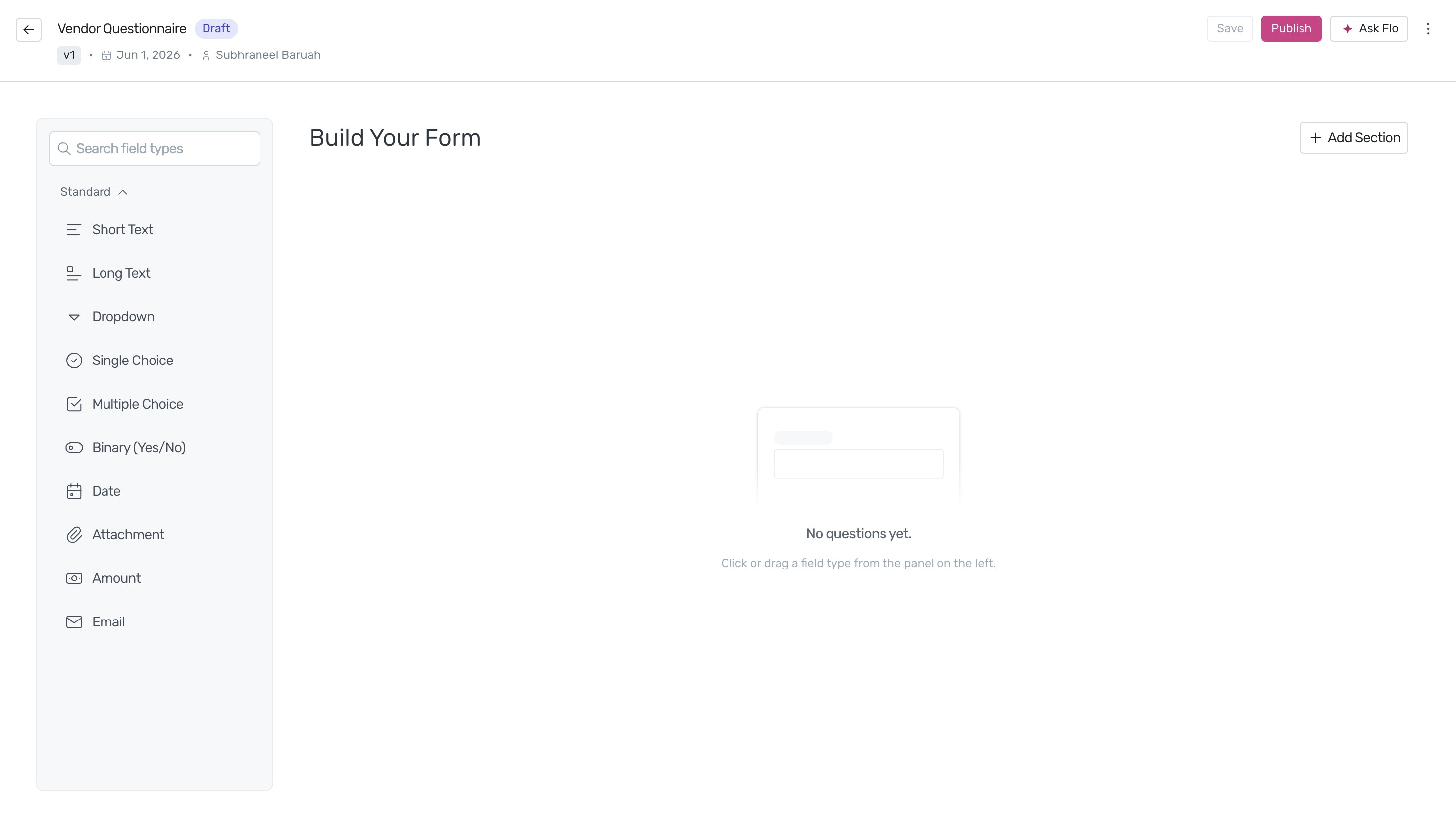
- Once you have added and configured all the necessary questions for your survey, click the Publish button in the top-right corner of the screen.
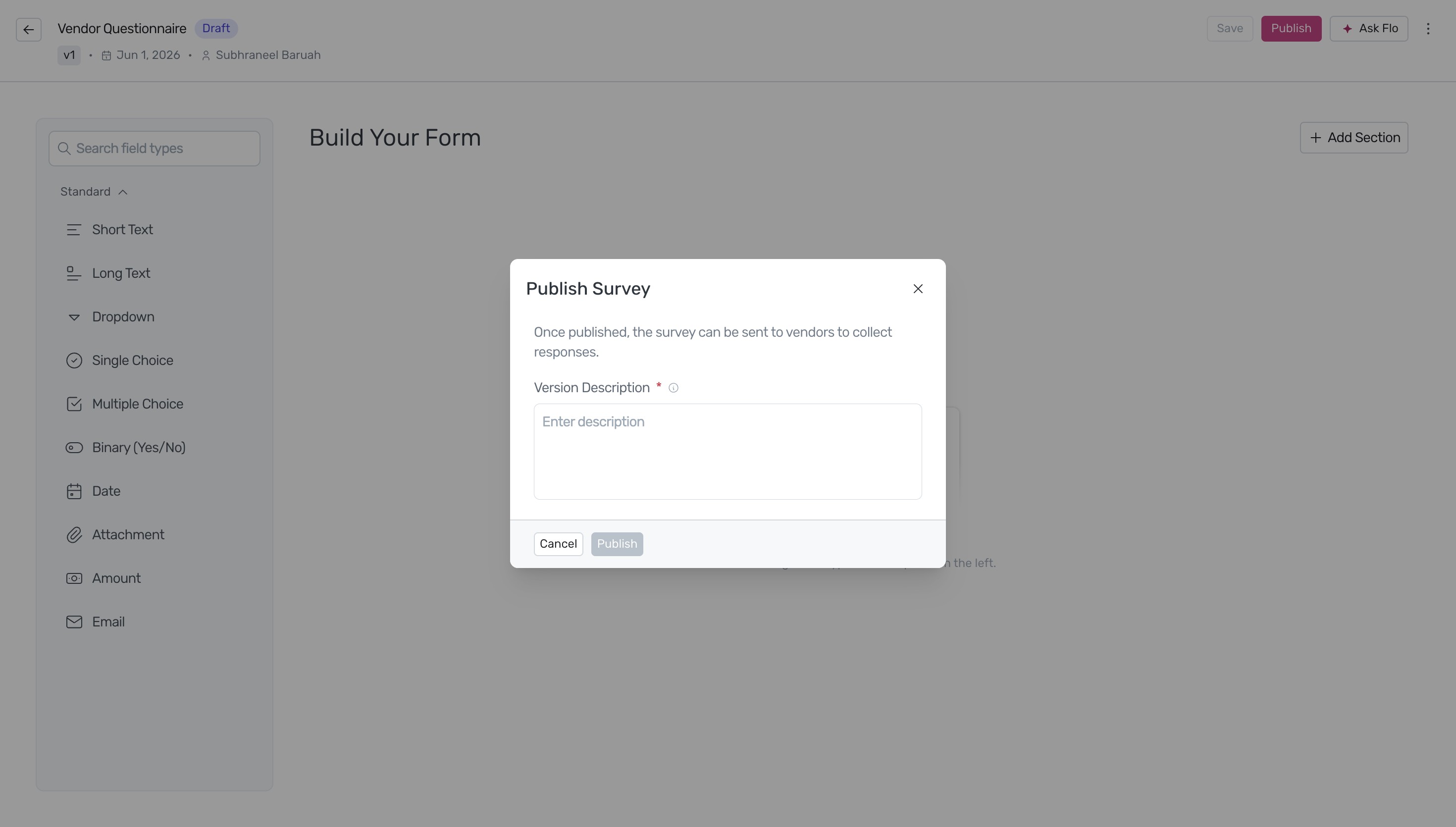
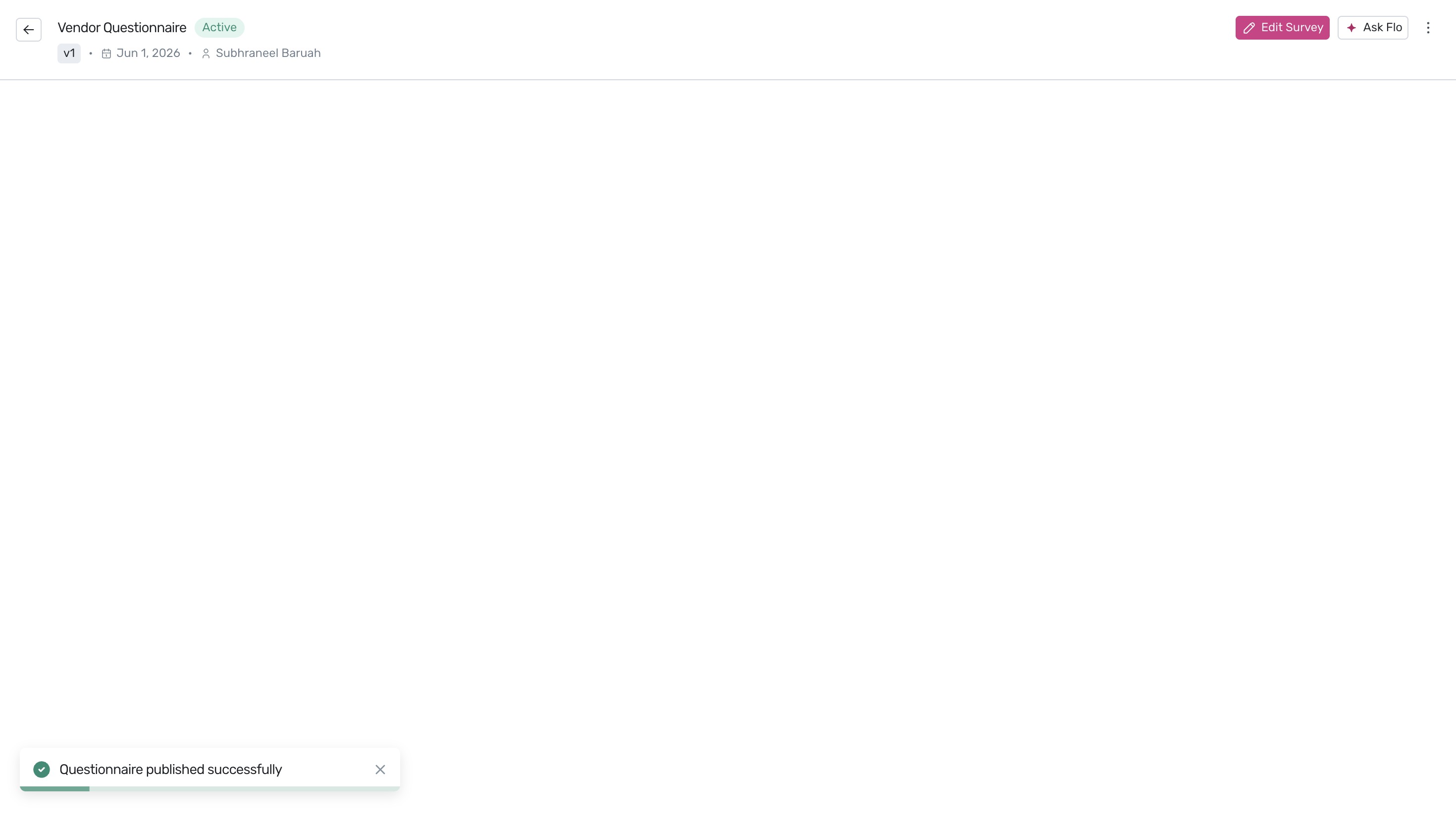
- In the Publish Survey modal, enter a mandatory Version Description to document the changes or the purpose of this version, then click the Publish button to make the survey active and ready for distribution.
Next Steps
Now that you have created and published your vendor survey template, you can use it during your security reviews. Learn how to send this questionnaire to vendors and manage their responses in our guide on Processing a vendor assessment review.
Was this article helpful?
That’s Great!
Thank you for your feedback
Sorry! We couldn't be helpful
Thank you for your feedback
Feedback sent
We appreciate your effort and will try to fix the article