Overview of the Spendflo Homepage
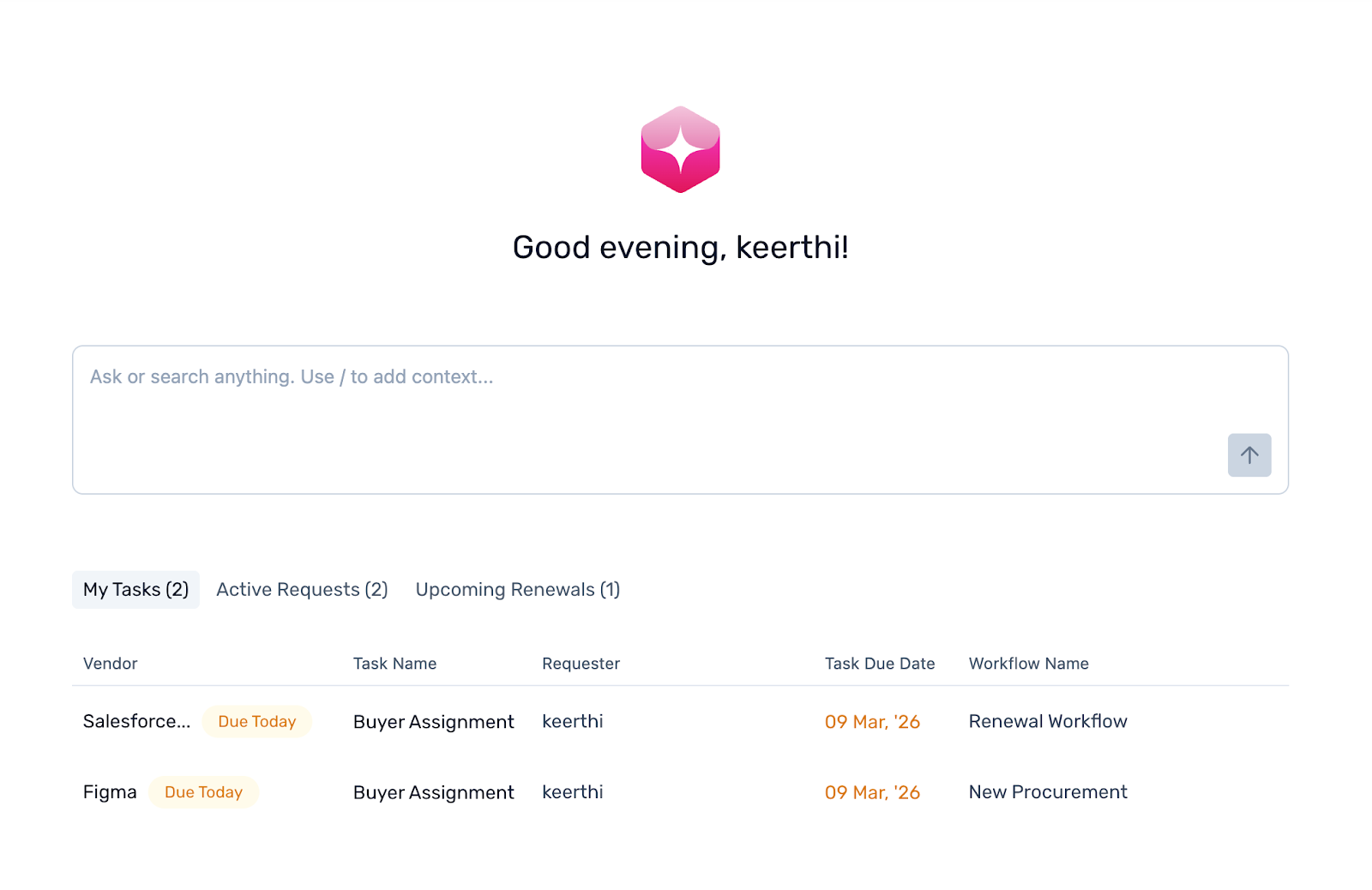
The Spendflo Home Page is your central hub for managing procurement, giving you an instant overview of pending tasks, open requests, and upcoming renewals. At the heart of this experience is Spendflo AI, your smart teammate for procurement. Instead of searching through dashboards, you can type questions in plain language, and Spendflo AI will instantly find and display the right data. The Home Page is divided into two main sections: the Flash AI Copilot at the top and the Interaction Interface below it.
Flash AI Copilot
Located at the top of the Home Page, the Flash AI Copilot is a conversational field where you can ask questions and get instant responses. Simply type your query and press Enter, or click the arrow icon to send.
Default Prompts and Responses
When you open the copilot, you will see a set of default prompts to help you get started. You can also select the "What can you do?" option to view a complete list of Spendflo AI capabilities.
- Natural Language Queries: Type your own questions, including specific filters, to narrow down results.
- Detailed Responses: Information is displayed as text or in a table format, depending on the data type. Each response includes direct links to the relevant section in Spendflo.
- Related Prompts: Suggested prompts appear below each response to help you continue the conversation.
- Feedback: You can like or dislike any response to share feedback with the Spendflo team.
Quick Action Buttons
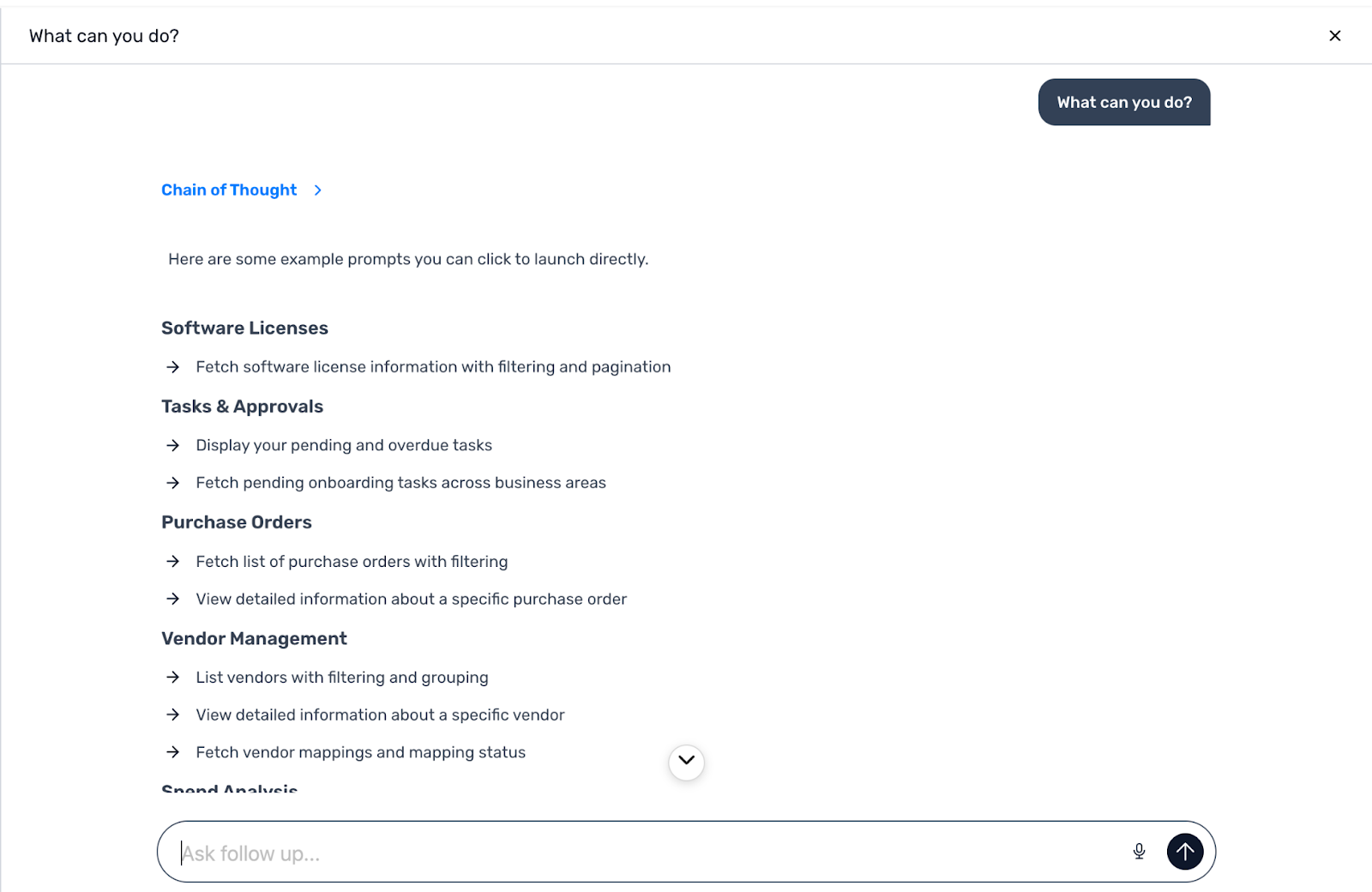
Inside the copilot field, you will find three quick action buttons that instantly surface corresponding data without typing:
- My Tasks
- Active Requests
- Upcoming Renewals
Chat History and Full Screen Mode
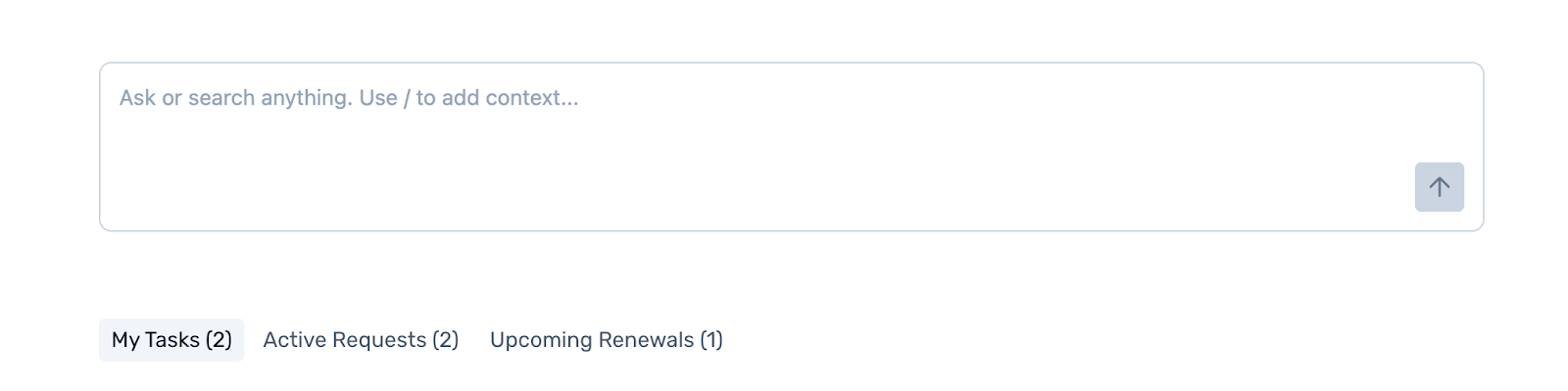
- Chat History: The History tab opens by default on the left side of the copilot. It lists your recent conversations so you can pick up where you left off. To start a fresh conversation, click the New icon at the top of the chat panel.
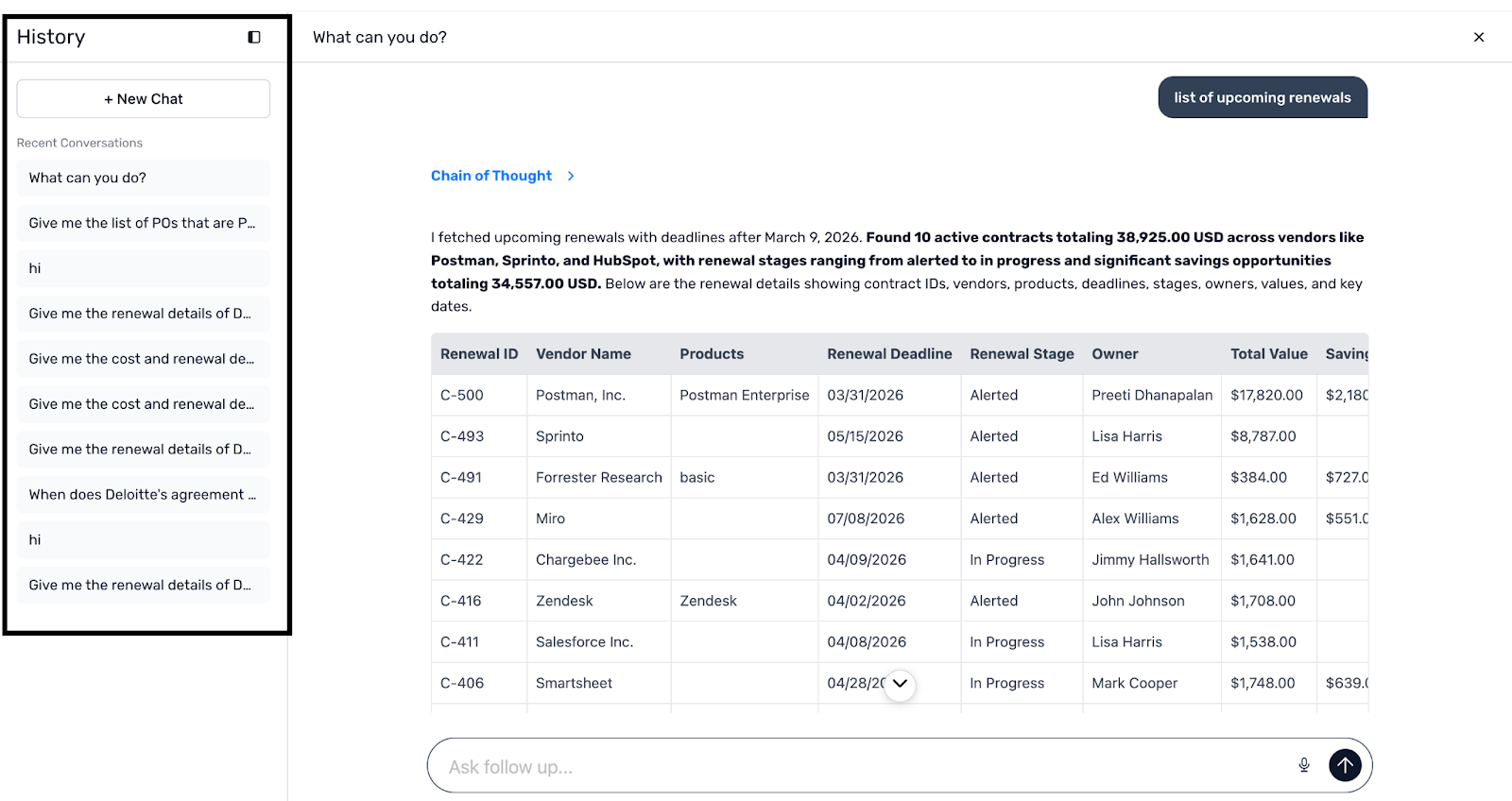
- Full Screen Mode: Expand the copilot slider to fill the entire screen for a clearer view of large data sets. Click the Full Screen icon next to the Close icon at the top right. Click Exit Full Screen to return to the standard view.

Interaction Interface
Below the copilot, the Interaction Interface provides a structured snapshot of your most important information across three tabs. You can switch between them at any time.
My Tasks
This tab displays all tasks assigned to you in a list view. The number of pending tasks is shown in brackets next to the tab name.
- Task Details: Each item shows the associated Vendor, Task Name, Requester, Task Due Date, and Workflow Name.
- Urgency Indicators: Tasks due today feature an orange "Due Today" badge, and overdue tasks are clearly flagged.
- Actionable: Click on any task to go directly to the request details page.

Active Requests
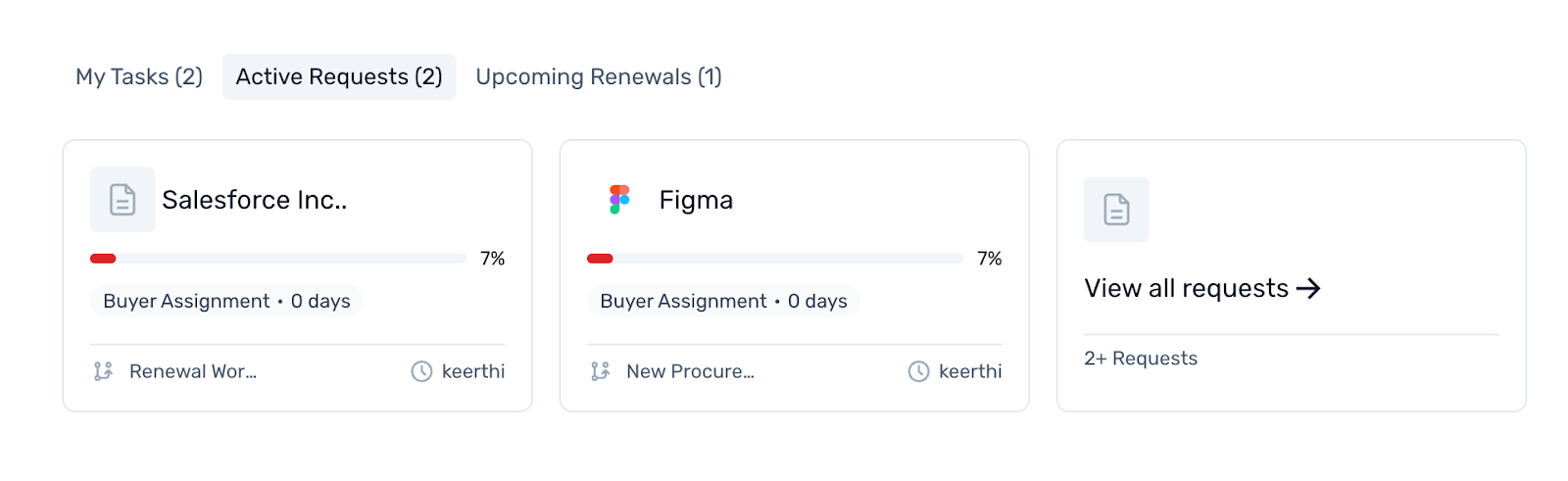
View all your open procurement requests as cards to quickly check their status. The tab shows the first 10 requests by default.
- Card Details: Each card displays the Vendor, Procurement Progress bar, Current Task (with days spent at this step), Workflow, and Owner.
- Navigation: Hover over truncated text to see the full value. Click "View All Requests" at the bottom to see your complete list, or click any card to open its details page.
Upcoming Renewals
This tab lists contracts coming up for renewal where you are the contract owner. Items are sorted by renewal date, prioritizing the most urgent contracts. It shows the first 10 renewals by default.
- Renewal Details: View the Vendor Name, Renewal Status (e.g., "In 7 Days"), Contract Value in USD, Contract Owner, and Renewal Date.
- Navigation: Click "View All Renewals" to see the full list, or click a specific vendor name or the View button to open the agreement details page.

Summary
The Spendflo Home Page and Flash AI Copilot work together to streamline your procurement workflow. By centralizing your tasks, requests, and renewals, and offering a powerful conversational AI, you can manage your SaaS stack more efficiently.
Was this article helpful?
That’s Great!
Thank you for your feedback
Sorry! We couldn't be helpful
Thank you for your feedback
Feedback sent
We appreciate your effort and will try to fix the article