Overview
Flo AI is your smart teammate for procurement, helping you access all your request information instantly. Instead of searching through dashboards or reports, you can simply type your question in plain language and Flo AI will find and display the right data for you. When you log in, you’ll land directly on the Home Page – where Flo AI is front and centre, ready to use straight away.
Home Page
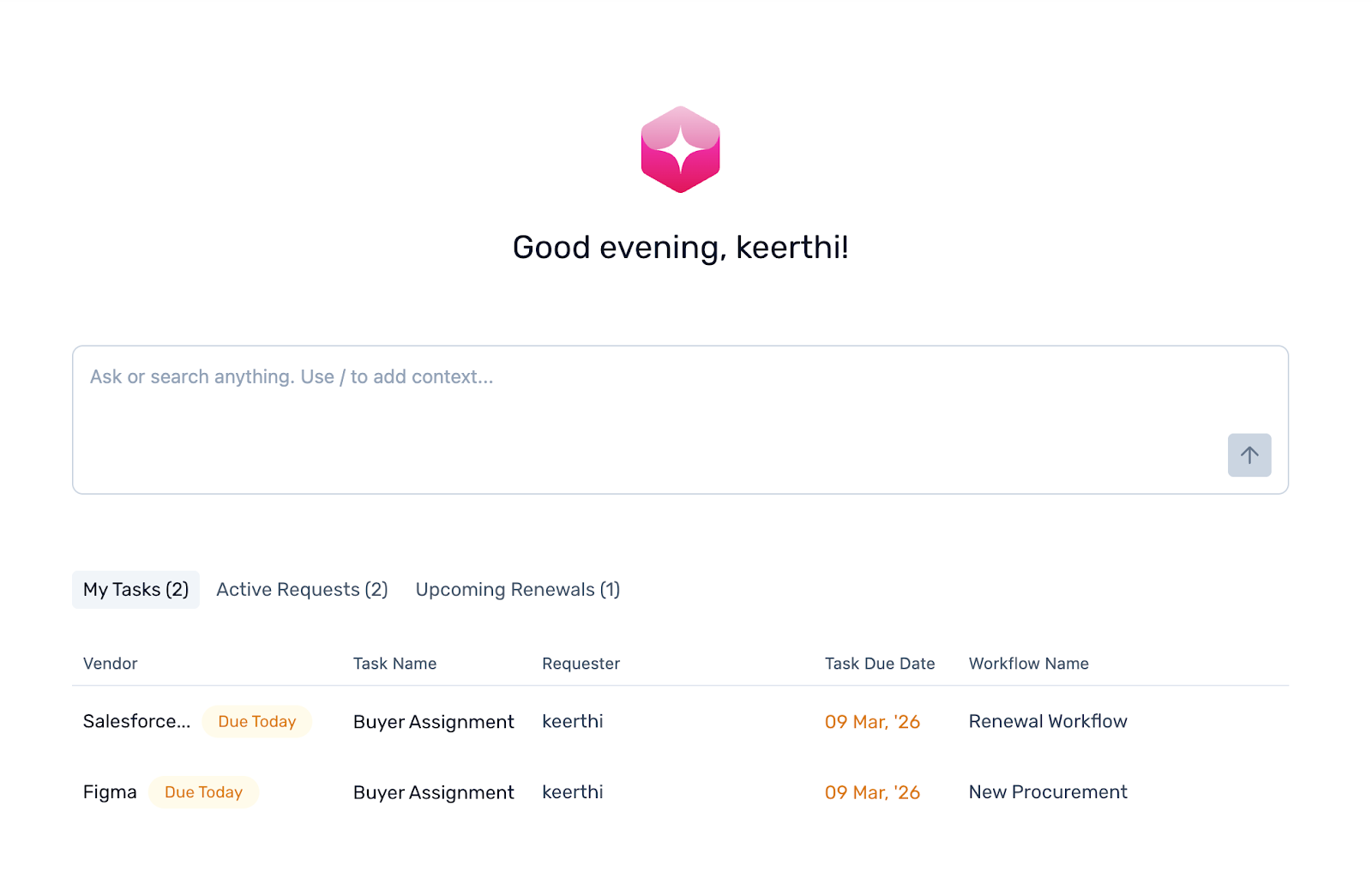
The Home Page is the first thing you see when you log in to Spendflo. It gives you an instant overview of everything that needs your attention – from pending tasks and open requests to contracts coming up for renewal – all in one place.
It is made up of two parts: the Flo AI Copilot at the top, and the Interaction Interface below it.
Flo AI Copilot
Right at the top of the Home Page sits the Flo AI Copilot – a conversational field where you can type any question or request and get an instant response. Simply type in the input field and press Enter, or click the arrow icon to send.
Default Prompts
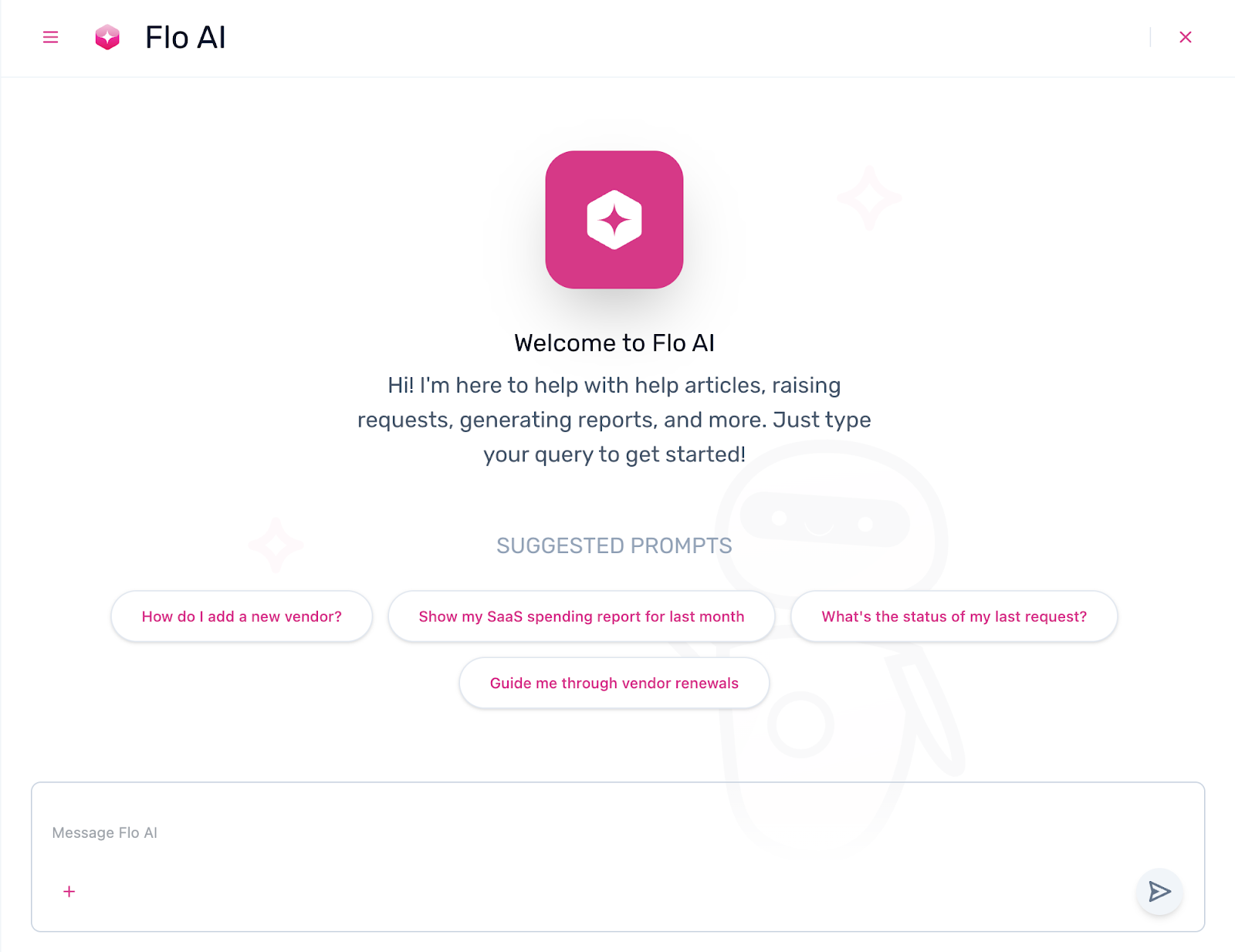
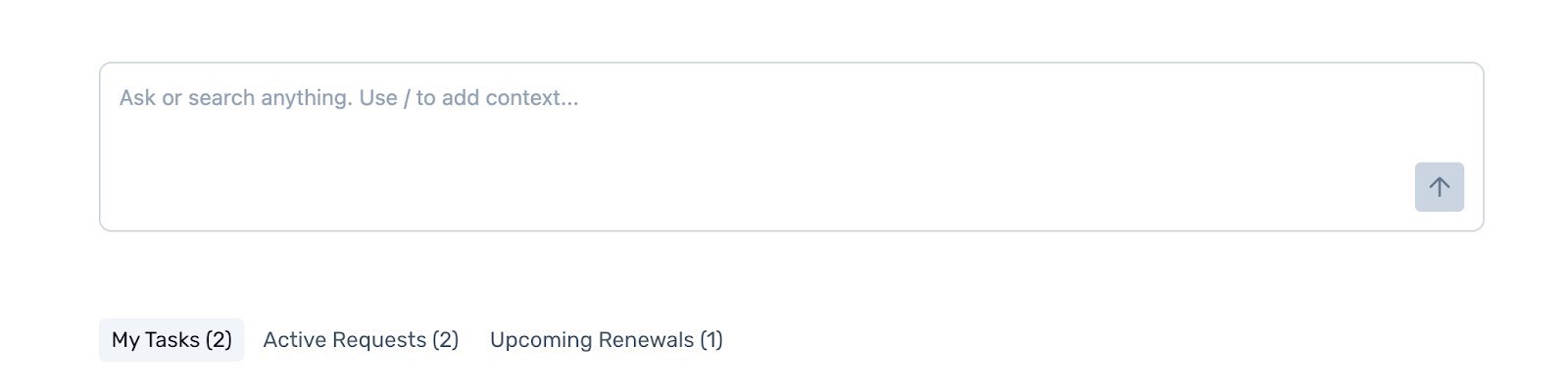
When you open the copilot, you’ll see a set of default prompts to help you get started quickly. There is also a “What can you do?” option that shows the full list of things Flo AI can help with. You can select any prompt directly, or type your own query in natural language – including filters to narrow down the results.
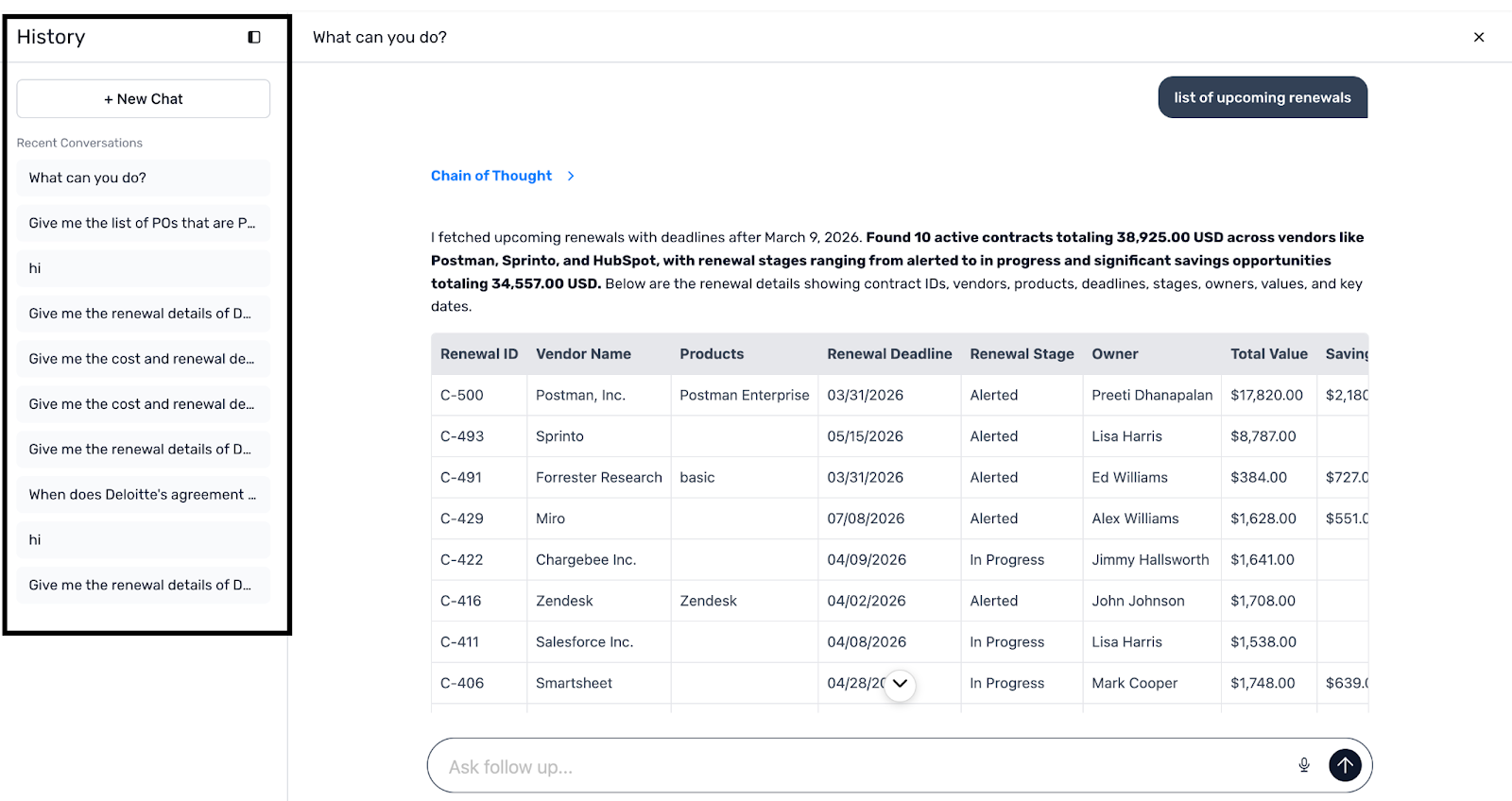
Responses are shown as detailed information or in a table format depending on the data type, and each response includes links that take you directly to the relevant section in Spendflo. Related prompts also appear below each response to help you continue the conversation. You can like or dislike any response to share feedback with the team.
Quick Action Buttons
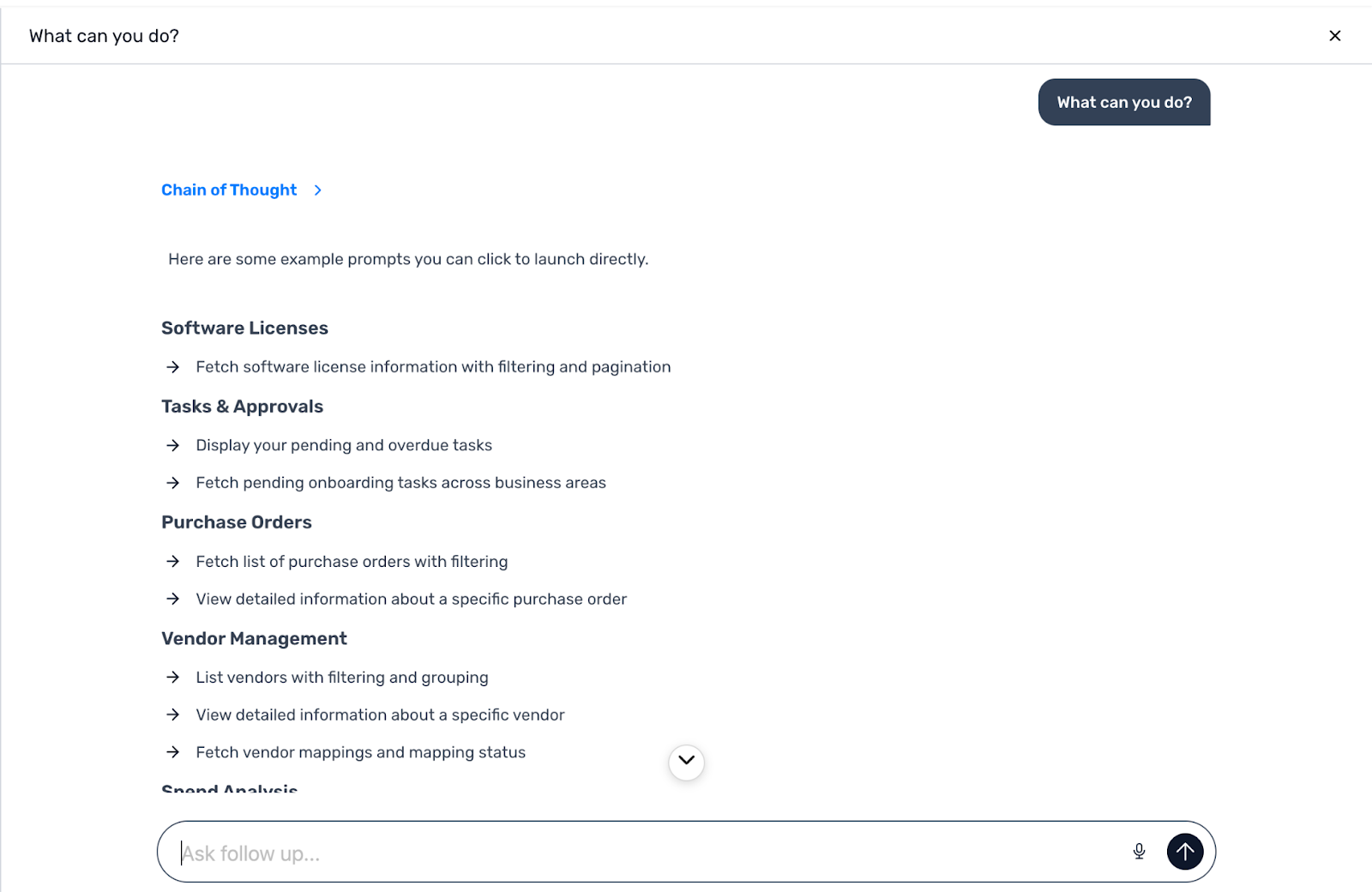
Inside the copilot field, you’ll also find three quick action buttons: My Tasks, Active Requests, and Upcoming Renewals. Clicking any of these instantly surfaces the corresponding data in the copilot, so you can jump straight into what matters without typing a word.
Chat History
The History tab is open by default on the left side of the copilot. Your recent conversations are listed here, so you can pick up where you left off or revisit any previous query. Select any conversation to view the data again or continue by adding a new prompt to the same thread.
To start a fresh conversation, click the New icon at the top of the chat panel.
Full Screen Mode
When the copilot slider is open, you can expand it to fill the entire screen for a clearer view – especially useful when the response contains a lot of data. To do this, click the Full Screen icon next to the Close icon at the top right of the slider. Click Exit Full Screen to return to the standard slider view.

Interaction Interface
Below the copilot, the Interaction Interface gives you a structured snapshot of your most important information, organised into three tabs: My Tasks, Active Requests, and Upcoming Renewals. Switch between them at any time by clicking the tab names.
My Tasks
The My Tasks tab shows all the tasks assigned to you in a list view. The number of pending tasks is shown in brackets next to the tab name so you always know what’s waiting at a glance.
Each task shows:
Vendor – the vendor associated with the task
Task Name – what the task requires you to do
Requester – the person who raised the request
Task Due Date – when the task needs to be completed
Workflow Name – the workflow the task belongs to
Tasks due today are highlighted with a “Due Today” badge in orange, and overdue tasks are clearly flagged. Click on any task to go directly to the request details page and take action.

Active Requests
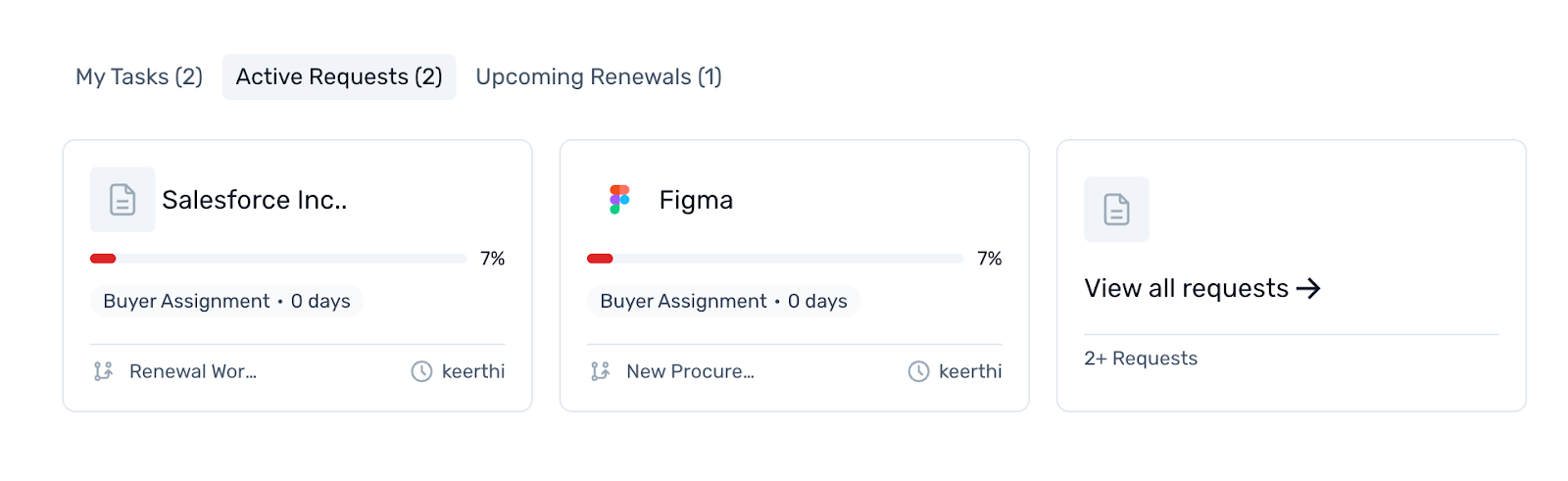
The Active Requests tab shows all your open procurement requests as cards, so you can quickly see where each one stands in the process.
Each card shows:
Vendor – the vendor the request is for
Procurement Progress – a progress bar showing how far along the request is
Current Task – the step the request is currently at, and how many days it’s been there
Workflow – the workflow the request is following
Owner – the person currently responsible for the request
If any text on a card is truncated, hover over it to see the full value. The tab shows the first 10 requests by default. If you have more, click View All Requests at the bottom to go to the Active Requests section. Click on any card to open that request’s details page.
Upcoming Renewals
The Upcoming Renewals tab lists contracts coming up for renewal where you are the contract owner, sorted by renewal date so the most urgent items appear first.
Each renewal shows:
Vendor Name – the vendor the contract is with
Renewal Status – urgency indicator (for example, “In 7 Days”)
Contract Value – total contract cost in USD
Contract Owner – the person responsible for the contract
Renewal Date – the date by which the renewal decision needs to be made
The tab shows the first 10 renewals by default. Click View All Renewals at the bottom to see everything in one place. To view the full details of a specific renewal, click on the vendor name or the View button – you’ll be taken to the agreement details page for that contract.

Was this article helpful?
That’s Great!
Thank you for your feedback
Sorry! We couldn't be helpful
Thank you for your feedback
Feedback sent
We appreciate your effort and will try to fix the article