Overview
The Procure-to-Pay (P2P) module is Spendflo's end-to-end Accounts Payable solution. It covers the complete financial lifecycle from the moment a vendor invoice arrives to the point the payment is confirmed and reconciled in your ERP — all without manual handoff between tools.
P2P sits downstream of Spendflo's procurement modules (Vendors, Agreements, Purchase Orders, Requests). Once a vendor has been onboarded, a contract signed, and a PO raised, the P2P module picks up the story: the vendor sends an invoice, that invoice becomes a bill, the bill gets approved, and the payment gets made and recorded.
Who Is This For?
Key Concepts & Terminology
The P2P Lifecycle at a Glance
The full Procure-to-Pay cycle in Spendflo moves through four stages:
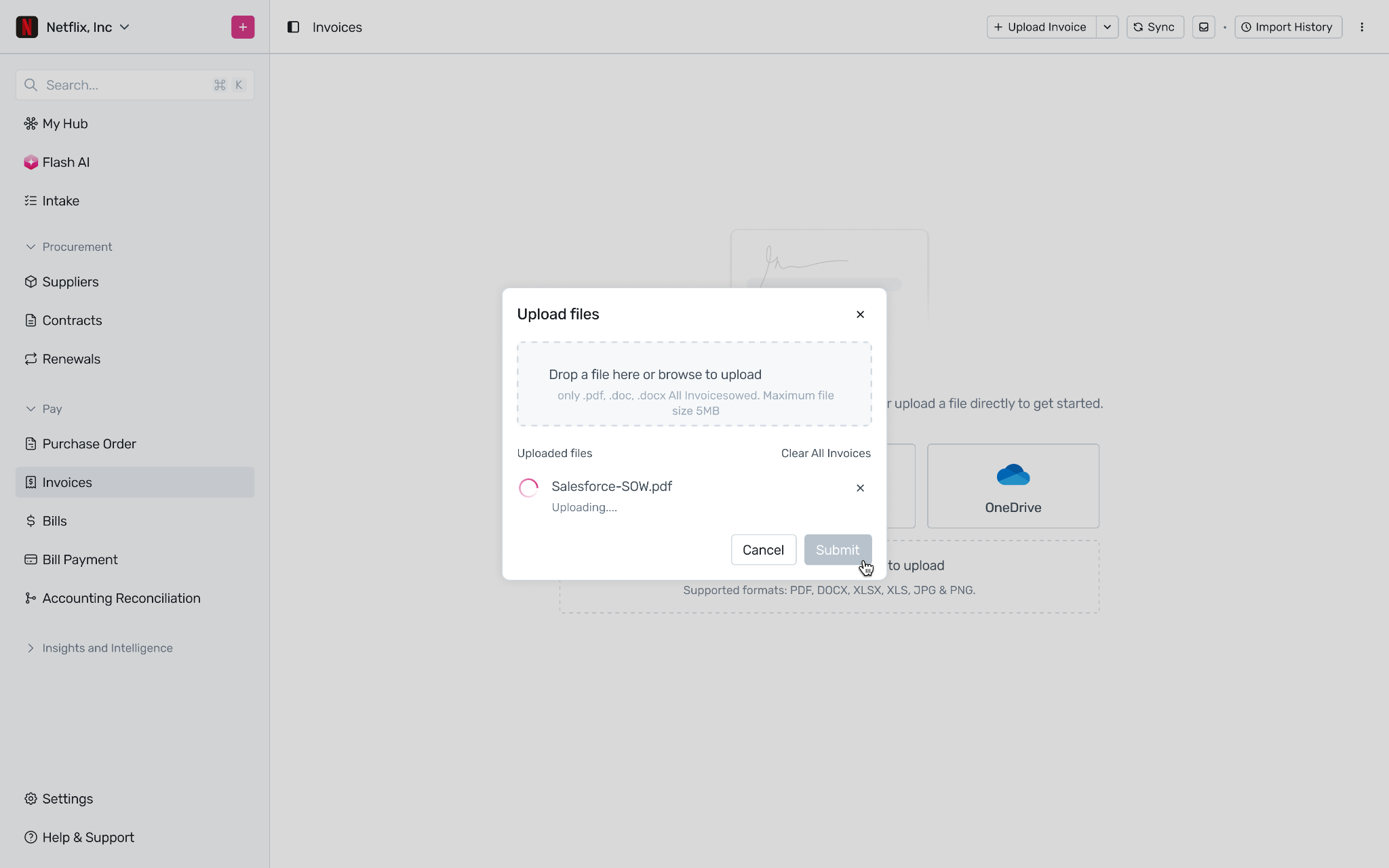
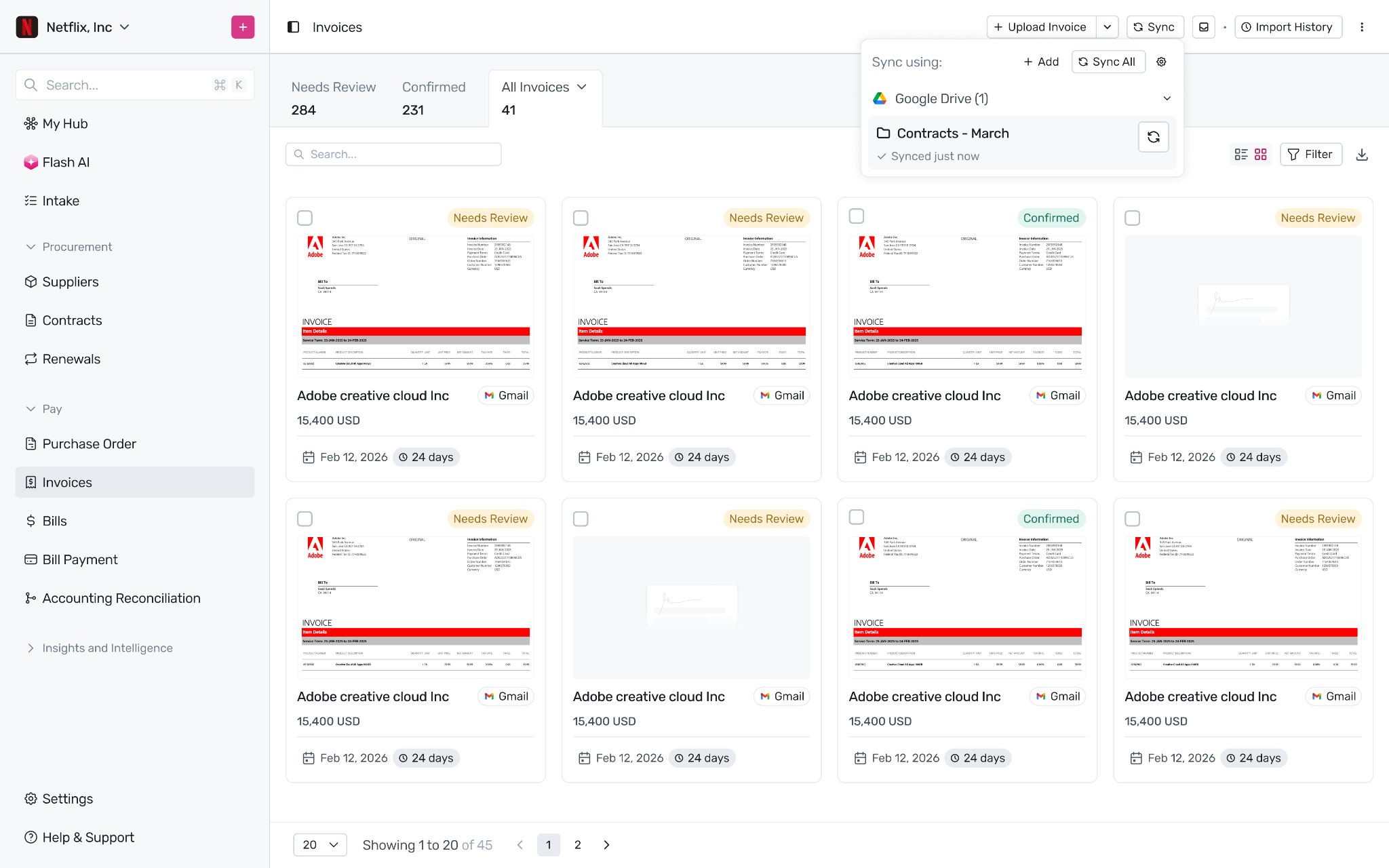
Stage 1 — Invoice Ingestion
A vendor invoice arrives via email, direct upload, or cloud storage. Spendflo's AI automatically extracts the vendor name, invoice number, dates, amounts, and line items. High-confidence invoices are auto-confirmed; others are flagged for Finance Executive review.
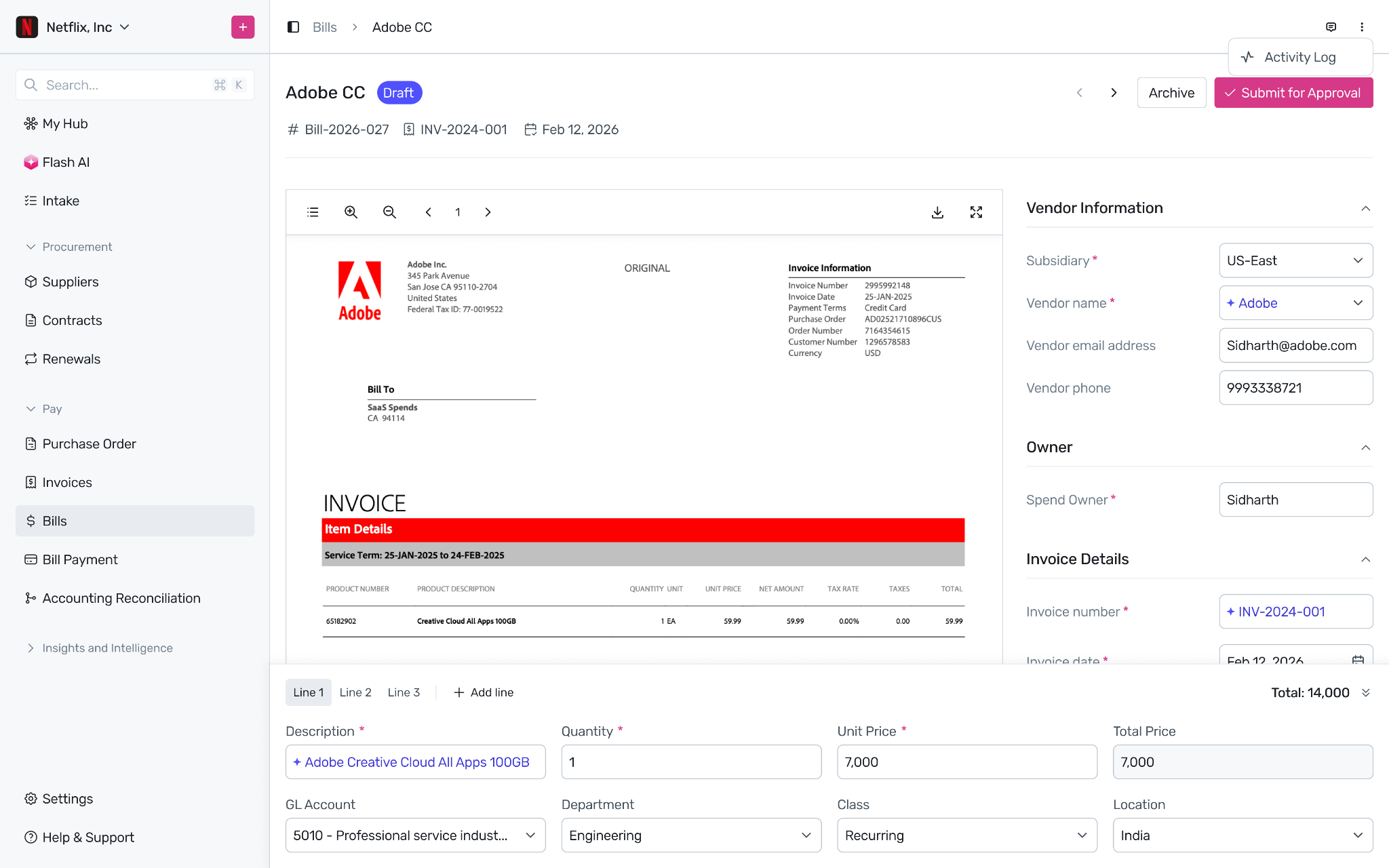
Stage 2 — Bill Creation & Enrichment
Once an invoice is confirmed, a bill is automatically created from it. The P2P Agent assigns a spend owner, suggests GL codes for each line item, matches the bill against open Purchase Orders.
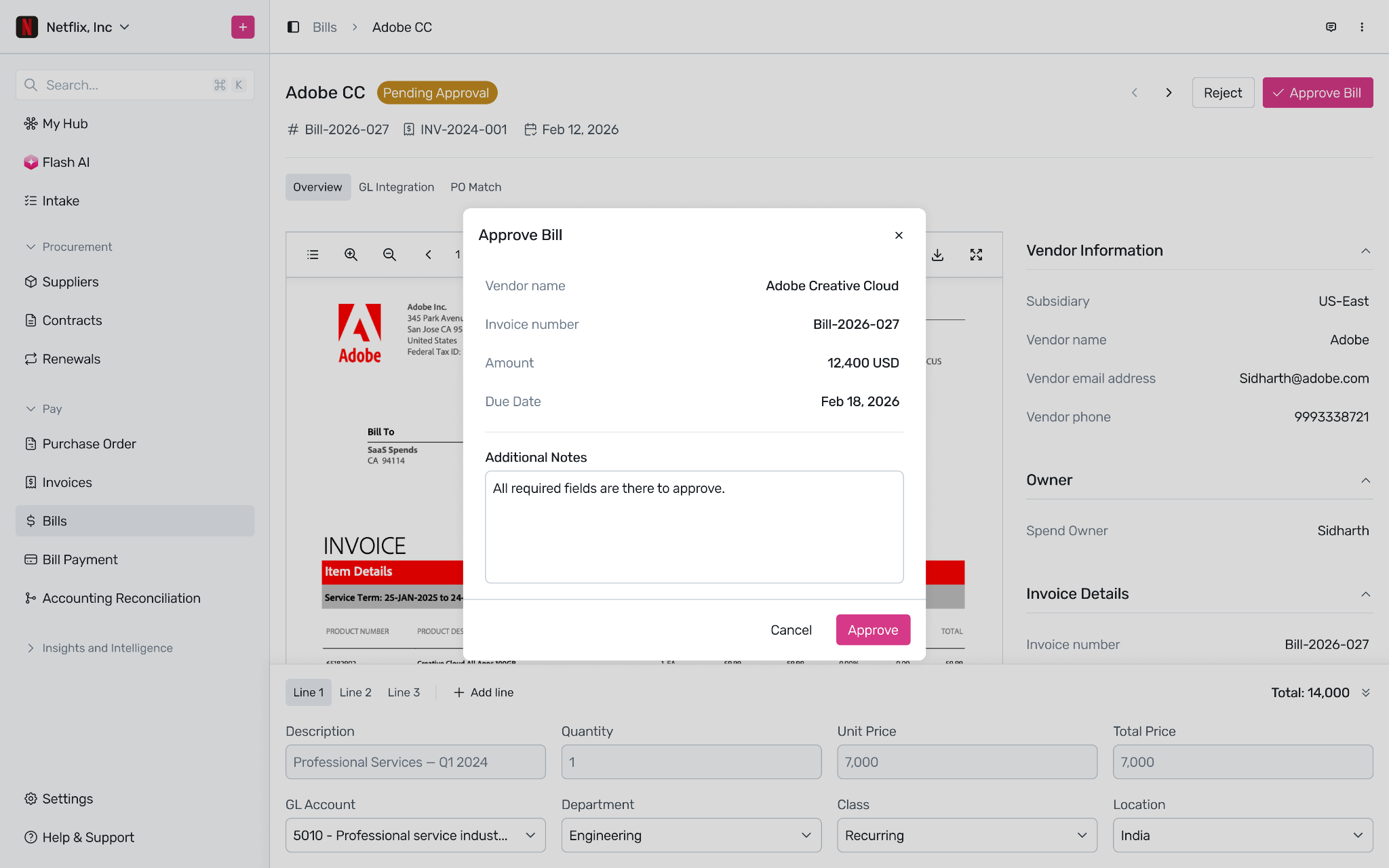
Stage 3 — Approval
The bill moves through a configured approval chain based on spend owner, department, subsidiary, GL account, and amount thresholds. Approvers review the bill, its PO match, agreement compliance, and budget impact before approving or rejecting.
Stage 4 — Payment & Reconciliation
Once approved, a Bill Payment record is automatically created. Finance Executives export a payment file for upload to their bank, confirm payment, and Spendflo syncs the payment to NetSuite — closing the loop.
What Flo does autonomously
Flo handles the following without manual intervention:
Detecting and ingesting invoices from email, portal uploads, and cloud imports
Running OCR extraction and populating all invoice fields
Creating a bill from a confirmed invoice
Auto-assigning GL accounts, departments, locations, and classes per line item
Resolving the spend owner from the vendor record, PO match, or spend owner identity graph
Running two-way PO matching and agreement validation before approval
Routing the bill to the correct approvers based on configured workflow rules
Sending approval notifications and reminders when approvals are pending beyond SLA thresholds
Creating the Bill Payment record when a bill is approved
Syncing approved bills and confirmed payments to NetSuite
Where your team is in the loop
Flo acts. Your team approves and confirms.
Finance Executives review flagged invoice extractions, mark bill payments as paid after disbursement, and export payment CSVs for bank upload.
Approvers receive bill approval tasks routed by Flo. They review line items, GL coding, PO match results, agreement validation, and budget impact — then approve or reject.
Admins configure approval workflows in Workflow Studio, manage bank export formats, and handle edge cases like voiding approved bills.
Requestors submit purchase requests and bills. They cannot approve their own submissions.
Key concepts to know
Spend Owner Every bill must have a spend owner — the person accountable for the expense. The spend owner determines which approval chain the bill follows. Flo resolves the spend owner automatically using a three-step waterfall: vendor owner (for Spendflo-created vendors), PO match, or spend owner identity graph. If none of these produces a result, the field is left blank and must be assigned manually before the bill can be submitted.
Bill vs Invoice An invoice is a document received from a vendor. A bill is an accepted obligation to pay. Flo creates a bill from a confirmed invoice — but bills can also be created manually. The approval workflow, GL coding, and NetSuite sync all apply to bills, not invoices.
Bill State Machine Every bill follows a defined lifecycle: New → Pending Approval → Approved (or Rejected). Approved bills can be Voided by an Admin if no payments have been processed. Archived is a terminal state for bills no longer in active use. Understanding the state a bill is in determines what actions are available to each persona.
GL Identity Graph Flo builds a model of GL coding patterns per vendor over time. Each time a user sets or updates a GL account, department, location, or class on a bill, Flo updates the graph. This is how Flo improves classification accuracy across repeated vendor interactions without requiring manual rules.
NetSuite Sync Flo pushes approved bills and confirmed payments to NetSuite in real time. If your NetSuite configuration changes — GL accounts deactivated, mandatory field settings toggled, vendor-subsidiary associations updated — Flo detects the drift and surfaces it before a sync failure occurs. You should not need to make manual GL adjustments in NetSuite for any bill originating in Flo.
? Admin Only — All of the above configuration is managed by Admins under Settings → P2P Settings and Settings → Integrations.
FAQs
Q: Can I use P2P without NetSuite? The Bill and Bill Payment sync to NetSuite is a core part of the P2P module. Without NetSuite connected, bills and payments can still be managed in Spendflo but will not sync to a GL. Contact your Spendflo representative to discuss your ERP setup.
Q: What's the difference between a Vendor Invoice in my email and an Invoice in Spendflo? A vendor's email to you is an external document. An Invoice in Spendflo is the structured record created when Spendflo processes that email — extracting all key fields into a searchable, auditable system record that drives the rest of the AP workflow.
Q: Do I need to set up all three P2P workflows?
No. Set up the workflow that matches how your AP process actually starts.The three P2P workflows are independent. Each can run on its own or be invoked automatically as part of a parent workflow. You only need to configure the ones that match your entry point.
Q: Can I customise the approval chain? Yes. Approval workflows are fully configurable in the Workflow Studio — you can set thresholds by amount, subsidiary, department, GL account, and more.
Was this article helpful?
That’s Great!
Thank you for your feedback
Sorry! We couldn't be helpful
Thank you for your feedback
Feedback sent
We appreciate your effort and will try to fix the article