Overview
Once a workflow is created, you can continue to refine it - add phases, restructure tasks, update basic details, or archive it entirely. Editing is available at multiple levels depending on what needs to change.
A workflow is made up of three components:
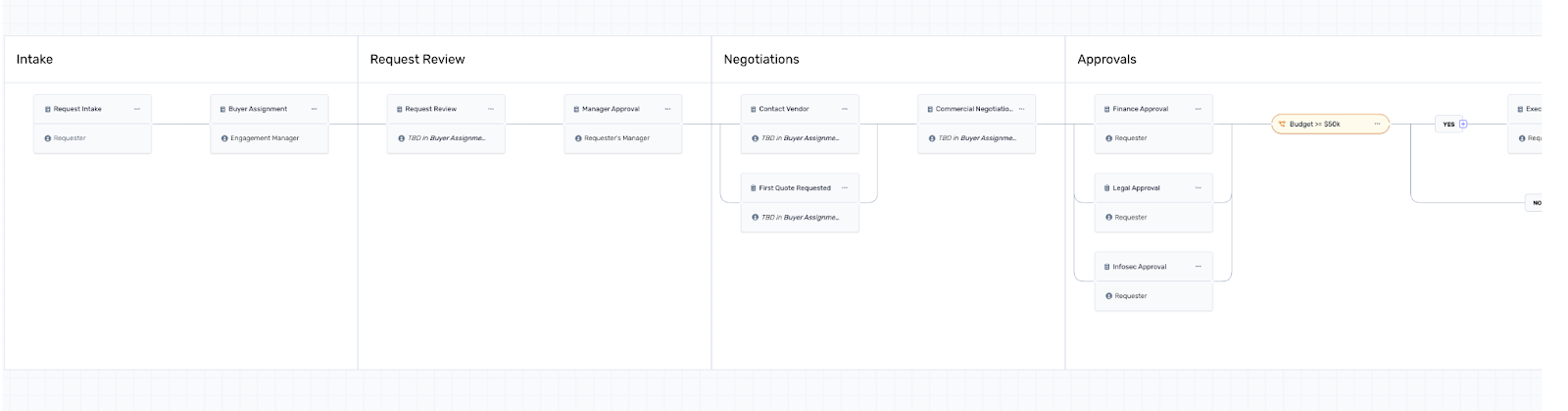
Phases – Logically group tasks within the workflow (e.g., Intake, Request Review, Negotiations).
Tasks – Actions that contribute to the overall workflow goal (e.g., Buyer Assignment, Manager Approval).
Conditions – Logic that automatically routes the workflow based on defined criteria.
Editing Workflow-Level Details
For changes to the overall workflow — name, description, type, or tags — click the
⋮ (three-dot menu) in the top right corner of the workflow canvas. This gives you four options:
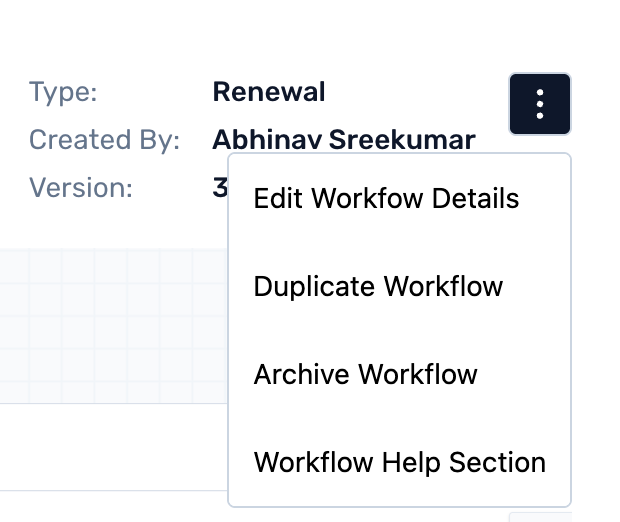
Edit Workflow Details
Click Edit Workflow Details to update the workflow's name, description, type, or tags. Make your changes and save.
Duplicate Workflow
Click Duplicate Workflow to create a copy of the existing workflow. This is useful when you want to make significant structural changes without affecting the original. The duplicate is saved as a new workflow, which you can then edit and publish independently.
Archive Workflow
Click Archive Workflow to retire a workflow that is no longer in use. Archived workflows are removed from the active list but remain accessible for reference.
Working with Phases
Adding a New Phase
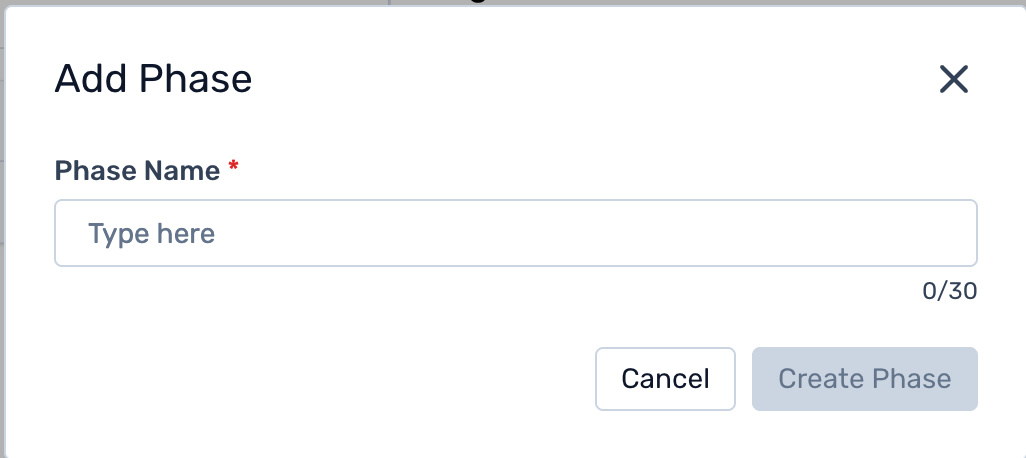
To add a new phase, hover over the workflow canvas. A + icon will appear between or alongside existing phases. Click it, enter the phase name, and select Create Phase to add it to the workflow.
? Note: The first phase in a workflow cannot be deleted — only edited.
Editing or Deleting a Phase
To rename or delete a phase, hover over the phase header. An edit icon and a delete icon will appear on the right. Click the pencil icon to rename the phase, or the trash icon to remove it.

Working with Tasks
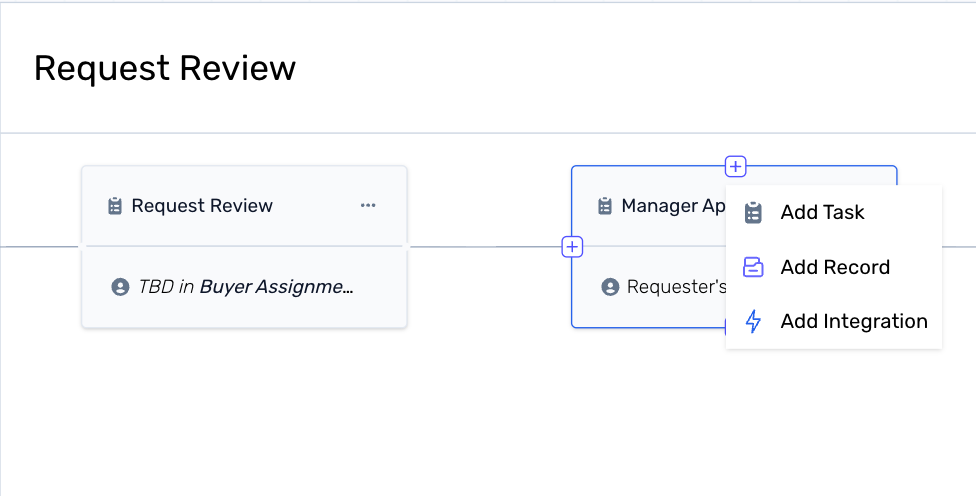
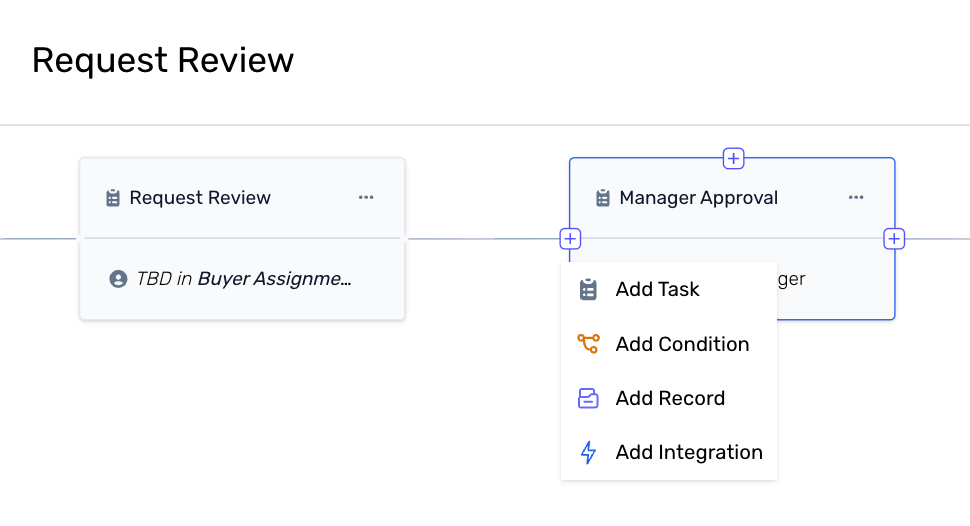
Adding a Task, Record, or Integration
Within a phase, you can add three types of items:
Task
Record
Integration – An action triggered in an external application as part of the workflow (e.g., sending a Slack message, creating a Jira ticket).
How you add them depends on whether the task should run sequentially or in parallel:
Sequential tasks (one after another) – Click the + icon to the left or right of an existing task box. The new task will be placed before or after the selected task.
Parallel tasks (running at the same time) – Click the + icon at the top or bottom of an existing task box. The new task will run alongside the selected task.
Editing or Deleting an Existing Task
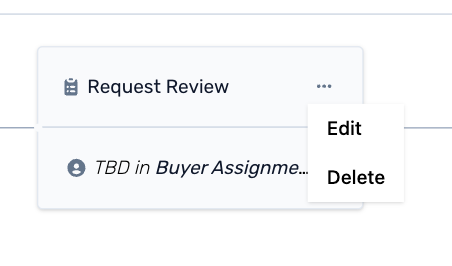
To update or remove a specific task, click the ⋯ (three-dot menu) within the task card. You will see two options:
Edit – Opens the task details panel where you can update the task name, assignee, or other settings.
Delete – Removes the task from the workflow.
? Note: The first task in the first phase cannot be deleted — only edited.
Saving Your Changes
Once you have made your edits, you have two options at the bottom right of the canvas:
Save As Draft – Saves your changes without publishing. The workflow remains in Draft state and will not affect any active requests. You can continue editing and publish whenever you are ready.
Save & Publish – Saves and immediately publishes the updated workflow. Future requests will use this new version.
? Note: Any requests already in progress are tied to the workflow version they were created under. Edits to the workflow will not affect them — versioning ensures each request follows the process it was originally linked to.
Was this article helpful?
That’s Great!
Thank you for your feedback
Sorry! We couldn't be helpful
Thank you for your feedback
Feedback sent
We appreciate your effort and will try to fix the article