This article explains how to invite new users to the Spendflo platform and manage the roles of existing users, such as Requestors and Admins, to ensure the right level of access for your team members.
Inviting a New User
Follow these steps to add a new person to your organization's Spendflo workspace.
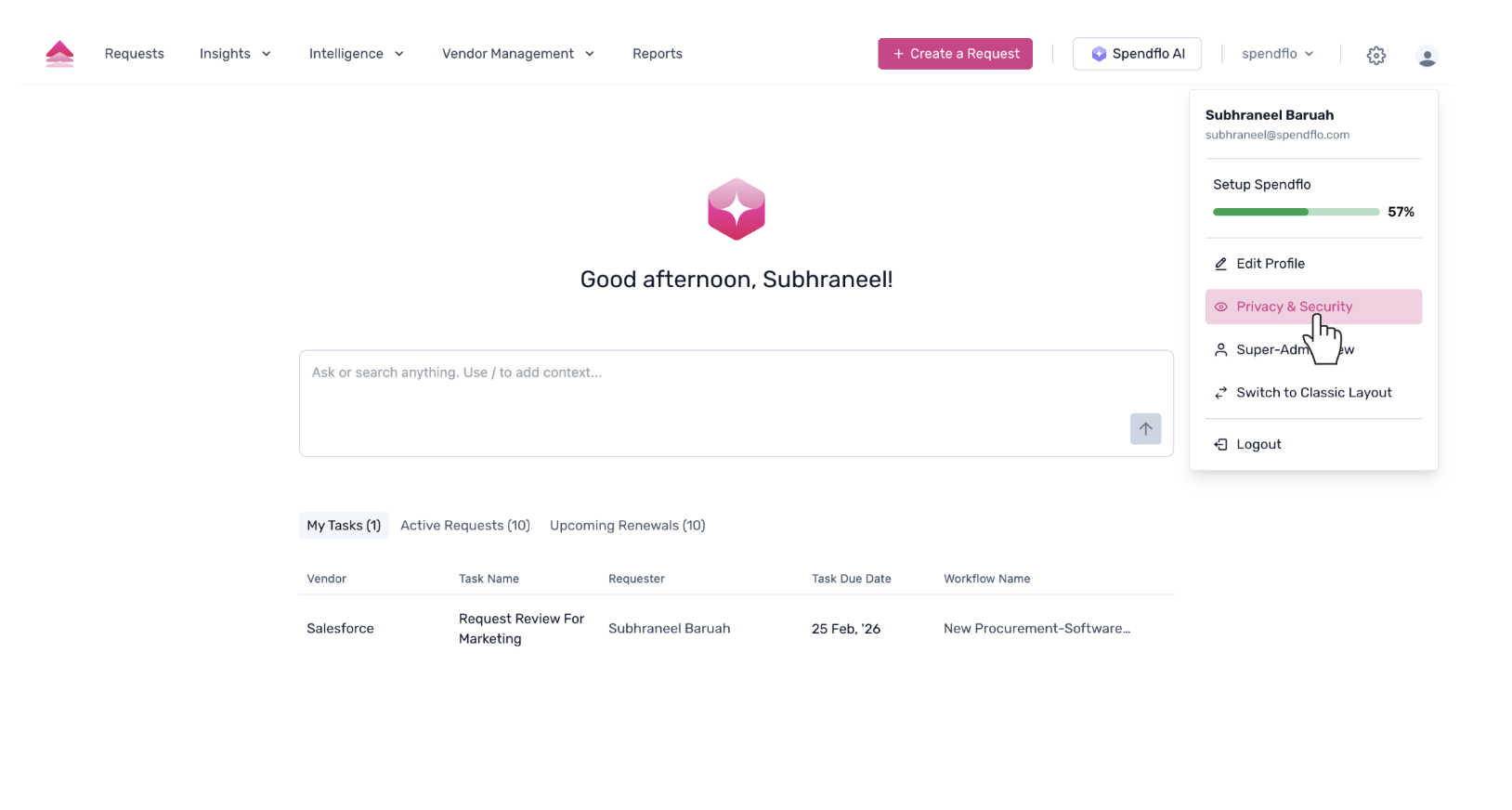
From the main dashboard, click on your profile icon in the top-right corner to open the menu. Select Privacy & Security from the dropdown menu. This will take you to the settings area.
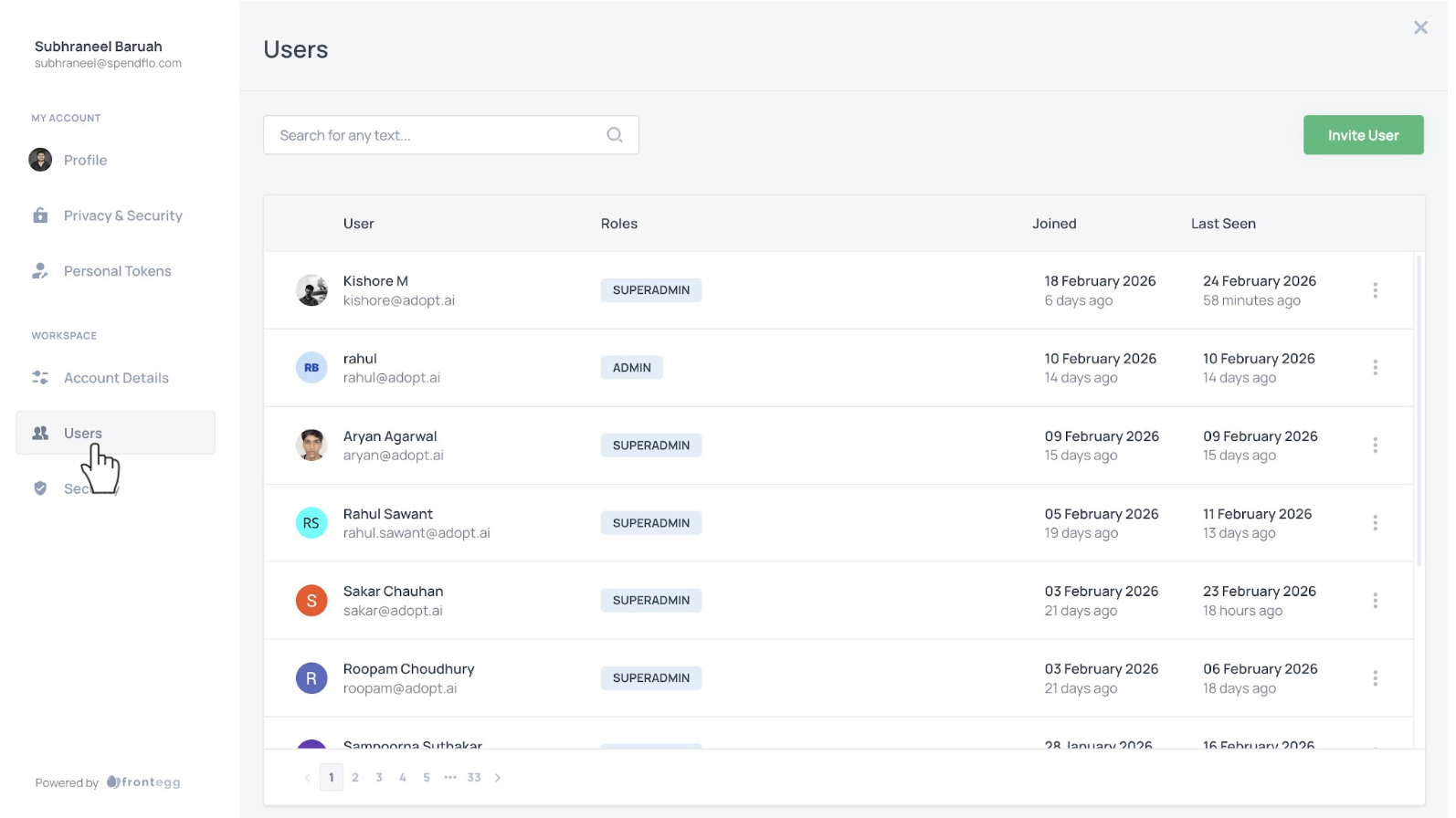
- In the navigation menu on the left, under the WORKSPACE section, click on Users.
You are now on the Users page, which lists all current users. Click the Invite User button in the top-right corner.
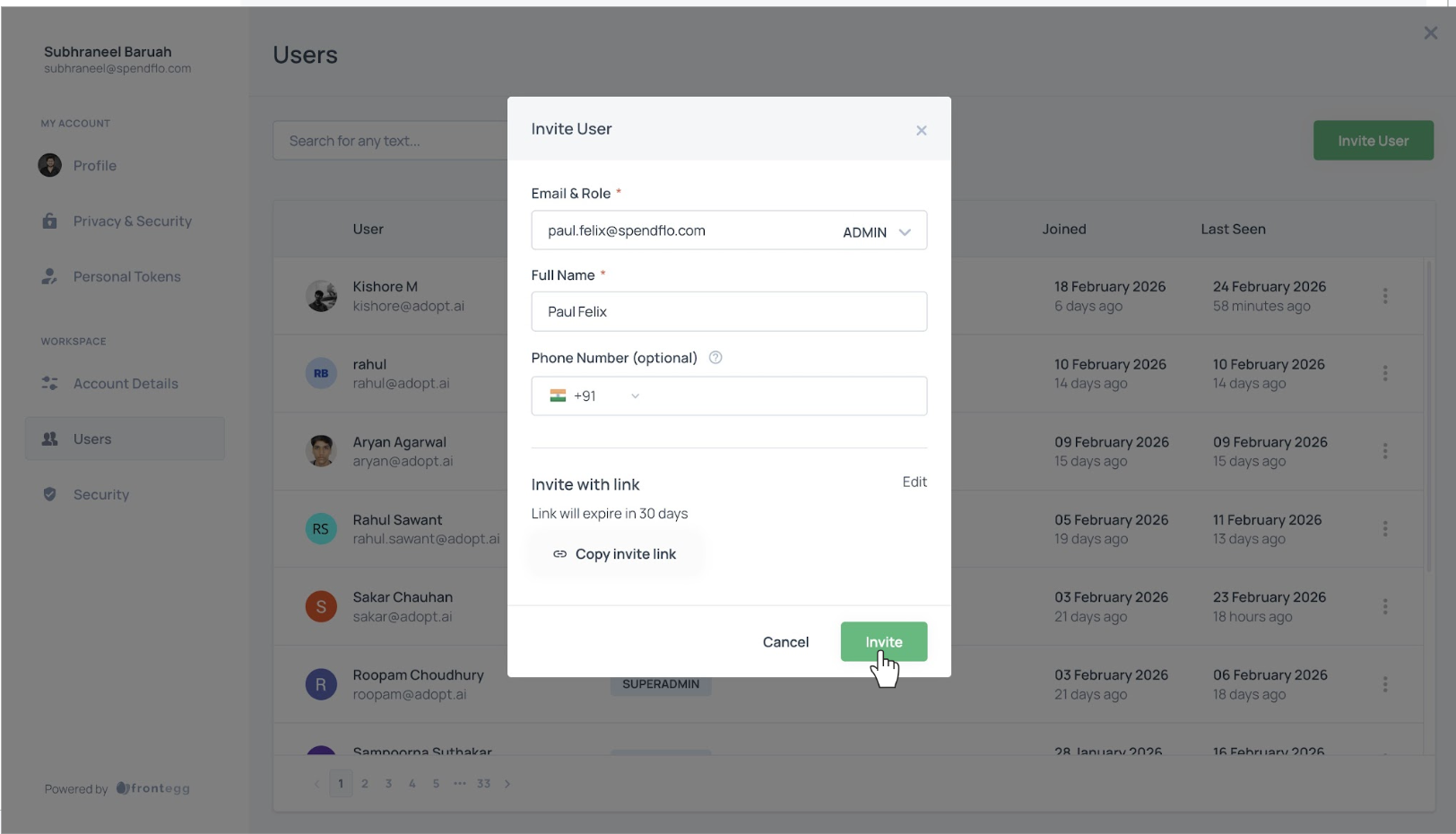
Enter the user's full name in the designated field and click the Invite button to send the invitation.
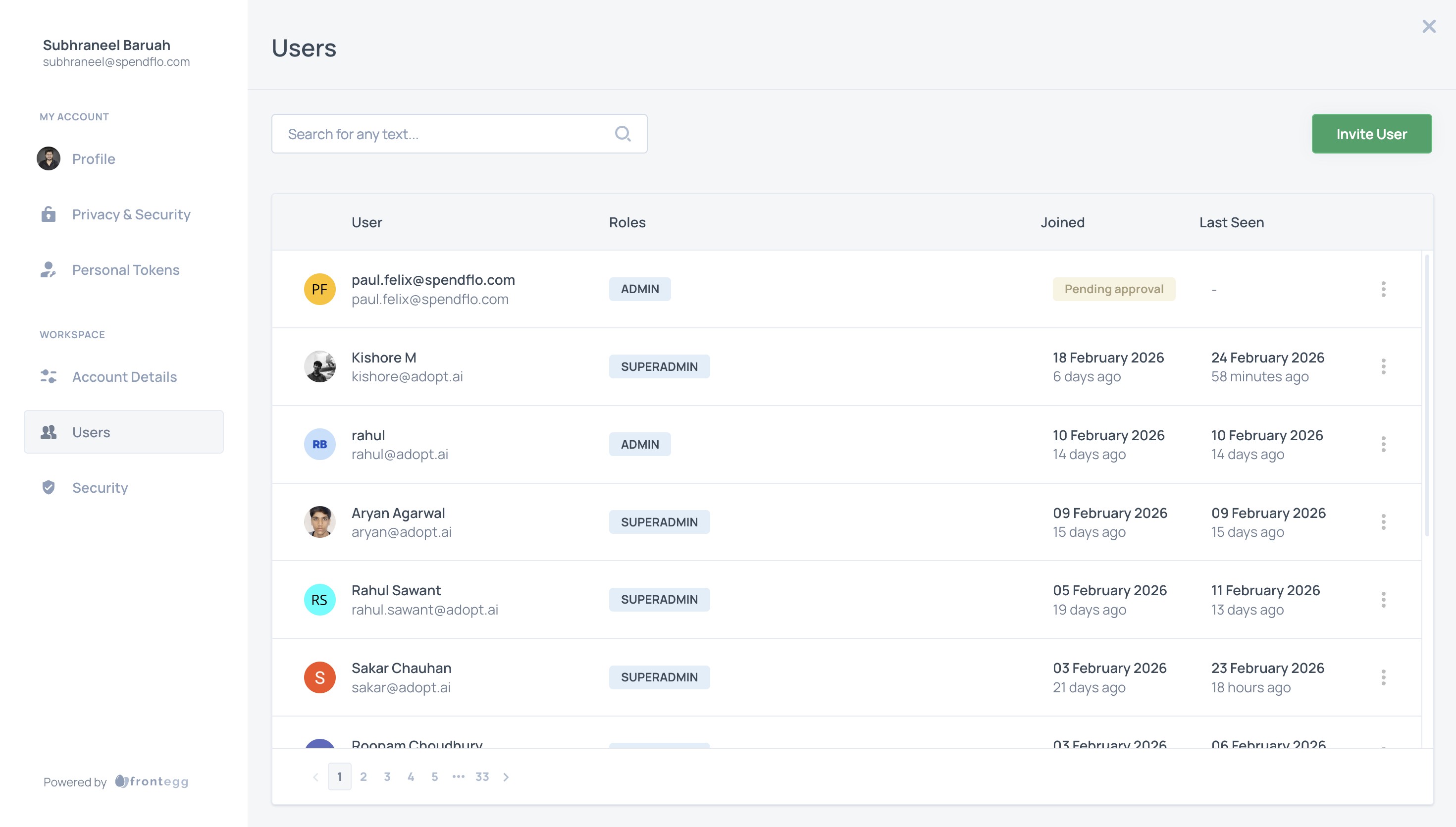
After sending the invitation, the new user will be added to the list with a 'Pending approval' status.
Changing User Roles
You can modify the permissions of existing users by editing their assigned roles.
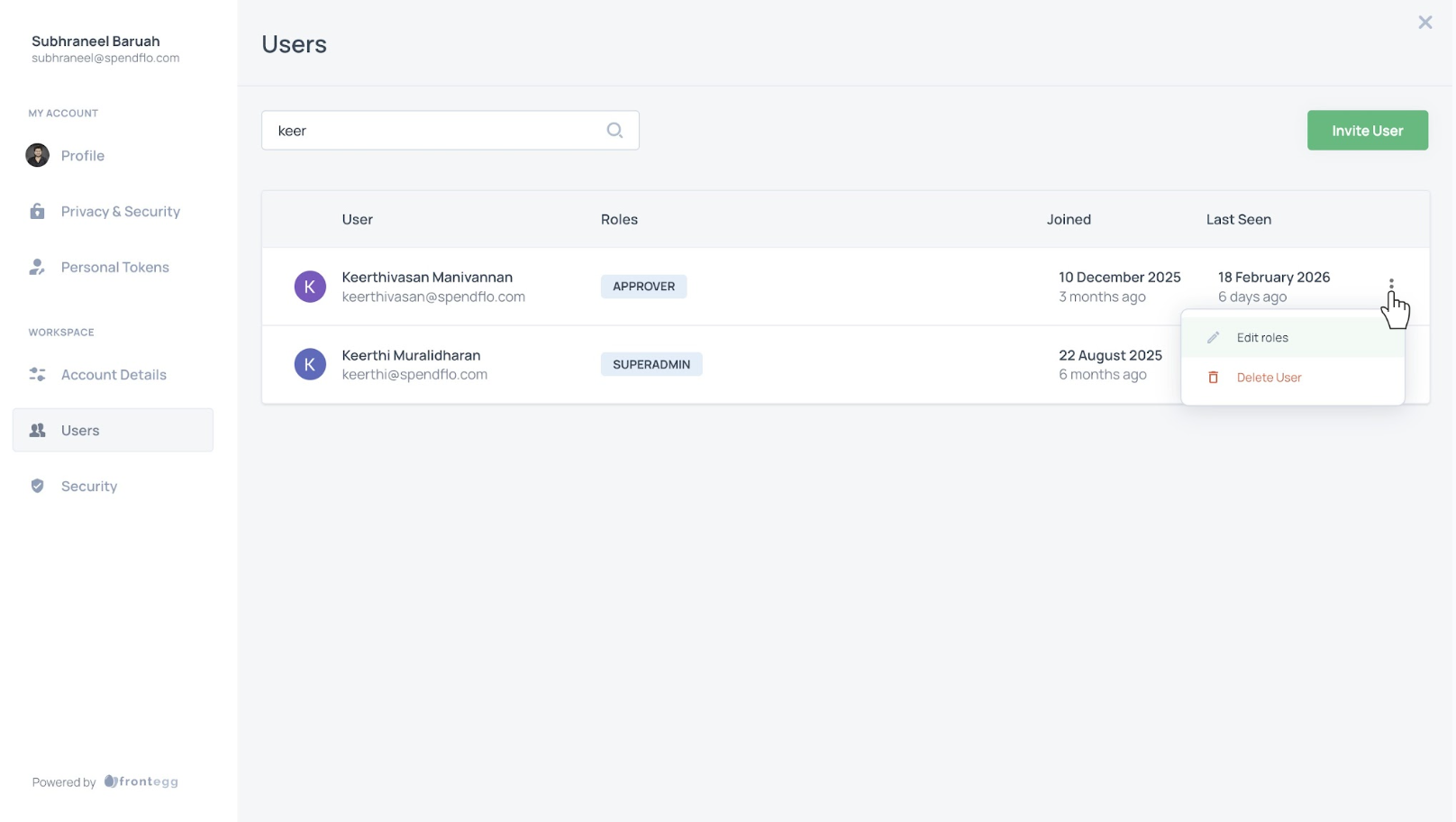
Locate the user whose role you want to change. You can use the search bar to find them quickly. Once located, click the three-dot menu on the right side of the user's row and select Edit roles.
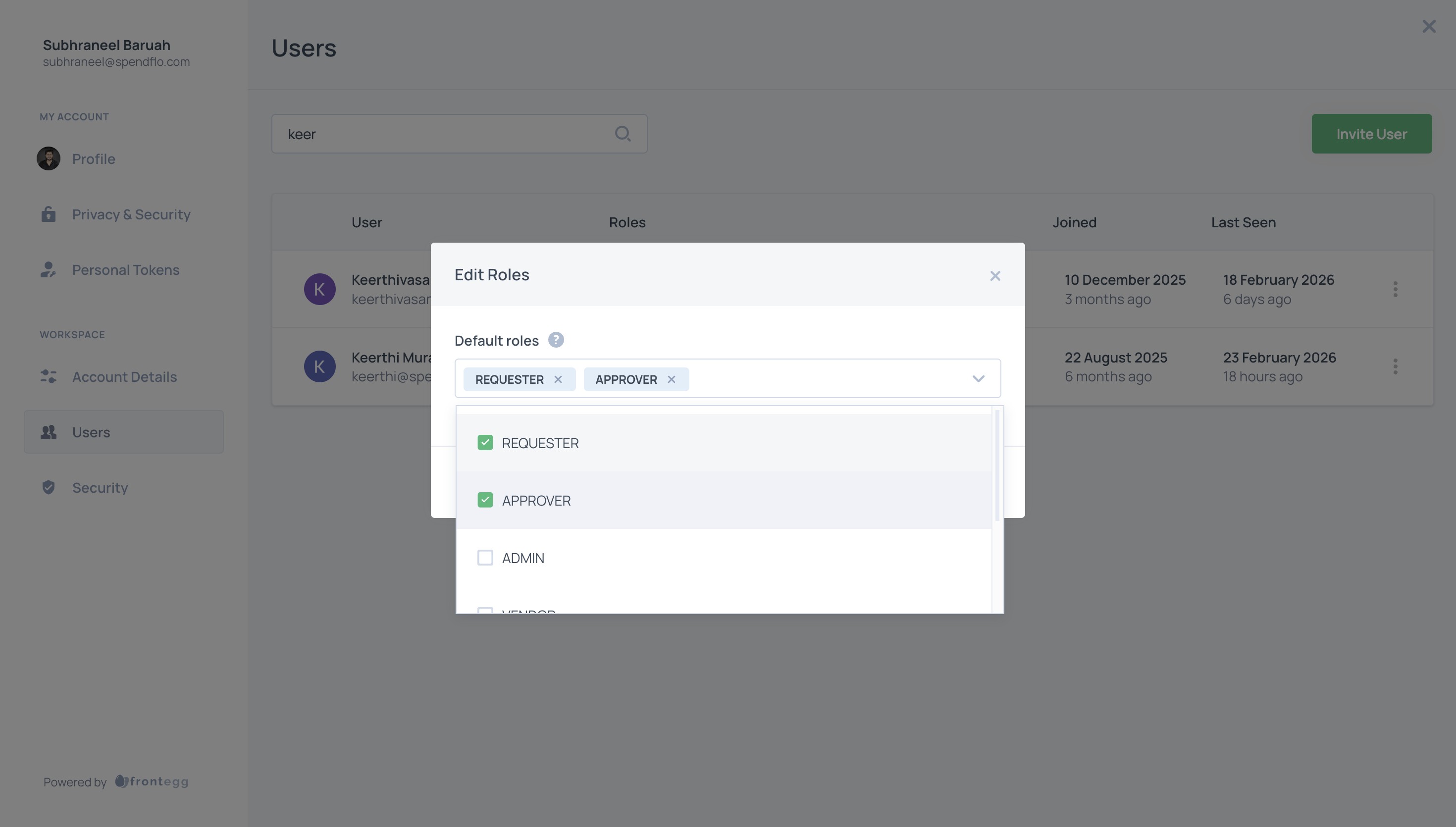
In the 'Edit Roles' window, check or uncheck the boxes next to the role names (such as REQUESTER, APPROVER, or ADMIN) to modify their permissions.
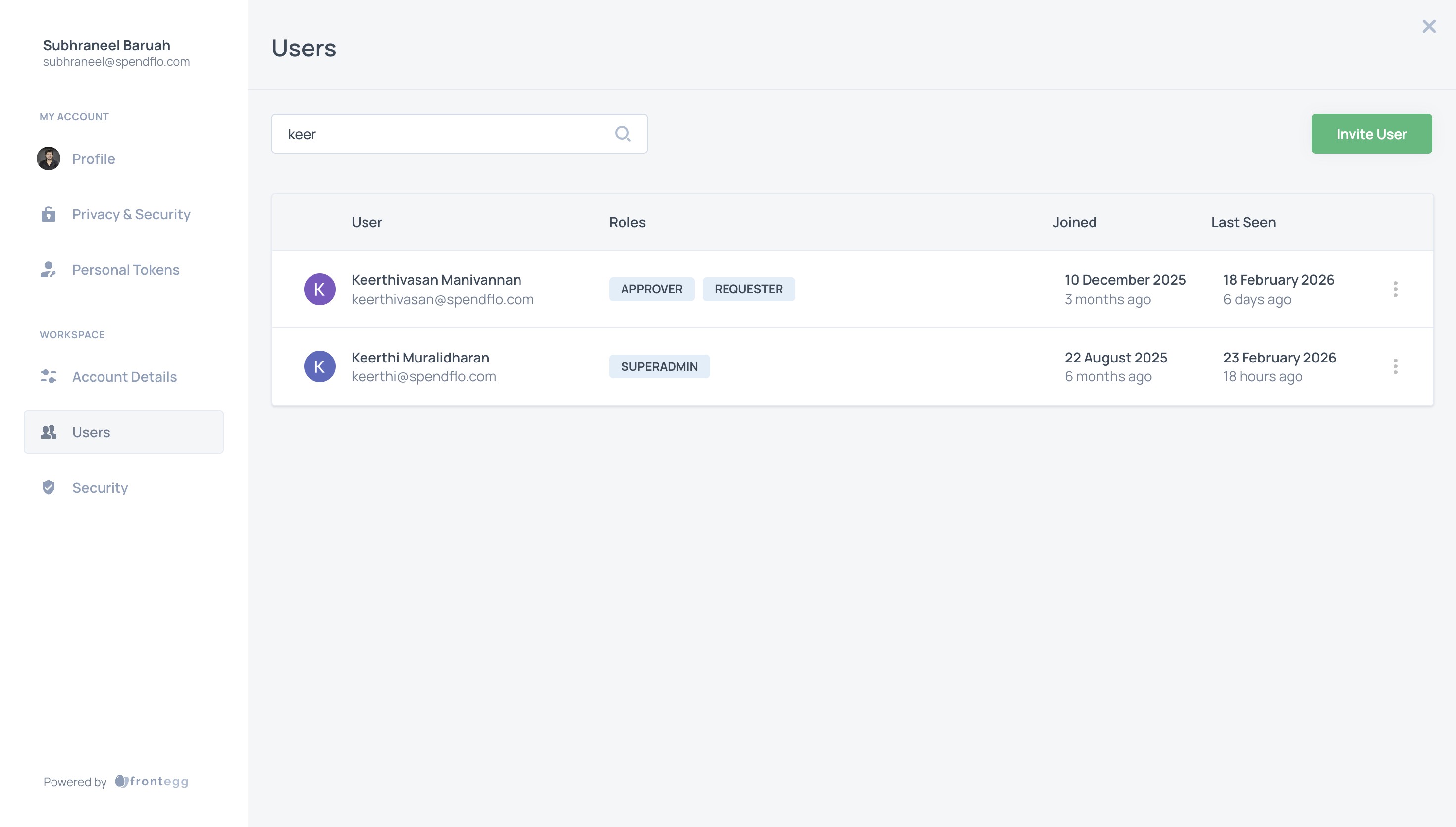
After making your changes, the user's roles will be updated in the list immediately.
Next Steps
Ensure that invited users accept their invitations to access the platform. Review user roles periodically to maintain appropriate security and access levels within your organization.
Was this article helpful?
That’s Great!
Thank you for your feedback
Sorry! We couldn't be helpful
Thank you for your feedback
Feedback sent
We appreciate your effort and will try to fix the article