Managing software licenses effectively is key to controlling SaaS spend and ensuring your organization only pays for active users. Spendflo provides comprehensive tracking of software seats, plans, and utilization metrics. This guide explains how to navigate the License dashboard, identify underutilized seats, and take optimization actions.
Why Track Software Seats and Usage?
Tracking software seats allows you to monitor license allocation and usage patterns. By identifying inactive or unassigned licenses, you can optimize spend and make data-driven decisions during renewals.
Prerequisites for License Tracking
To view usage data, you must establish direct integrations with your SaaS applications and configure your inactivity criteria. For example, setting up the Zendesk Direct Integration requires Zendesk administrator privileges. Once integrated, you can define the inactivity duration that determines when a user is considered inactive.
How to Track and Manage Software Seats
Follow these steps to navigate your License dashboard and optimize your software seats:
To begin tracking and managing software seats, navigate to the sidebar menu, find the Analytics and Intelligence section, and click on License.
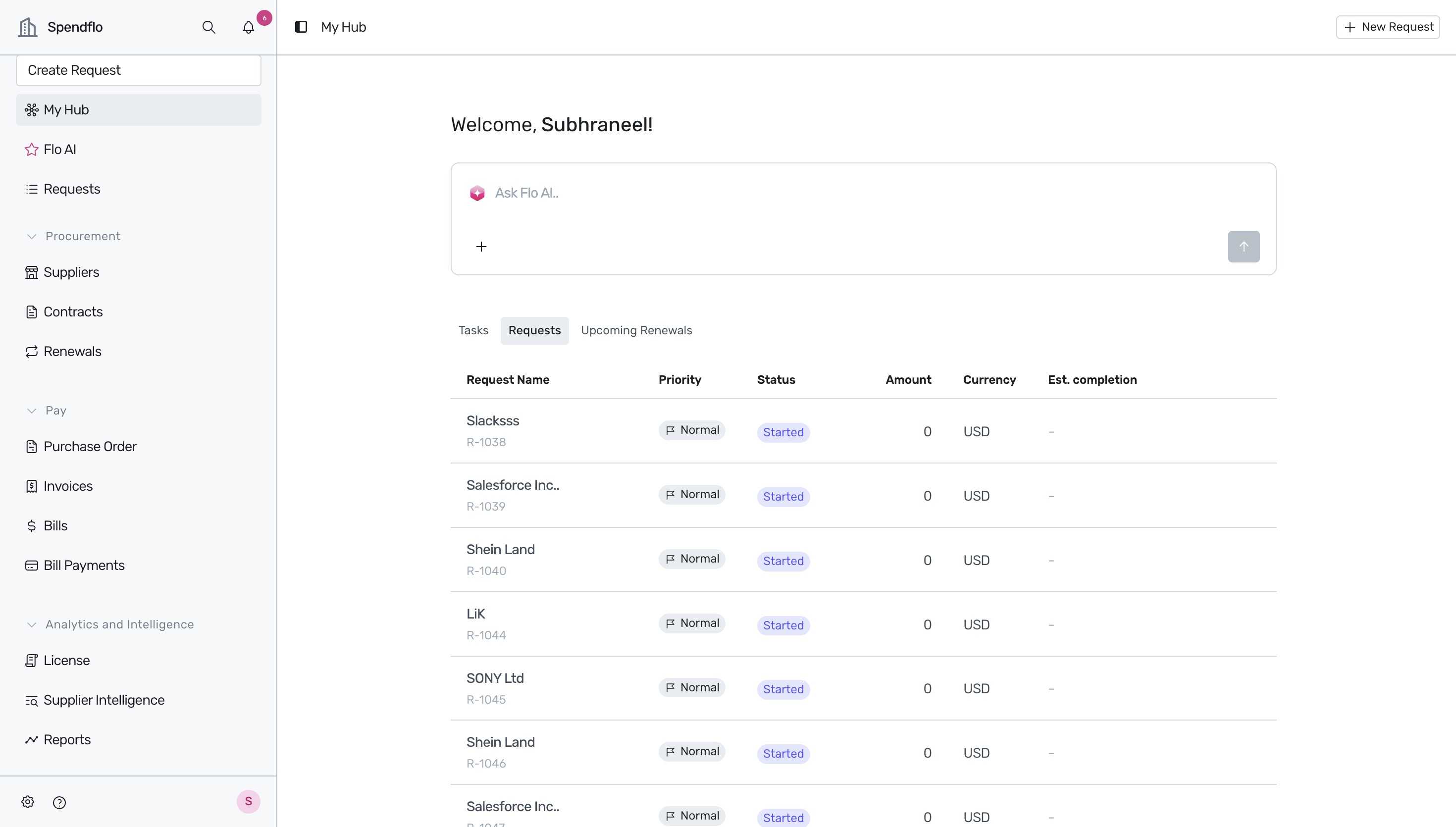
Review the License dashboard, which displays a comprehensive table of all your organization's software suppliers, their respective offerings, plans, total licenses, active licenses, inactive licenses, and unassigned seats. For more details on these metrics, see Understanding the license insights listing table.
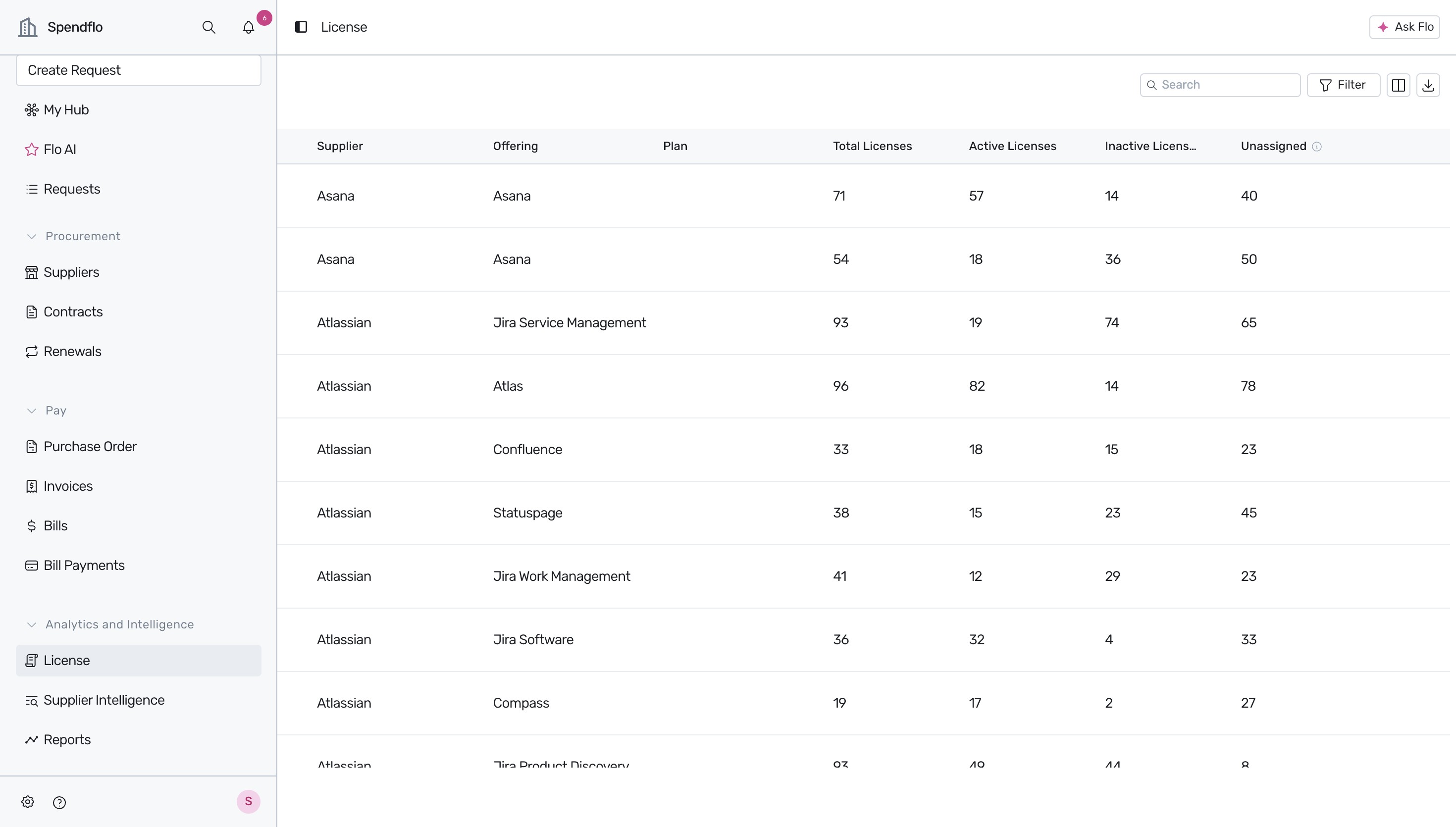
Scroll down the list to find the specific supplier you want to manage. For example, scroll down to locate Zendesk and click the View (eye icon) button on the far end of the row.
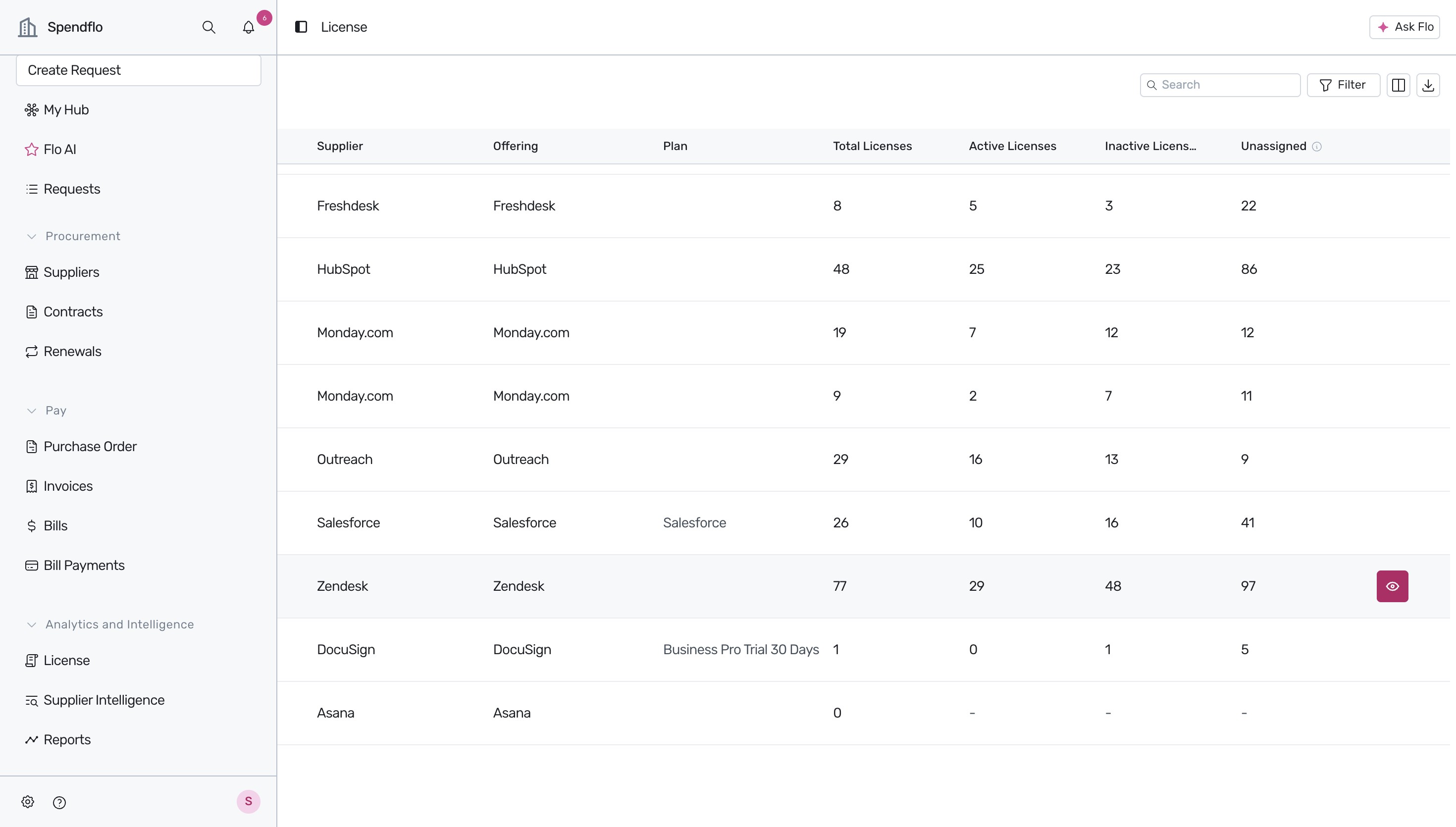
Review the detailed side panel that slides open, showing the license breakdown for Zendesk, including the percentage of Active, Inactive, and Unassigned licenses, along with a list of all assigned users.
To identify underutilized seats that can be optimized, click on the Inactive tab under the Zendesk Users section.
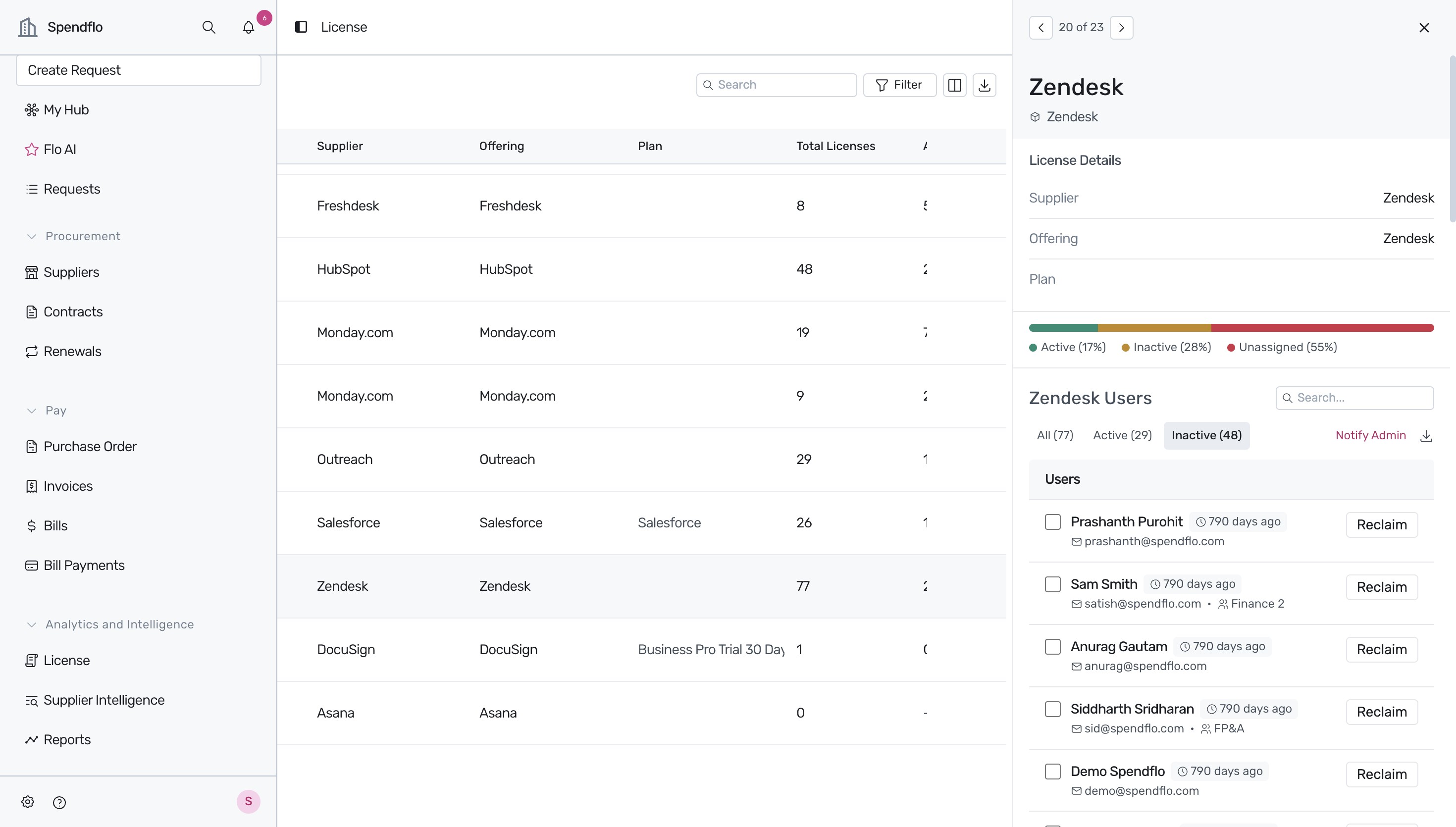
To free up a license seat, click the Reclaim button next to the inactive user whose license you want to revoke. Note that reclaiming a license cannot be undone. For a detailed walkthrough of this action, see How to Reclaim or Downgrade Licenses?.
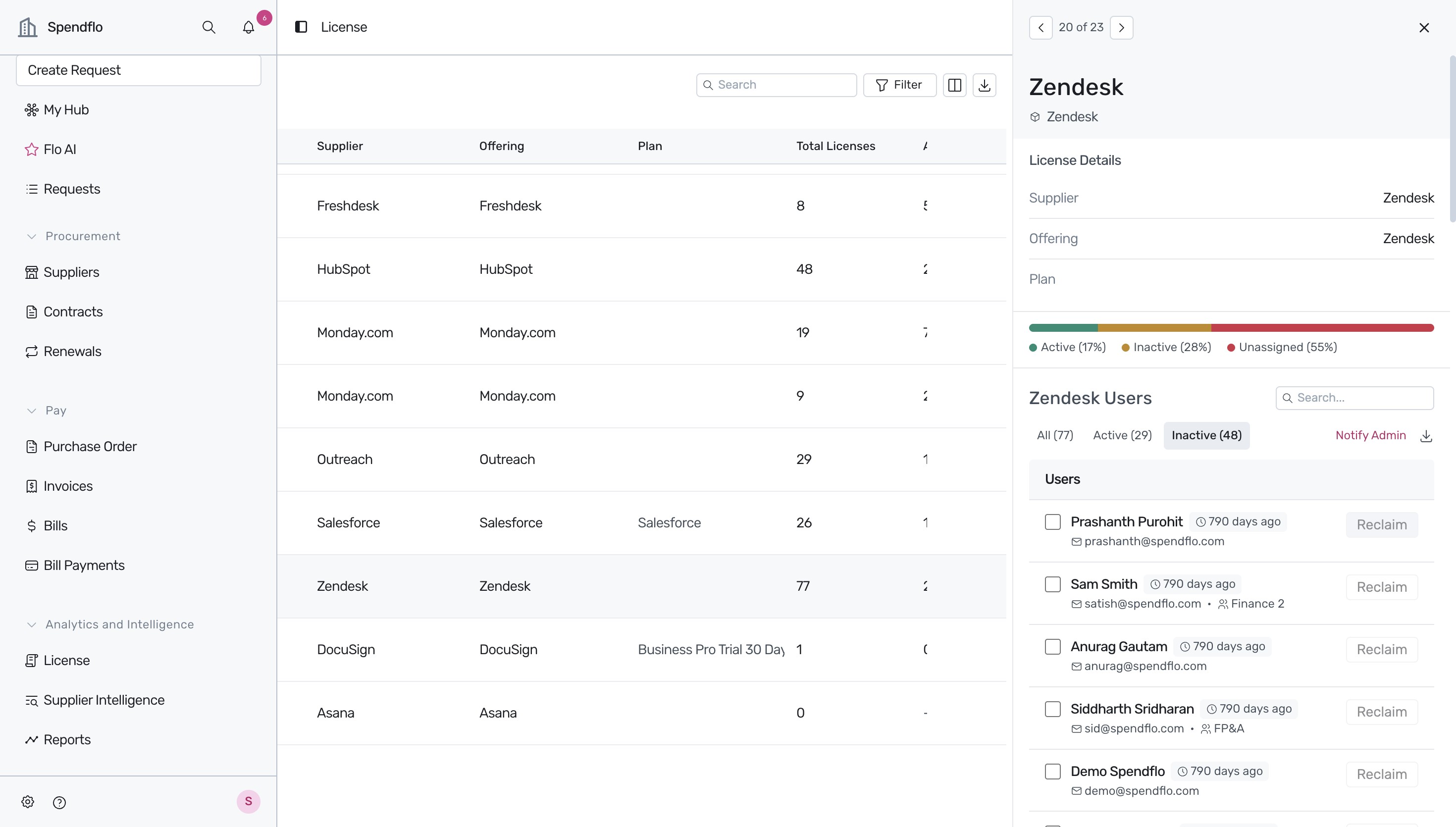
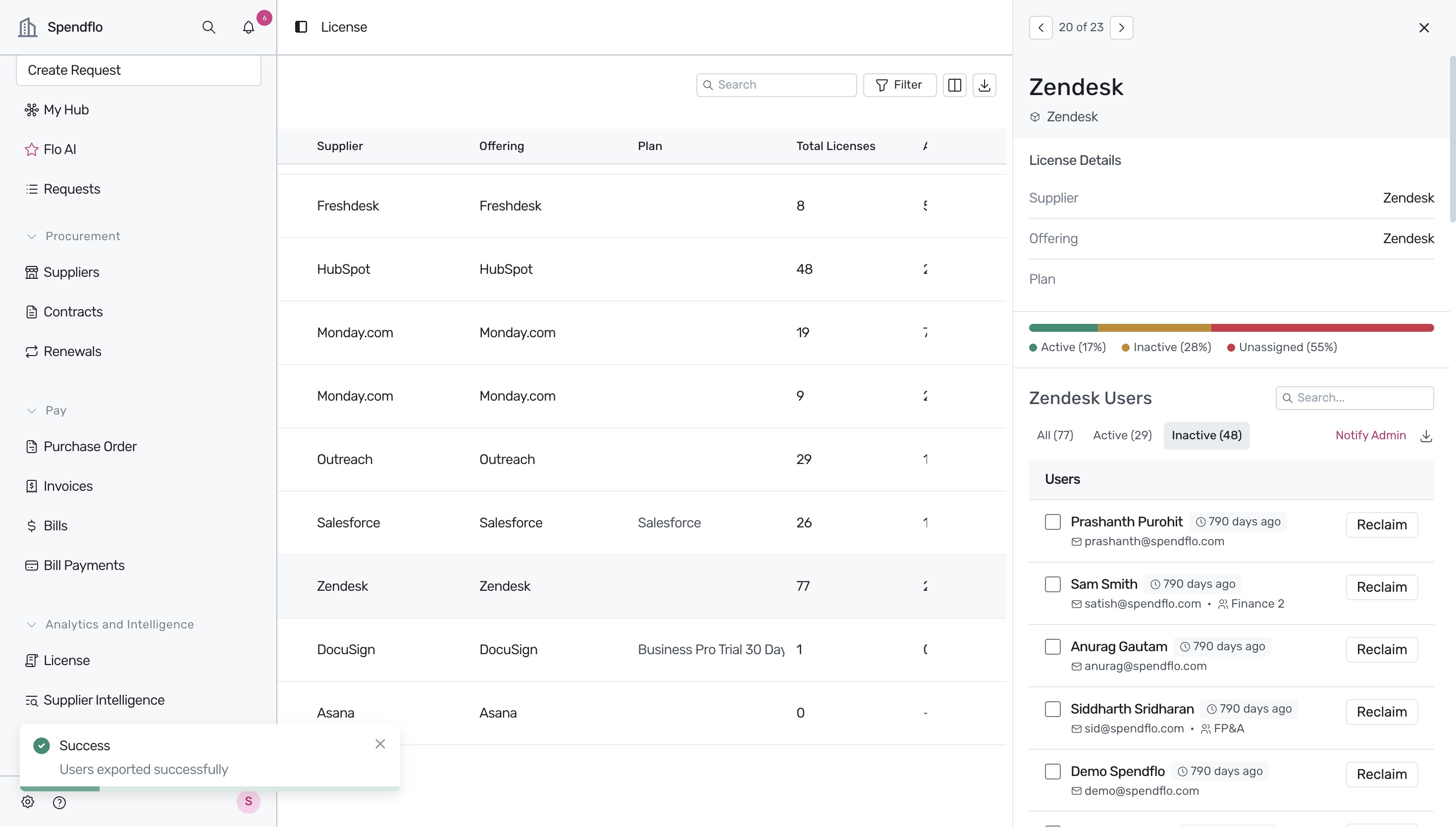
If you need to export this list of users for external reporting or auditing, click the Download icon next to the 'Notify Admin' option. A success toast notification confirming 'Users exported successfully' appears on your screen.
Next Steps
Once you understand how to track and manage software seats, explore how associating license costs with inactive users can help you calculate potential savings.
Was this article helpful?
That’s Great!
Thank you for your feedback
Sorry! We couldn't be helpful
Thank you for your feedback
Feedback sent
We appreciate your effort and will try to fix the article