Overview
Spendflo simplifies the contract renewal process by providing a centralized dashboard where you can easily monitor and renew all your upcoming vendor renewals in both list and calendar formats.
Renewing a contract
Follow these steps to access and track your upcoming renewals:
Begin by clicking on Vendor Management in the top navigation menu to open the dropdown options.
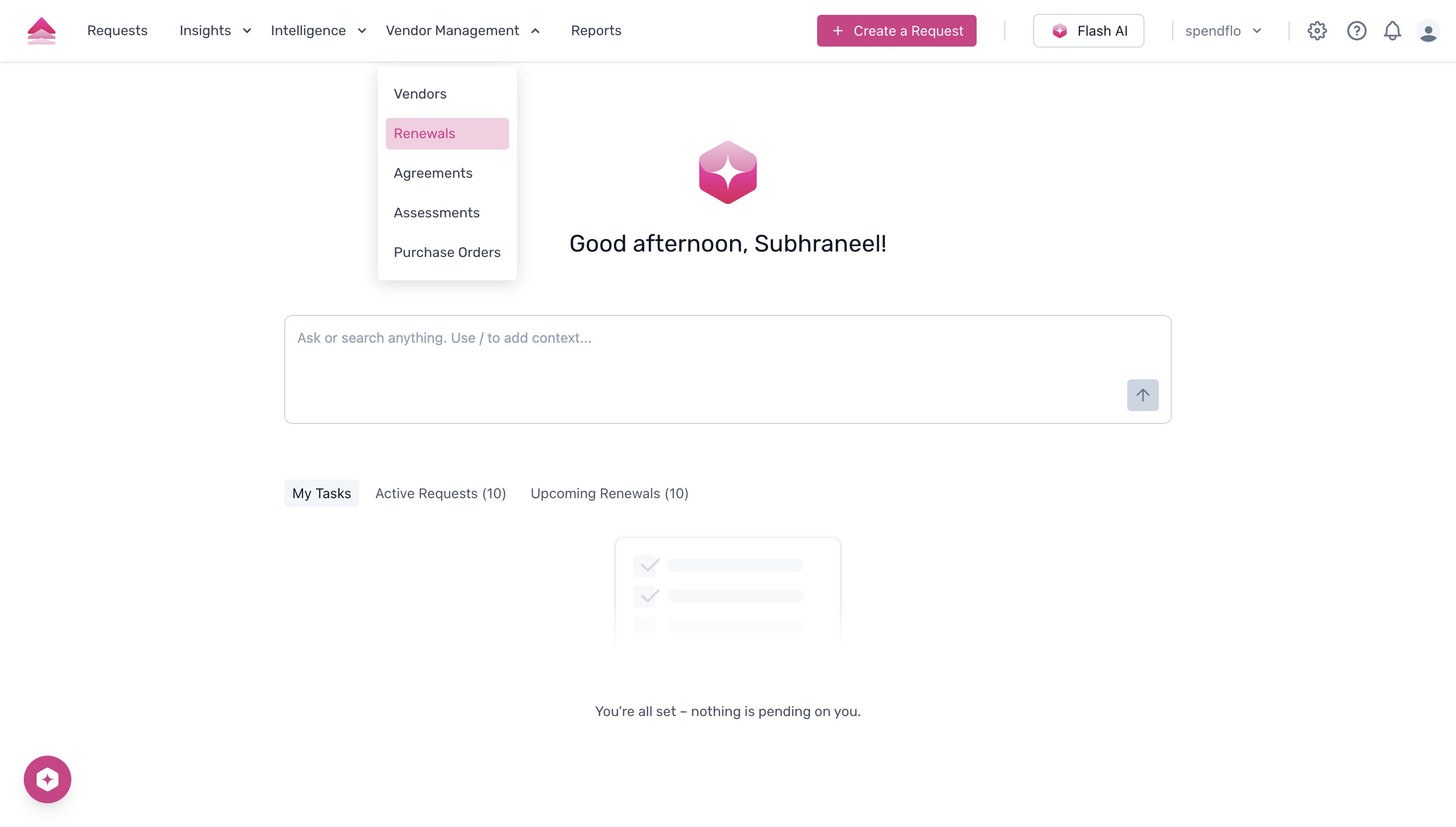
From the dropdown menu, select Renewals to access the renewals dashboard. By default, this will display your upcoming renewals in a list format.
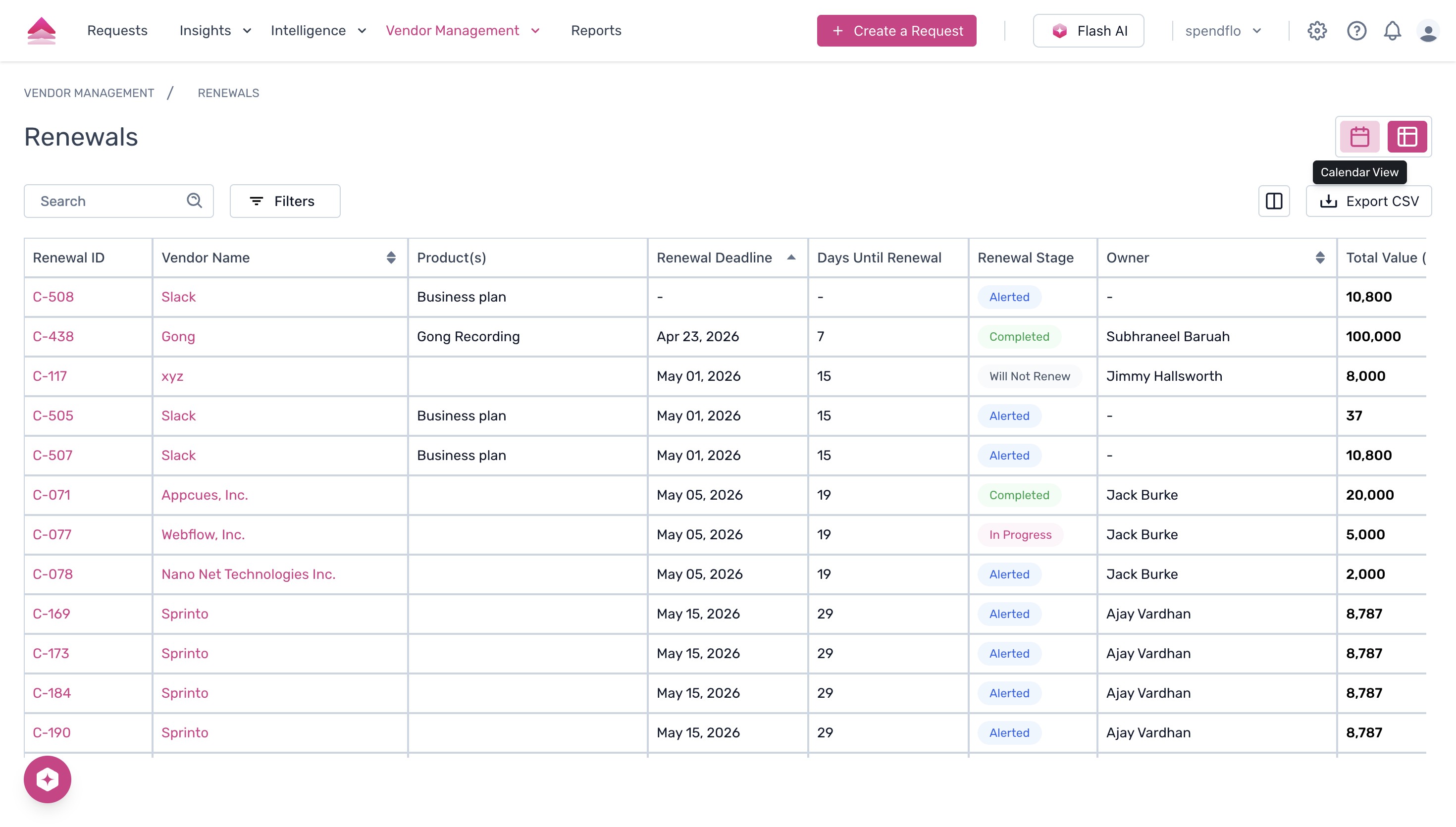
To visualize your renewal deadlines on a calendar, click the Calendar View toggle icon located on the right side of the screen, just above the table.
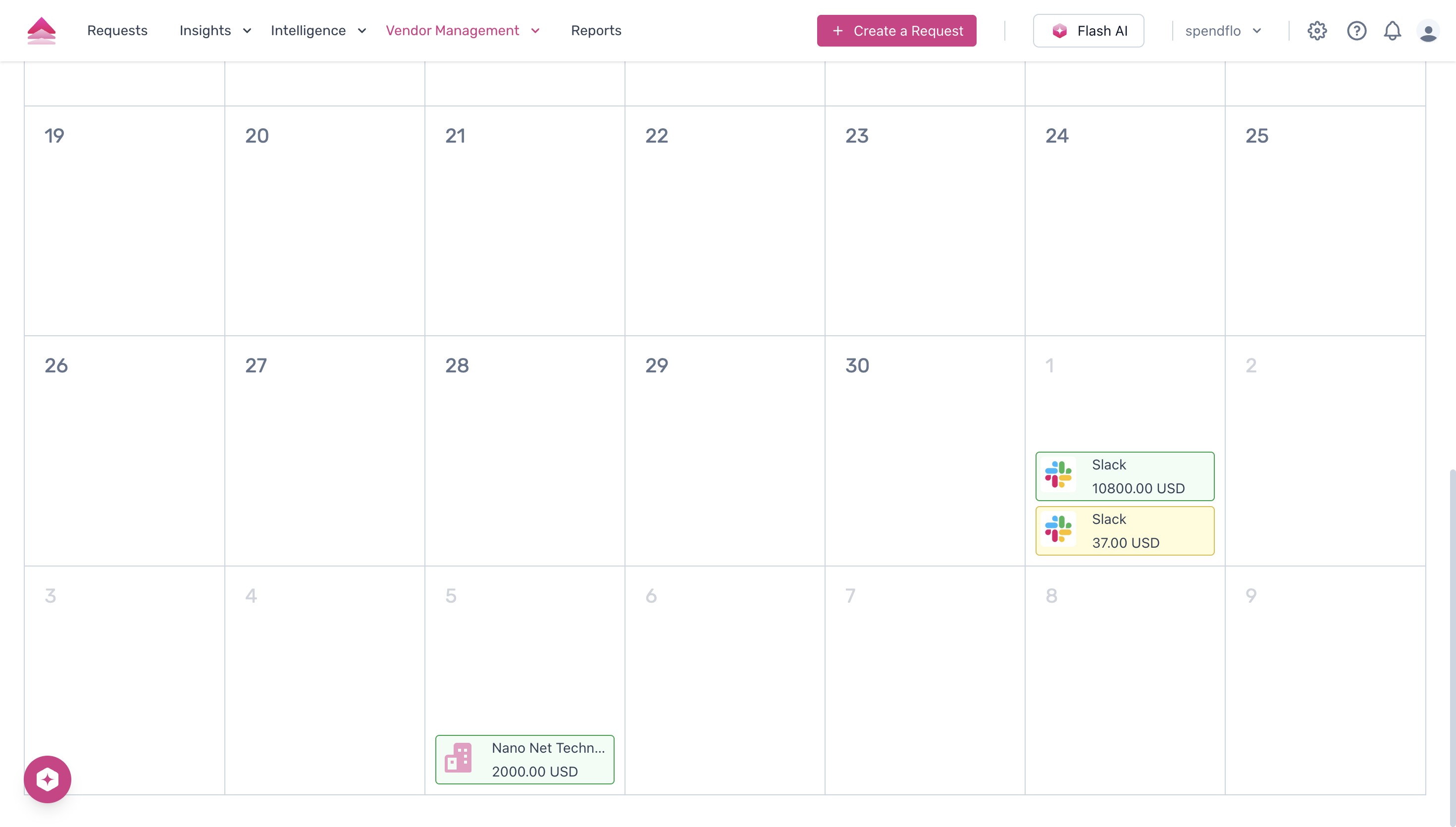
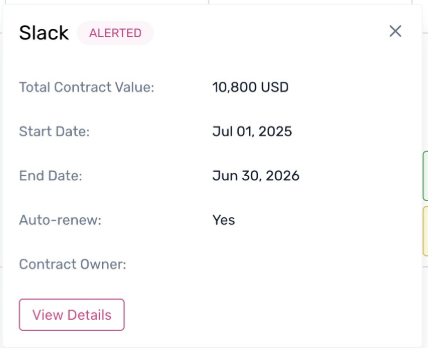
In the calendar view, you can click on any specific renewal event (for example, the Slack renewal) to open a popover that displays a quick summary of the contract, including value, dates, and auto-renew status.
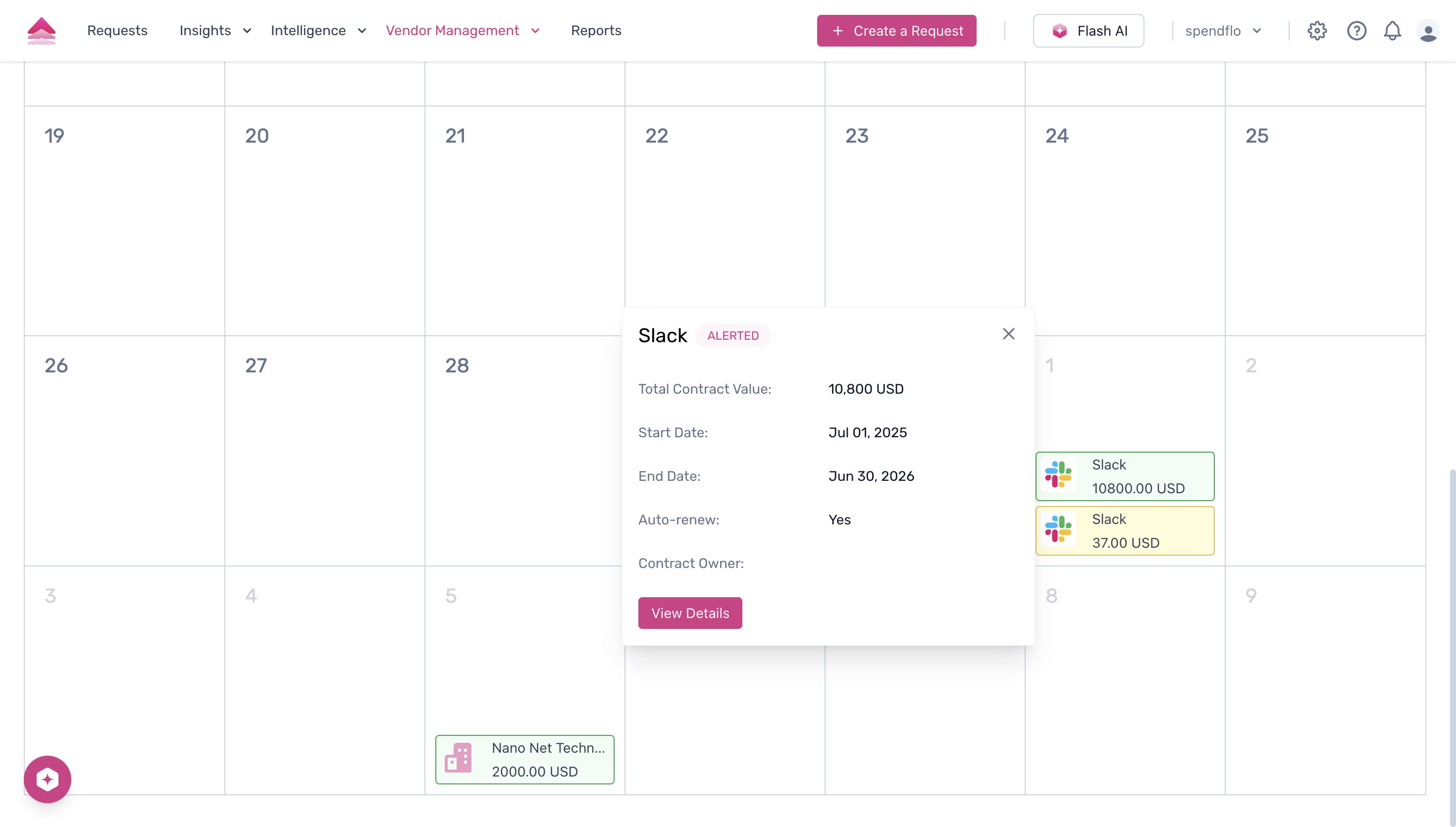
To access comprehensive information and manage the specific contract, click the View Details button located at the bottom of the summary popover.
- A new page will open, where you can click on "Create a Request" and carry on with the renewal process.
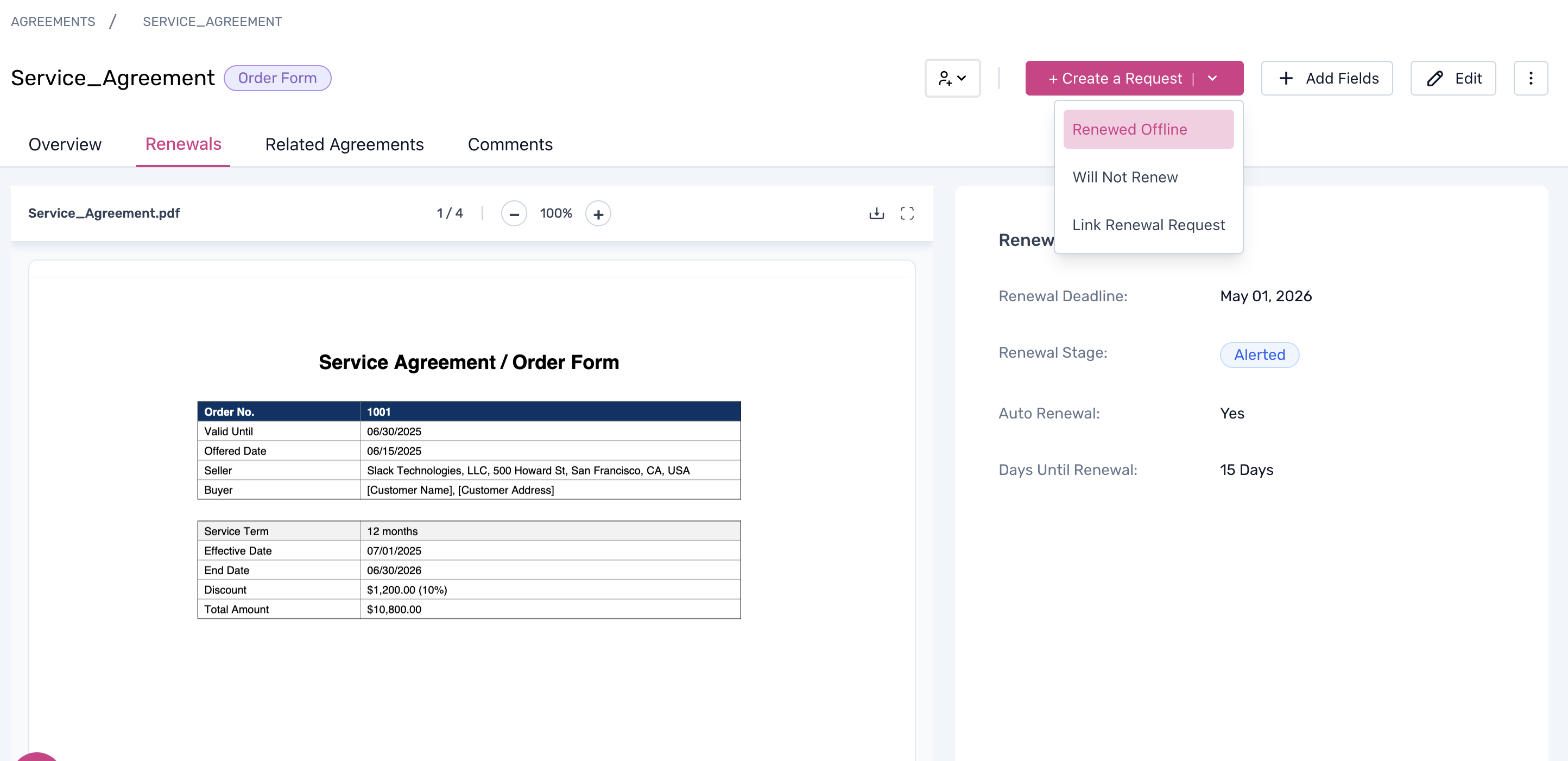

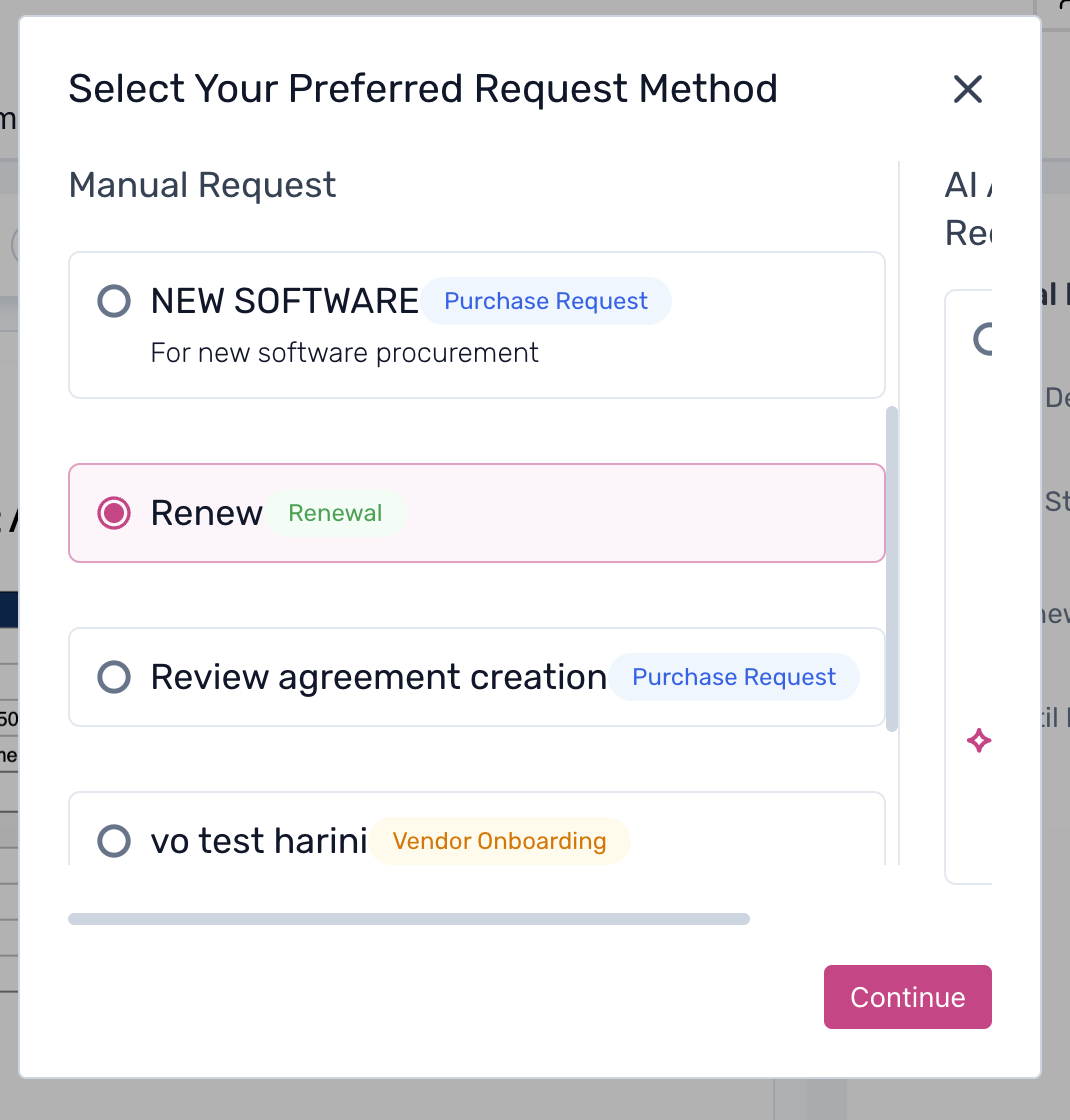
7. Now click on the "Renew" button and start the renewal process.
9. Select the Vendor, and click on submit to submit the renewal request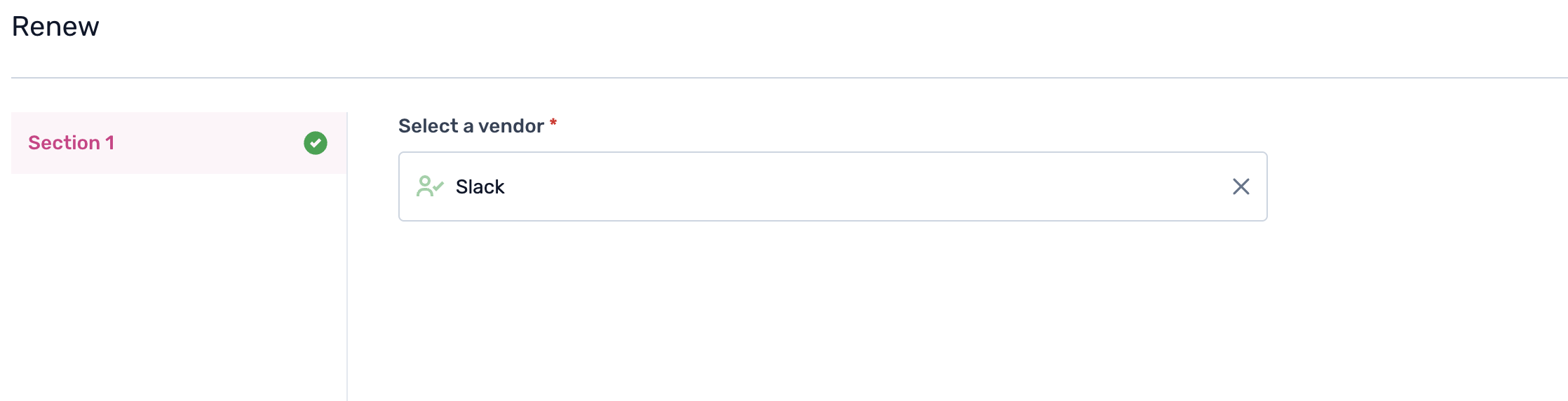
10. And here you are, a request will automatically created.
Next Steps
Now that you know how to track your upcoming renewals, you can proactively prepare negotiation strategies or evaluate vendor performance ahead of renewal discussions. For more details on managing agreements, explore our comprehensive guides on vendor management.
Was this article helpful?
That’s Great!
Thank you for your feedback
Sorry! We couldn't be helpful
Thank you for your feedback
Feedback sent
We appreciate your effort and will try to fix the article