Overview
Spendflo enables users to bulk upload agreements efficiently using a CSV file or by linking a Google Drive folder. This feature streamlines the process of adding multiple contracts, allowing you to collate agreements into a single CSV for direct import or automatically pull them from a drive link.
Steps to Import Agreements via CSV
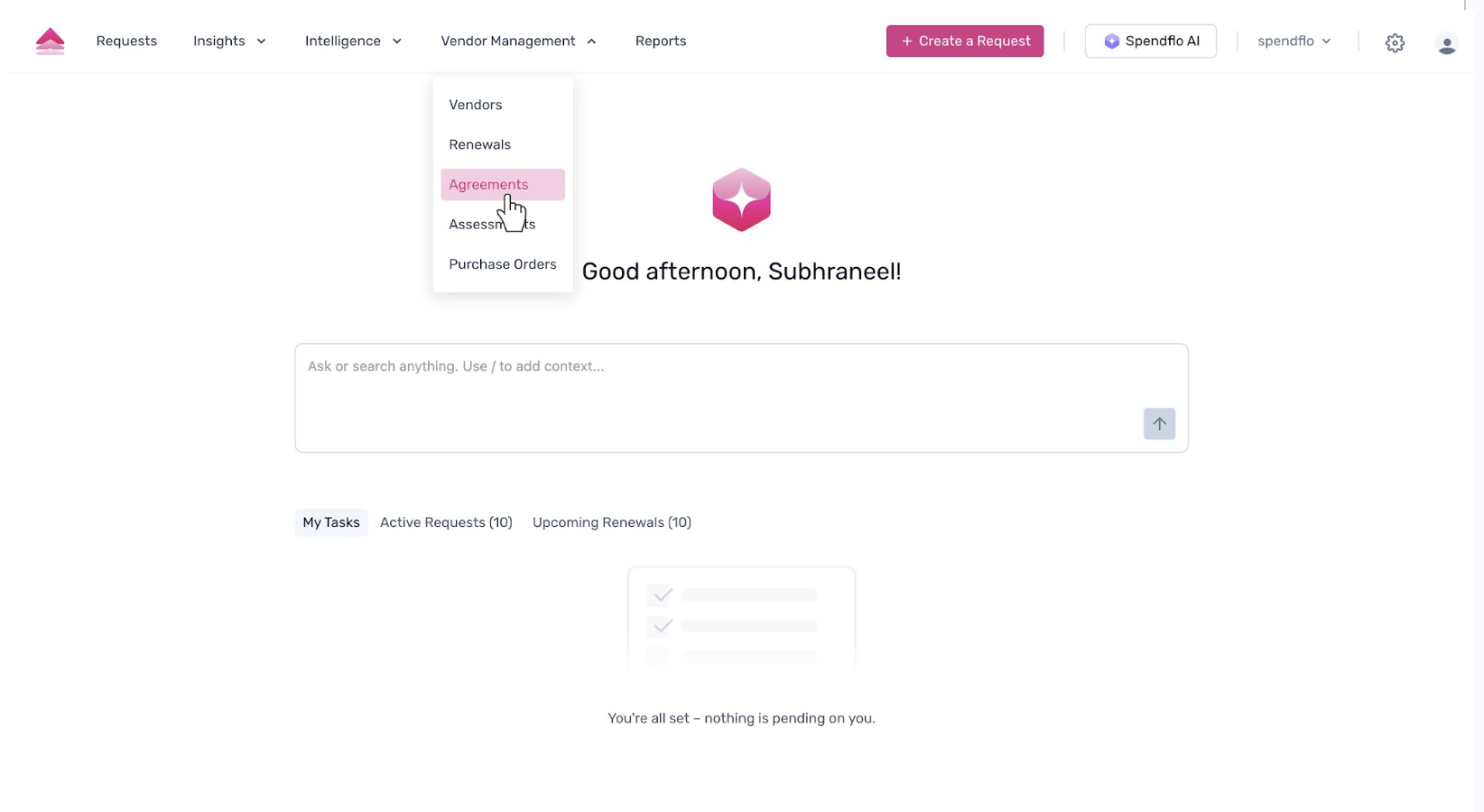
Navigate to the Vendor Management tab in the main header and select Agreements from the dropdown menu.
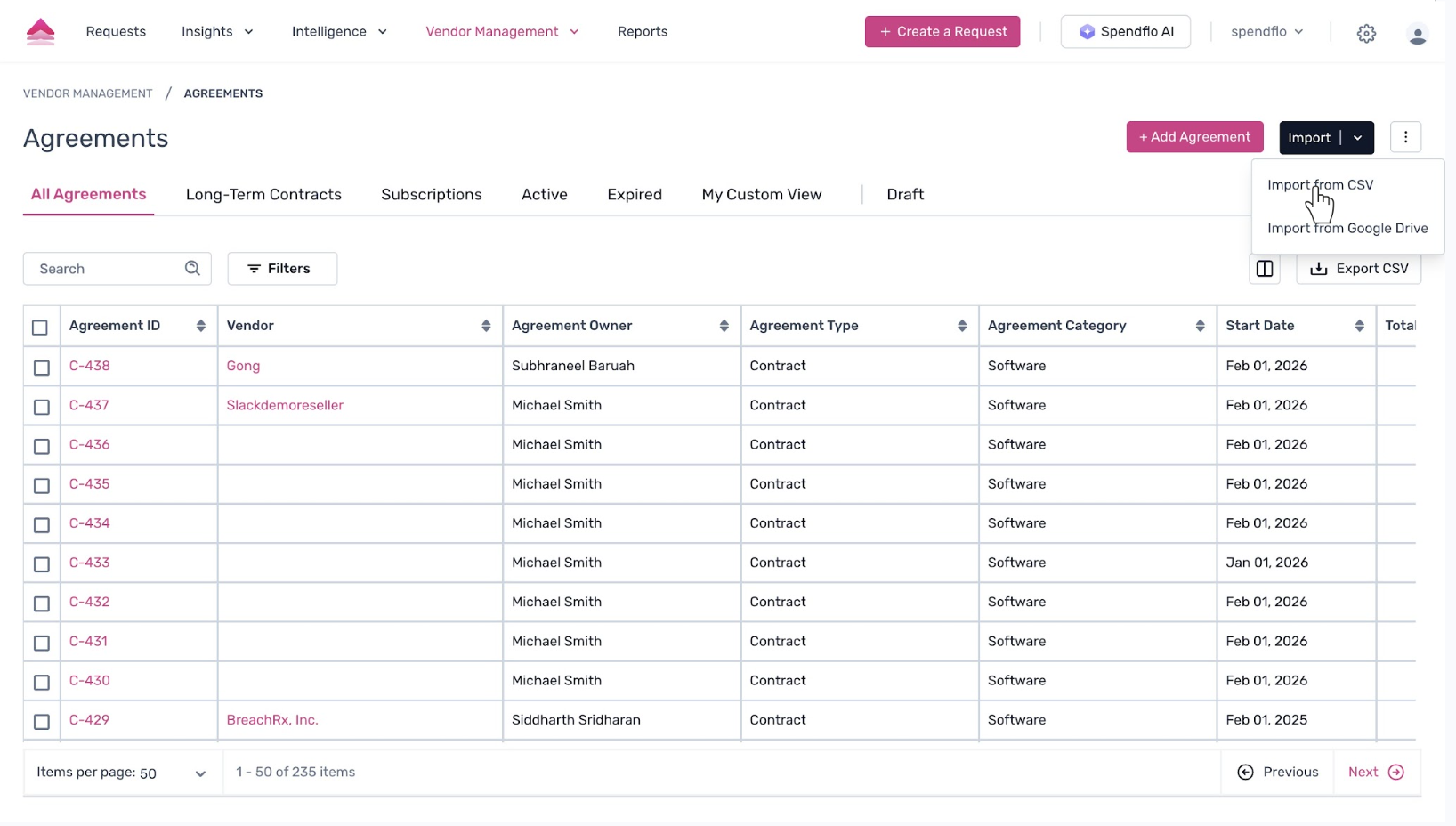
On the Agreements page, click the Import button located in the top right corner, then select Import from CSV from the menu.
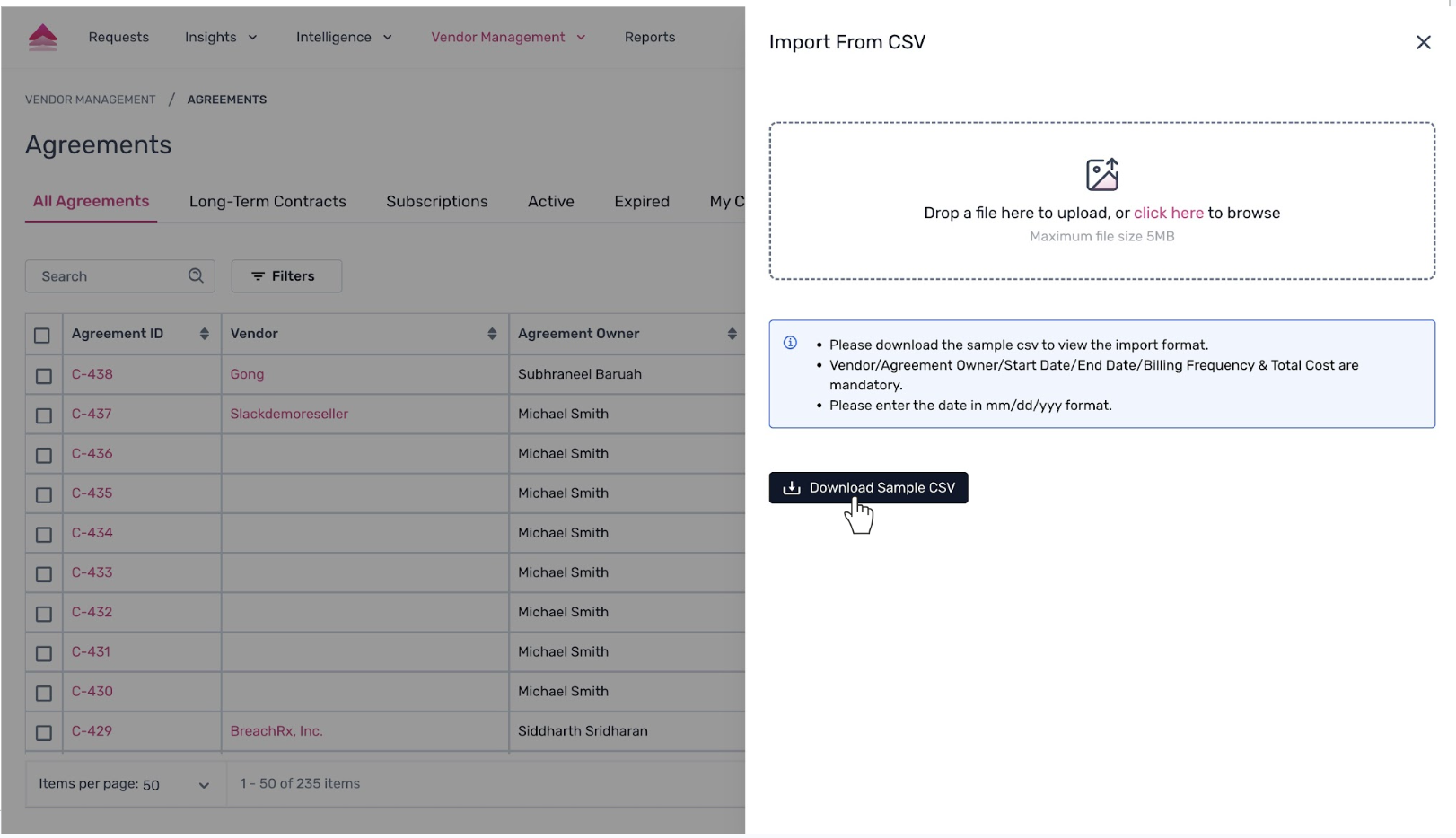
An Import From CSV modal will appear. To ensure your data is formatted correctly, click the Download Sample CSV button to get the required template.
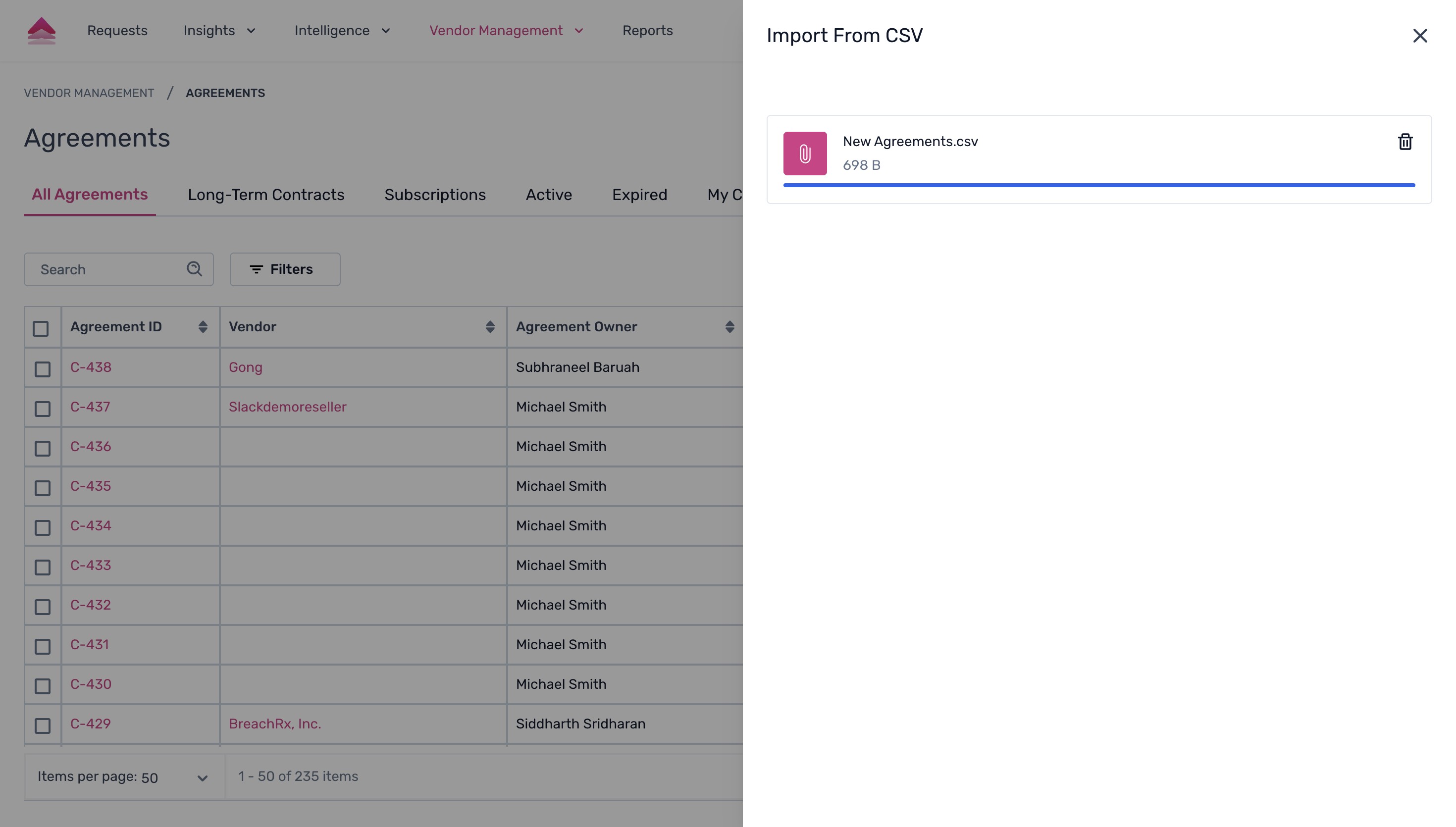
Once your CSV is prepared, either drag and drop the file into the upload area or click the area to browse and select your file. The system will process the upload.
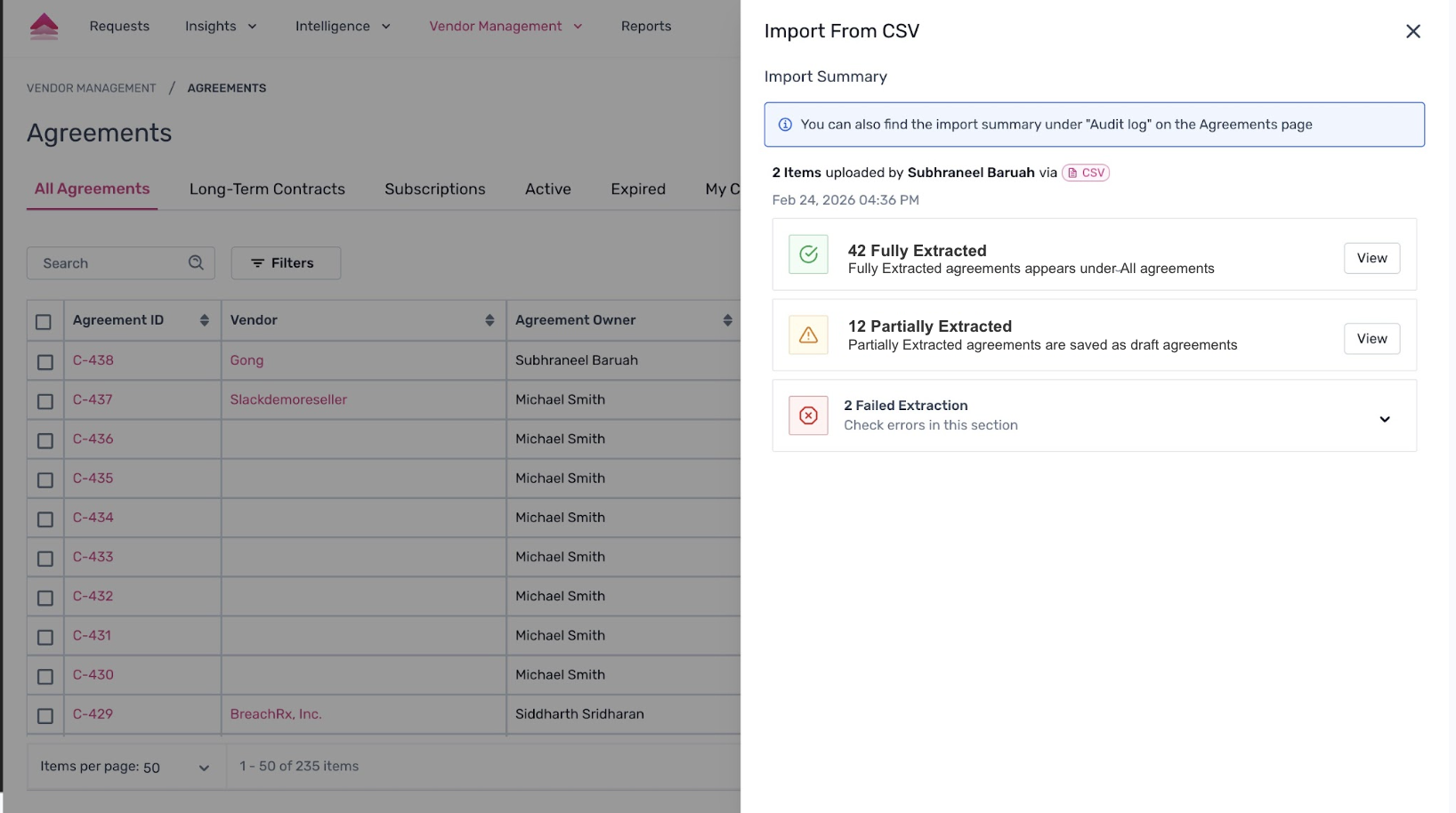
After the file is processed, an Import Summary will be displayed. This summary breaks down the results, indicating how many agreements were fully extracted, partially extracted, or failed.
Steps to Import Agreements via Google Drive
1. Select "Import from Google Drive"
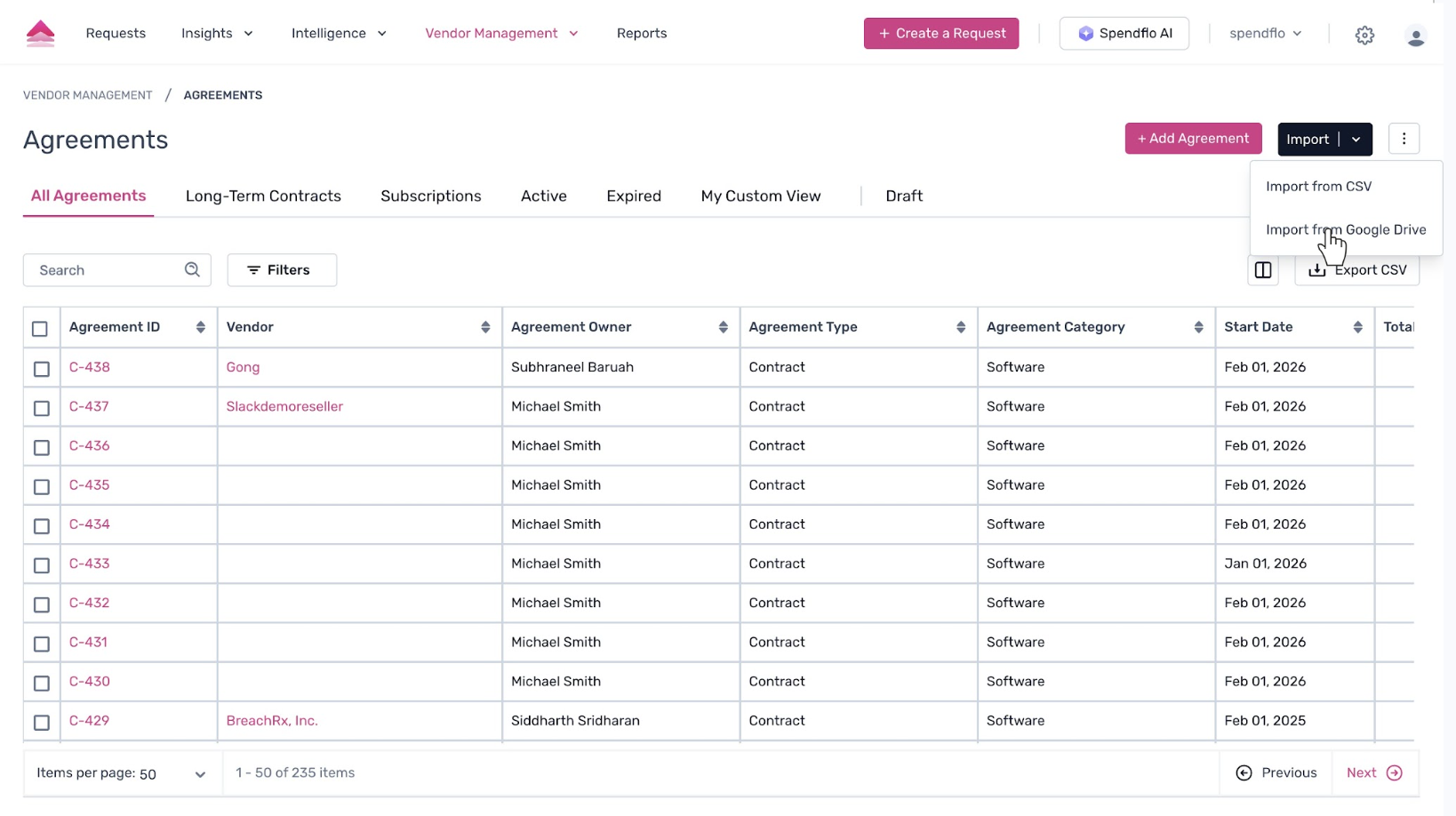
2. Paste your drive link
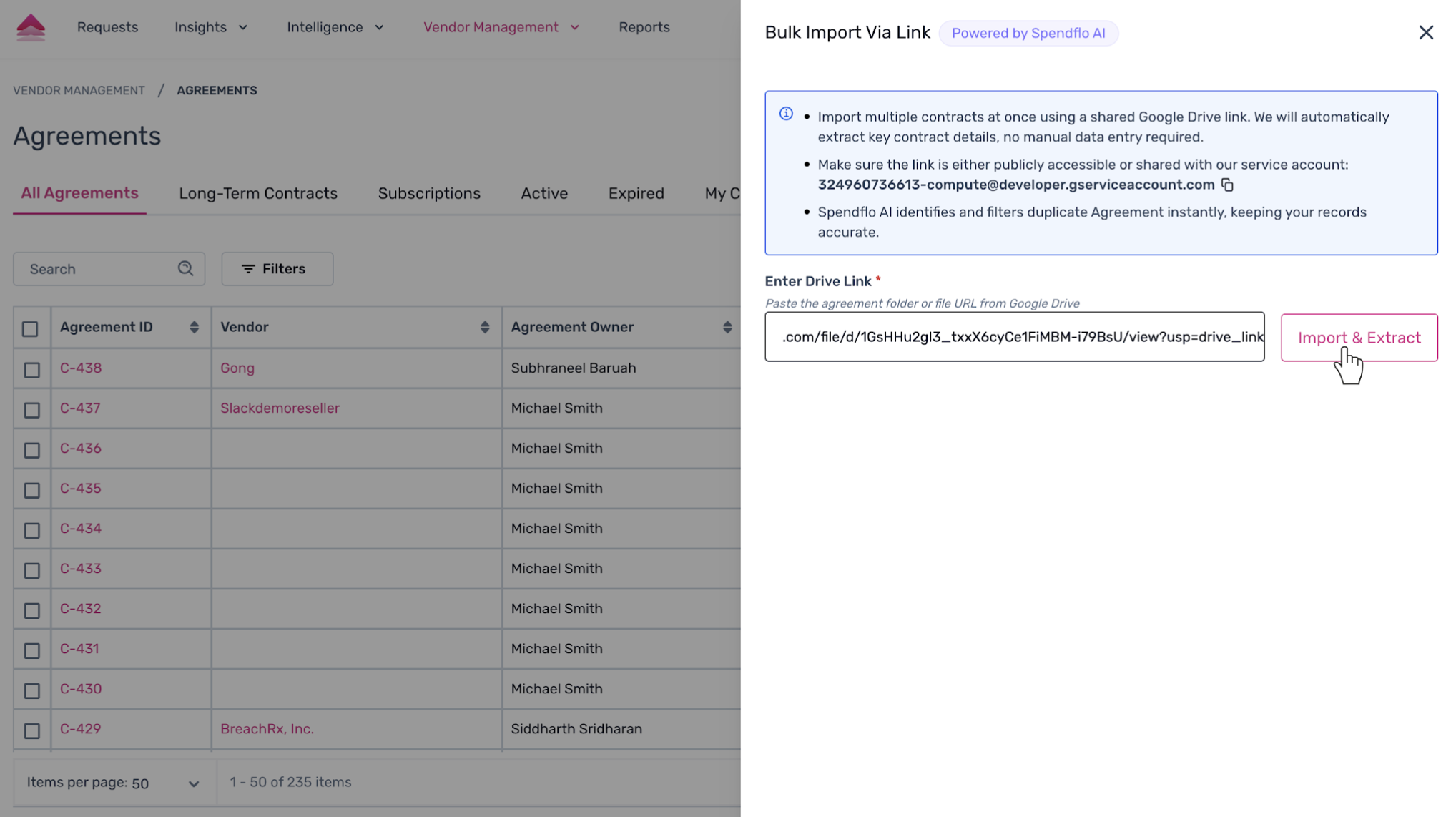
2. Boom! The import is successfully done.
Next Steps
Now that you have imported your agreements, you can manage them directly from the Agreements listing page. You can also find the import summary under the "Audit log" on the Agreements page for future reference.
Was this article helpful?
That’s Great!
Thank you for your feedback
Sorry! We couldn't be helpful
Thank you for your feedback
Feedback sent
We appreciate your effort and will try to fix the article