Overview
Linking a request to an existing agreement allows you to update renewal stages and ensures that all related procurement activities are tracked within the agreement's lifecycle. This feature enables you to associate upgrades, renewals, or other request types directly with the relevant contract.
Here are the steps to link a request to an agreement:
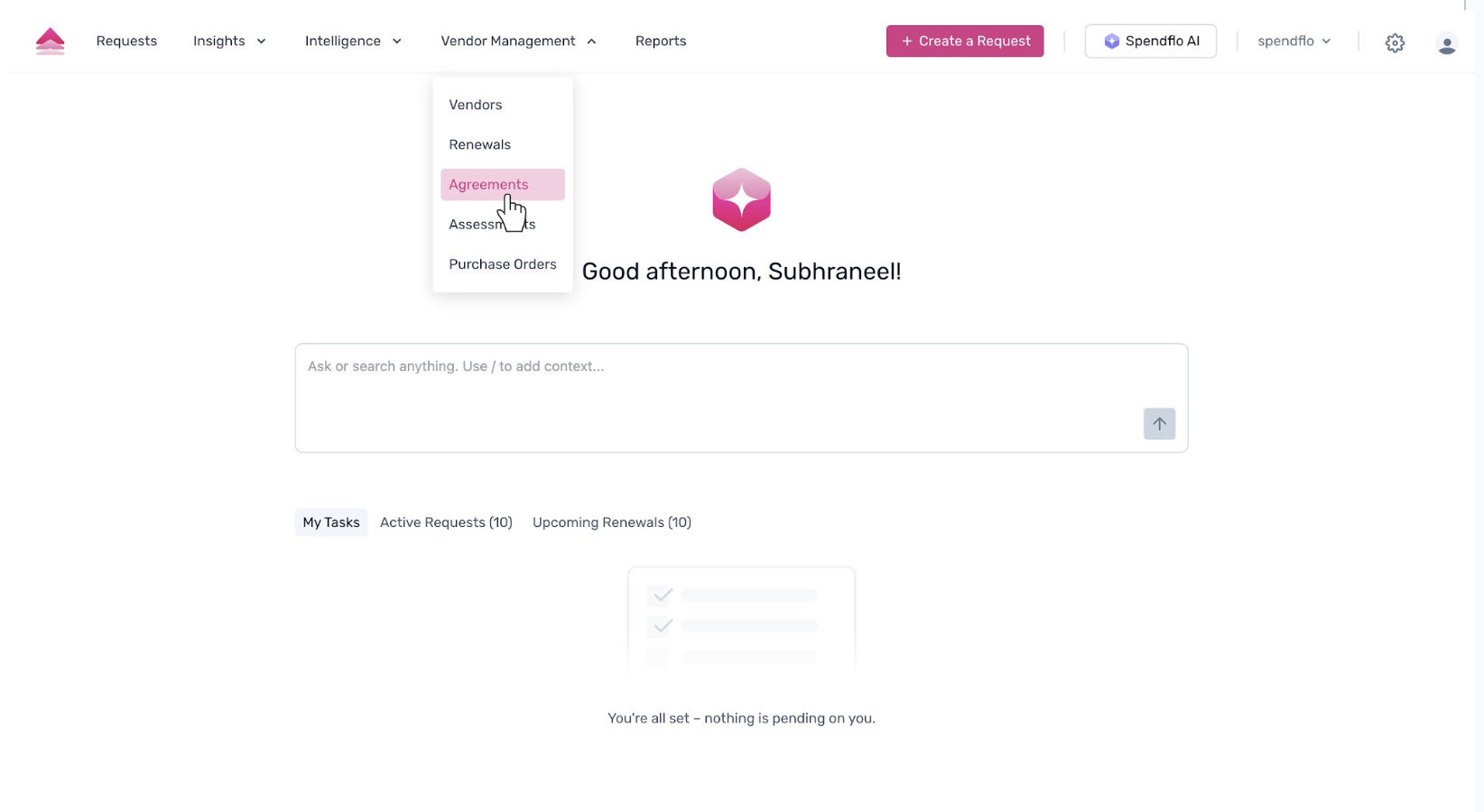
Navigate to the Agreements section by clicking on Vendor Management in the top navigation bar. From the dropdown menu that appears, select Agreements.
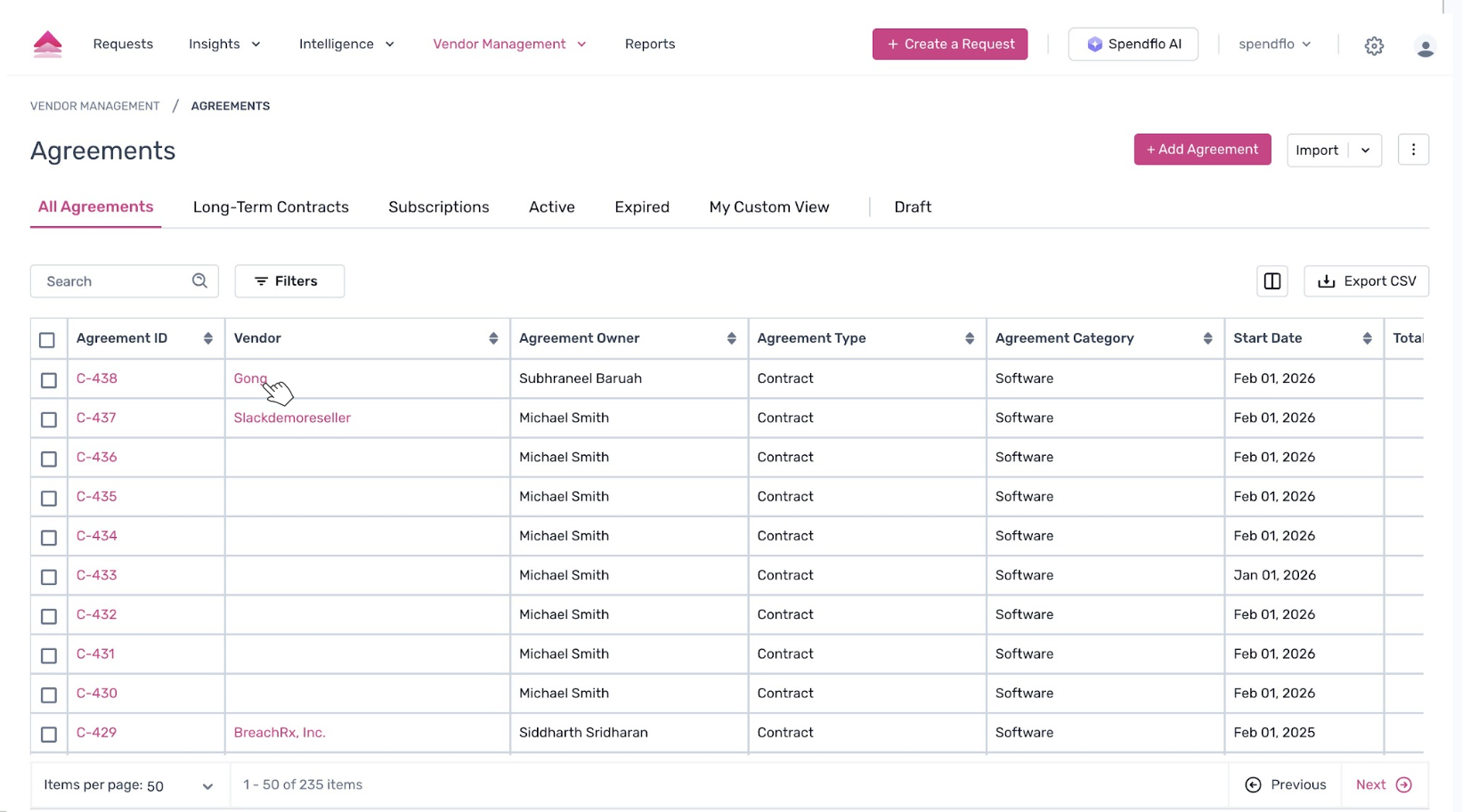
You will be taken to the Agreements page, which lists all current agreements. From this list, locate and click on the specific agreement you wish to view.
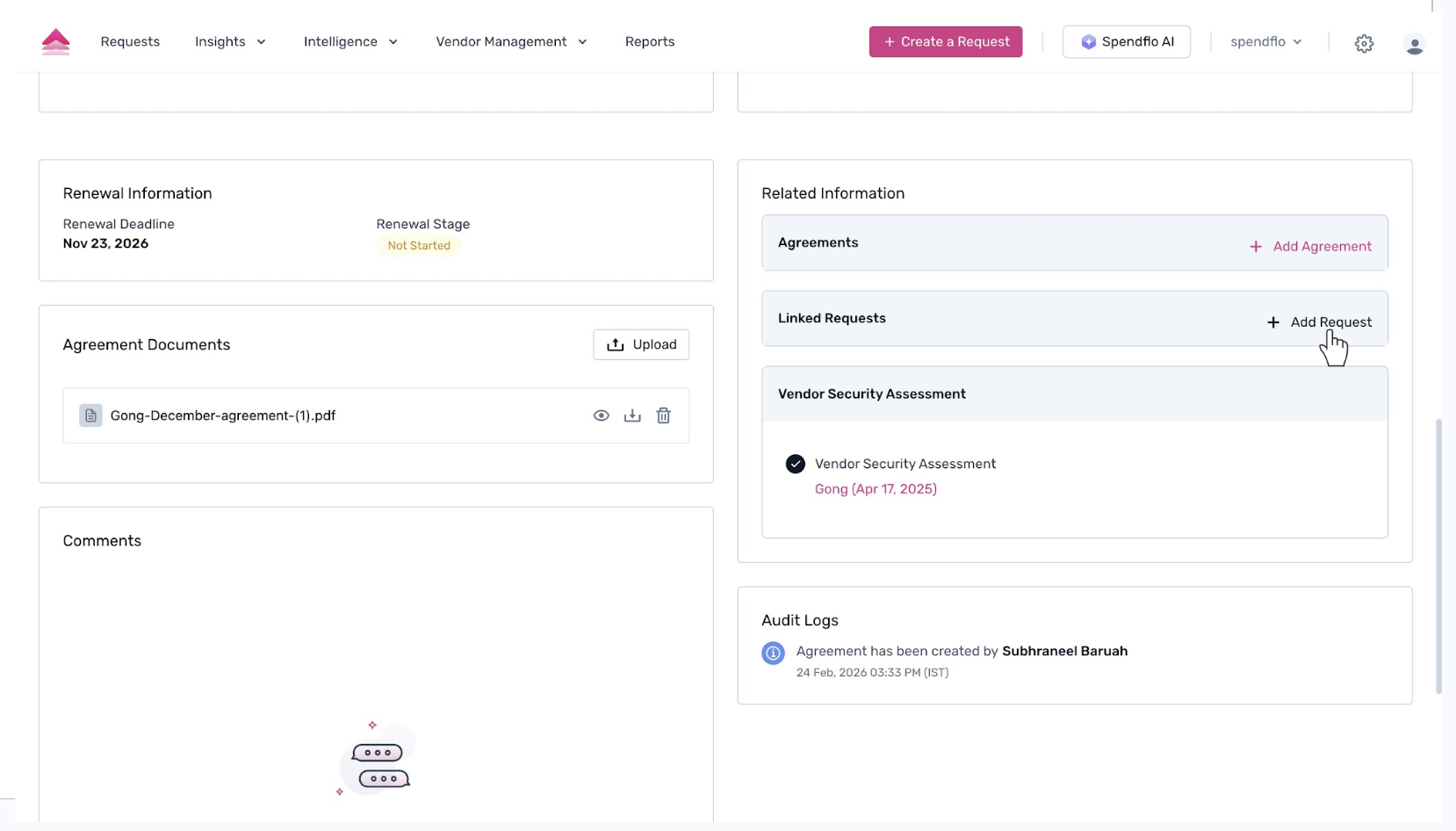
On the agreement details page, scroll down to the Related Information section. Here you will find options to link related items like other agreements or requests.
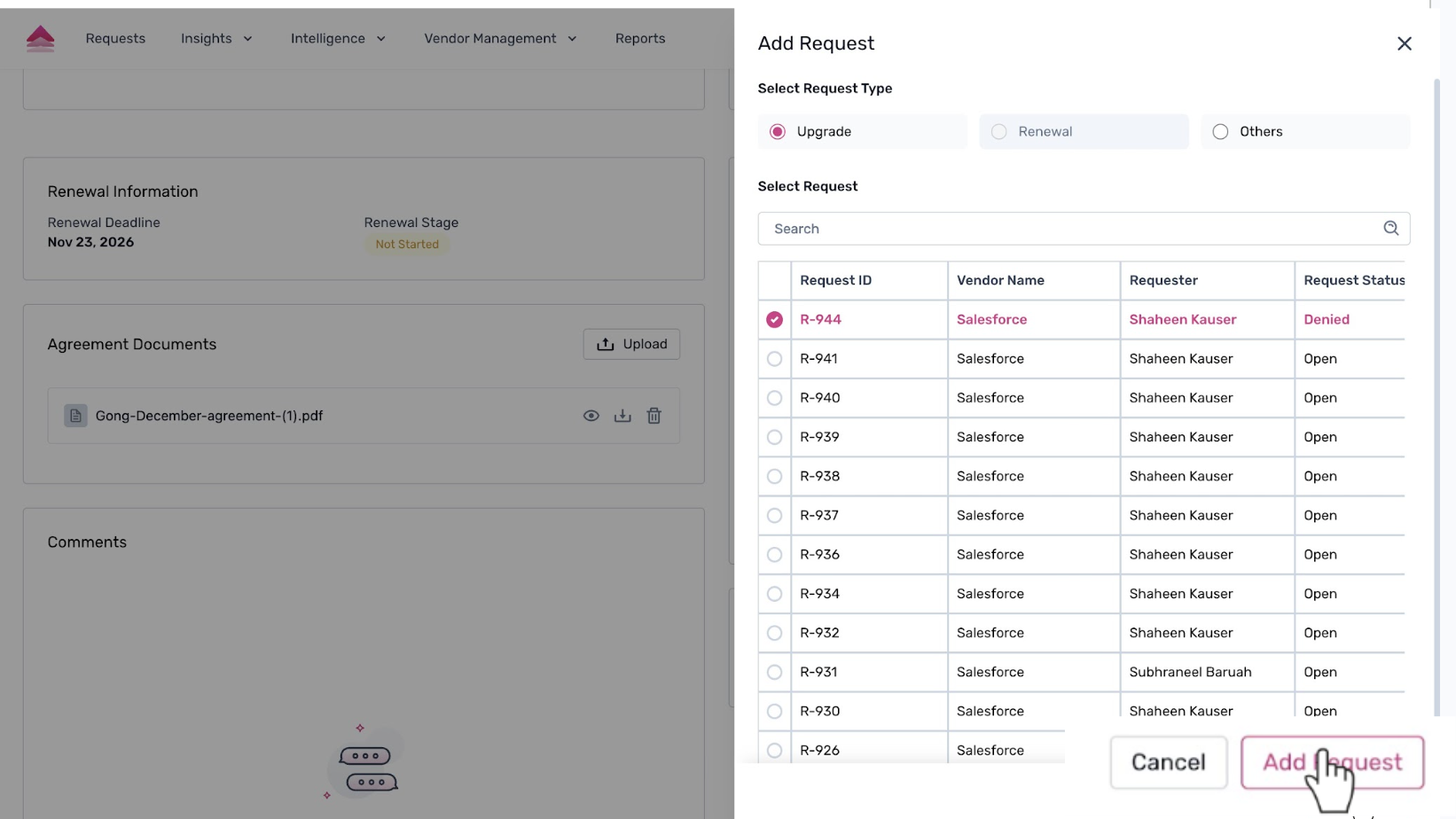
To link an existing request, click the + Add Request button within the Linked Requests card. An Add Request modal will appear. First, select the request type (e.g., Upgrade). Then, from the list of available requests, select the one you want to link by clicking the corresponding radio button.
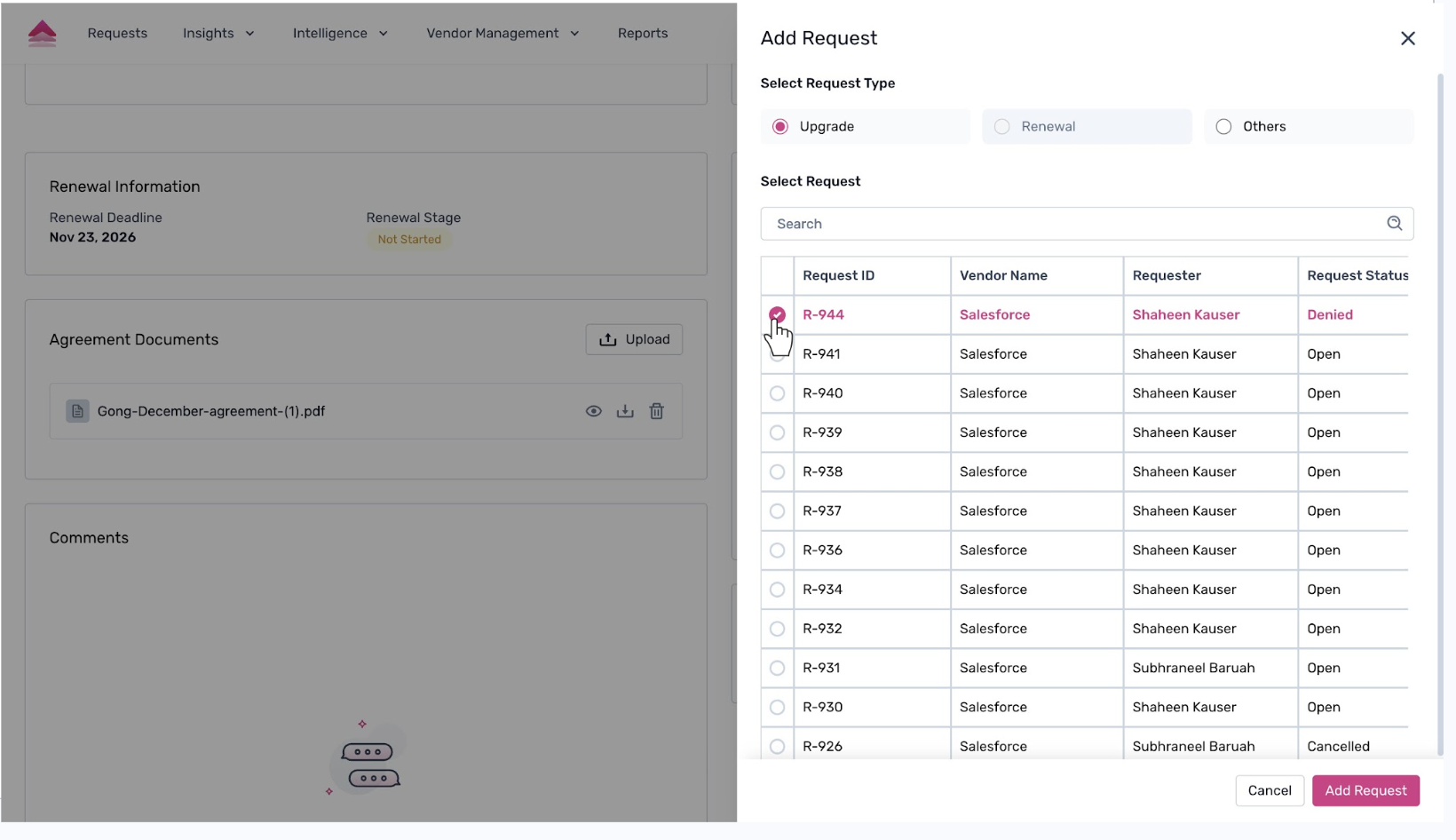
Finally, click the Add Request button at the bottom of the modal to confirm.
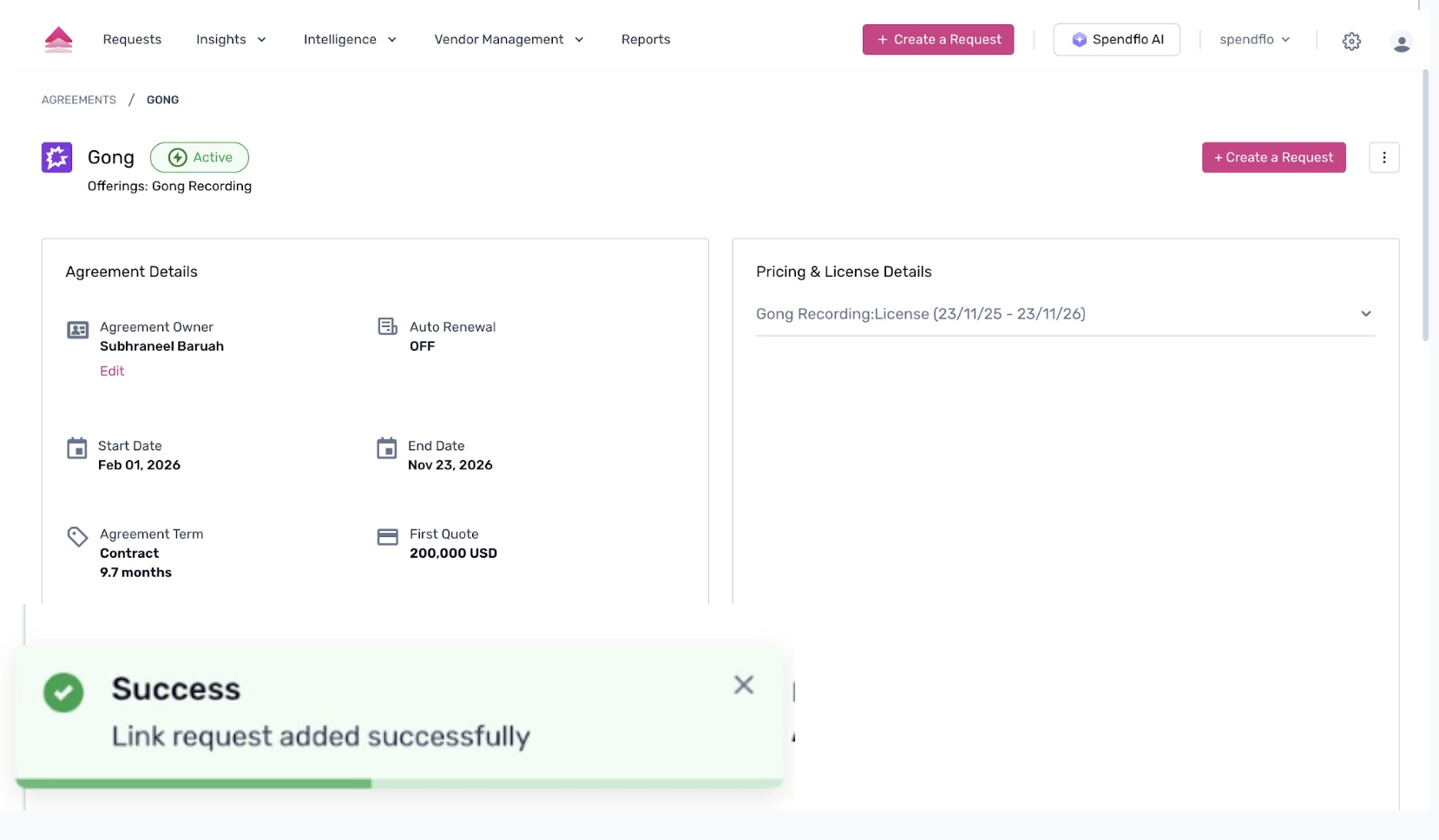
6. The request is now successfully linked to the agreement. A confirmation message will appear on the screen, and the newly linked request will be visible under the Linked Requests section.
Next Steps
Now that you have linked a request to an agreement, you can monitor its progress and renewal stage. For more information on managing your agreements, refer to our guide on Understanding the Agreements Listing Table.
Was this article helpful?
That’s Great!
Thank you for your feedback
Sorry! We couldn't be helpful
Thank you for your feedback
Feedback sent
We appreciate your effort and will try to fix the article